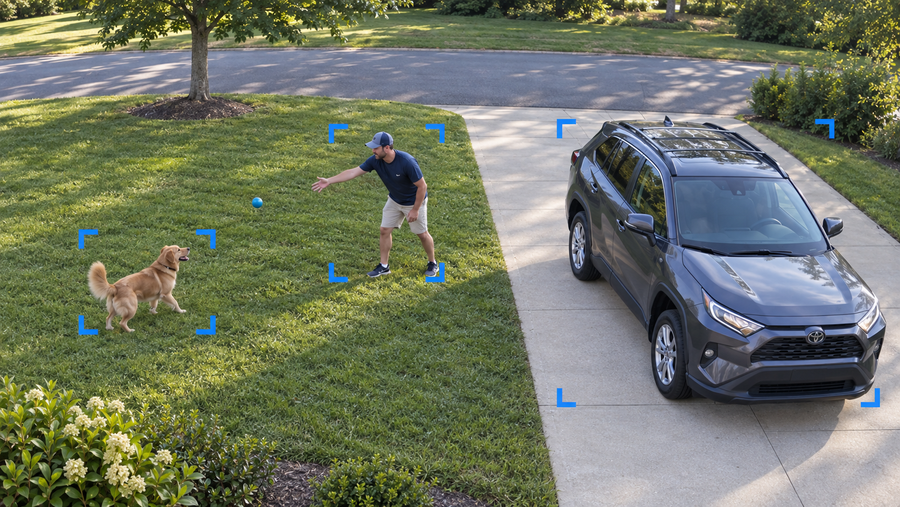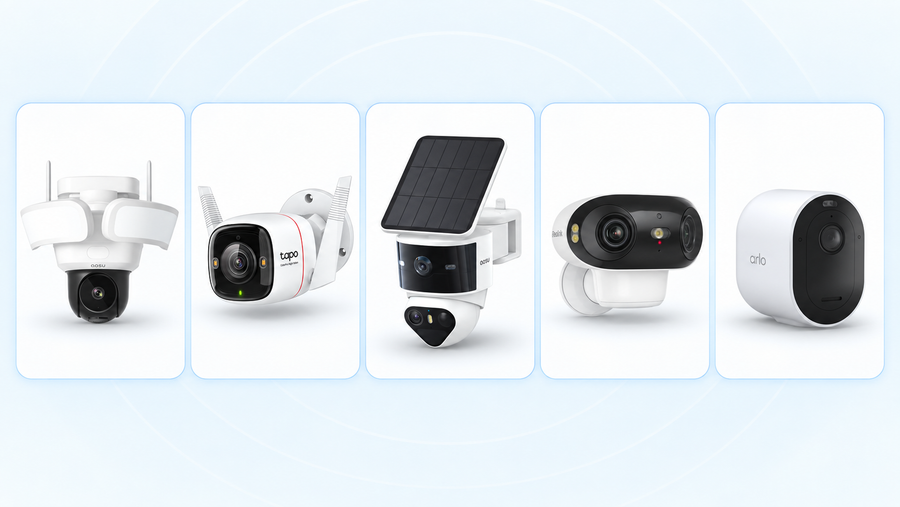



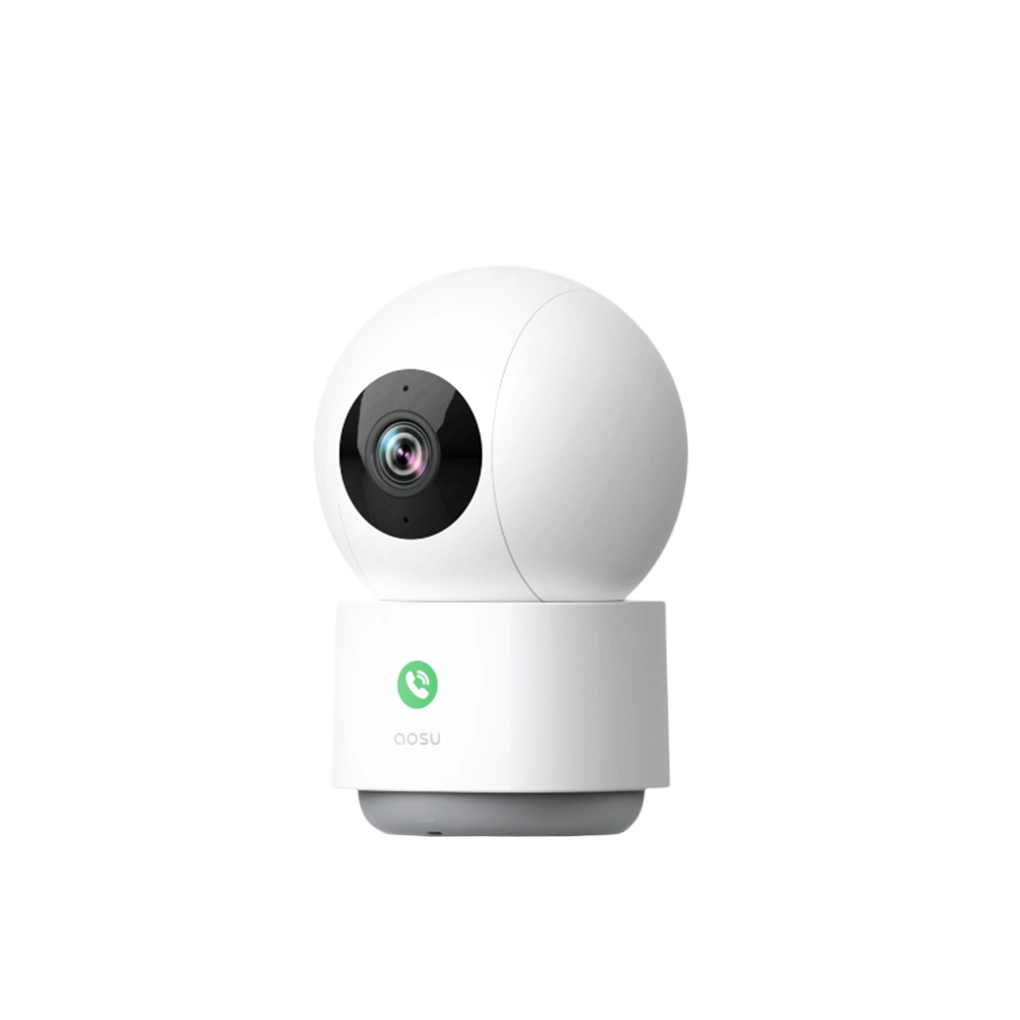
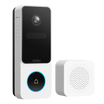

aosu IndoorCam P1 Pro is our top pick for everyday indoor monitoring, combining local SD storage, a 4MP pan-and-tilt view and one-touch calls. The alternatives below cover specific priorities: a physical privacy button, a fixed view, expandable recorder storage or continuous cloud history.
A full timeline helps you see what happened before a dog knocked something over, when someone came through the hallway, or what occurred between two alerts. Each camera below can save video between detected events with the listed setup. All five use plug-in power.
Best Indoor Cameras with Continuous Recording: At a Glance
Start with the storage setup. A camera with a memory-card slot still needs a card and continuous recording enabled. A cloud camera needs a plan that includes continuous history.
| Camera | Best fit | What to buy for continuous history | Required subscription |
|---|---|---|---|
| aosu IndoorCam P1 Pro | Our top pick for everyday indoor monitoring | Camera + compatible microSD card; select 24/7 local recording | None for local recording |
| Tapo C225 | Pan-and-tilt view with a physical privacy button | Camera + compatible microSD card, up to 512GB; card sold separately | None for local recording |
| Wyze Cam v4 | Fixed view of a doorway, hallway or pet area | Camera + compatible microSD card; 128GB or 256GB is a practical starting choice | None for local recording |
| Reolink E1 Zoom (current 4K model) | Local recording with room to expand | Camera + microSD card up to 512GB, or a compatible Reolink recorder/hub | None for the listed local setup |
| Nest Cam Indoor (wired, 3rd gen) | Continuous history in Google Home | Camera + Google Home Premium Advanced; up to 10 days of continuous cloud history | US $20/month or $200/year per home |
How We Chose These Indoor Cameras
This is a research-based buying guide using manufacturer specifications and support documentation checked on September 15, 2026. The recommendations reflect documented features and household uses; they are not a hands-on performance ranking.
To qualify, a camera must save a playable video timeline between motion events. We compared the required storage, recurring fees, room coverage and ways to stop recording when people want privacy. Live viewing alone and occasional snapshots do not meet that requirement.
The list focuses on cameras you can place inside a home near an outlet. A rotating camera can look around a room; a fixed camera keeps watching the same doorway or pet bed. Choose around what you need to see later.
aosu IndoorCam P1 Pro: Our Top Pick
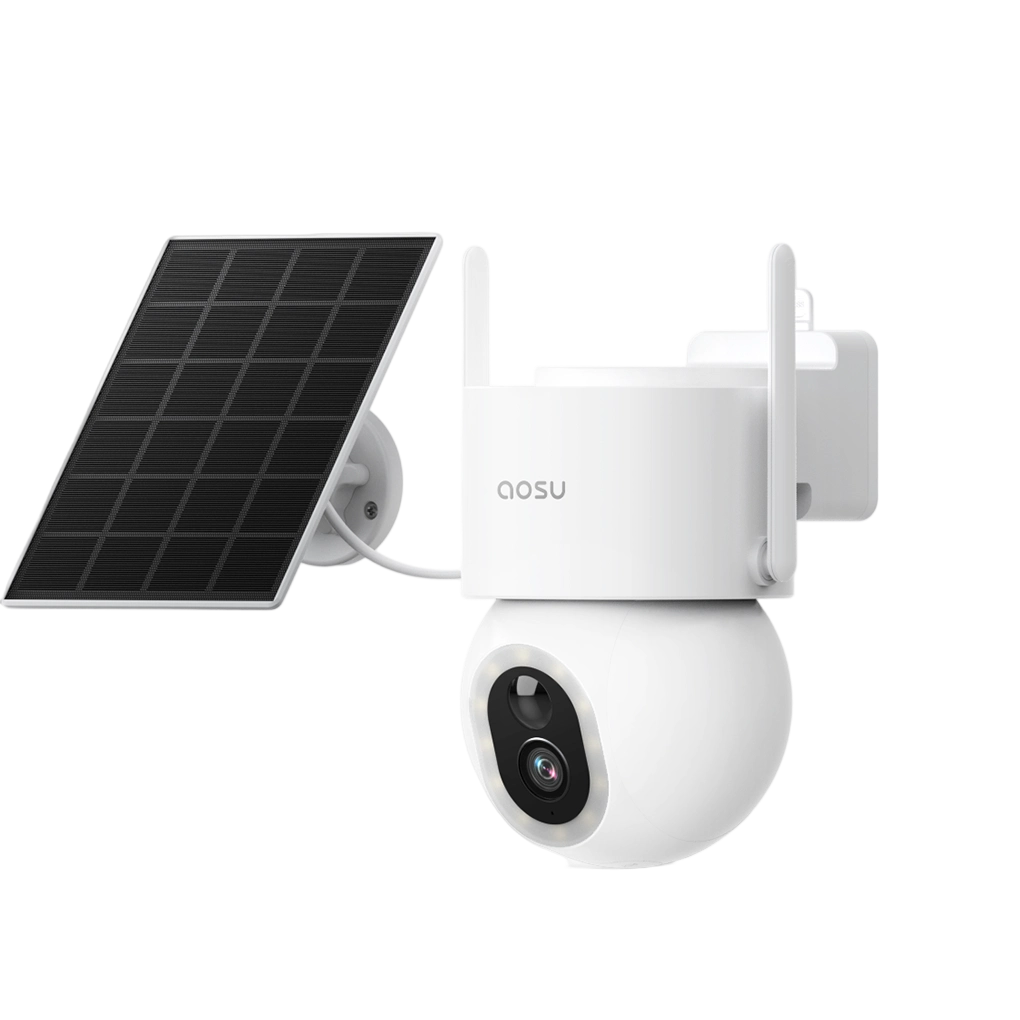
IndoorCam P1 Pro is our first choice for keeping an eye on pets and everyday activity at home. It combines a 4MP view with pan-and-tilt movement, smart motion tracking and infrared night vision. That makes it a practical fit for a living room where a dog moves between its bed and the sofa.
For continuous history, use a compatible microSD card and select 24/7 recording in the aosu app. Keep the camera plugged in so it can save the time between motion alerts. Local recording does not require a cloud subscription; aosuProtect+ stores detected events in the cloud.
The camera connects to either 2.4GHz or 5GHz Wi-Fi. One-touch calls let someone at home start a conversation from the camera, while Privacy Mode gives the household a way to pause monitoring. Together, these features suit a shared room where you want both recorded history and an easy way to check in.
Choose P1 Pro if you want local recording, flexible room viewing and two-way communication in one indoor camera. Aim it at the area you most want to review later, then use the timeline check below to confirm your setup.

aosu IndoorCam P1 Pro. Image: aosu.
Related links:
· Explore aosu IndoorCam P1 Pro
Tapo C225: Best for a Physical Privacy Button
Choose the C225 for a shared living room where you want pan-and-tilt viewing and an obvious way to stop recording. Its button hides the lens inside the housing. TP-Link says Privacy Mode stops video and audio recording as well as streaming.
The camera records 2K video, connects through 2.4GHz Wi-Fi and supports a microSD card up to 512GB. Buy the card separately and set a continuous recording schedule in the Tapo app. This local setup does not require Tapo Care; that service provides cloud event recordings rather than a continuous cloud archive.
The useful combination is local history while you’re away and a physical control when you’re home. Privacy Mode leaves an intentional gap in the timeline, so turn it off when you want recording to resume.

Tapo C225. Image: TP-Link.
Wyze Cam v4: Best for a Fixed View with Local Recording
Choose Wyze Cam v4 when you want the same doorway, pet bed or section of the room in view throughout the day. It has a fixed lens, 2560 × 1440 resolution and 2.4GHz Wi-Fi. A USB cable supplies power.
Add a compatible microSD card and select continuous local recording. Wyze confirms that this works without a subscription. Paid services add features such as cloud storage and smarter event tools; the local recording itself does not require them.
A 128GB or 256GB card is a sensible starting point, depending on how far back you want to review. Both sizes fall within Wyze’s published tech-spec capacity. The main tradeoff is coverage: you must aim the camera at the area that matters, because it cannot turn to follow a pet across the room.
Wyze also lists Cam v4 among the cameras that can keep recording to microSD after Wi-Fi drops, provided recording is configured while online and the camera remains powered.

Wyze Cam v4. Image: Wyze.
Reolink E1 Zoom: Best for Expandable Local Storage
Choose the current 4K E1 Zoom if you want to start with a memory card and add a separate recorder later. It supports continuous recording to microSD up to 512GB and compatible Reolink NVR or Home Hub storage. An NVR is a network video recorder that stores footage from connected cameras.
The current model also has 3× optical zoom, pan-and-tilt movement, dual-band Wi-Fi and an Ethernet port. Ethernet carries the network connection; the camera still needs its separate power supply.
Specify the 4K model when buying: older E1 Zoom versions share the name. A separate recorder adds cost and equipment, but it lets you keep the archive away from a camera sitting on a shelf.

Reolink E1 Zoom, current 4K model. Image: Reolink.
Nest Cam Indoor: Best for Continuous Cloud History
Choose Nest Cam Indoor (wired, 3rd gen) if you use Google Home and want your recording history stored online. The camera provides a fixed 2K view. Google Home Premium Advanced adds up to 10 days of continuous video history.
The required Advanced plan costs US $20 per month or $200 per year for a home at the time of checking. It covers compatible Google Nest devices in that home. Standard includes event history, so it does not provide the continuous timeline covered here. The camera purchase is separate.
Cloud storage keeps uploaded footage available away from the camera. It also makes the internet connection part of your recording setup. Google documents limited internal backup for events during an outage; that is not a substitute for a long continuous local archive.
This is the strongest fit here when cloud history and the Google Home app are your priorities. Budget for the ongoing plan from the start.

Nest Cam Indoor (wired, 3rd gen), Snow. Image: Google.
Choose the View You Want to Keep Recording
For a hallway entrance, a fixed view can be the better choice. Someone walking through the door stays within the same frame while the camera keeps recording. For a pet that moves between a bed and a nearby sofa, pan-and-tilt movement gives you more flexibility.
A rotating camera records the direction it faces at that moment. If it turns toward the sofa and the doorway leaves the frame, the saved video no longer shows the doorway. Continuous recording fills the timeline; the lens position determines what appears in it.
Also consider how recording will fit into a shared home. Agree on the view, recording hours, audio setting and who can watch saved footage. A physical privacy button is convenient when you want a clear way to pause a camera in a room people use every day.
For detailed placement examples, use our indoor camera placement guide.
Related links:
· Where to put an indoor security camera
How Much Storage Do You Need for Continuous Indoor Recording?
Choose a retention target before buying the card. Reviewing yesterday’s pet activity needs less storage than looking back across a week away. Continuous footage uses space even when the room is empty.
The table gives a simple planning estimate for one camera. Bitrate is the amount of data saved each second. These examples use a constant total recording bitrate of 2 or 4 megabits per second (Mbps); they are calculations, not measured retention for the cameras above.
Estimated days = card capacity in GB ÷ (10.8 × bitrate in Mbps). Actual retention changes with bitrate, audio, compression, scene activity and usable card space.
| Card capacity | At 2 Mbps | At 4 Mbps |
|---|---|---|
| 128GB | About 5.9 days | About 3.0 days |
| 256GB | About 11.9 days | About 5.9 days |
| 512GB | About 23.7 days | About 11.9 days |
```
Illustrative continuous-recording capacity using decimal GB, before storage overhead. Check that the camera supports the chosen card size.
Buy a card made for repeated recording
Choose a compatible endurance microSD card designed for repeated video writing. SanDisk’s High Endurance range, for example, is designed for home monitoring and repeated recording. Check the camera’s capacity and speed requirements before buying.
With loop recording enabled, new footage replaces the oldest footage when storage fills. Save an important clip separately before it is overwritten. A larger card gives you more time to notice and save a moment; it does not make that moment permanent.
Related links:
· SanDisk High Endurance recording-card specifications
Compare the complete first-year cost
For local recording, add the camera price and card or recorder cost. For continuous cloud history, add the required subscription. Count the hardware needed for each room, then check whether the plan charges per camera or covers the home. Compare that total with how many days of useful footage the setup keeps.
Check the Saved Timeline Before You Rely on It
After setup, a short recording check confirms that the camera is saving the history you bought it for.
1. Set the hours you want recorded: Enable continuous recording for the full day or your chosen schedule. Confirm that local storage is recognized or the required continuous cloud plan is active.
2. Leave a gap between two events: Walk through the view, leave the room empty for several minutes, then walk through again. Close the live view while the camera records.
3. Play back the empty-room interval: Open saved history and choose a time between the two walks. You should be able to play that interval, including the time with no motion alert.
4. Save a short clip: Export a sample and play it outside the camera app. Check that it includes the time and detail you need. Repeat the playback check after dark with the room’s usual lighting.
If the interval is missing
Check the recording schedule, storage status, privacy setting and subscription tier first. Turning up motion sensitivity does not create a continuous archive if the camera is configured to save only events.
Power matters too. These five cameras need their wired supply to keep recording. An internet outage and a power outage are different problems: a camera that supports offline local recording still needs electricity.
To Wrap Up
Start with aosu IndoorCam P1 Pro for everyday indoor monitoring with local storage, a flexible pan-and-tilt view and one-touch calls. If your priority is a fixed frame, a physical privacy button, a separate recorder or continuous cloud history, use the comparison to choose the setup that fits.
Then buy the complete recording setup and check the saved interval between two events. A useful indoor camera lets you return to the moment you need, even when it never triggered an alert.
FAQs
Can an indoor camera record continuously without a subscription?
Yes. aosu IndoorCam P1 Pro, Tapo C225, Wyze Cam v4 and current Reolink E1 Zoom can record continuously to compatible local storage without a recording subscription. You need to buy the required card or recorder and enable continuous recording.
Does a camera’s 360-degree view mean it records the whole room at once?
A pan-and-tilt camera turns its lens to look in different directions. It records the view in front of the lens at each moment. If two areas must stay visible together, choose a position that includes both in the frame or use another camera.
Is 128GB enough for continuous recording?
At a constant total bitrate of 2 Mbps, 128GB holds about 5.9 days before storage overhead. At 4 Mbps, it holds about 3 days. Your camera’s actual bitrate and usable card space determine retention.
Do I need to leave the camera app open for continuous recording?
No. Once the camera’s recording setup is active, it saves footage independently of the phone’s live-view screen. Keep the camera powered, its storage available and any connection required by the recording setup working. Use the app to review the saved history.