








A 16-channel 4K security camera system needs enough recording bandwidth, compatible storage and power for every planned camera. Size it around the required frame rate and retention period, then verify live HDMI viewing and playback while all channels record. For 16 channel 4K security cameras running continuously at an assumed 8 Mbps each, the video alone totals 128 Mbps and about 41.5 TB over 30 days.
For a shop, warehouse or office, write those requirements into the installation quote before choosing the recorder.
What Does 16-Channel Actually Mean?
A 16-channel network video recorder (NVR) accepts up to its specified number of camera channels. The box may include fewer cameras, and its built-in PoE port count can differ from its supported channel count. PoE carries power and data over Ethernet between compatible equipment.
One r/homesecurity reader summed up a large-system requirement: “4k, decent low light, decent ability to playback, 16+ cameras, live HDMI view (very important).”
For that combination, the recorder must accept the camera streams, save them continuously, show the required live layout and retrieve recordings without disrupting capture. Each step is a separate specification to check.
Read the exact model’s manual for maximum camera resolution, incoming bandwidth, recording frame rates, decoding capacity and synchronous playback limits. Record any restrictions that apply when analytics or additional displays are enabled.
If all 16 channels are occupied on opening day, there is no spare channel for another entrance. Price a larger recorder now if expansion is likely, including any camera licenses and extra storage.
Related links:
· Read the original r/homesecurity question by u/dustout
Check Simultaneous Recording Capabilities
Let's break down “16 cameras in 4K” into more specific parts: 16 streams at 3840 × 2160, H.265, 15 frames per second, continuous recording, with an initial 8 Mbps video bitrate per camera. These are example settings; it's best to revisit the final bitrate and frame rate you want to target after reviewing movement and detail at the site.
At 8 Mbps each, 16 cameras produce 128 Mbps. A recorder with a 128 Mbps incoming limit would leave no allowance beyond that video total. So remember to calculate in audio, other admitted streams, and operating headroom, when planning your system. Make sure your supplier fully explains which traffic counts toward the limit.
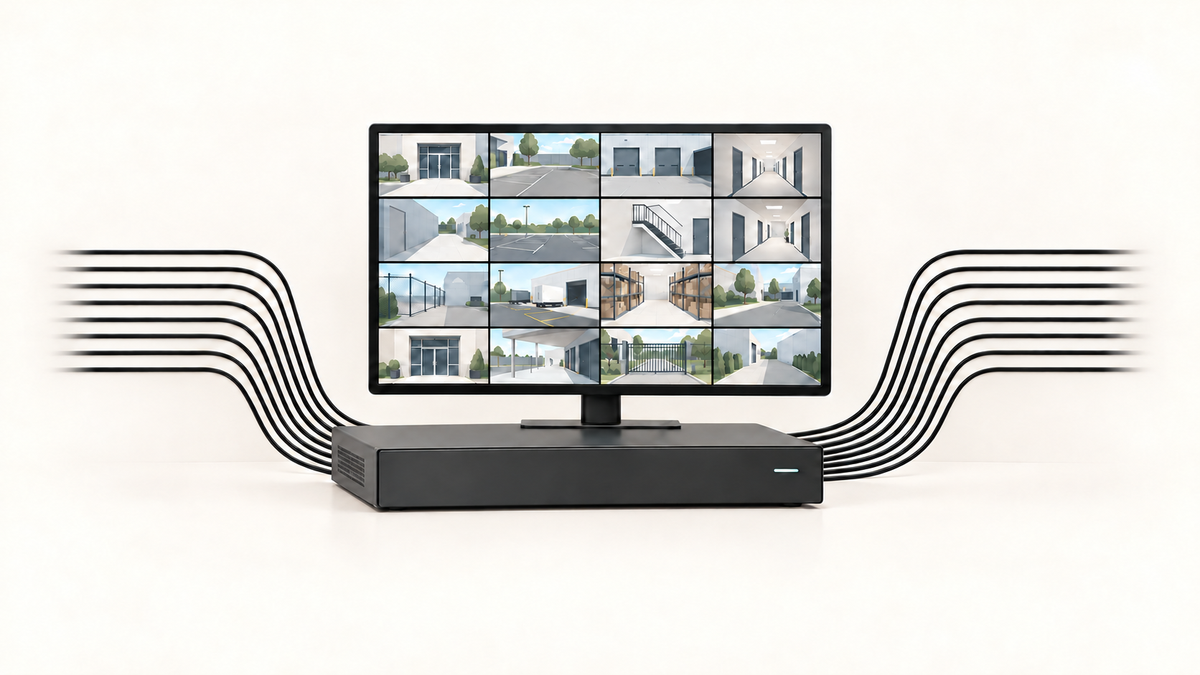
The HDMI output resolution is the size of the whole screen image. On a 3840 × 2160 display, an equal 4-by-4 grid gives each camera roughly 960 × 540 pixels before borders and controls. Full-screen playback is needed to inspect more of a saved 4K image.
Specify the required grid frame rate, how quickly a camera opens full screen, and how many recordings staff must review together. A recorder can save high-resolution streams while using lower-resolution substreams for its live grid. Test both.
Use the following configurations to compare installation quotes. These are general planning options, not specifications for particular products.
| System / suitable site | Full-load recording target | Incoming bandwidth | Drive support to specify | Expansion / drawback | Installation and maintenance costs |
|---|---|---|---|---|---|
| NVR with integrated PoE / one compact building | 16 × 4K at agreed codec, fps and bitrate | Above the complete stream total with agreed reserve | Approved drives, bays, per-drive maximum and usable capacity | Verify channel ceiling; central cable runs | Recorder, cameras, disks, cabling, UPS and disk replacement |
| NVR plus managed PoE switches / cameras in several areas | Same target; verify switch-to-recorder path | Recorder limit plus traffic on each uplink | Same retention requirement; RAID only if supported | Extra ports do not add recorder channels; more network equipment | Switches, uplinks, configuration, UPS coverage and support |
| Recording server with video management software / future growth | Same target; validate server and software together | Camera ingest, disk writes and viewing traffic | Validated storage array and usable capacity after redundancy | Licenses and server capacity govern growth; more administration | Server, licenses, storage, network, updates and support renewal |
Request an itemized installed price and a three-year cost covering licenses, support, replacement drives and optional remote or off-site services. Compare equal camera counts, retention, display performance and handover tests; and remember to account for the cost of installation.
Estimate Storage With Real Inputs
Storage follows the recorded bitrate, camera count, daily recording hours and retention days. Resolution alone does not determine the file size. Use the configured bitrate for a first estimate, then measure actual usage with the chosen codec and scene.
For decimal terabytes: storage TB = cameras × average Mbps per camera × hours per day × days × 0.00045. The factor converts megabits to bytes, hours to seconds and bytes to decimal TB.
Worked example: 16 × 8 × 24 × 30 × 0.00045 = 41.472 TB of video. Daily usage is 1.3824 TB. At 4 Mbps per camera, the same period requires 20.736 TB; at 12 Mbps, it requires 62.208 TB. These are pure arithmetic scenarios, actual quality and storage space will differ.
If you choose to keep 20% of usable capacity free as a planning allowance, divide 41.472 by 0.8: you need at least 51.84 TB of usable recording capacity. Add audio, metadata or separately recorded streams to the estimate before applying that allowance.
Specify usable capacity after formatting and any RAID redundancy, plus the recorder’s approved drive list, bay count and maximum drive size. RAID can provide drive-failure resilience; keep a separate copy of incident footage you need to preserve.
A motion-recording estimate needs measured activity hours, pre-event and post-event buffers, and the actual detection settings. For a business requiring continuous evidence, base the purchase on continuous recording. Agree on the retention target, overwrite policy and person responsible for preserving incidents before installation.
 Illustrative planning inputs: sixteen cameras at 8 Mbps each, recording continuously for thirty days.
Plan Network, Power and Layout
For an illustrative shop with a stockroom and loading area, allocate all 16 channels before ordering:
· 01–02: front entrance, with one face-level approach view and one wider arrival view.
· 03–04: checkout area, showing transactions and the customer approach.
· 05–08: four shop-floor aisles, positioned for people moving between shelves.
· 09–10: stockroom door and main stock aisle.
· 11–12: loading bay and delivery door.
· 13–14: parking entrance and pedestrian approach.
· 15–16: rear exit and rear service area.
For each channel, record its name, purpose, lens/view, mounting position, cable route, maximum power, recording settings and retention. Test a person walking through the entrance and unloading a delivery in daylight and after dark. Lighting, lens choice and distance determine whether the person is large and clear enough in the recording.
Size PoE for each camera’s required standard and maximum demand, including night illumination or heaters. If the selected cameras each require a 12 W switch-side allocation, 16 need 192 W before reserve. Verify the total switch budget and every port’s capability.
Map traffic on each uplink, label and test cable runs, and protect exterior connections. Keep the recorder ventilated and physically secured. Size a UPS for the recorder, disks and PoE equipment that must remain powered, then test the required runtime.
Give the business owner control of the administrator account. Create named accounts: reception can view selected cameras, managers can review and export incidents, and administrators can change settings. Verify that the chosen system supports these restrictions, remove installer access after handover, and assign firmware maintenance to a named person.
Keep camera traffic separate from guest Wi-Fi and restrict access from other business devices. Confirm exact camera/recorder compatibility, including audio, events and exports. For mixed-brand equipment, check model and firmware entries in the ONVIF database and test the required features.
Related links:
· Check exact models and firmware in ONVIF’s Conformant Products database
 Rear connections on an Annke NVR. Photo: Smart Home Perfected, CC BY 2.0. Unmodified.
Related links:
· Photo credit: Smart Home Perfected
· Source photograph on Wikimedia Commons
Test the Full System Before Handover
Make acceptance depend on the installed system running all 16 cameras at the agreed settings. Put the following checks in the quote and retain the results:
· Record all channels together through a busy period and overnight; check resolution, frame rate, bitrate, timestamps and gaps on every channel.
· Run the required HDMI grid, open cameras full screen, and review the agreed number of recordings simultaneously while capture continues.
· Find a staged incident on several cameras. Export the complete time window, including lead-in and follow-up, and play the files on a separate computer.
· Check daytime and nighttime movement at entrances, counters and the loading bay against the camera schedule.
· Test each staff role: permitted views, playback and exports work; restricted cameras and settings stay inaccessible.
· Disconnect internet service and confirm the agreed local recording and HDMI behavior. Test remote access again after reconnection.
· During a planned maintenance window, test UPS operation and orderly shutdown/restart. Confirm automatic recording resumes, the clock remains correct and any interruption is documented.
· Check actual daily storage use and the projected retention. Schedule a follow-up once enough days have elapsed to verify the oldest retained recordings.
· Hand over camera names, cable labels, configuration backup, secure account recovery details, drive information, maintenance dates and an incident-export procedure.
 A CCTV control-room monitor wall serving 176 street cameras. Photo: Mark Yeomans, CC BY-SA 4.0. Unmodified.
Related links:
· Source photograph on Wikimedia Commons
Related links:
· Wireless cameras for small businesses and home offices
Planning Camera Coverage for Your Home
If you're looking to set up a home security system, a user-friendly camera kit can be a more practical choice.
For a home, build coverage around the front door, driveway, side gate and back entrance. Give each camera a clear view of the people, vehicles or packages you need to see. Use separate cameras for areas around corners or entrances that need to stay visible at the same time.
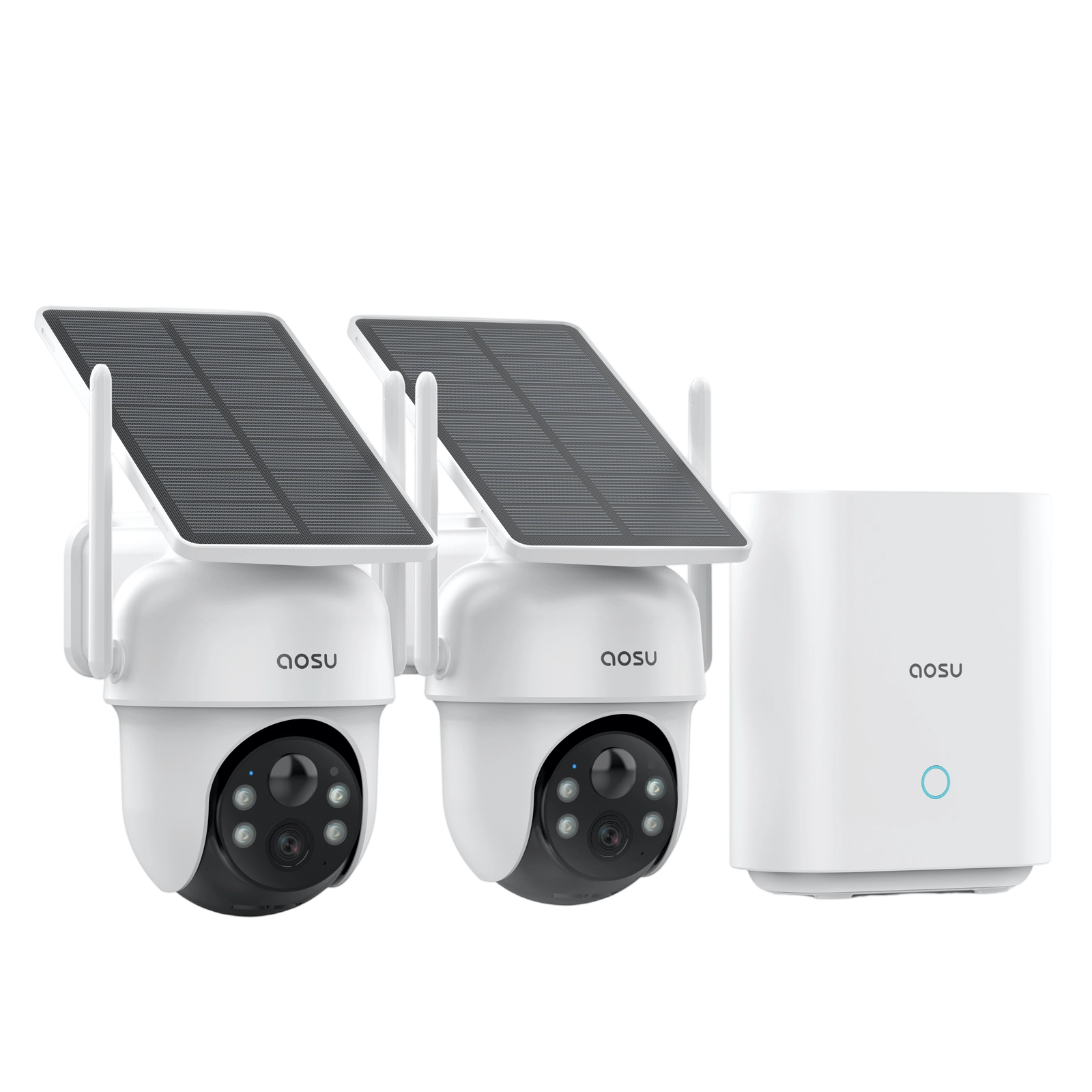
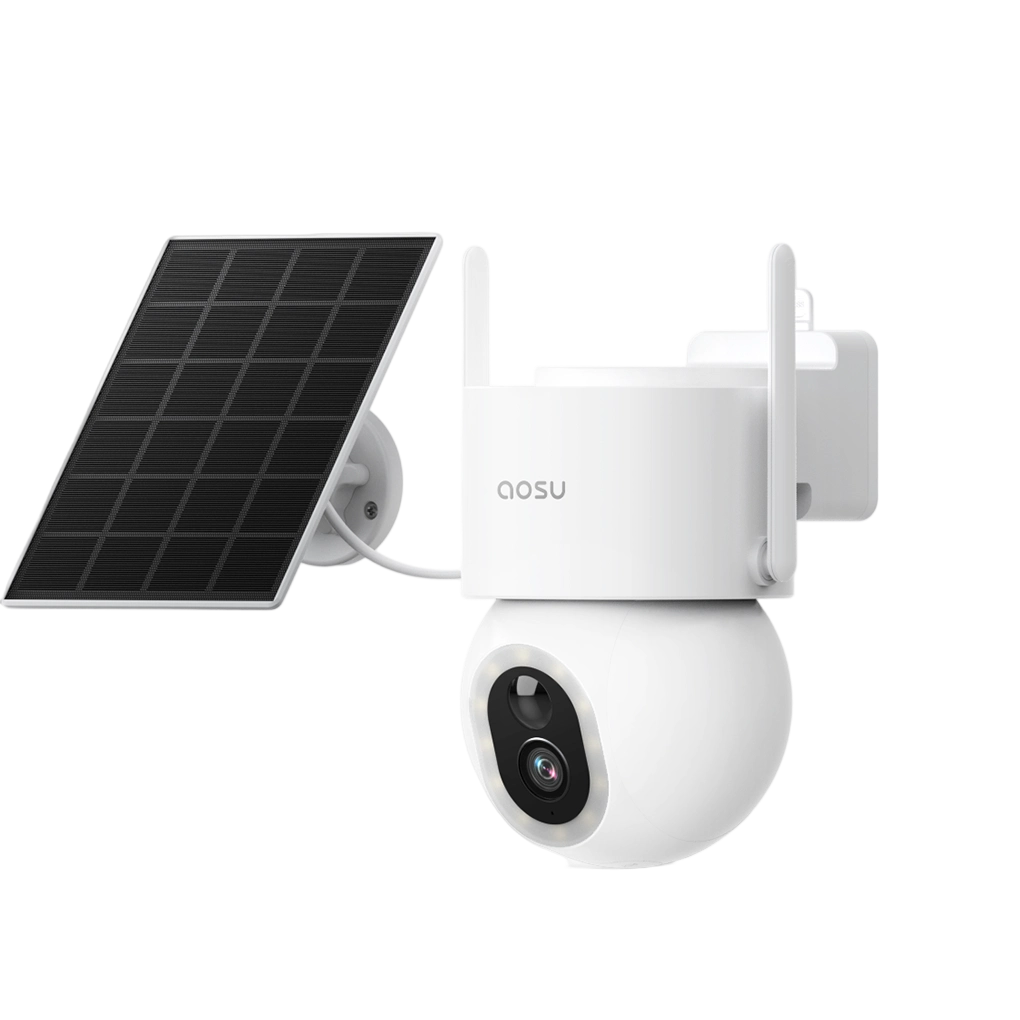
The aosu SolarCam D1 Classic 6-Cam Kit combines six solar-powered outdoor cameras and an aosuBase for local storage. You don't need to run power or Ethernet cables to each camera, making it easier to position cameras around your property. Place the solar panels where they receive direct sunlight.
The cameras, base, and app all work together with just a few minutes of setup. You can check up to four live camera views on one screen in the aosu app and review linked events across cameras. Local storage lets you keep recordings at home without a required subscription.
Use our home coverage planner to work out the camera count and positions for your property before choosing a kit.
Related links:
· Explore the SolarCam D1 Classic 6-Cam Kit
· How Many Security Cameras Do I Need? A Practical Home Coverage Planner
Finalize Your System Specification
Before buying the business system, request a quote that names the full-load recording settings, usable storage, display performance and acceptance tests.
FAQs
Can a 16-channel NVR record all 16 cameras in 4K at once?
Yes, when its recording specifications, incoming bandwidth and compatible storage support all 16 streams at the chosen frame rate and bitrate. Confirm the exact model’s full-load limits and test recording while live viewing and playback are active.
How much storage do 16 4K security cameras need for 30 days?
At an average video bitrate of 8 Mbps per camera and 24-hour recording, 16 cameras produce about 41.5 TB over 30 days. Add other recorded data and reserve space, then size usable capacity after formatting and any RAID redundancy.
Does a 4K HDMI output show all 16 cameras in full 4K?
No. A 4K output describes the complete display image. In an equal 4-by-4 grid on a 3840 × 2160 screen, each camera occupies roughly 960 × 540 pixels before borders and controls. The recorder’s decoding limits also affect live-view resolution and frame rate.


,_back.jpg)
