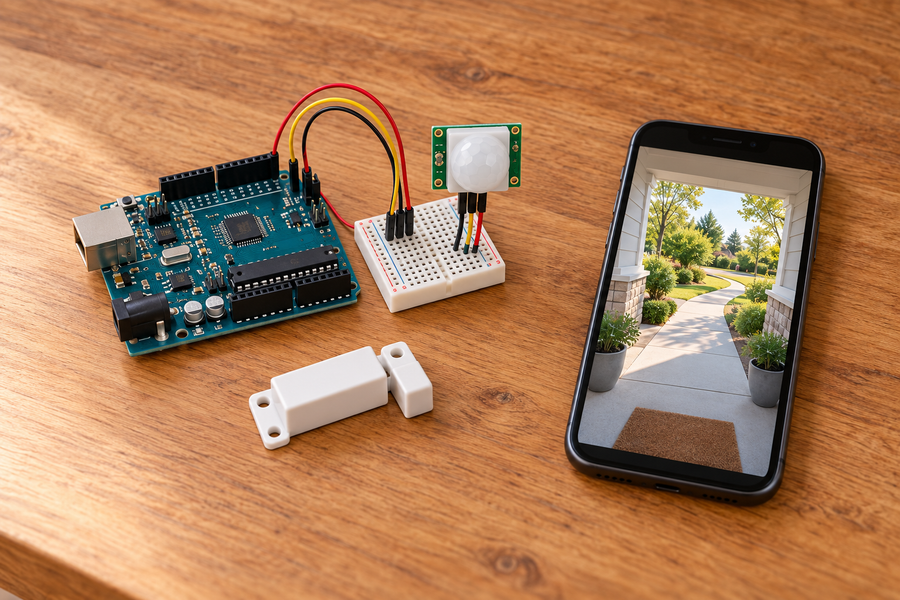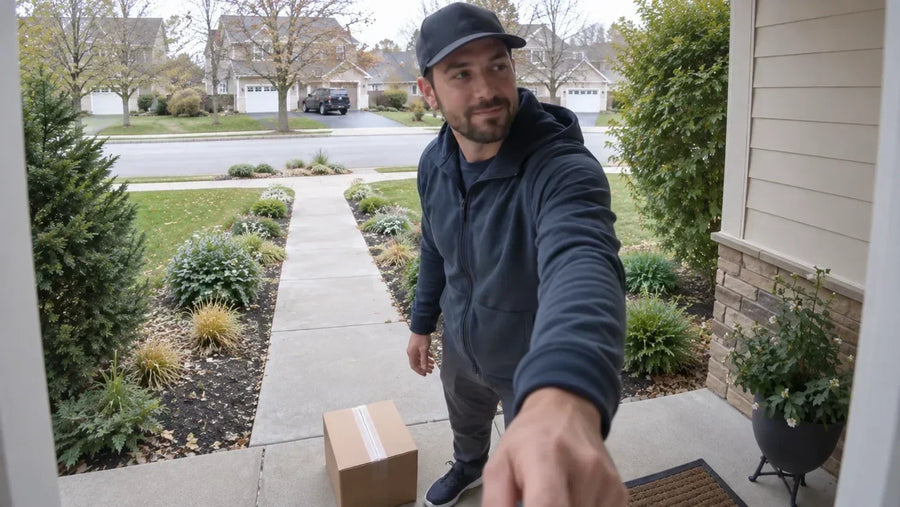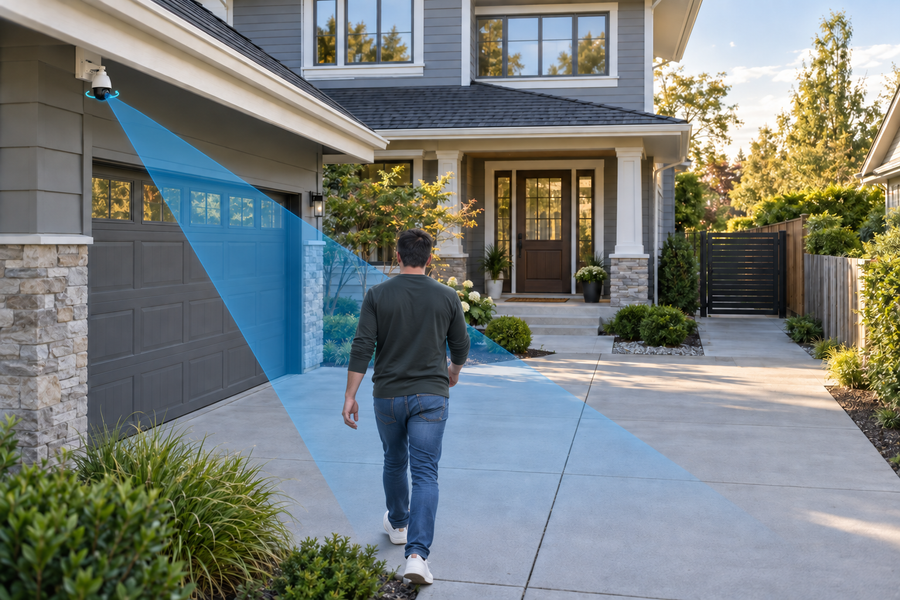



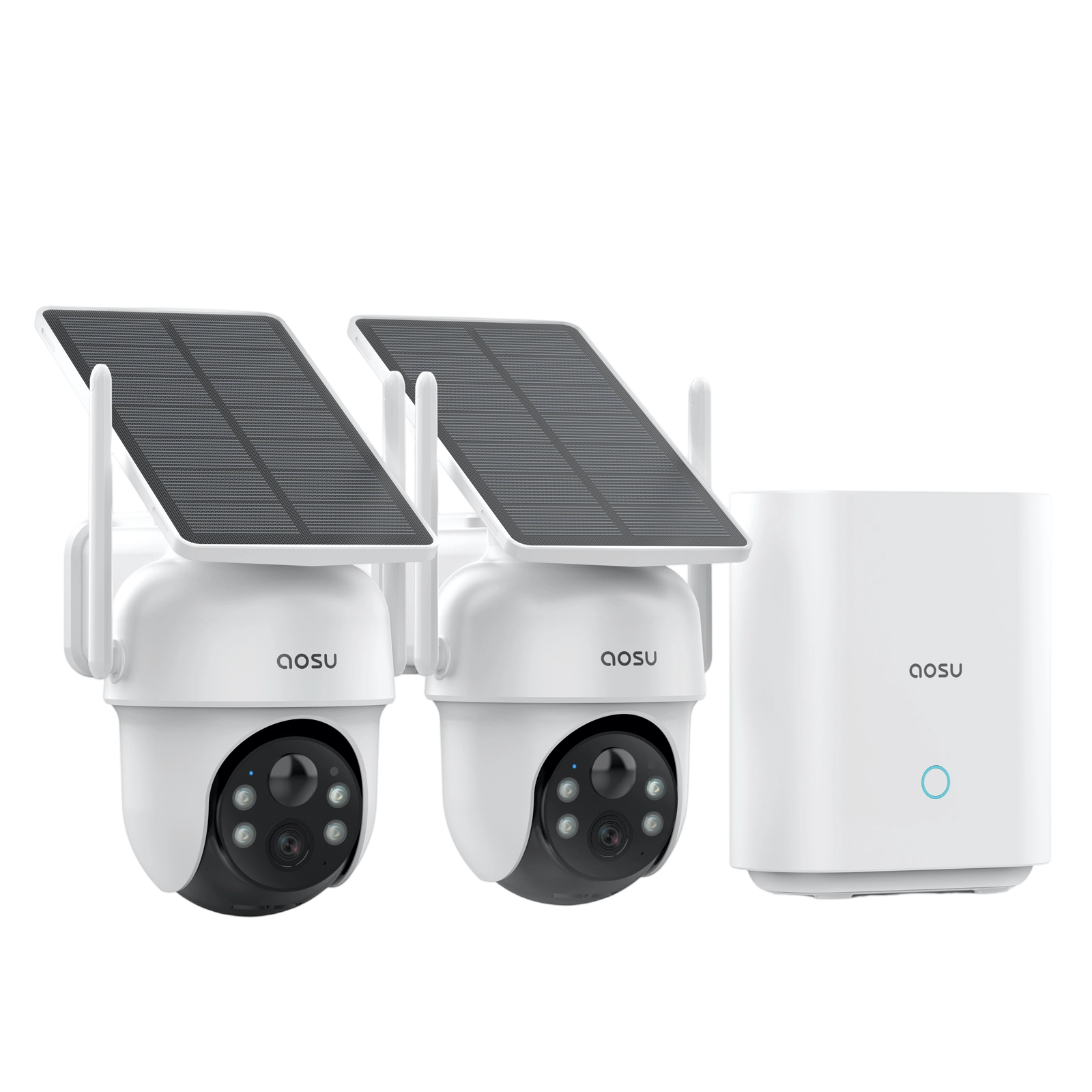
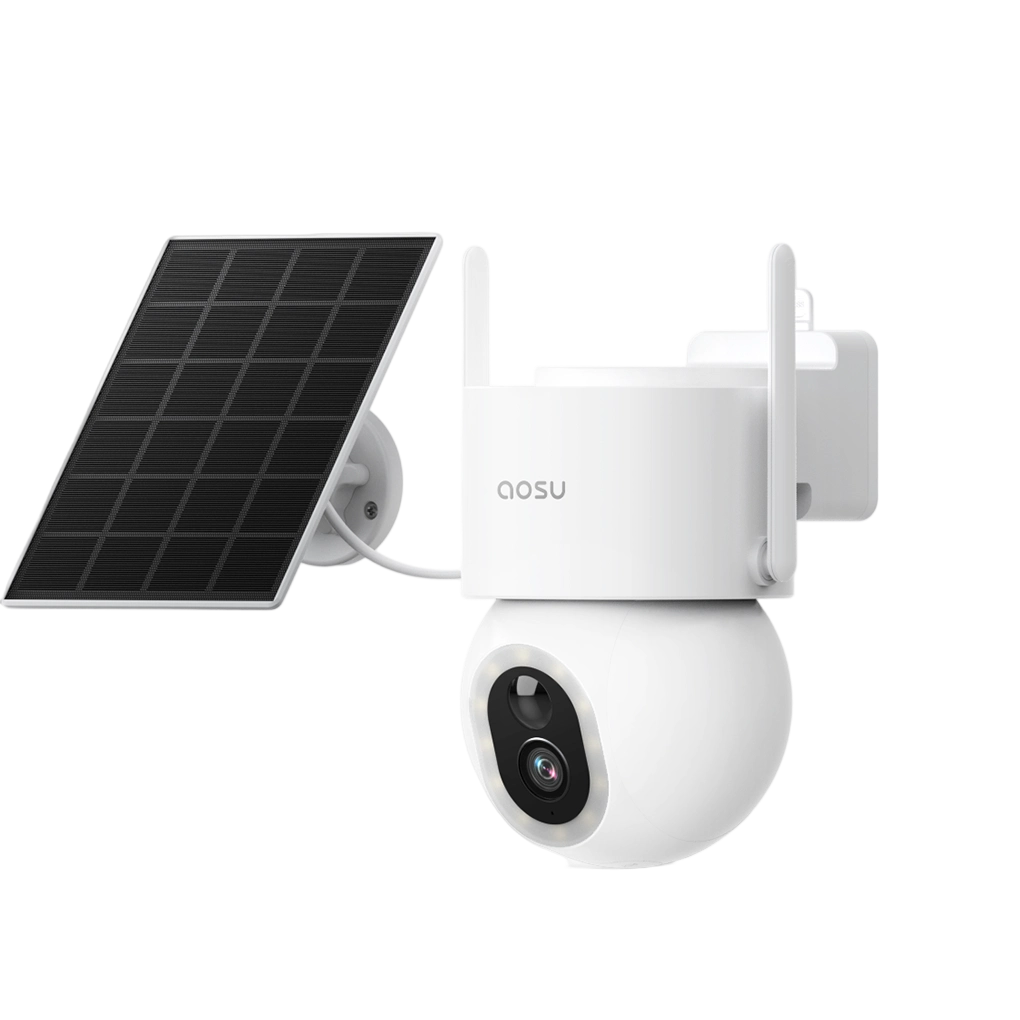
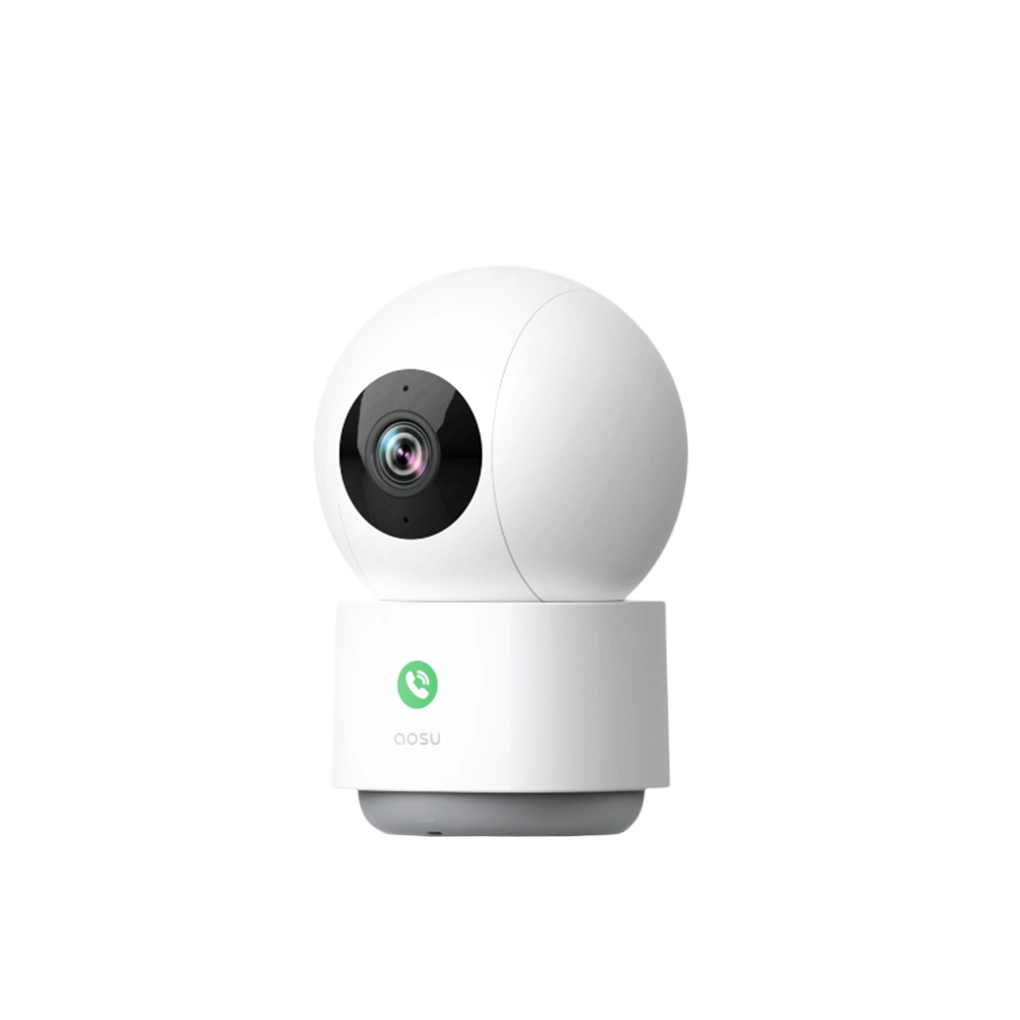

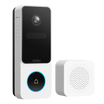

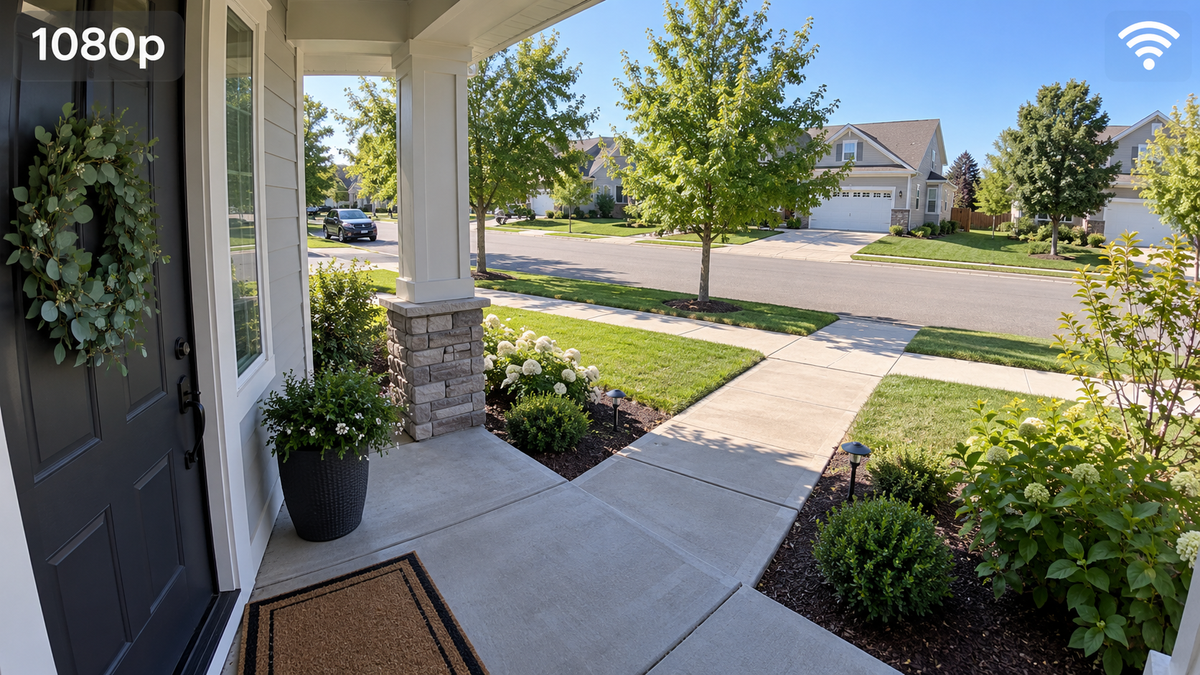
A 1080p Wi-Fi security camera app can show a Full HD live stream when the camera, selected stream, and connection support it. The app does not create 1080p detail: the camera captures the image, video encoding compresses it, the network carries it, and the app displays it.
Keep saved recordings at the highest practical quality. Use Auto or a lower-data live view for quick checks, switch to HD for detail, and judge important footage from the original saved or downloaded clip—not a phone screenshot.
What Does 1080p Mean in a Security Camera App?
A standard 1080p frame is 1920 pixels wide by 1080 pixels high, or about 2.1 million pixels. It is also called Full HD. The number describes frame dimensions, not how clearly the camera will show a face at the far end of a driveway.
An HD or 1080p button may select only the live-view stream. The camera can have a separate recording-quality setting, while downloaded clips may come from the original recording or an app-prepared export.
1. Resolution: The number of pixels in each frame. Standard 1080p is 1920 x 1080.
2. Bitrate: The amount of video data sent or saved over time. More bitrate can preserve more detail, depending on the codec and scene.
3. Frame rate: The number of frames captured each second. More frames can show smoother movement, while exposure and lighting still determine motion sharpness.
4. Digital zoom: An enlargement of existing pixels. It cannot recover detail the camera did not capture.
Follow the Video From the Camera to Your Phone
One event can pass through several versions before you watch or share it. Comparing the right versions prevents an app display problem from being mistaken for a camera-resolution problem.
| Video version | What shapes it | What to check |
|---|---|---|
| Camera capture | Sensor, lens, focus, lighting, exposure, movement, and field of view | Is the person sharp and large enough in the frame at the distance that matters? |
| Saved recording | Recording resolution, bitrate, codec, frame rate, and storage mode | Does the camera save its main stream, a lower-quality stream, or short event clips? |
| Live view | HD, SD, or Auto mode plus camera Wi-Fi, home internet, and the phone connection | Does quality change between modes or between home Wi-Fi and mobile data? |
| Downloaded or shared clip | Original-file download, app export, trimming, and messaging-app compression | Are you reviewing the original file or a compressed copy? |
 The same event can be captured, saved, streamed live, and downloaded or shared. Video quality can change at each stage.
What the App Can Change—and What It Cannot
The app is the control surface, but the camera and its firmware determine which controls are available. If the camera exposes separate streams, the app may offer a high-quality view for inspection and a lower-data view for faster remote access.
The app may let you change
· Live-view quality such as HD, SD, or Auto
· Recording quality when the camera exposes it
· Clip length, schedule, or event-only recording
· Detection zones, sensitivity, and alert types
· Display layout, digital zoom, and clip export
The app cannot improve
· The camera sensor's native detail
· Lens focus or a subject that is too small in the frame
· A face blurred by movement or a long exposure
· Highlights clipped before the video was saved
· Detail removed by heavy source compression
Why a 1080p Live Stream Can Look Soft or Stall
A live view has to arrive fast enough to feel current. If the connection cannot carry the selected stream reliably, an app may lower the bitrate or switch to a lower-data stream when the system supports adaptive quality. The picture can soften, pause, or take longer to open.
Remote viewing depends on the camera's connection to the router or hub, the home's internet upload, and the phone's Wi-Fi or mobile-data connection. Compression adds another variable: bitrate, encoder settings, movement, rain, leaves, and low-light noise all affect how much detail survives.
Match the Symptom to the Right Setting
Compare live view, saved playback, and an original download before changing several settings. The differences usually show where quality is being lost.
| What you see | Most useful interpretation | First action |
|---|---|---|
| Live view is soft, but the saved clip is sharp | The camera captured useful detail; live streaming is the weaker stage | Select HD, test beside the router, then compare local and remote viewing |
| Live view and saved clips are both soft | The limit is likely capture, recording quality, placement, focus, lighting, or motion | Confirm recording quality, clean the lens, and test a person at the real distance |
| The app says HD, but digital zoom looks blocky | The subject occupies too few source pixels or compression removed fine detail | Move the camera closer, narrow the view, or use more source resolution |
| The downloaded clip looks better than the shared copy | The messaging, social, or email service compressed the copy | Keep the original download and share it as a file |
| One phone has trouble while another works | The camera may be fine; inspect that phone's app, permissions, power controls, and network | Update the app, review permissions, and retest on the same network |
Related links:
· Learn why security camera footage can still look bad
Set Up a 1080p Wi-Fi Camera App for Reliable Viewing
Menu names vary, but this order works for most camera systems. Save the original settings before changing several values.
1. Set the recording quality: Choose the highest practical quality for clips you may need later. Confirm that it applies to saved video, not only the live preview.
2. Choose the live-view mode by purpose: Use Auto or a lower-data mode for a quick check on a weak connection. Switch to HD when you need to inspect a person, package, vehicle, or gate.
3. Tune event settings separately: Detection zones, sensitivity, schedules, and clip length decide what the camera records and for how long. They do not add pixels to each frame.
4. Review phone permissions: Allow the permissions needed for pairing, local-device discovery, files, microphone use, and notifications. If setup cannot find the camera, review Local Network on iPhone or relevant Nearby Devices and network permissions on Android.
5. Update and protect the system: Keep the app, camera firmware, and router current. Use a unique password, enable two-factor authentication when available, and remove shared users who no longer need access.
6. Test the full path: Walk through the scene, view it live at home and away, play the saved event, then download the original clip. Repeat after dark.
Is 1080p Enough for a Wi-Fi Security Camera?
1080p is practical for a focused scene where people appear reasonably large: a doorway, small room, porch, short side path, or one gate. It is less convincing when one wide camera covers a large yard or long driveway and you expect to crop a small, distant face.
Test the hardest detail you need at the farthest important point. If the original 1080p recording shows it clearly in daylight and at night, the resolution is doing what you need. Otherwise, improve placement, narrow the view, add another camera, or consider more source resolution.
Related links:
· Compare 2K and 4K security cameras
Live View and Recorded Events in the aosu App
In the aosu app, Live opens the current stream and Events shows recorded video. Compare both: a weak live connection does not prove the saved event is equally weak. Available controls depend on the connected model and current app version, so confirm them on the device Settings page.
Related links:
· View the official aosu app manual
To Wrap Up
A 1080p Wi-Fi security camera app manages how you view, record, find, and share video. Set recording quality first, choose a live stream that suits the connection, and compare live view with the original saved clip. That test tells you whether to change an app setting, improve the connection, or rethink the camera's placement.
FAQs
Can an app make a 720p security camera record in 1080p?
No. An app can enlarge or export a 720p image into a larger file, but it cannot create source detail that the camera did not capture. True 1080p recording requires a camera and recording path that support 1920 x 1080 output.
Why does my security camera say 1080p but look blurry in the app?
The app may be showing a lower-data live stream, or the picture may be limited by weak Wi-Fi, compression, digital zoom, poor lighting, motion blur, focus, or a distant subject. Compare the live view with the original saved or downloaded clip.
Should I use HD, SD, or Auto in a security camera app?
Use HD for the clearest live detail when the connection is stable. Use SD for a faster low-data check. Auto is useful when the app can adjust quality as connection conditions change. Keep the saved-recording quality separate when the camera offers that control.
Is a screenshot as good as downloading the camera clip?
No. A screenshot captures only what the phone displays at that moment and may reflect a reduced stream. Download the original clip when you need the best available detail or want to preserve evidence.