







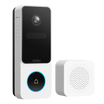
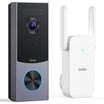
A camera can look installed and still be offline, disconnected, or not recording. This guide walks through simple checks that help you confirm if your CCTV or security camera is actually working.

A CCTV camera can look perfectly normal from the outside and still be offline, out of power, disconnected from the recorder, or not saving clips. That is frustrating when you only find out after you need the footage.
If you own or manage the camera, the best way to know whether it is on is to check for three things: power, connection, and recording. A status light can help, but it is not enough by itself because many cameras let you disable lights or change how they behave.
This guide walks through practical checks for your own CCTV, video doorbell, outdoor camera, home hub, NVR, or app-based security camera. If you are worried about a camera you do not own, avoid tampering with it and check the privacy or property rules that apply where you live.
The Short Answer
The quickest way to tell if your CCTV camera is on is to open the camera app or recorder and confirm that the camera shows live video. Then check whether the system is saving recent clips or playback footage.
A camera may be powered on but not recording. It may also be recording locally but not showing cloud clips, or online in the app but missing events because motion detection is disabled.
Use the visual signs as clues, but confirm with the app, NVR, home hub, SD card playback, or test motion event whenever possible.

The strongest check is not a single light. Confirm power, connection, and a recent saved event.
Before You Start: Know What You Are Checking
People often use the phrase "is the camera on" to mean several different things. Before troubleshooting, separate the question into three smaller checks.
Powered on
|
Online or connected
|
Recording
|
Detecting events
|
6 Ways to Check If Your CCTV Camera Is On
These checks are most useful when you combine them. A status light can tell you the camera has power, but a recent playback clip tells you much more.
1.Check the status light: Many cameras use a small LED to show power, connection, charging, pairing, or recording status. Look up your model's light pattern because solid, blinking, red, blue, green, or no light can mean different things depending on the camera.
2.Open live view in the app or recorder: If the camera loads live video, it is powered and connected at that moment. If live view fails, check power, Wi-Fi, Ethernet, the hub, or the NVR connection before assuming the camera is broken.
3.Check recent playback or event history: Open the timeline, SD card files, NVR footage, cloud clips, or event list. If you can see a recent recording, the camera is not just online; it is saving footage.
4.Trigger a test motion event: Walk through the camera's normal detection area, wait a minute, and check whether an alert, clip, or timeline marker appears. This helps confirm motion detection, not just power.
5.Check the network or hub status: For Wi-Fi cameras, look for the device in the app or router device list. For wired CCTV, check the NVR channel status, PoE switch lights, Ethernet cable, or home hub connection.

Why "On" Does Not Always Mean Recording
A camera can be powered and online without saving every moment. Many home security cameras record only when motion is detected. Some record on a schedule. Others record continuously to an NVR, home hub, SD card, or cloud plan.
That means you should check the recording mode, not just the live view. Look for settings such as motion recording, continuous recording, recording schedule, privacy mode, sleep mode, storage status, and cloud recording plan.
If you recently changed storage, subscriptions, SD cards, Wi-Fi, or recording schedules, test the camera again afterward. Small settings changes can make a camera look active while saving less footage than you expect.
What to Check If the Camera Looks Off or Offline
If the camera does not show live view or recent recordings, start with the simplest causes before replacing anything.
1.Power source: Check the outlet, power adapter, PoE cable, battery level, solar panel connection, or charging cable.
2.Internet or local network: Restart the router if other devices are also having issues. For wired systems, check the Ethernet cable, PoE switch, and NVR channel.
3.App, hub, or recorder status: Confirm whether the device appears online in the app, home hub, NVR, or camera management screen.
4.Storage problem: Check whether the SD card, home hub, NVR drive, or cloud storage is full, disconnected, corrupted, expired, or disabled.
5.Privacy, sleep, or schedule settings: Some cameras can be paused, put into privacy mode, muted by schedule, or set to record only during certain hours.
Special Notes for Battery and Solar Cameras
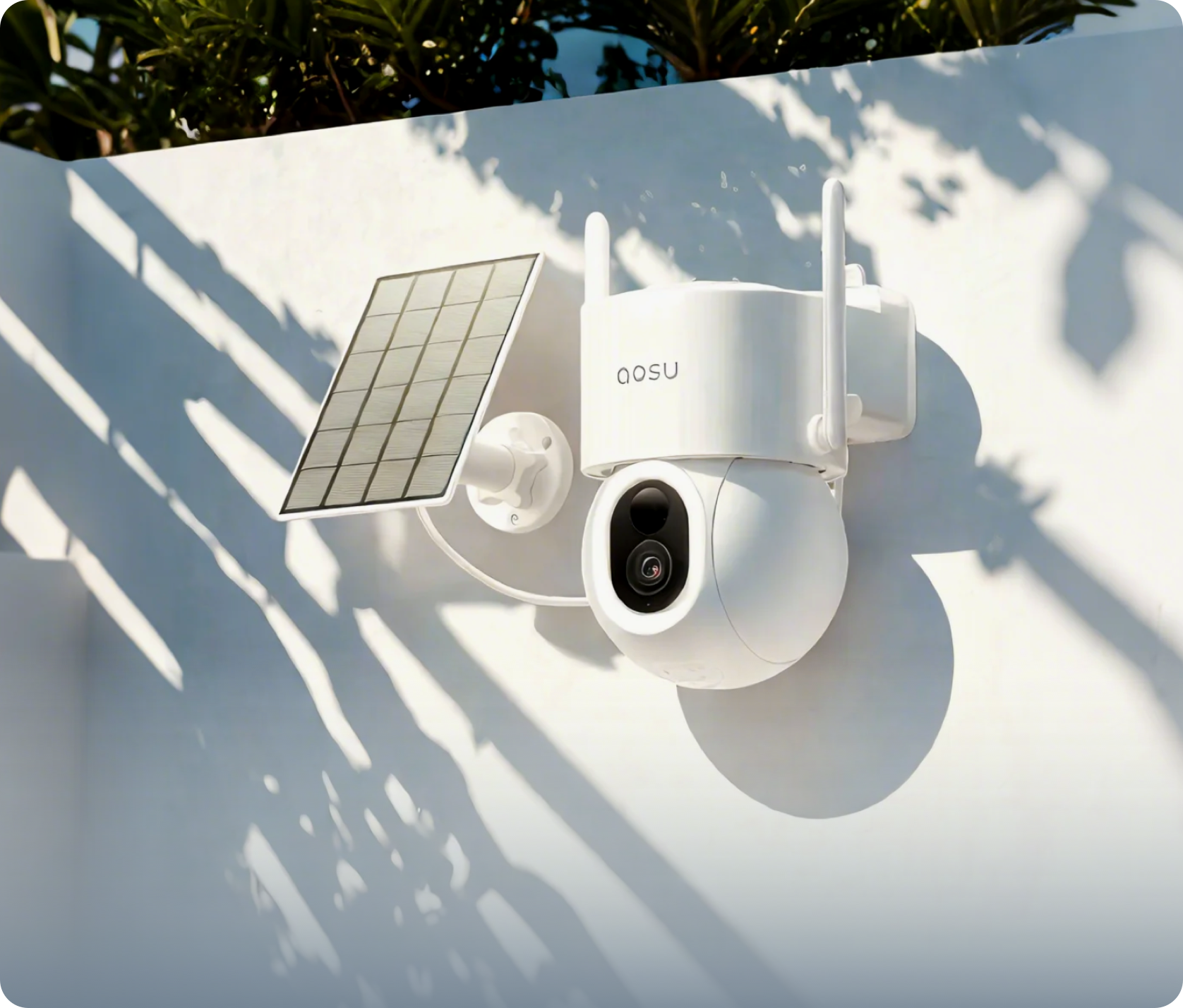
Battery cameras can behave differently from wired CCTV cameras. To save power, many battery models sleep until motion wakes them. That can make the camera look quiet even when it is working normally.
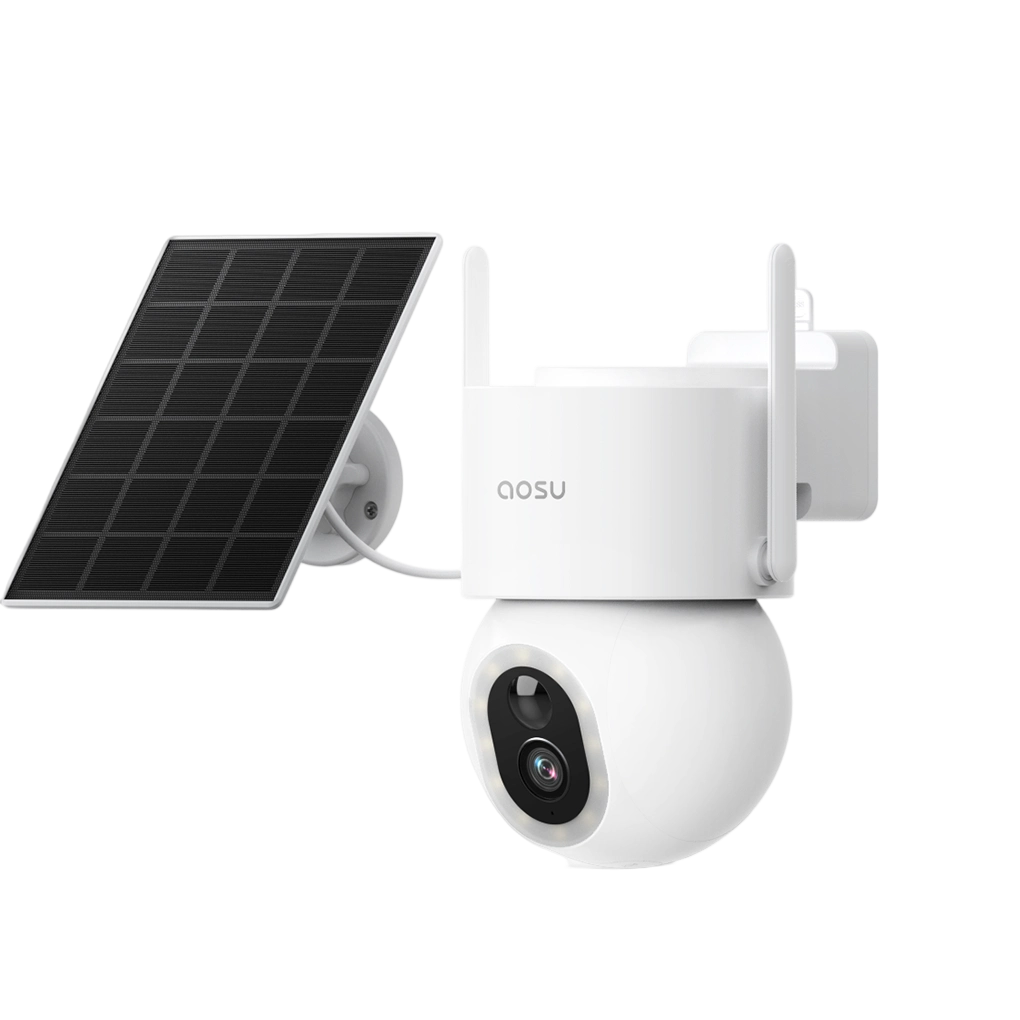
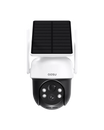
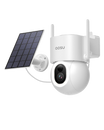
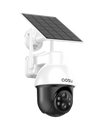
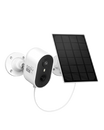
If you use a battery or solar camera, check battery level, solar charging status, motion sensitivity, activity zones, clip length, and wake-up behavior. A camera with low battery may stop recording, delay live view, or miss events.
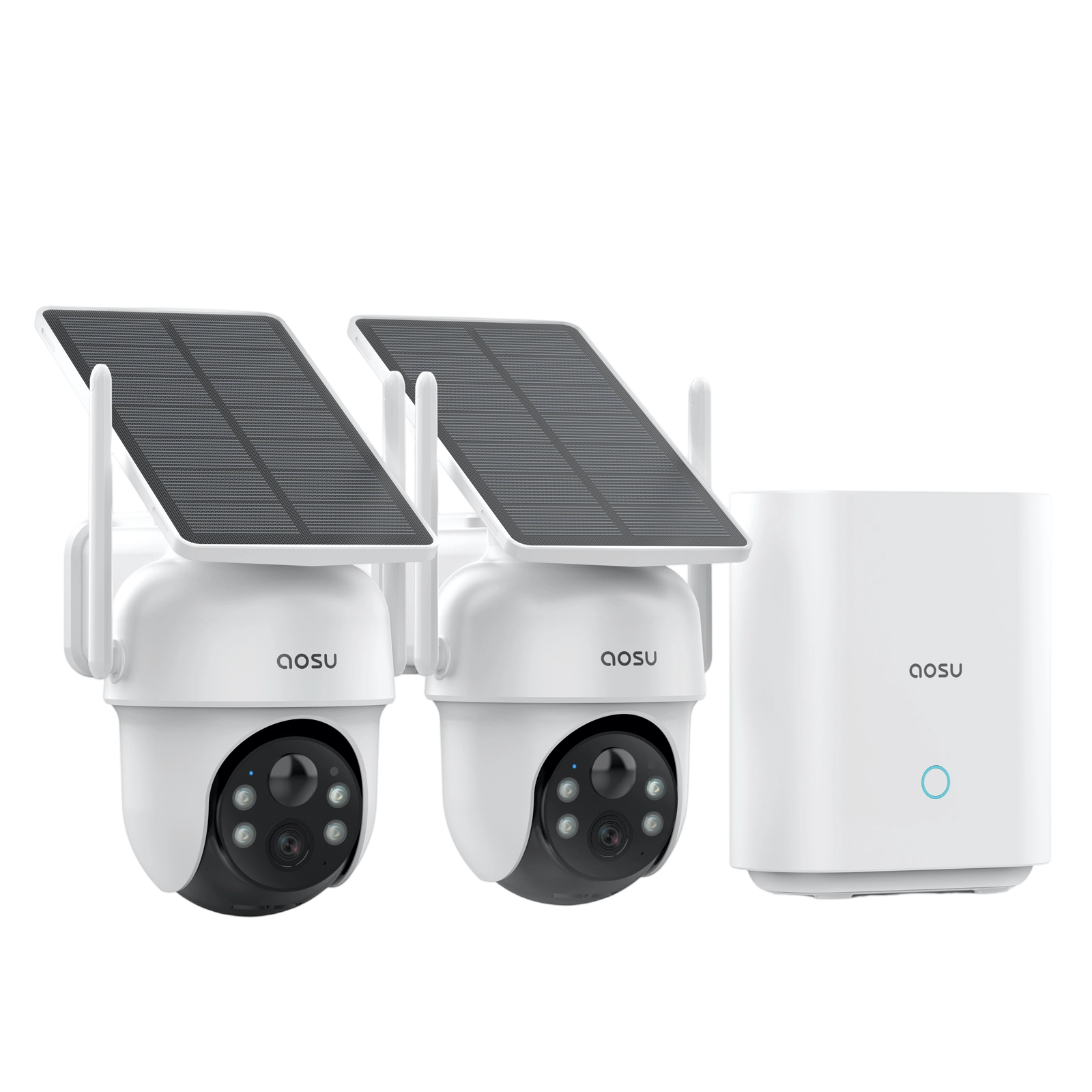
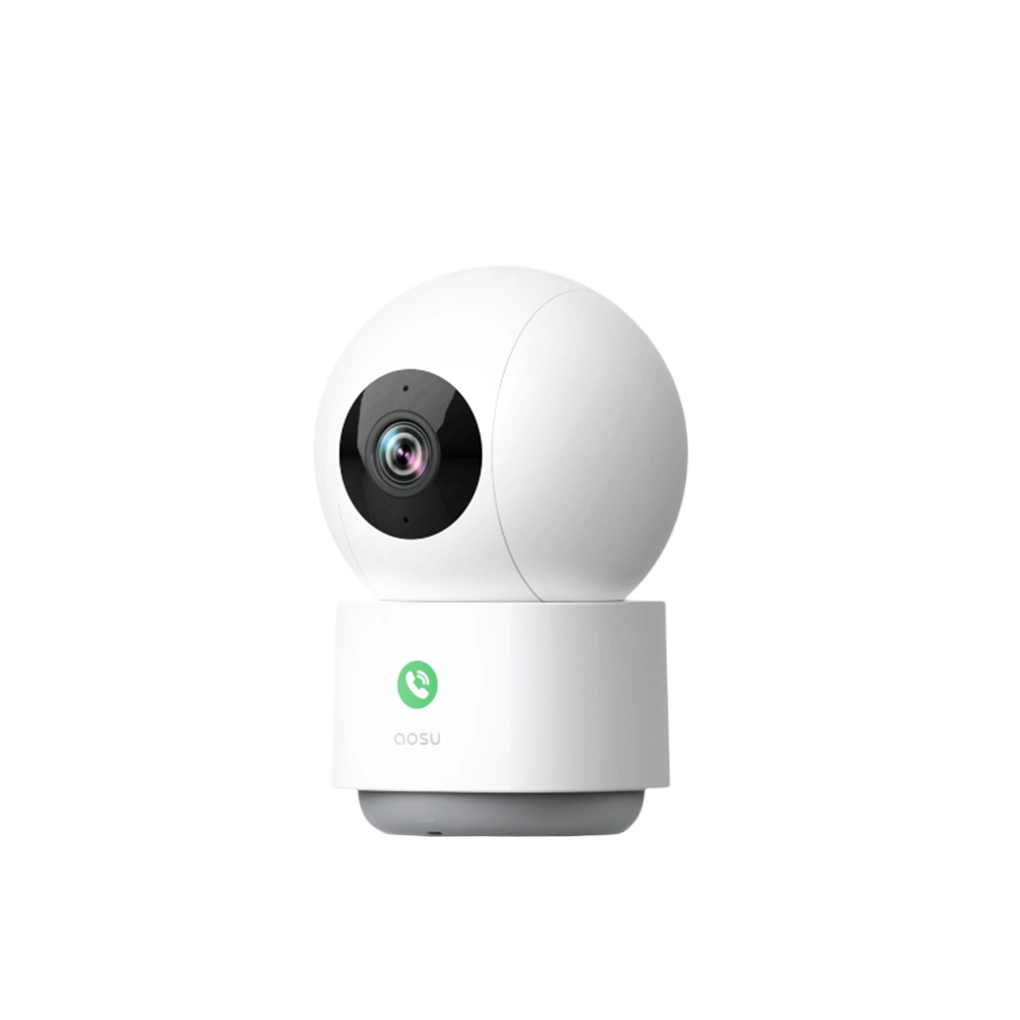
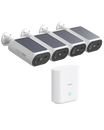
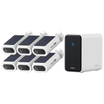
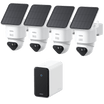
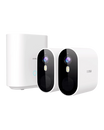
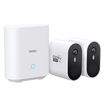
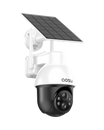
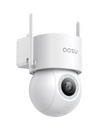
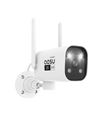
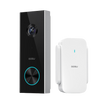
aosu note: For app-based outdoor cameras and video doorbells, the most useful checks are usually live view, device status, battery level, recent event history, and motion settings to make sure it’s recording everything you want it to.
What If It Is Not Your Camera?
If you are wondering whether someone else's CCTV camera is on, do not touch it, block it, damage it, unplug it, or try to access the system. That can create a separate problem and may be illegal.
If the camera is in a workplace, store, apartment building, or managed property, ask the owner, manager, landlord, or security team about camera operation and signage. If your concern is a neighbor's camera, focus on privacy, placement, audio recording, or harassment concerns rather than trying to prove whether the camera is active from the outside.
A camera with no visible light may still be on. A camera with a visible light may not be recording. From outside the system, you usually cannot know for sure without access to the owner, app, recorder, or policy.
Common Mistakes to Avoid
1.Trusting the status light alone: A light is only a clue. Confirm with live view, playback, or event history.
2.Assuming live view means footage is saved: Live view confirms connection, but recording can still be disabled or limited by storage, schedule, or plan settings.
3.Forgetting motion zones and schedules: A camera may miss activity if the motion zone excludes the area you are testing or if recording is scheduled for another time.
4.Ignoring storage warnings: A full, failed, unformatted, or missing storage device can stop recordings even when the camera itself works.
5.Testing only once: If the issue happens at night, during bad Wi-Fi periods, or after battery drain, test under those conditions too.
To Wrap Up
To know if your CCTV camera is on, check more than the physical camera. Confirm that it has power, shows live view, stays connected to the app or recorder, and saves recent footage.
The most reliable test is simple: open live view, trigger a normal motion event, and check for a saved clip or playback entry. If any part of that chain fails, troubleshoot power, connection, storage, and recording settings before assuming the camera is broken.
FAQ
How do you know if a CCTV camera is on?
The best way is to check live view in the camera app, NVR, home hub, or recorder. A status light can help, but live view and recent playback are stronger signs that the camera is powered and connected.
Does a red light mean a CCTV camera is recording?
Not always. Light colors vary by camera model. A red light may mean power, recording, night vision, charging, an error, or something else. Check your camera manual or app status to confirm.
Can a CCTV camera be on without recording?
Yes. A camera can be powered and online while recording is disabled, scheduled for another time, limited to motion events, or blocked by a storage problem.
How can I test if my security camera is recording?
Walk through the detection area, wait for the camera to process the event, then check the app, playback timeline, SD card, home hub, NVR, or cloud clips for a new recording.
Can you tell if someone else's camera is on from the outside?
Usually not with certainty. Lights, movement, and night vision can be clues, but many cameras disable visible indicators. Do not tamper with someone else's camera; contact the owner, manager, or appropriate authority if you have a privacy or safety concern.



Leave a comment
This site is protected by hCaptcha and the hCaptcha Privacy Policy and Terms of Service apply.