


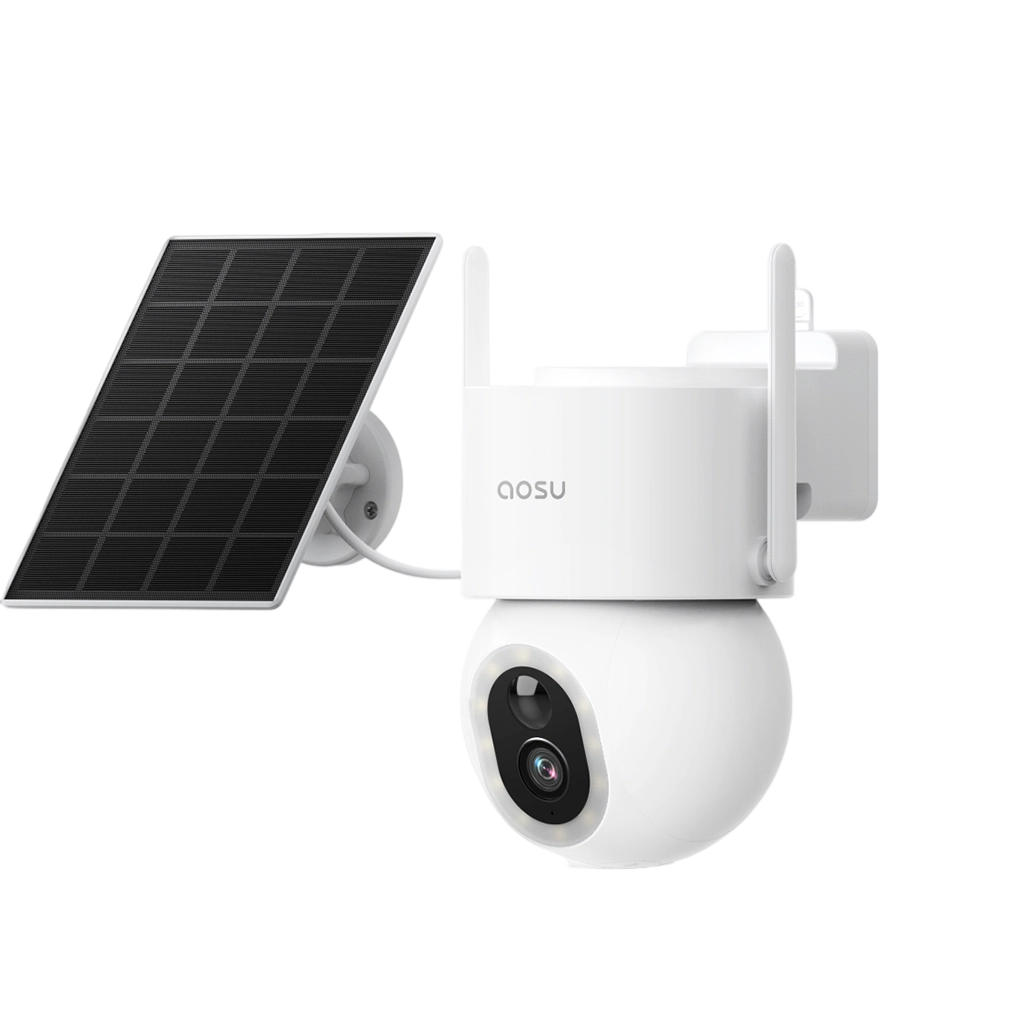
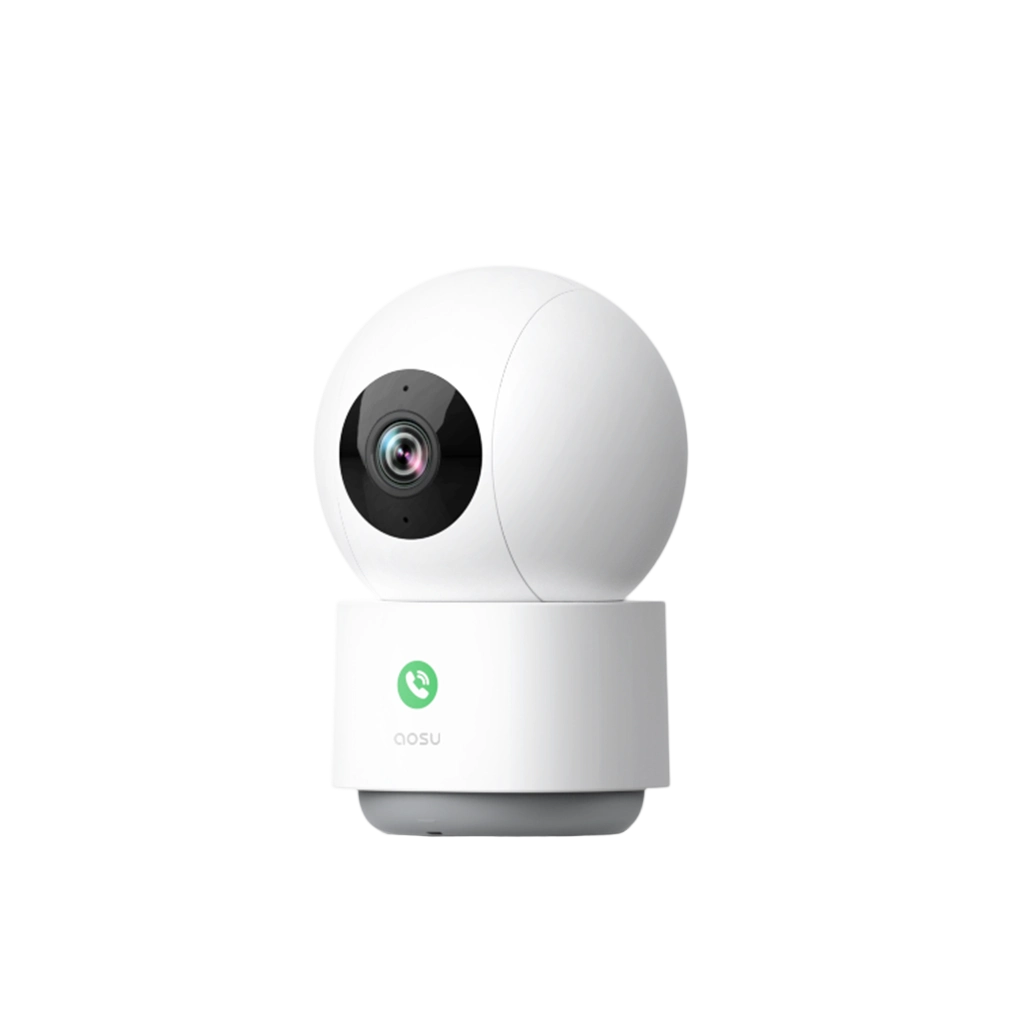
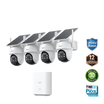
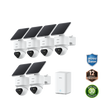
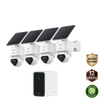
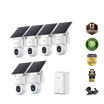
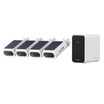

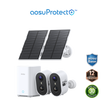
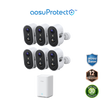
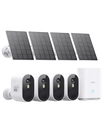
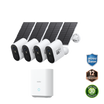
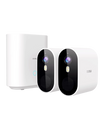
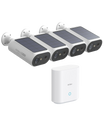
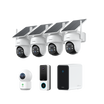
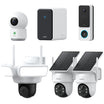
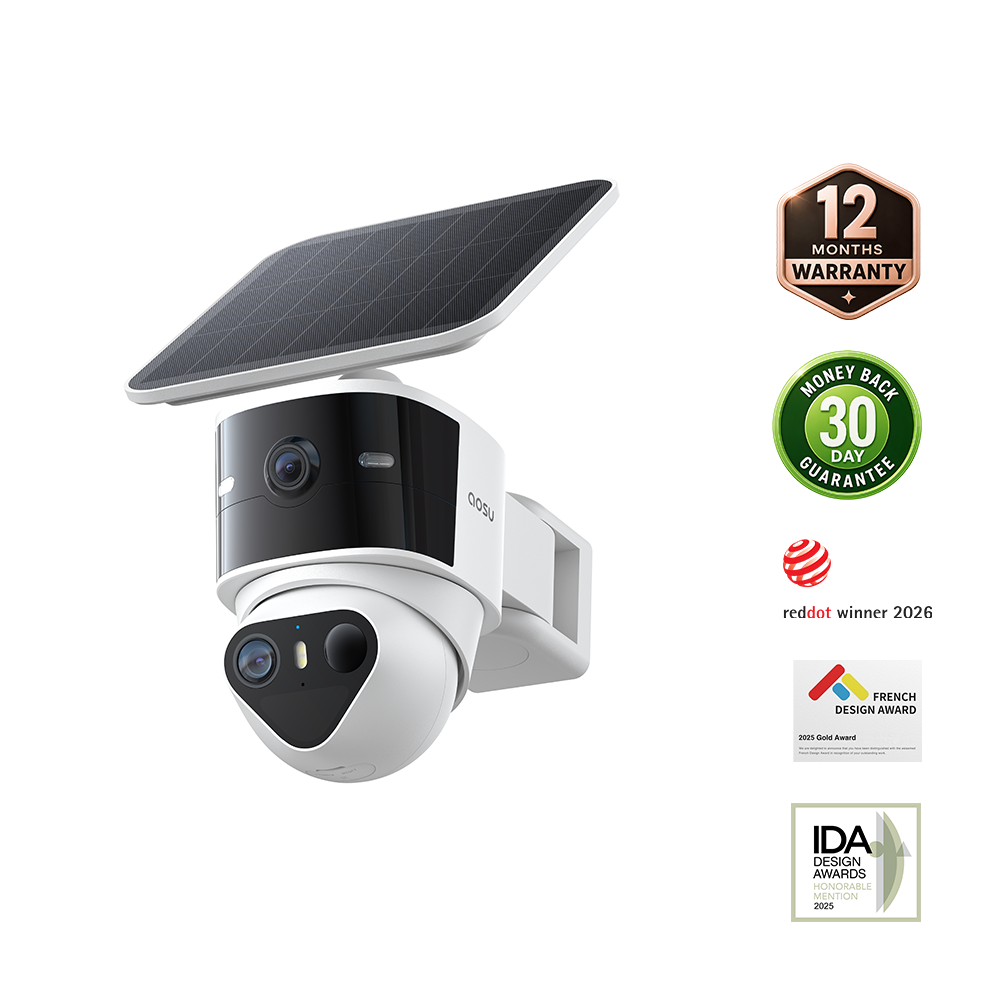
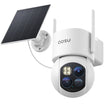
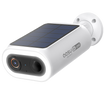
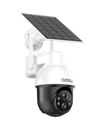
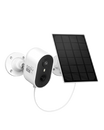
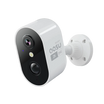
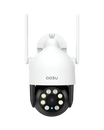
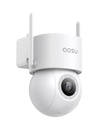

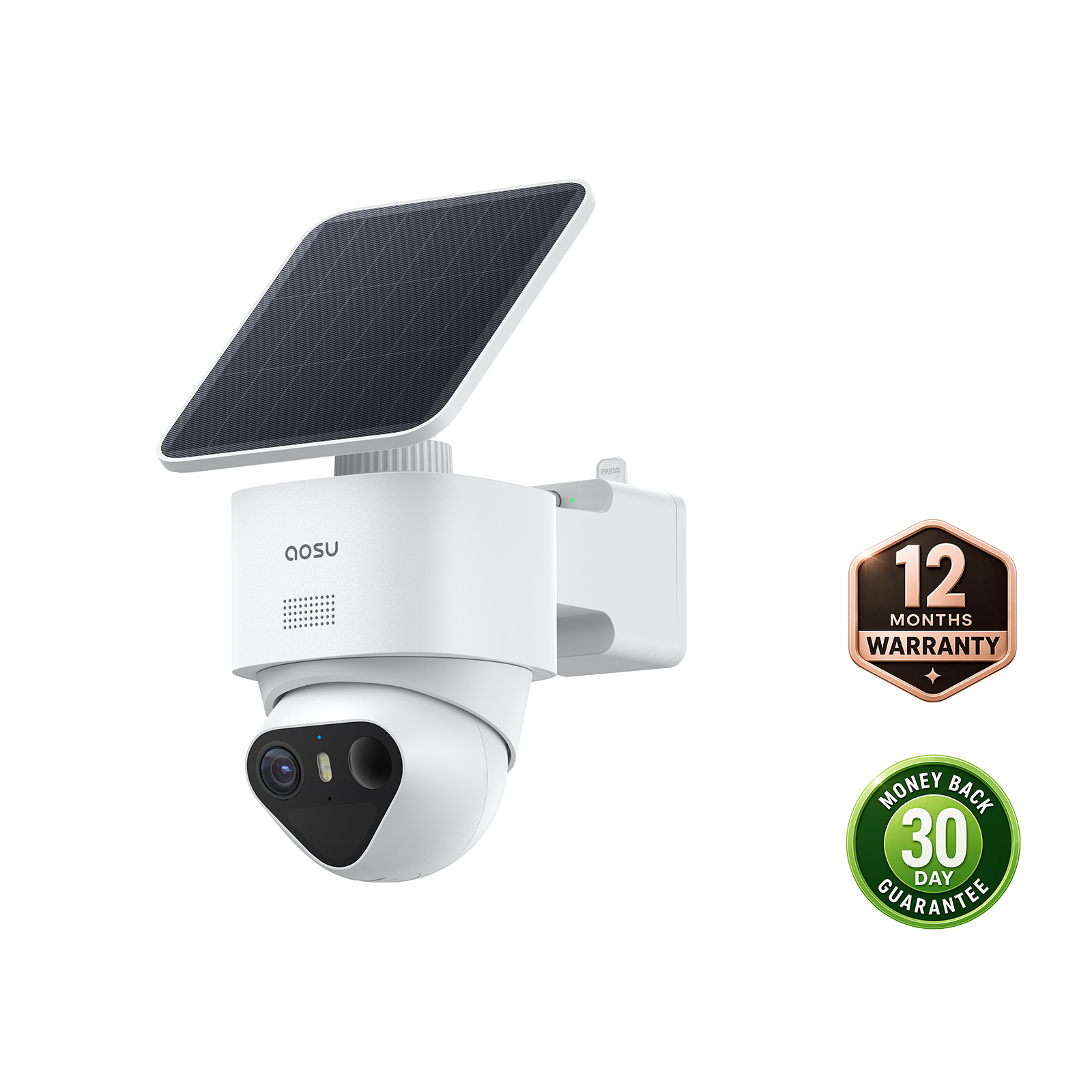
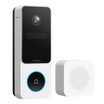
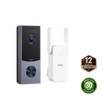

This guide covers remote viewing of a compatible aosu network camera in the aosu mobile app. It does not provide a setup method for a computer’s built-in or USB webcam.
Start by identifying your camera model and following its supported pairing process. Then test live view, recorded playback and notifications separately while your phone is away from the home Wi-Fi network.

How to Set Up Remote Viewing in the aosu App
Step 1: Install the Official App
Use the official aosu app download page to reach the supported iOS or Android app. Sign in to the account that will own or receive access to the camera.
Step 2: Identify the Camera and Storage Setup
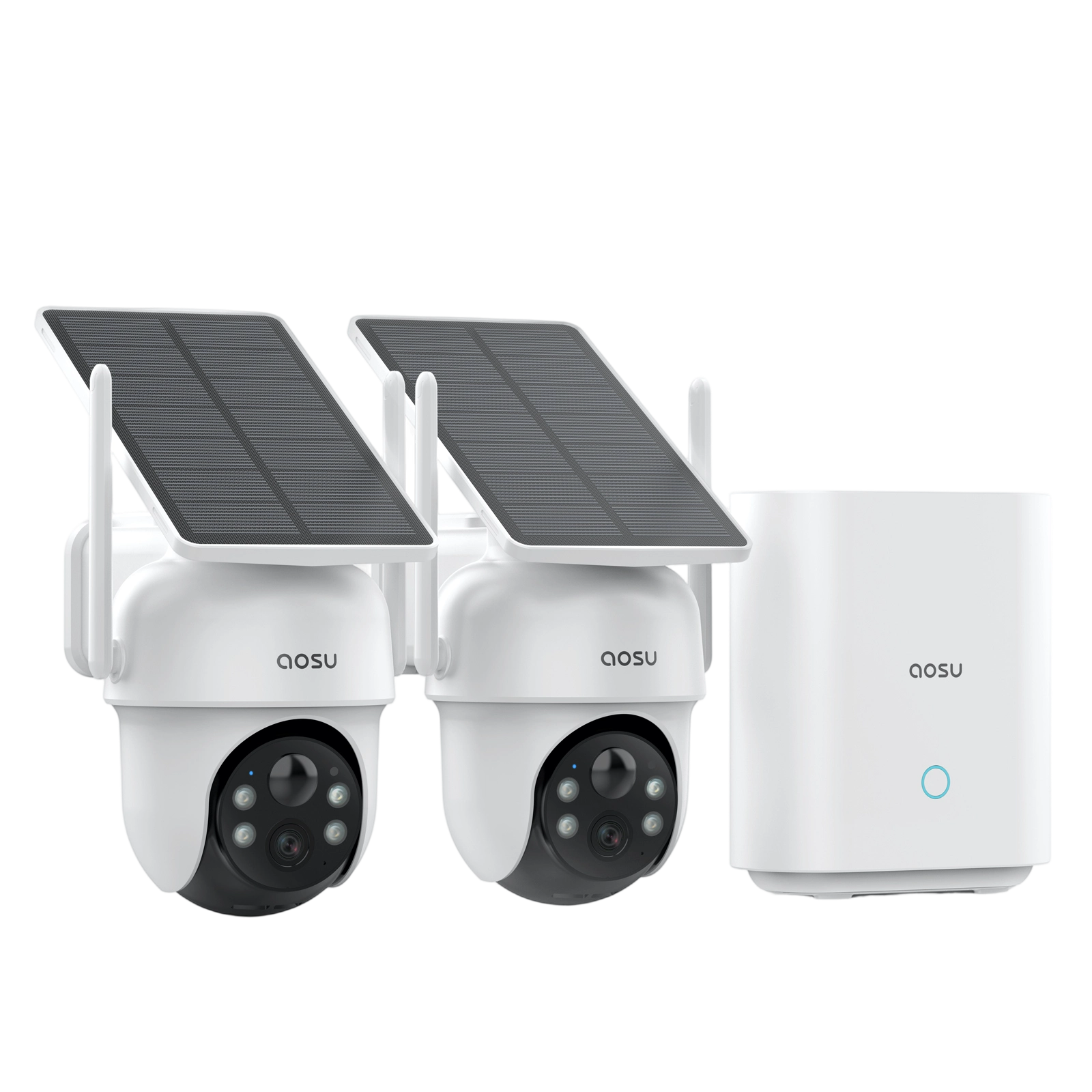
Check the exact model and whether it connects directly to the network or through a compatible base. Prepare power as instructed. Install a memory card only when the model requires one for the recording setup you intend to use.
Step 3: Follow the Model’s Pairing Prompts
Add the supported device in the app and follow its instructions. Do not assume that every model scans a code in the same direction or uses the same reset and pairing sequence.
Step 4: Confirm the Required Connection
Use the network band and connection method specified for the camera or base. Confirm that the device appears online before changing installation position.
Step 5: Test Away From Home Wi-Fi
Switch the phone to mobile data or another internet connection. Open live view, then separately check a saved event and a test notification. Keep the camera and any required base powered and connected. Live view does not establish that recording or alerts are working.
Live View, Recordings and Alerts Are Different Functions
Remote access can involve several separate tasks:
| Task | What to verify |
|---|---|
| Live view | The camera and required connections are available |
| Saved playback | Recording is enabled and the selected storage contains the event |
| Download | The app supports exporting the clip and the file plays locally |
| Notifications | Event filters, schedules and phone permissions allow delivery |
| Shared access | The invited account has the required permissions |
Check each task on the exact model. Do not assume that night vision means continuous recording, that every camera is suitable outdoors, or that sharing a smart-home platform enables every automation.


Agree on Viewing and Sharing Before Setup
Use remote viewing for a defined purpose, such as checking an entrance or an agreed household area. Discuss the arrangement with people affected by indoor viewing, and check applicable video and audio requirements.
A household camera does not replace supervision, in-person care or an emergency-response service. Workplace and rental-property monitoring require separate policy and legal checks.
Use supported account sharing rather than distributing the owner’s password. Review access when household or care arrangements change, and follow aosu’s shared-user management instructions to remove users where applicable. Menu names may vary by app version.
Conclusion: Check Remote Viewing, Recording and Access
Successful remote setup means more than seeing the camera online at home. Test live view from another network, check saved recordings and confirm notification and sharing settings.
Keep the official aosu app manual available, and use the exact model’s setup instructions when pairing or storage behavior differs.
FAQs About Remote Viewing in the aosu App
Can I use this guide for a USB webcam?
No. This guide covers compatible aosu network cameras. A USB webcam needs a separately supported computer-based setup.
Do I need a memory card for remote viewing?
Do not assume a universal requirement. Check live-view and recording requirements separately for the exact model.
Why does viewing work at home but fail elsewhere?
Compare the camera’s internet connection, any required base, the phone’s connection and account access. Record the error and contact support if the problem persists.
How should I protect remote access?
Use a unique password, current software and limited sharing. Enable additional account protection when available. Do not treat port forwarding or disabling the router firewall as routine setup steps.