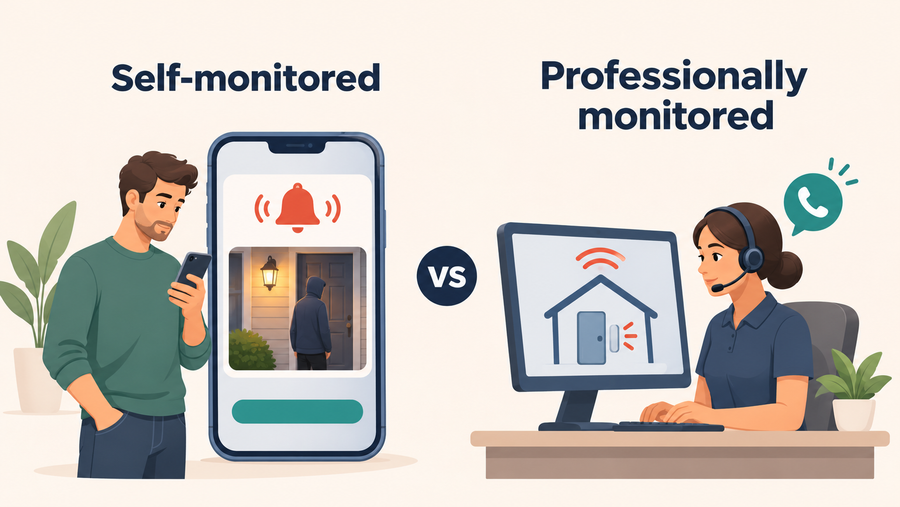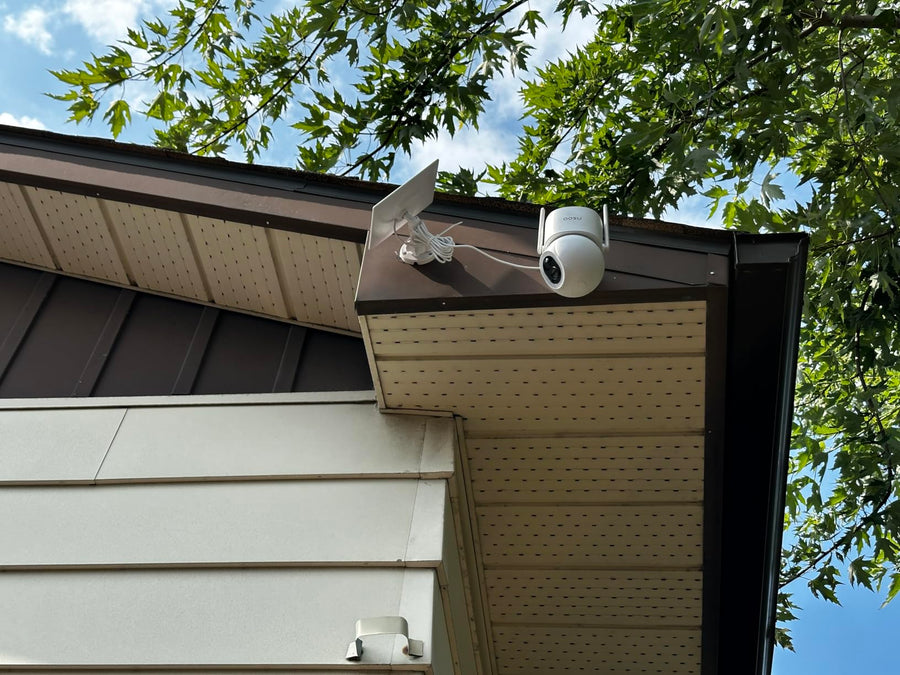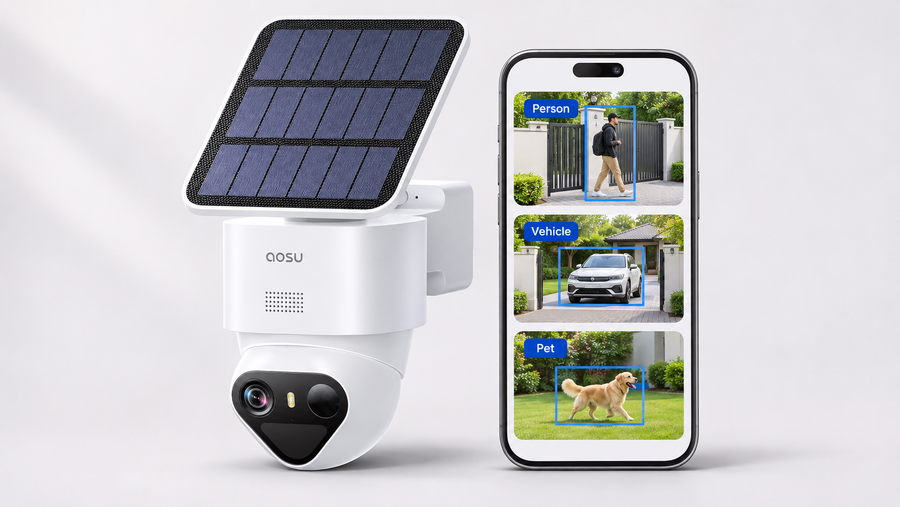



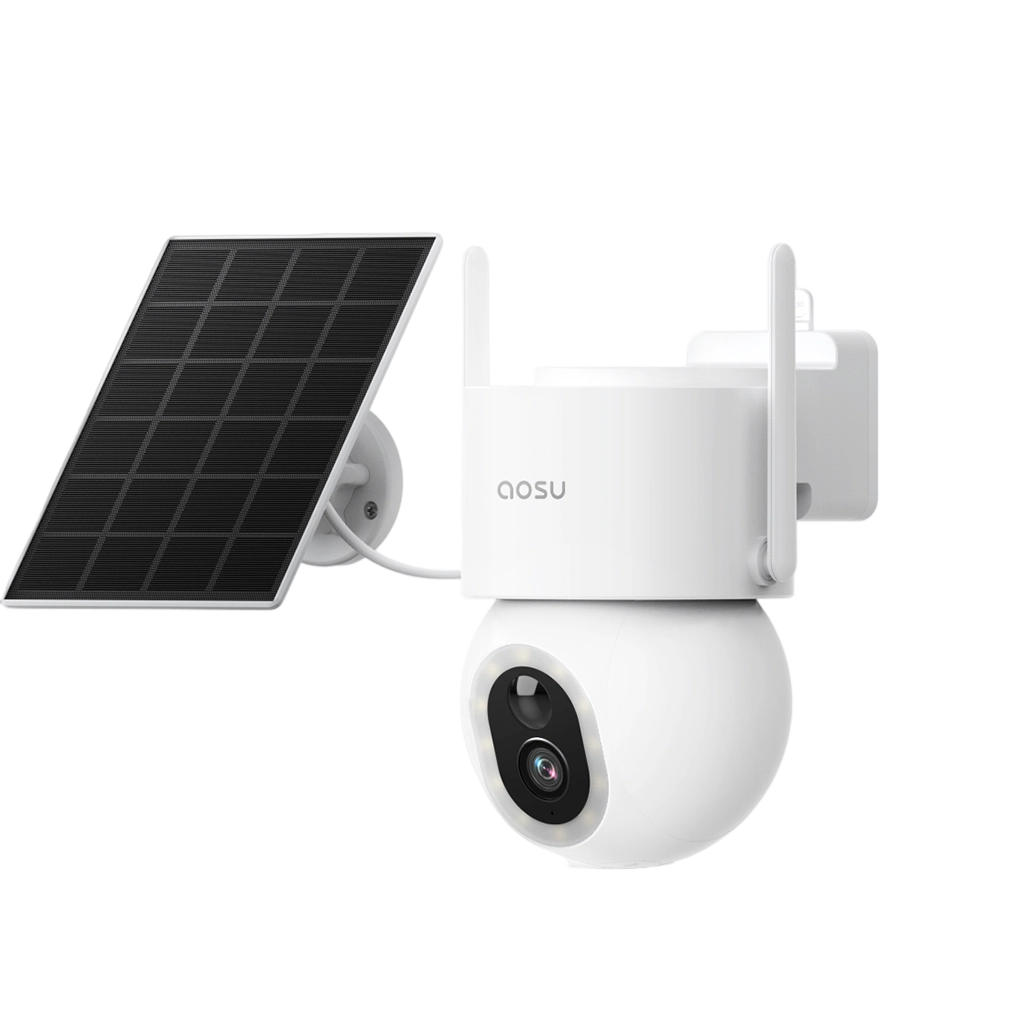
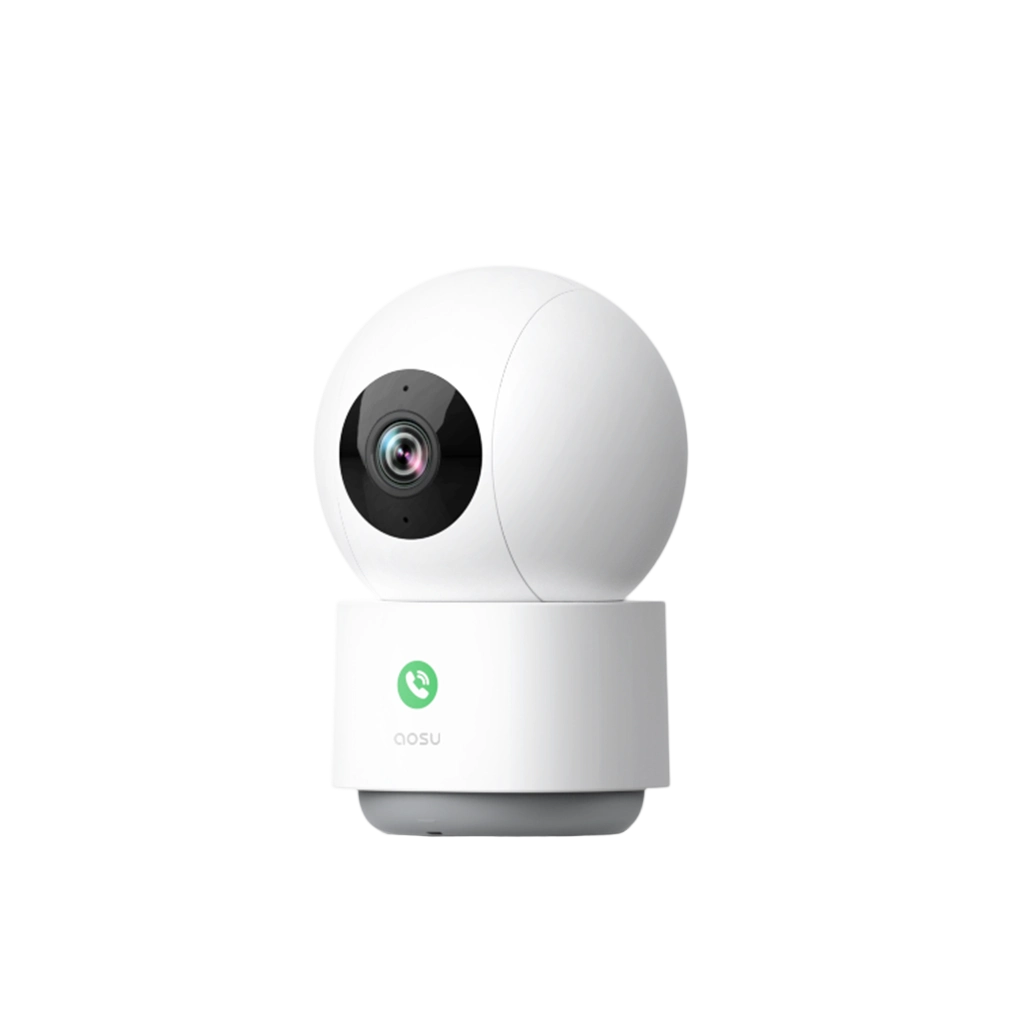







Cloud storage vs local storage sounds like a simple security camera choice: pay for online backup, or keep footage on hardware at home. But the real decision is about what you need the footage to survive.
A camera watching a quiet backyard does not need the same storage setup as a camera watching a package area, a driveway, or a home you check remotely. The best choice depends on theft risk, Wi-Fi reliability, storage limits, privacy comfort, and whether you want another monthly fee.
This guide compares cloud and local storage by practical failure scenarios, not just a generic pros-and-cons list.
The Short Answer
Choose local storage if you want everyday recording without a required cloud-storage bill, and you are comfortable storing footage on a camera, hub, SD card, or recorder you control.
Choose cloud storage if you care more about off-site backup, simple remote access, keeping clips even if local hardware is stolen, damaged, or unplugged, and plan features such as smarter detection or easier event search.
For many homes, the best setup is local-first with optional cloud backup. Local storage handles normal motion clips and playback. Cloud backup is reserved for higher-risk cameras or moments where losing footage would be a bigger problem.
 The most useful question is which storage type handles your most likely failure scenario.
First, Know the Three Storage Patterns
People often talk about local storage and cloud storage as if there are only two choices. For home security cameras, it is more useful to think in three patterns.
The difference matters because camera-only local storage and protected local storage do not fail the same way. For a broader explanation of SD cards, hubs, NVRs, and cloud services, see the related guide on how security cameras store footage.
| Option | Details |
|---|---|
| Camera-only local storage | Footage is saved inside the camera, usually on a microSD card or built-in storage Simple and often no monthly storage fee Best for lower-risk cameras and everyday motion clips Weakness: footage may leave with the camera if it is stolen |
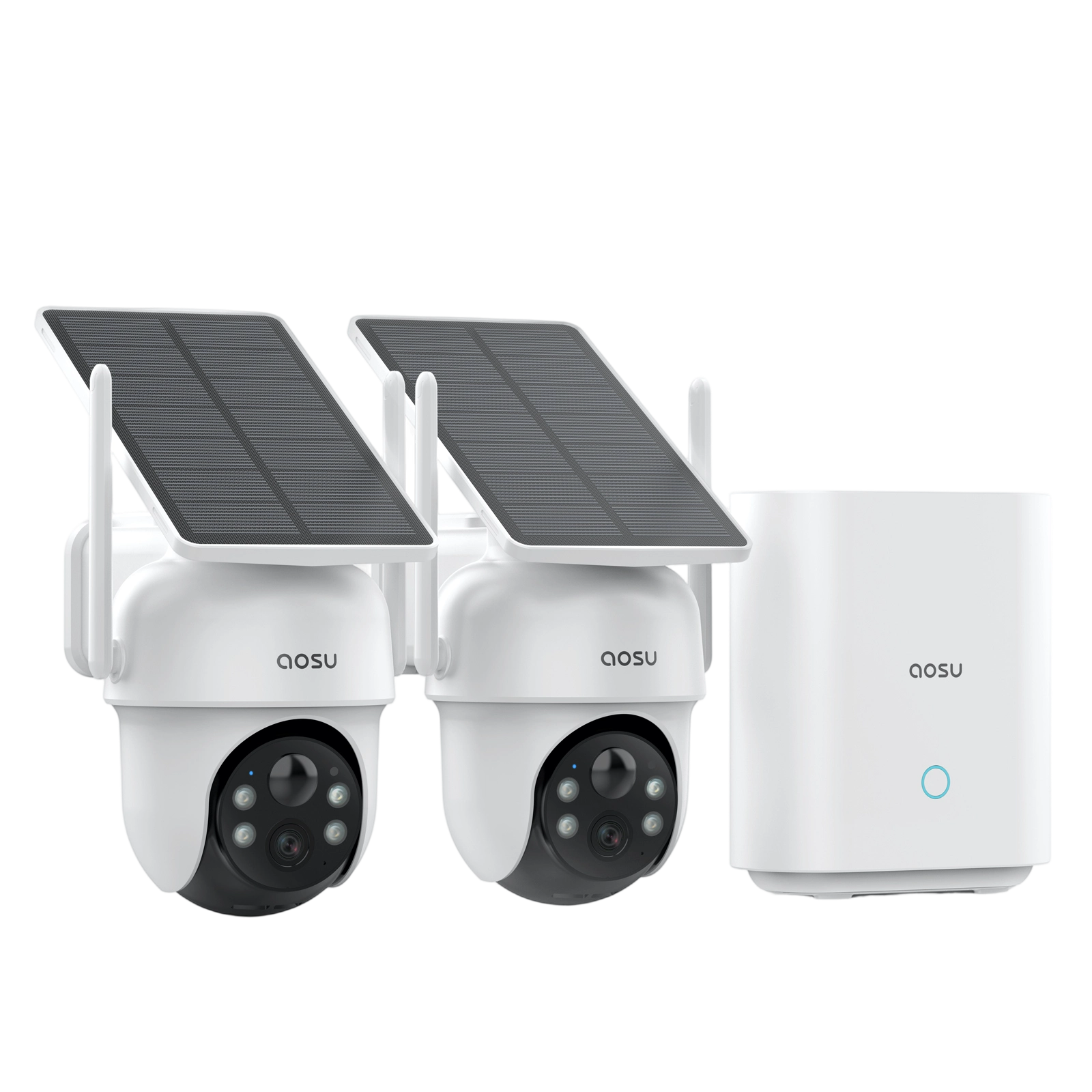
| Protected local storage | Footage is saved on an indoor hub, base station, NVR, or DVR Still local, but less exposed than storage inside the camera Best for multi-camera homes or no-monthly-fee setups Weakness: depends on compatible hardware and enough storage capacity |
| Cloud storage | Footage is uploaded online through the camera brand's cloud service Best for off-site backup, remote review, and clip sharing Some plans also include AI detection, event search, clip filters, or easier video organization Useful if the camera or local recorder could be damaged or stolen Weakness: often depends on internet, account security, and a paid plan |
Storage and Access Are Not the Same Thing
This is the detail that causes a lot of confusion. Storage is where footage is saved. Access is how you view it.
A camera can record to local storage but still need internet for remote live view, phone alerts, sharing, or app login. A camera can also show live view in the app without saving the footage you expect.
Before choosing a system, check four separate details: where footage is saved, how you review it, how long it stays available, and what stops working when the internet is down.
1. Saved footage: Look for SD card, built-in storage, home hub, base station, NVR, DVR, cloud storage, or a combination.
2. Playback: Confirm whether you can review clips in the app, on a recorder, or only when you are on the same network.
3. Download and sharing: If you need to send clips to another person, check whether downloads and sharing work without a plan.
4. Offline behavior: If Wi-Fi drops, local recording may continue, but remote alerts and cloud upload usually pause.
Check That You Can Export a Recording
Before relying on a storage setup:
- Create a short test event and find it in saved playback.
- Use the model’s supported download or export function.
- Open the exported file outside the camera app.
- Check that the required scene, time and audio, where enabled, are present.
- Keep a separate copy of important footage before it expires or is overwritten.
The D1 Classic Kit FAQ confirms event-clip downloads to a phone. Exact controls should be checked against the installed app version.
Related Reading:
Learn what security cameras without fees can do
The Storage Stress Test
Instead of asking which storage type is best in general, ask what problem you most need to avoid. These are the moments where the difference actually matters.
1. If your internet drops: Local recording can continue if the camera and local recorder remain powered and connected to each other. Cloud upload, remote alerts, and remote viewing stop until the internet connection returns.
Check what happens after reconnection. A camera may buffer some recordings while offline, but this is model-specific. Confirm which events are retained, how much can be buffered and whether a subscription is required for later cloud access.
For example, Google documents offline buffering and later upload for listed Nest models. This is not a general rule for cloud cameras or evidence of the same behavior on an aosu system.
Ask the manufacturer: “Will recordings made during an internet outage appear in my cloud history afterward, and what limits apply?”
2. If someone takes the camera: Camera-only storage is the weakest option. An indoor hub or recorder can keep clips that reached it, while cloud storage can keep clips that finished uploading.
3. If the home loses power: The camera cannot make new recordings without power unless the camera and any required recorder have battery backup. Cloud storage still protects footage uploaded before the outage.
4. If storage fills up: Local systems often replace older clips when loop recording is enabled. Cloud plans limit history by retention period. Download important footage before it is overwritten or expires.
5. If you stop paying: Cloud access follows the provider's plan and terms. Export important clips before cancellation or expiration. Local recordings remain independent of the cloud plan when the system supports local playback without one.
6. If you need footage while away: Cloud storage is usually convenient for remote review. Many local systems also offer remote app playback, but that still depends on the home internet connection, the account, and the exact camera or hub.
Verify Your Own Outage Behavior
Test during a period when a temporary interruption is acceptable:
- Confirm that a normal test event is saved.
- Interrupt only the router’s internet connection. Keep the local network, cameras and recorder powered.
- Create another identifiable test event and note the time.
- Restore internet access and check local playback.
- If cloud storage is enabled, check its history separately for the outage event.
- Export the relevant clip and confirm it opens.
Record what happened rather than assuming the local and cloud results will match. This test does not establish behavior during a power failure or a broken camera-to-recorder connection.
Match Storage to Each Camera Location
A useful storage decision starts with where the camera is installed and what it covers. One home can reasonably use different storage priorities for different cameras.
| Camera location | Storage guidance |
|---|---|
| Front door or package area | Best fit: protected local storage plus optional cloud backup Why: package disputes and camera theft are more realistic here Priority: preserve important clips, not just avoid monthly fees |
| Backyard or side yard | Best fit: local storage is often enough Why: many users mainly need motion clips and routine playback Priority: simple recording without overpaying for unused features |
| Driveway or street-facing camera | Best fit: protected local storage with enough capacity Why: cars, pedestrians, and street movement can create many events Priority: storage capacity, motion zones, and easy clip review |
| Remote property or vacation home | Best fit: cloud storage or hybrid storage Why: you may not be nearby to check local hardware Priority: remote access, alerts, and off-site clips |
Learn where to install SolarCam T2 for the best view
When Hybrid Storage Is Worth It
Hybrid storage is worth considering when you like local recording but do not want all your risk sitting in one place.
The practical version is simple: use local storage for normal clips, then add cloud backup only for cameras or situations where losing footage would be costly, stressful, or hard to recover from.
That might mean cloud backup for the front door and driveway, but local-only storage for a low-risk backyard camera. It might also mean turning on cloud service temporarily while traveling.
Not every system records locally and uploads to the cloud in the same way. Confirm whether both can run together and which cameras the cloud plan covers.
 Hybrid storage can keep routine recording local while reserving cloud backup for higher-risk moments.
Privacy, Cost, and Control
Local storage keeps footage on hardware you control, but it still needs protection. Put an indoor hub or recorder somewhere sensible, protect the camera account with a strong unique password, and keep the camera and app updated.
Cloud storage shifts more trust to the provider and your account security. Use two-factor authentication when it is available and review who can access shared cameras.
For cost, do not pay for cloud storage just because it exists. Pay for it when off-site backup, remote history, or plan features solve a real problem for that camera. Local storage may still require a card, hub, drive, or replacement media.
Compare Costs Over the Same Period
Compare the same camera count and recording requirement:
Three-year cost = required storage hardware + replacement media + 36 months of selected service fees
As an illustration, a cloud service costing $5 per month for the whole setup adds $180 over three years. If it costs $5 per camera instead, three cameras add $540. These are assumed prices, not quoted aosu plans.
Check whether a plan covers one device, several devices or one home. Compare the required video history and features as well as the price.
Estimate Capacity From Recording Time
For continuous recording, a useful approximation is:
GB per day ≈ average bitrate in Mbps × 10.8
At an assumed average bitrate of 2Mbps, one camera generates about 21.6GB per day. A nominal 128GB card would therefore hold about 5.9 days before allowing for formatting, reserved space and other overhead.
This is a calculation, not a measured retention result. Event recording depends on how many clips are saved and their length. Do not apply this continuous-recording example to a D1 Classic event-recording kit.
Common Mistakes to Avoid
1. Choosing camera-only storage for a high-risk spot: If a camera is easy to reach or likely to capture important evidence, consider an indoor hub, recorder, or cloud backup.
2. Assuming local means offline everything: Local recording may continue without internet, but alerts, remote live view, sharing, and cloud upload usually need a connection.
3. Forgetting overwrite rules: Local storage often deletes older clips automatically when full. Download important footage before it is overwritten.
4. Treating every camera the same: Your front door, backyard, driveway, and remote-property cameras may not need the same storage strategy.
How This Applies to aosu D1 Classic
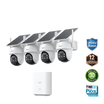
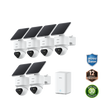
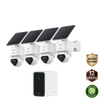
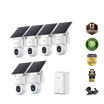
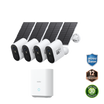
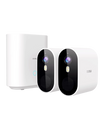
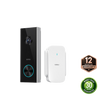
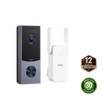
Check the exact configuration. The D1 Classic two- and four-camera kits include 32GB aosuBase storage; the standalone camera has different storage requirements.
According to the D1 Classic Kit’s official FAQ, local event recording can continue during an internet outage while the cameras and base remain powered and connected to each other. Remote functions require internet access and become available again after reconnection.
This does not establish automatic cloud backfill. Before relying on a second copy, confirm whether your exact model and cloud plan upload recordings captured during an outage. Local recordings and an off-site backup are separate protections.
For the D1 recommendation below, use the two- or four-camera D1 Classic Kit listing and confirm the selected camera count, base version and included storage. This explanation does not establish the same behavior for a six-camera configuration.

To Wrap Up
Cloud storage vs. local storage for security cameras is a question of risk. Local storage is usually better for everyday recording, lower ongoing cost, and direct control. Cloud storage is better for off-site backup and convenient access when you are away.
For many homes, the strongest setup is local-first with optional cloud backup. Before choosing, check what happens if the internet drops, a camera is stolen, the home loses power, storage fills up, or the cloud plan ends.
FAQs
Is cloud storage or local storage better for security cameras?
Local storage is usually better for everyday recording, lower ongoing cost, and direct control. Cloud storage is better for off-site backup and convenient remote access. A hybrid setup combines those strengths when the camera supports both.
Can security cameras record locally without internet?
Some cameras can keep recording to a microSD card, hub, NVR, or DVR without internet. The camera and recorder still need power and a working local connection. Remote alerts, live view, and app playback generally require internet.
What is the main downside of local storage?
Camera-only local storage can leave with the camera if it is stolen. Local storage can also fill up, fail, or overwrite older clips. An indoor hub or recorder reduces the theft risk but still needs enough capacity and physical protection.
What happens to cloud recordings when a subscription ends?
Retention and access follow the provider's plan and terms. Export important clips before the plan expires or is canceled. For aosu, access to stored cloud recordings may be restricted when a subscription expires, is canceled, or is terminated.
Is hybrid security camera storage worth it?
Hybrid storage is useful when you want local recording for routine events and an off-site copy for higher-risk cameras or important clips. Confirm that the camera supports both options at the same time.