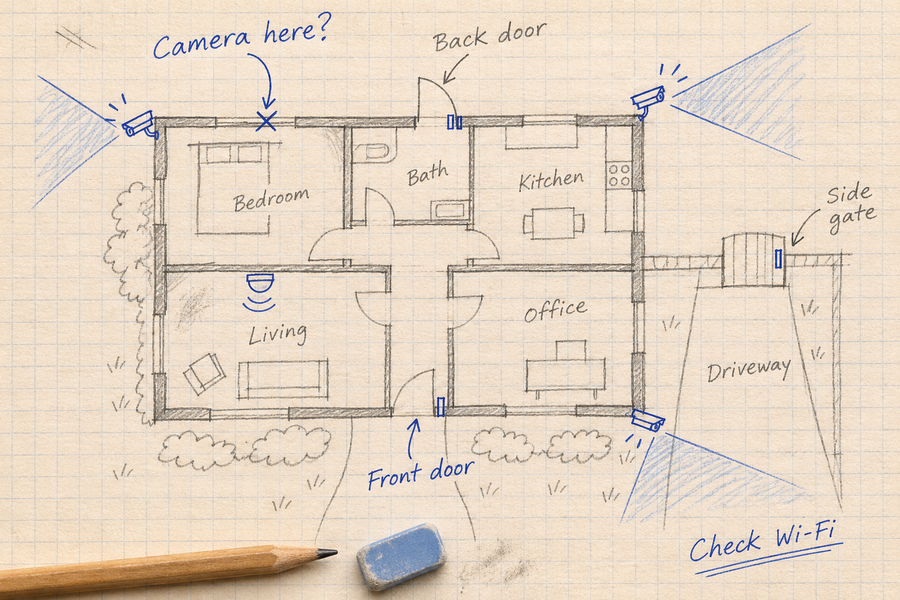









A camera going offline does not establish that someone is using a Wi-Fi jammer. Power failures, router problems, weak coverage, congestion and internet outages can produce similar symptoms.
This guide explains how to check ordinary faults first, identify which connection failed and reduce dependence on wireless links. No consumer Wi-Fi setting can guarantee uninterrupted operation during deliberate radio interference.
What Is Wi-Fi Jamming?
Wi-Fi jamming refers to the intentional disruption of wireless radio communications. It is different from ordinary congestion, weak coverage, internet-service loss or an authentication problem. Similar symptoms do not establish the cause, and a connection failure alone does not identify a responsible person.
Check Ordinary Outages Before Suspecting Jamming
Record when the problem started and which devices were affected. Then check:
- Power: Are the camera, router, hub and recorder powered?
- Internet service: Can a wired device reach the internet?
- Wireless connection: Can affected devices connect near the router or their required hub?
- Recording: Did the camera save footage during the outage, even though remote viewing failed?
- Recent changes: Were settings, firmware, equipment or camera positions changed?
Save relevant logs and recordings before resetting equipment. Ask the internet provider and device manufacturer to help investigate persistent failures. Simultaneous disconnections may justify further investigation, but they do not establish deliberate jamming or identify a responsible person.

How to Prevent Wi-Fi Jamming
The following checks address different risks and dependencies. They do not guarantee that a wireless link will remain available during deliberate radio interference.
1. Check Band Support Without Assuming Automatic Failover
A compatible camera may be able to use a different Wi-Fi band when one connection performs poorly. However, dual-band support does not establish automatic switching during an outage.
Confirm the bands supported by both the camera and access point, whether reconnection requires setup changes and how recording behaves while disconnected. A different band is an option to test, not a guarantee against interference.
2. Verify How Outage Notifications Work
A camera may be unable to send an event alert when its required connection is unavailable. Do not assume that motion notifications will continue during a wireless outage.
If a product offers offline notifications, check whether the service detects a lost connection, how long that takes and what connection your phone needs to receive the message. An offline notification reports lost contact; it does not establish the cause.
Test supported outage behavior using the manufacturer’s procedure. Do not describe a missing connection as confirmed jammer detection.
3. Map the Recording Path and Reduce Wireless Dependencies
Identify every link between the camera and the saved recording.
| Arrangement | What to verify |
|---|---|
| On-camera storage | Whether the camera records without its network connection, and how footage is retrieved afterward |
| Wireless camera to indoor hub | Whether recordings stop reaching the hub when that wireless link fails |
| Ethernet camera to local recorder | Whether the complete recording path is wired and can operate without internet service |
| Cloud recording | Whether clips must upload immediately, and whether any local buffering or later upload is documented |
| Backup power | Which cameras, switches, hubs, recorders and network devices it actually powers |
A wired camera-to-recorder path removes reliance on Wi-Fi for that path. It still depends on power, cables, equipment and storage working.
Local storage is not automatically an independent backup. Confirm where recording happens and what remains available when each link fails.
4. Keep Network Security Separate From Radio Availability
Use supported authentication and encryption, strong passwords and current firmware to reduce unauthorized access. WPA3 does not prevent radio interference from making a wireless link unavailable.
Likewise, hiding an SSID or filtering MAC addresses should not be presented as protection against RF jamming. Maintain secure settings while planning separately for connection failures.
5. Report Persistent Suspected Interference
In the United States, consumer use of devices that intentionally jam authorized radio communications is prohibited. See the FCC’s jammer enforcement advisory.
First work with your service provider and equipment manufacturer to rule out ordinary faults. Preserve dates, affected-device details and relevant logs. Follow the reporting guidance linked from the U.S. government’s interference information page. Do not purchase or operate a jammer to test your system.
Choosing an aosu Camera With Realistic Outage Expectations
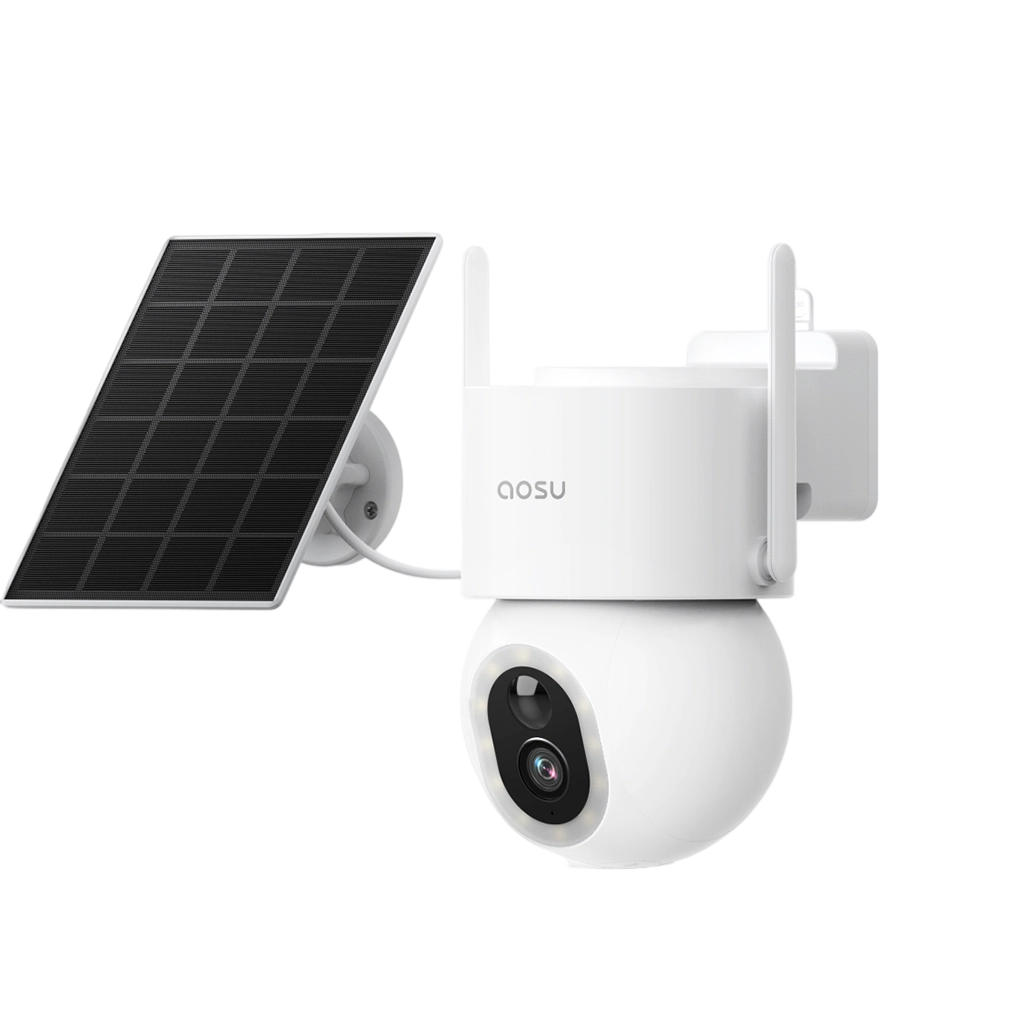
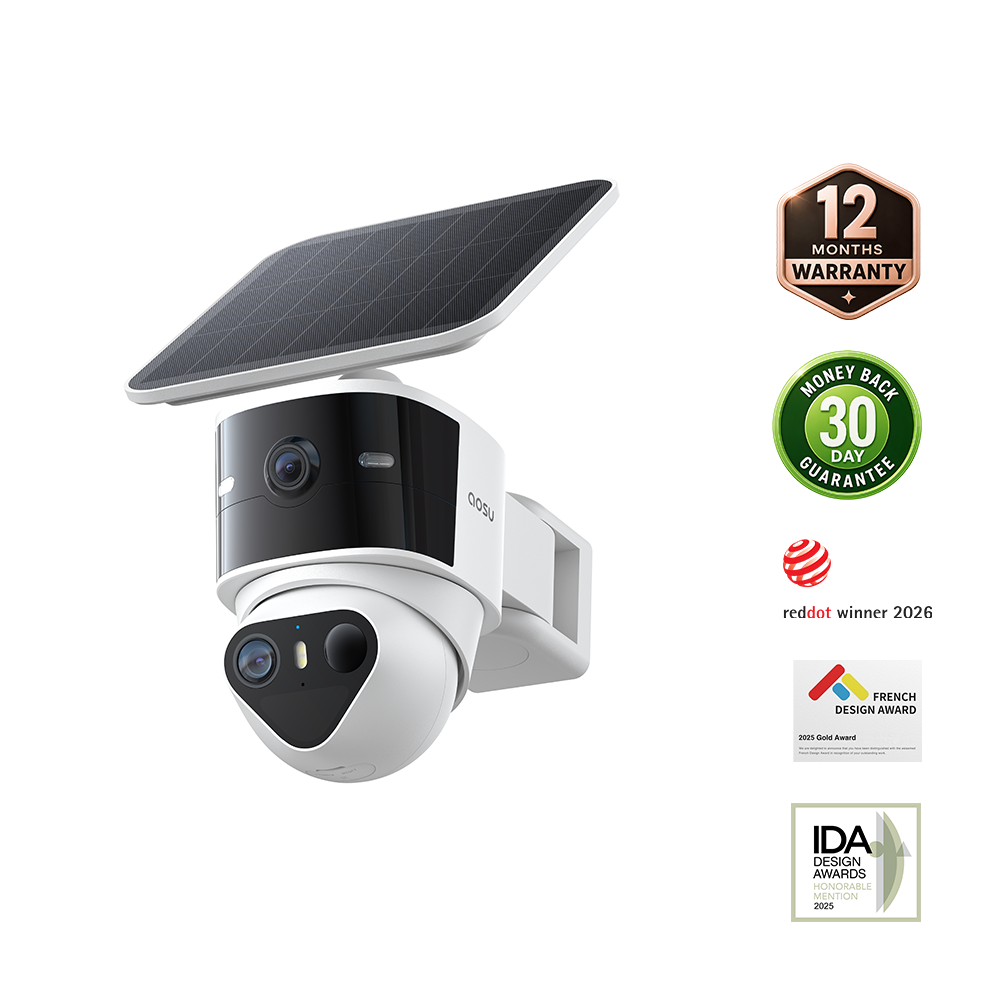
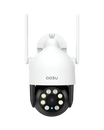
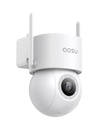
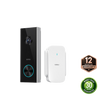
Review storage and connection behavior for the exact aosu model and kit before buying. Do not assume every camera supports the same bands, local storage or offline functions.
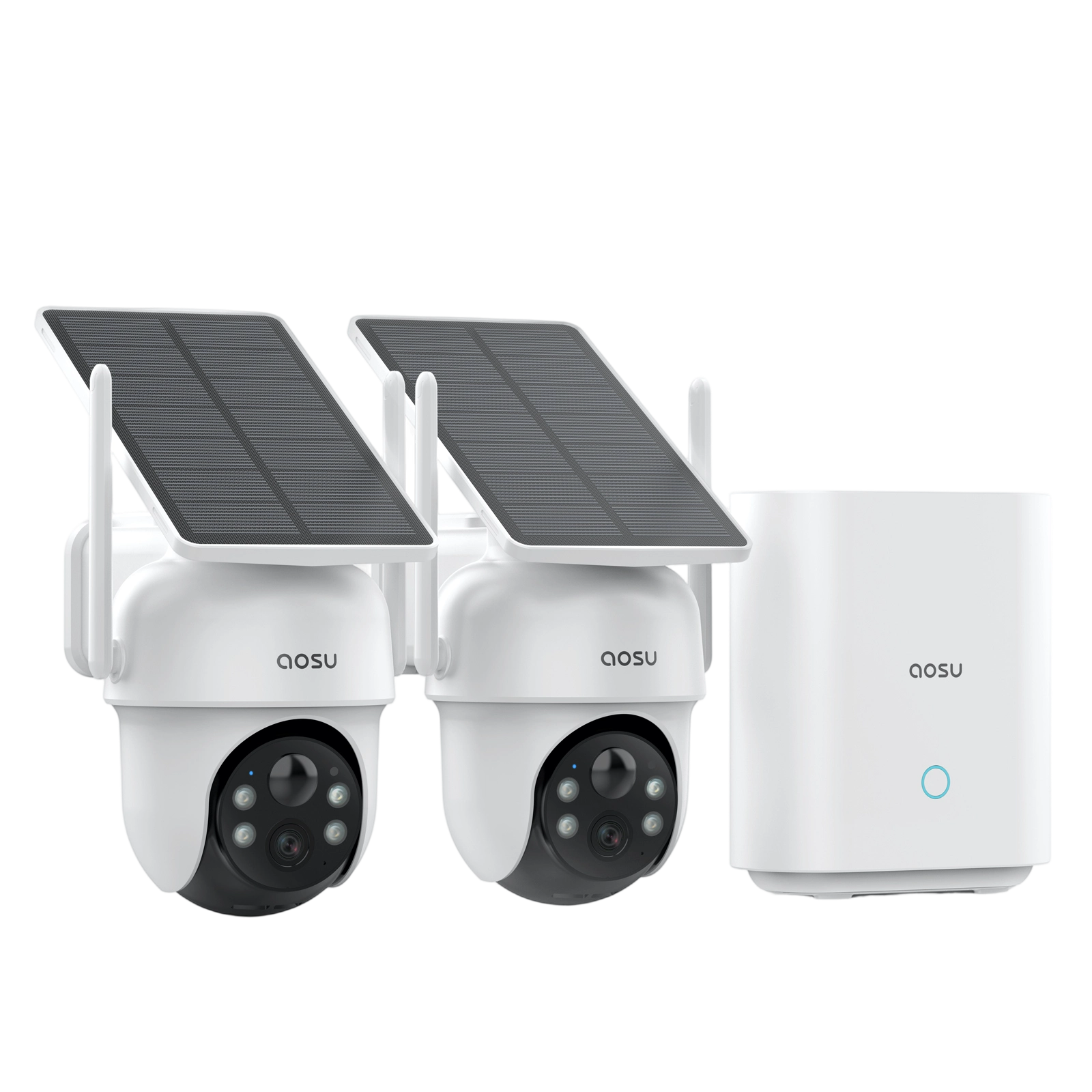
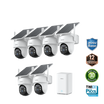
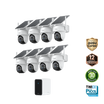
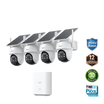
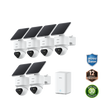
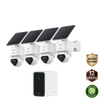
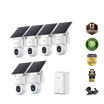
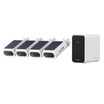
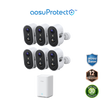
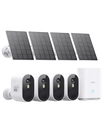
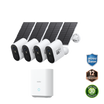
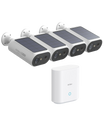
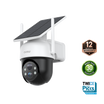
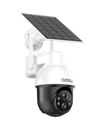
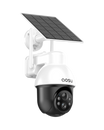
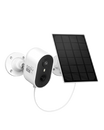
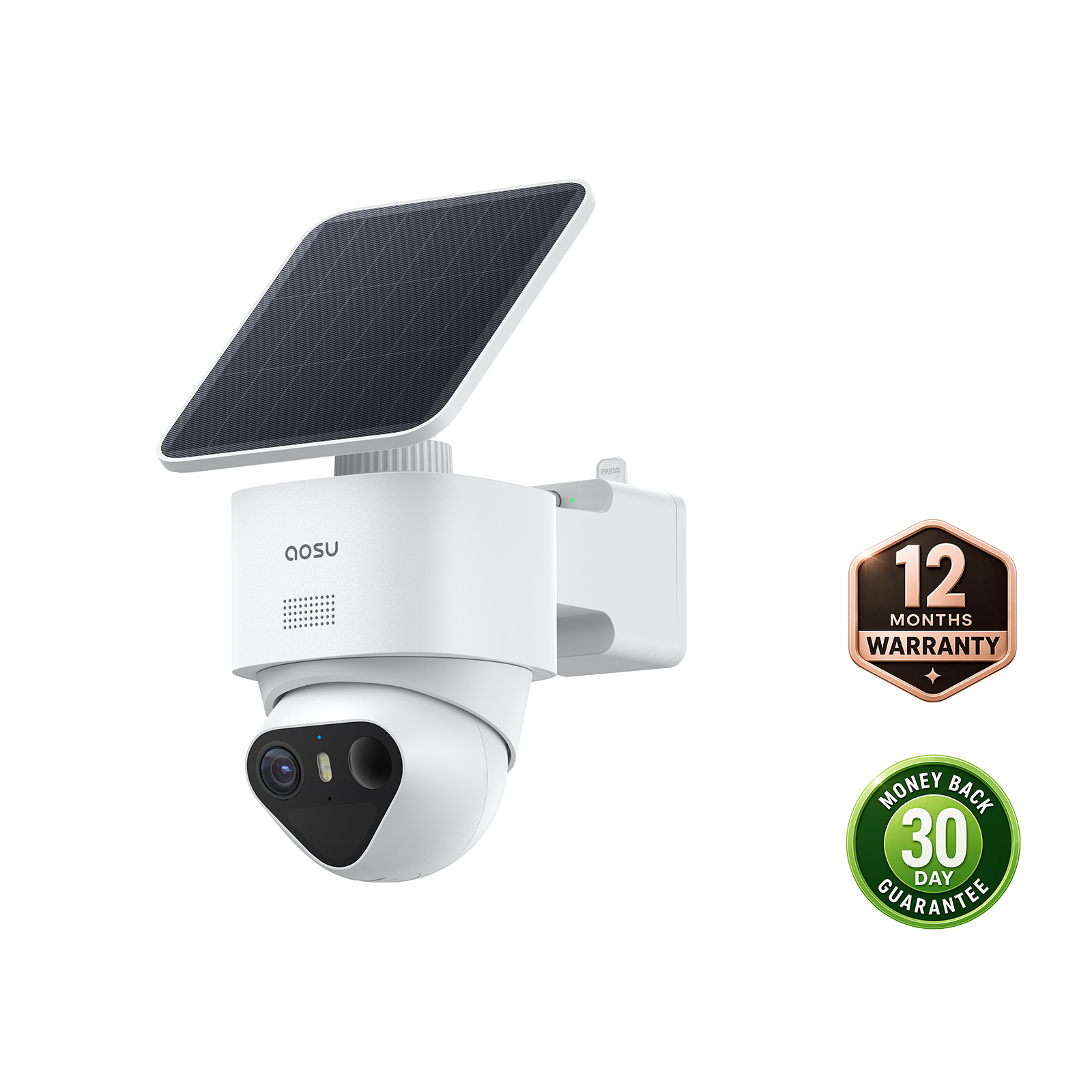
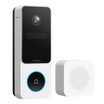
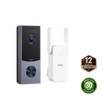
The SolarCam D1 Classic Kit’s official guidance describes local event recording during an internet outage when the cameras and base remain powered and connected to each other. That condition does not establish protection against interference affecting the camera-to-base link.
Compare the setup against the recording path you need to preserve, and confirm any undocumented behavior with support.

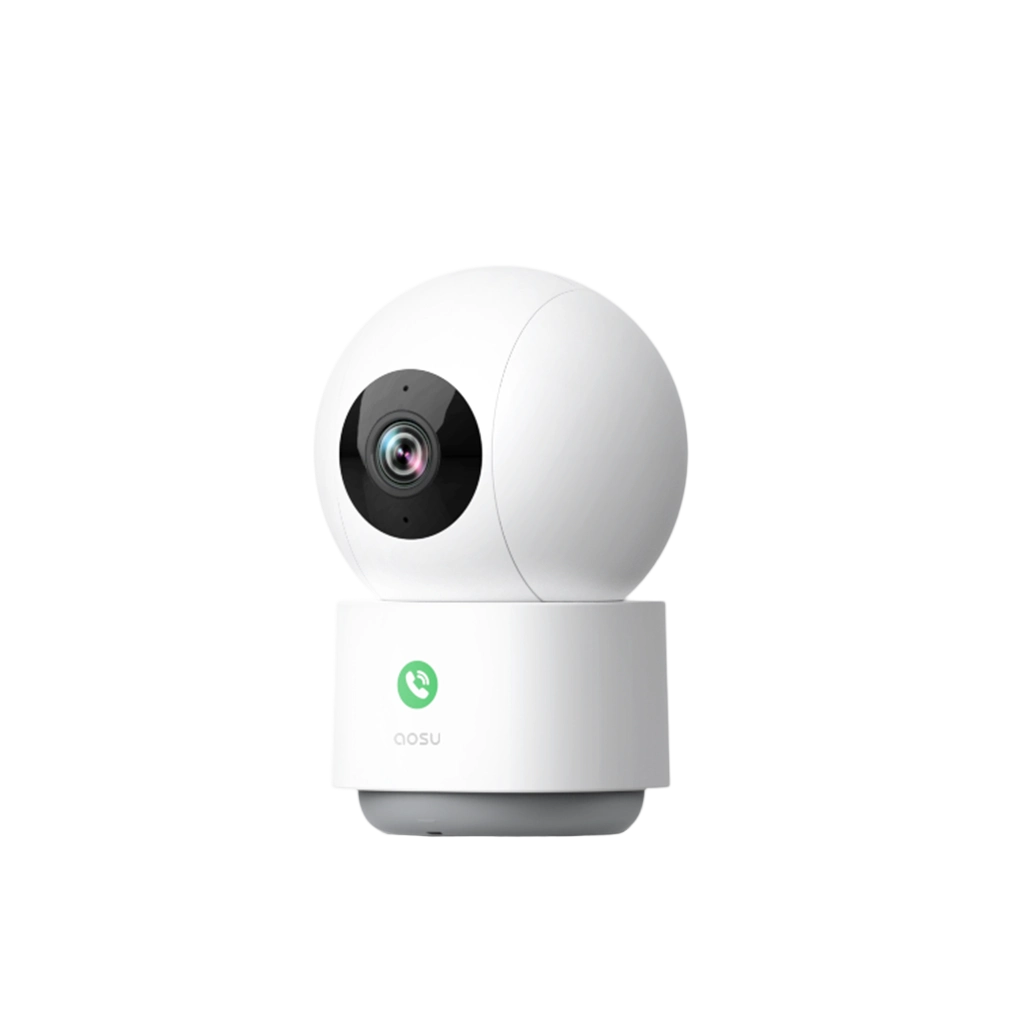
IndoorCam P1 Pro
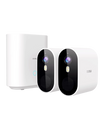
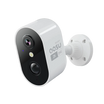
Review this indoor camera’s current specifications and connection requirements separately. This recommendation does not imply Ethernet support, automatic band failover or protection against RF jamming.

Conclusion: Keeping Your Network and Cameras Protected From Jammers
Protecting footage starts with understanding dependencies. Separate internet loss from wireless-link failure, verify where video is stored and use a wired recording path where wireless availability is unacceptable.
Secure settings, local storage and backup power address different risks. None should be described as a guarantee that a wireless camera will keep communicating during deliberate interference.
FAQs About Defending Against Wi-Fi Jammers
Does WPA3 stop Wi-Fi jamming?
No. It protects authentication and data confidentiality; it does not make the radio link immune to interference.
Will a dual-band camera switch automatically?
Do not assume so. Check the exact model’s connection behavior and test supported reconnection procedures.
Will local recording continue?
It depends on where recording occurs and which connections remain available. On-camera storage and storage on a wireless hub have different dependencies.
What should I do after repeated outages?
Preserve logs, check power and connectivity, and contact the provider or manufacturer. Follow approved restart procedures before considering a factory reset. Persistent unexplained outages may require professional investigation.