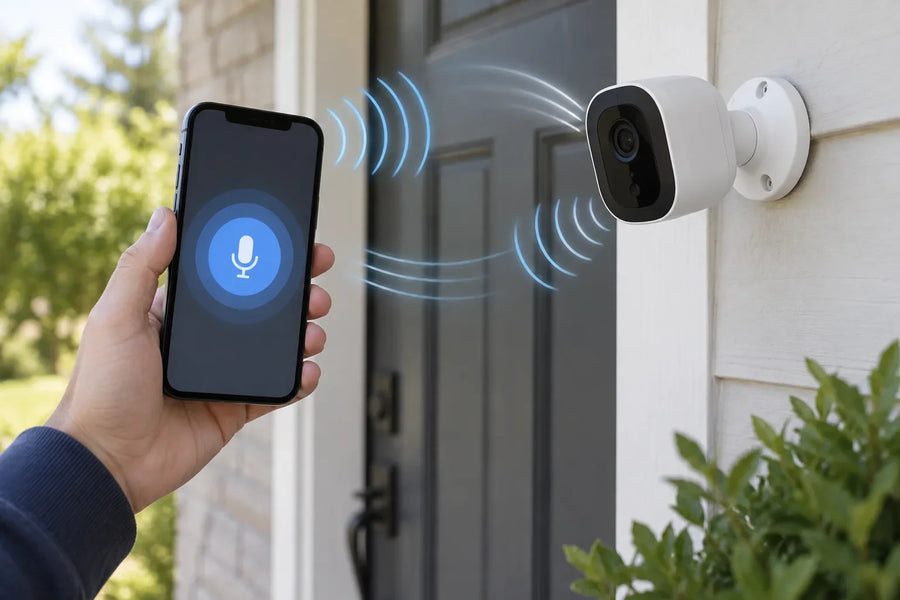





“Alexa not responding” can describe several different problems. Before changing settings or resetting your Echo, identify which situation applies:
- Alexa does not light up or respond at all: Check the power adapter, outlet and device status first.
- Alexa lights up but does not answer: Check whether the microphone is muted, confirm the internet connection and reduce background noise.
- Alexa answers normal questions but cannot play music or make calls: Troubleshoot the affected service instead of resetting the entire Echo.
- Alexa works, but cannot control a camera or another smart device: Check the device manufacturer’s app, Alexa skill and account connection.
- Alexa sends a command to the wrong speaker: Review device names and speaker-group settings.
Start with the section that matches your symptom. Avoid a factory reset until you have tried the lower-risk checks and confirmed the reset instructions for your exact Echo model.
Why Is My Alexa Not Responding?
Many Alexa app users occasionally face the silent treatment from their smart assistant, and the causes can range from simple to complex. Whether it’s due to a muted microphone, connectivity issues, or software glitches, understanding the root of the problem is the first step toward a solution. Here are some common reasons behind Alexa’s unresponsiveness and steps on how to troubleshoot them effectively.
- Microphone Issues: The microphone might be turned off or malfunctioning.
- Wi-Fi Connectivity Problems: Poor or lost Wi-Fi connection can hinder Alexa’s responsiveness.
- Software Glitches: Occasional bugs in the software can cause temporary issues.
- Power Supply: Power interruptions or faulty power adapters can cause malfunctions.
- Voice Recognition Errors: Alexa might not recognize your voice commands due to background noise or unclear speech.
How to Fix Alexa Not Responding to Voice Commands
When Alexa isn’t responding to your voice commands, it can be incredibly frustrating. Here are some detailed steps you can follow to troubleshoot and resolve the issue:
1. Check the Microphone
Ensure the microphone button on your Echo device is turned on. The microphone button should not be red. If it is, press the button to turn it back on. This simple step is often overlooked but is crucial for Alexa to hear and respond to your commands.
2. Restart Your Echo Device
Sometimes, a simple reboot can resolve the issue. Unplug your Echo device from the power outlet, wait for about 10 seconds, and then plug it back in. This allows the device to reset and can clear up any minor software glitches that might be affecting its performance.
3. Check the Alexa App and Echo Software
First, update the Alexa app through the App Store or Google Play if an update is available.
Echo devices normally receive software updates automatically while connected to the internet. If your Echo is online but remains unresponsive, restart it and allow it time to reconnect. You can compare the software version shown in your device information with Amazon’s current software-version list.
The available menus and update behavior can vary by Echo model and Alexa app version, so follow Amazon’s instructions for your specific device rather than looking for a universal “Update” button.
4. Review Voice ID Only If Alexa Misidentifies You
Skip this step if Alexa does not respond to anyone. Voice ID is relevant when Alexa hears commands but cannot recognize the correct household member or provide personalized results.
To review Voice ID in the Alexa app:
- Open More.
- Select Settings.
- Select Account Management.
- Open Your Profile.
- Select Voice ID and follow the instructions.
You can also say, “Alexa, learn my voice.” Menu names may vary slightly by app version and region.
5. Reduce Background Noise
Ensure there isn’t too much background noise interfering with Alexa’s ability to hear you clearly. Background noise can confuse Alexa and prevent it from accurately recognizing voice commands. Try to speak clearly and at a moderate volume, and consider moving the Echo device to a quieter location if necessary.
How to Fix Alexa Not Streaming Music
When Alexa refuses to stream your favorite tunes, it can really throw a wrench in your daily routine. Here’s how to get your music flowing again:
1. Check Music Service Subscription
Ensure your subscription to the music service, such as Amazon Music or Spotify, is active and correctly linked to Alexa. Open the Alexa app, navigate to Settings > Music & Podcasts, and confirm that your subscription is up to date. Re-link the service if necessary to refresh the connection.
2. Internet Connection
Verify that your Wi-Fi connection is strong. Weak or unstable connections can cause streaming issues. Check your router and ensure your Echo device is within a reasonable range of it. You can also test the connection by using other devices to see if they experience similar issues.
3. Restart Alexa
Sometimes, rebooting the device can fix streaming problems. Unplug your Echo device from the power outlet, wait for about 10 seconds, and then plug it back in. This allows the device to reset and often resolves minor glitches affecting its performance.
4. Change Default Music Service
If the issue persists, check and change your default music service in the Alexa app. Go to Settings > Music & Podcasts, tap on Default Services, and select your preferred music service. This ensures Alexa uses the correct service when you ask it to play music.
How to Fix Alexa Playing Music on the Wrong Device
When Alexa plays music on the wrong device, it can be quite an annoyance. Here’s how to ensure your tunes play where you want them:
1. Check the Speaker Group
In the Alexa app:
1. Open Devices.
2. Select the plus icon.
3. Select Combine Speakers.
4. Select Multi-Room Music.
5. Follow the instructions to review or recreate the affected speaker group.
If music plays on the wrong Echo, also check the preferred speaker assigned to the room and make sure different Echo devices do not have confusingly similar names.
2. Device Name Conflicts
Avoid naming devices with similar names that could confuse Alexa. For instance, if you have two devices named “Living Room” and “Living Room 2,” consider renaming them to more distinct names like “Main Living Room” and “Living Room Speaker.”
3. Specify the Device
When giving a command, explicitly state the device name to avoid confusion. For example, say “Alexa, play music on the Living Room Echo” to direct Alexa to the correct device. This clear instruction helps Alexa know exactly where to play your music.
How to Fix Alexa Calling Not Working
If Alexa answers normal questions but calling does not work, treat this as a communication-feature problem rather than a general Echo failure.
1. Confirm That Calling Is Available
Alexa Calling, Messaging and Drop In availability can vary by country, account and device. Confirm that the feature is supported for your location and Echo model.
2. Check Contact Permissions
Confirm that your phone allows the Alexa app to access contacts. Then open the Alexa app and check that the correct Amazon profile and phone number are being used.
3. Review Communication Settings
In the Alexa app:
1. Open More.
2. Select Settings.
3. Select Communication.
4. Review the available calling, messaging and Drop In settings.
Menu names and available features can vary by region and Alexa app version.
4. Check the Connection and App Version
Ask Alexa a general question to confirm that the Echo is online. If Alexa responds normally, update the Alexa app through your phone’s app store and test the call again.
How to Fix Alexa Not Finding a Smart Device
Use this order to avoid an unnecessary factory reset.
1. Test the Device in Its Manufacturer’s App
Confirm that the device is powered on, connected and working in its own app. If it does not work there, troubleshoot the device or network before changing Alexa settings.
2. Confirm Alexa Compatibility
Check that the exact product model supports Alexa. Compatibility can differ between products from the same manufacturer.
3. Check the Alexa Skill and Account
In the Alexa app, open More > Skills & Games. Confirm that the correct skill is enabled and linked to the correct manufacturer account.
If the skill has stopped working, review its permissions and relink the account. Disable and re-enable the skill only if necessary.
4. Discover the Device Again
In the Alexa app:
1. Open Devices.
2. Select the plus icon.
3. Select Add Device.
4. Choose the device type and brand.
5. Follow the on-screen instructions.
Also check for duplicate, disabled or incorrectly named devices.
5. Check the Network Requirements
Some Wi-Fi and Matter products require the phone, device and controller to use the same compatible network during setup. Cloud-linked skills, Bluetooth devices and hub-connected products may use different connection methods.
Follow the network requirements for the exact device instead of assuming that every smart device must remain on the same Wi-Fi network.
6. Reset Only as a Last Resort
Restart the smart device and network equipment before performing a factory reset. If a reset is still required, follow the manufacturer’s instructions for the exact model. A factory reset may erase network settings, device assignments and account connections.
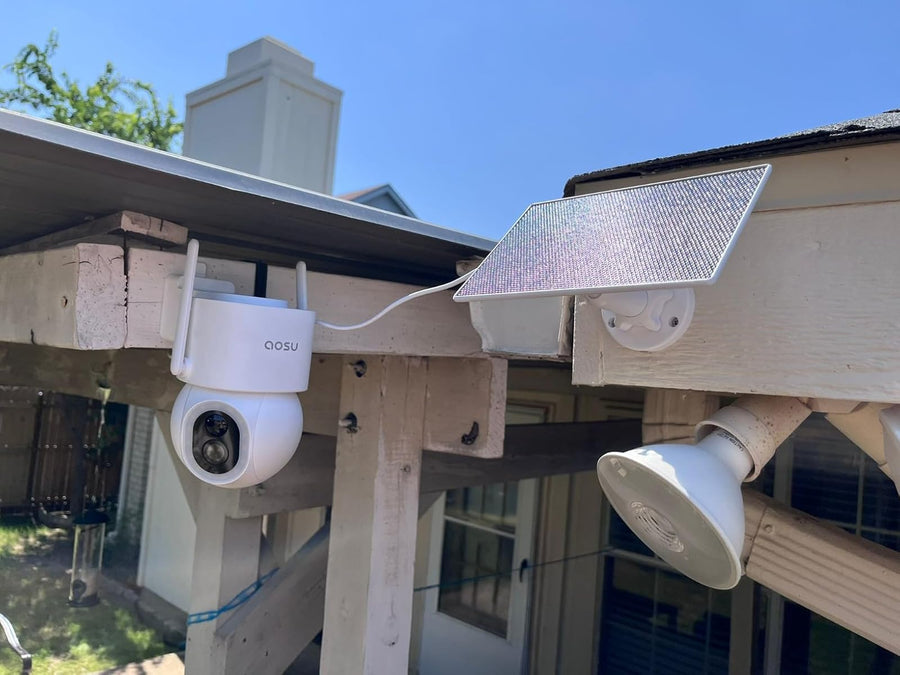
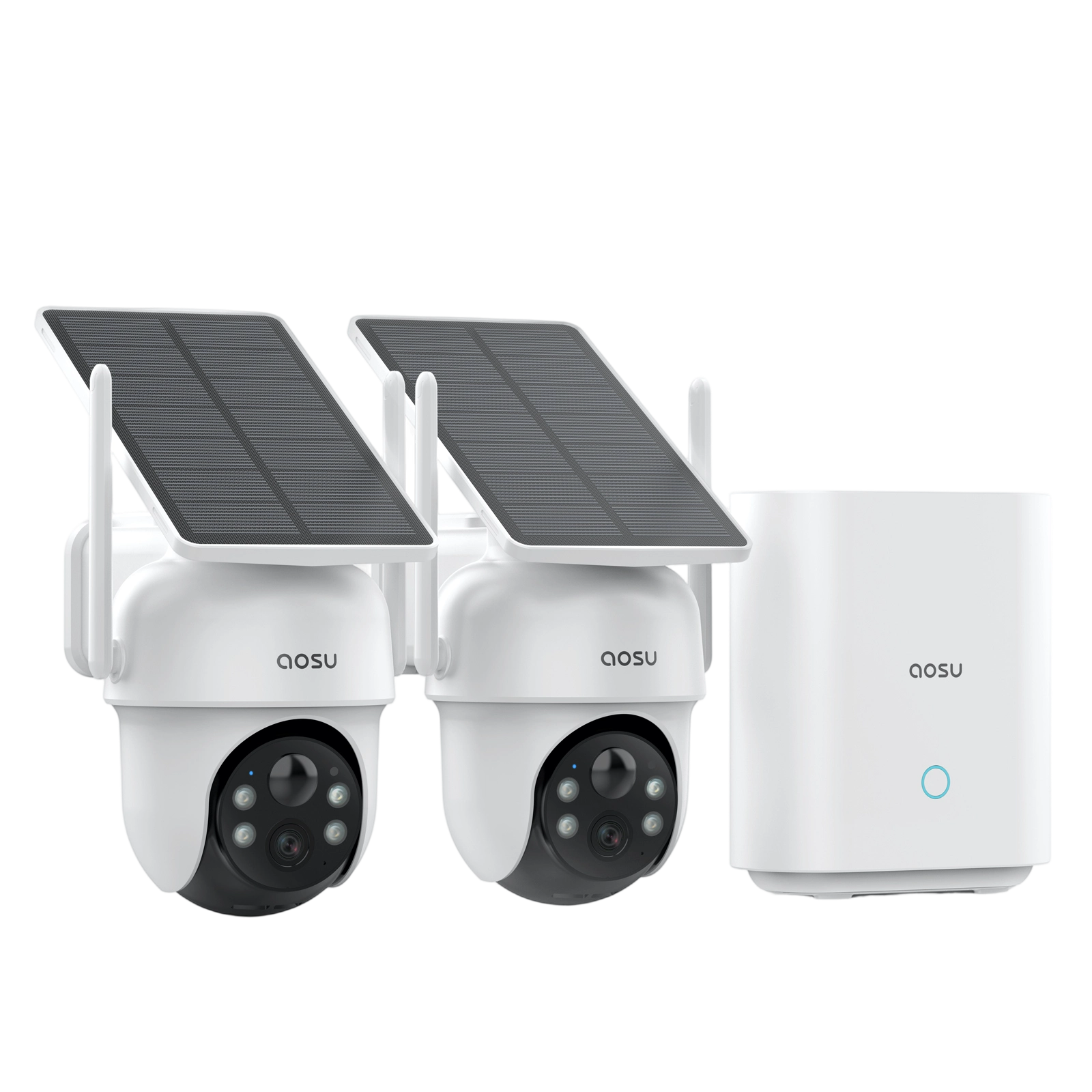
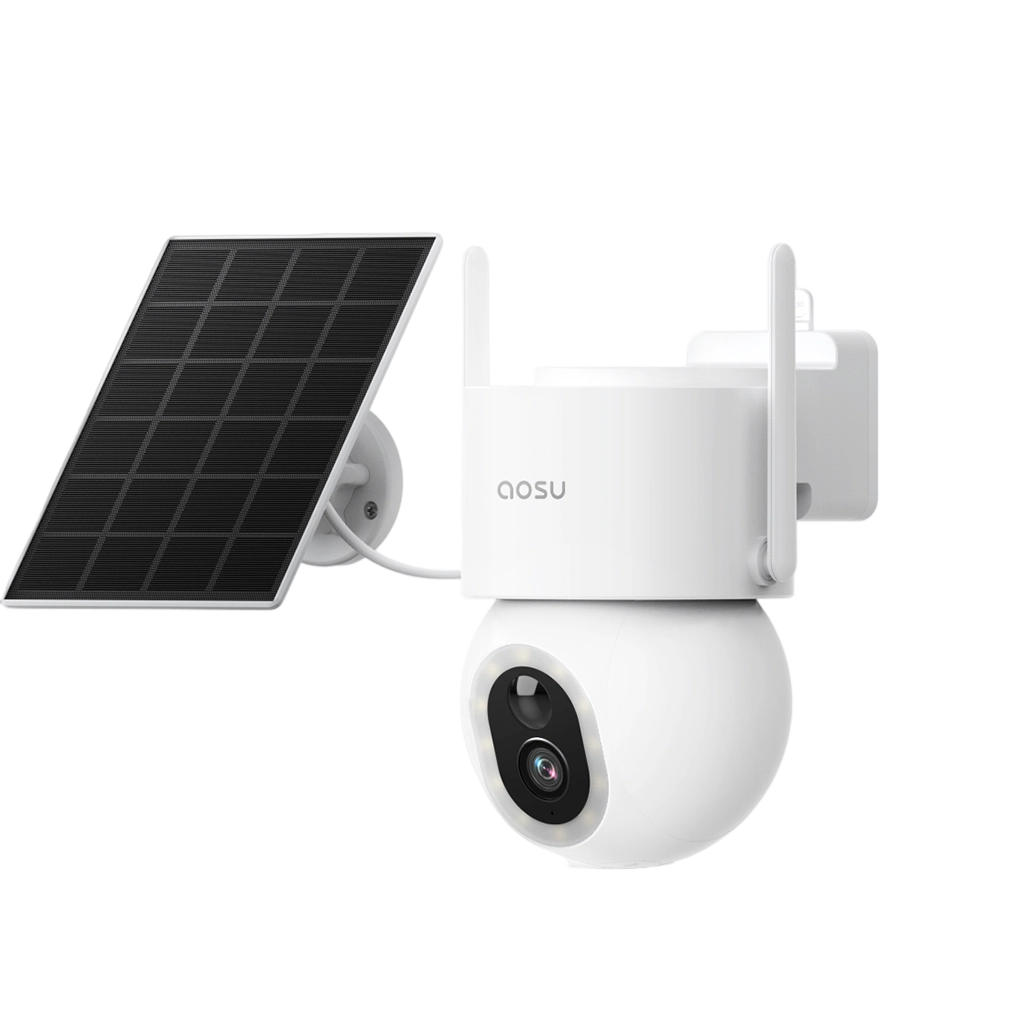
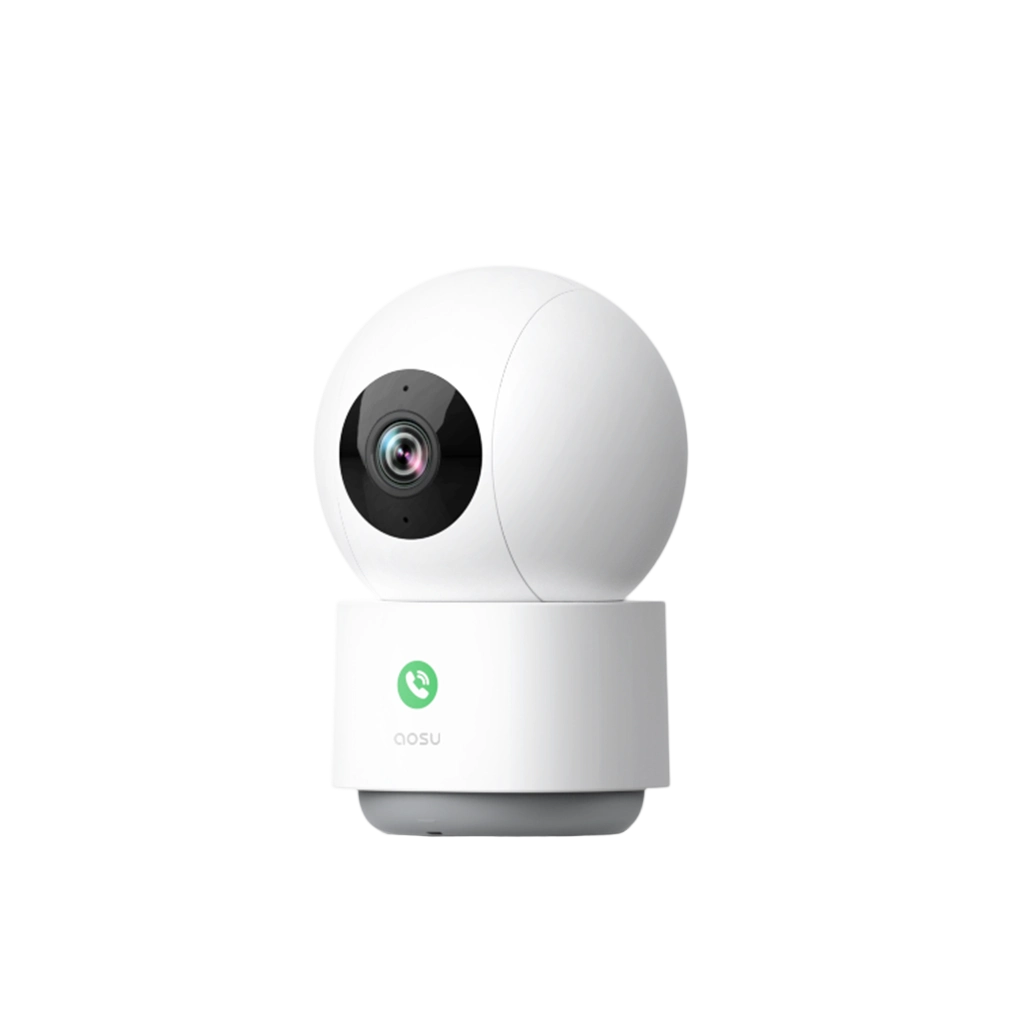
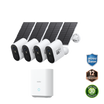
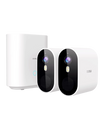
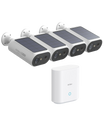
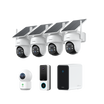
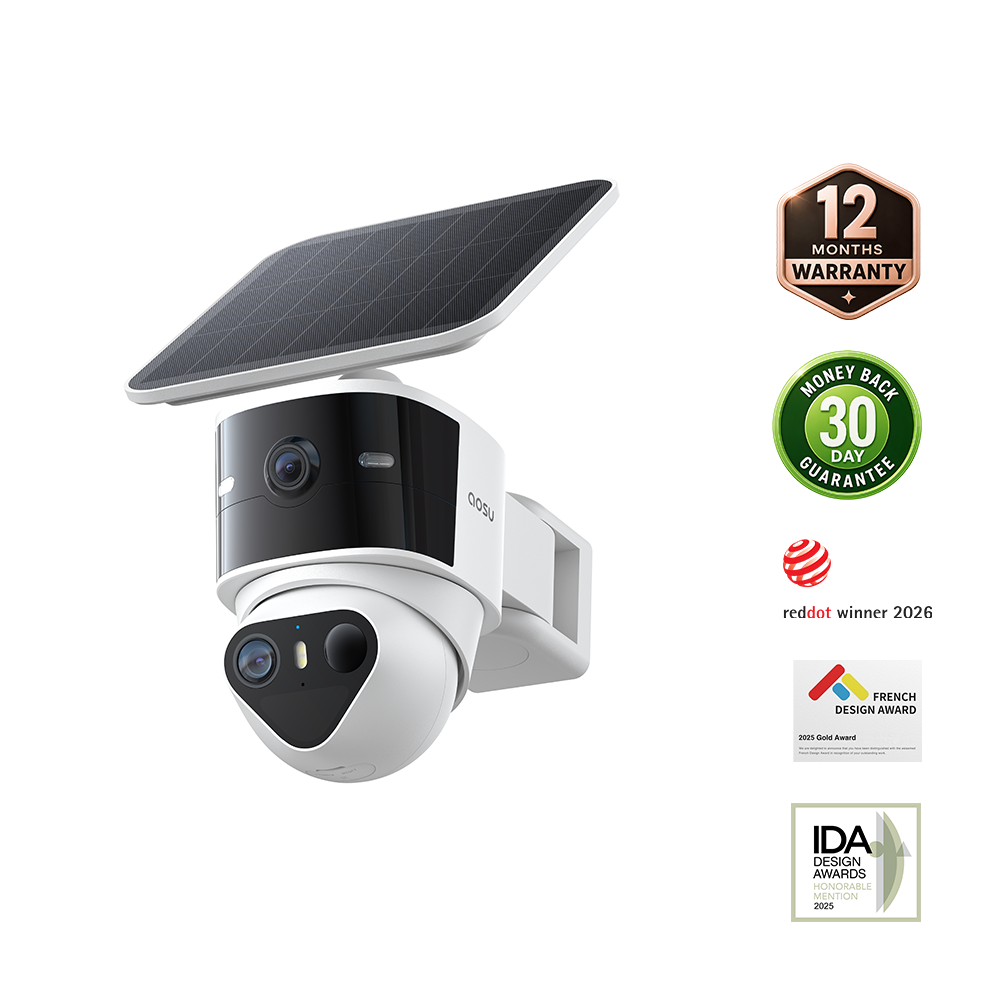
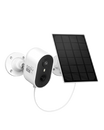
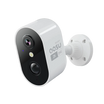
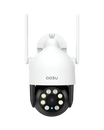
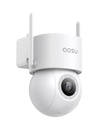
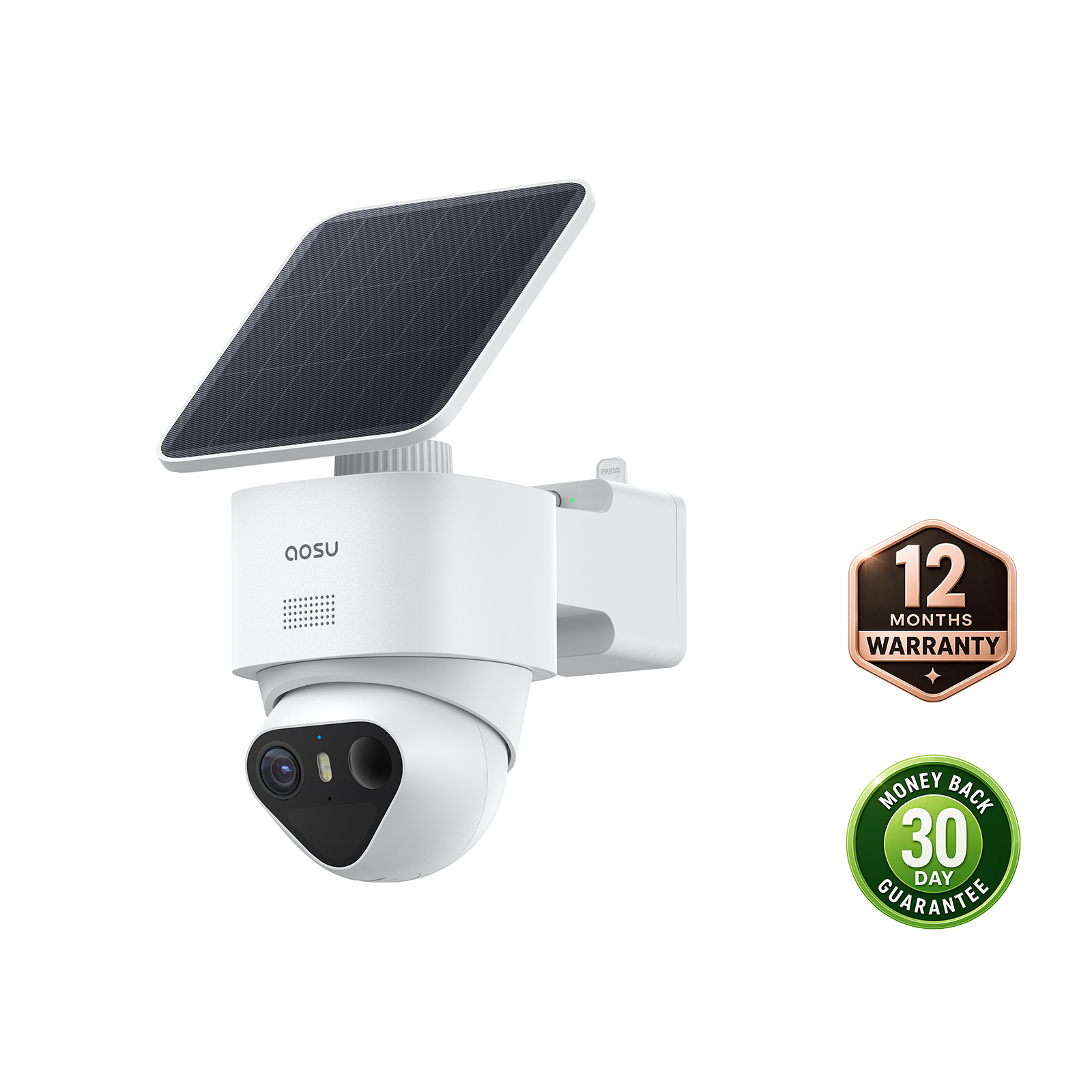
If Alexa Cannot Control an aosu Camera
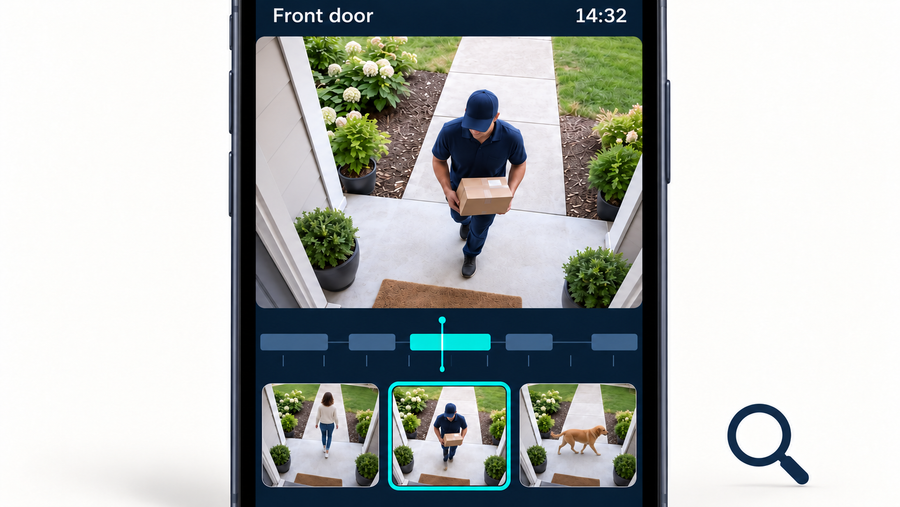
First, check whether the camera still works in the aosu app. If live view and recorded events are also unavailable there, troubleshoot the camera, aosu account and network connection before changing Alexa settings.
If the camera works in the aosu app but not through Alexa:
1. Confirm that the exact aosu model supports Alexa.
2. Check that the aosu account is linked to the correct Alexa profile.
3. Review the relevant skill and account permissions.
4. Relink the account if authorization has expired.
5. Ask Alexa to discover devices again.
6. Give each camera a short, unique name.
7. Test the camera on a compatible Alexa display.
Some aosu security cameras may also support Google Assistant or live view on a compatible Google Nest Hub. Available functions vary by model, region and display device. Do not assume that alerts, recording playback, camera settings or every function in the aosu app will also be available through Alexa or Google Home.
Use the aosu app as the primary place to check live view, recorded events, notifications and camera settings.
Final Thoughts on Fixing Alexa Issues
Start with the symptom instead of resetting everything. If Alexa does not respond at all, check power, microphone status, internet access and background noise. If only music, calling or a linked smart device fails, troubleshoot that service separately.
For an aosu camera, test the camera in the aosu app first. A camera that works in the aosu app but not in Alexa usually points to an account-linking, skill or device-discovery issue.
Alexa and Google Assistant compatibility can provide additional ways to access supported features, but it should not be described as automatic failover or uninterrupted control.
FAQs About Fixing Alexa Not Responding
Why Is My Alexa Not Responding to Voice Commands?
Your Alexa may not respond if the microphone is muted, the Wi-Fi is disconnected, or there’s a temporary glitch. Try unmuting, reconnecting Wi-Fi, and rebooting the device for quick recovery using smart support tools like aosu.
Why Is My Alexa Not Connecting to Wi-Fi?
A weak network or outdated settings often cause this. Restart your router, reset Alexa’s Wi-Fi connection, and ensure your password is accurate. Placing the device closer to the router can also stabilize your connection.
Why Is My Alexa Stuck on Setup Mode?
Alexa often sticks in setup due to network errors or incomplete app pairing. Restart your Echo, reconnect it via the Alexa app, and update the software to resume normal operation effortlessly.
Why Is the Alexa App Not Recognizing My Device?
The app might not detect your Echo if Bluetooth permissions are off or the device isn’t near enough. Enable Bluetooth and restart both your phone and Alexa for a fresh connection.
Why Is Alexa Not Controlling My Smart Devices?
First, test the device in its manufacturer’s app. If it also fails there, troubleshoot the device, power or network connection before changing Alexa settings.
If the device works in its own app but not in Alexa, confirm that the correct skill and manufacturer account are linked. Review the skill permissions, relink the account if necessary and ask Alexa to discover the device again.
Some devices require the phone, device and controller to use the same compatible network during setup. This requirement does not apply universally to every Alexa-connected device.
Why Is My Alexa Volume Not Working?
Alexa’s volume settings or hardware might be misconfigured. Check for mute status, adjust sound levels in the Alexa app, and restart the device to fix audio performance.
Why Is My Alexa Not Turning On?
If there are no lights or signs of power:
1. Use the power adapter supplied with the Echo.
2. Check that the adapter is firmly connected.
3. Test the outlet with another device.
4. Disconnect the Echo for 10 seconds, then reconnect it.
5. Try another compatible outlet if necessary.
Do not treat the Action button as a fix for a device that has no power. Holding the Action button for 20 seconds is a reset procedure for certain Echo models and only works after the device can power on. If the Echo remains completely unpowered, contact Amazon support or follow the hardware instructions for the exact model.
Why Is My Alexa Stuck After an Update?
Echo devices normally install software updates automatically while connected to the internet. If the device becomes unresponsive:
1. Leave it connected to power and the internet for several minutes in case the update is still completing.
2. Disconnect the power adapter for 10 seconds, then reconnect it.
3. Confirm that the Echo reconnects to Wi-Fi.
4. Compare its software version with Amazon’s current version list if the device becomes accessible.
5. If the problem continues, follow Amazon’s reset instructions for the exact Echo model or contact Amazon support.
An aosu camera or aosu system reset cannot reinstall or repair Echo software.