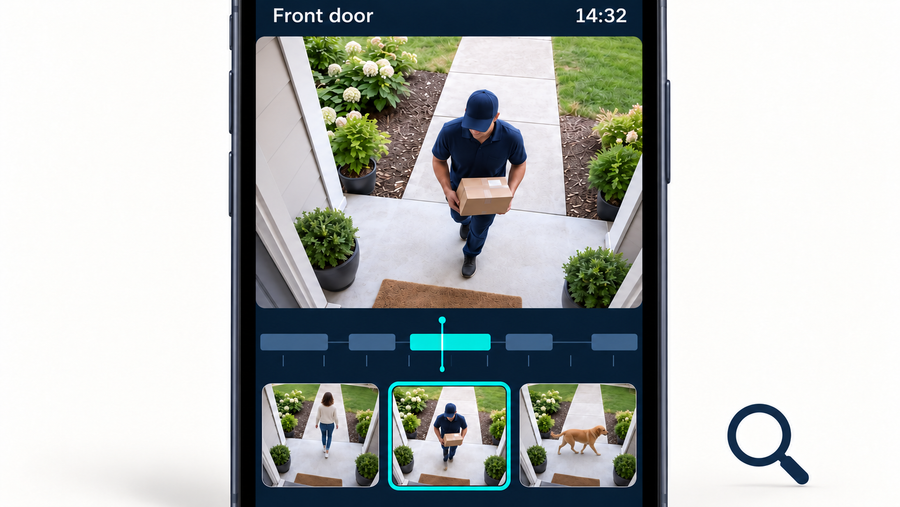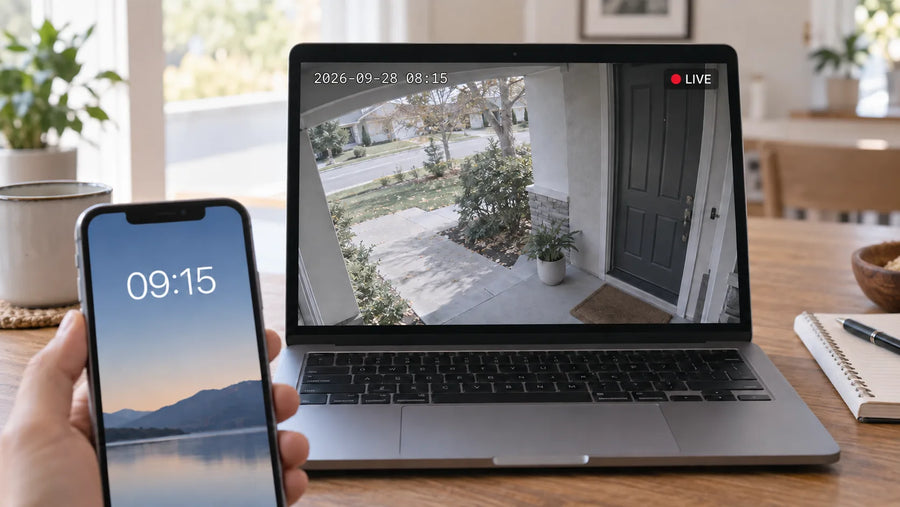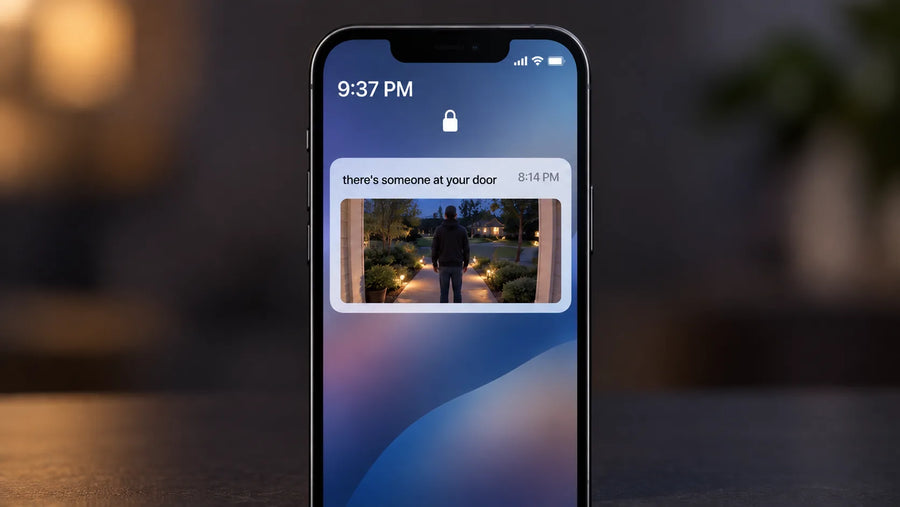



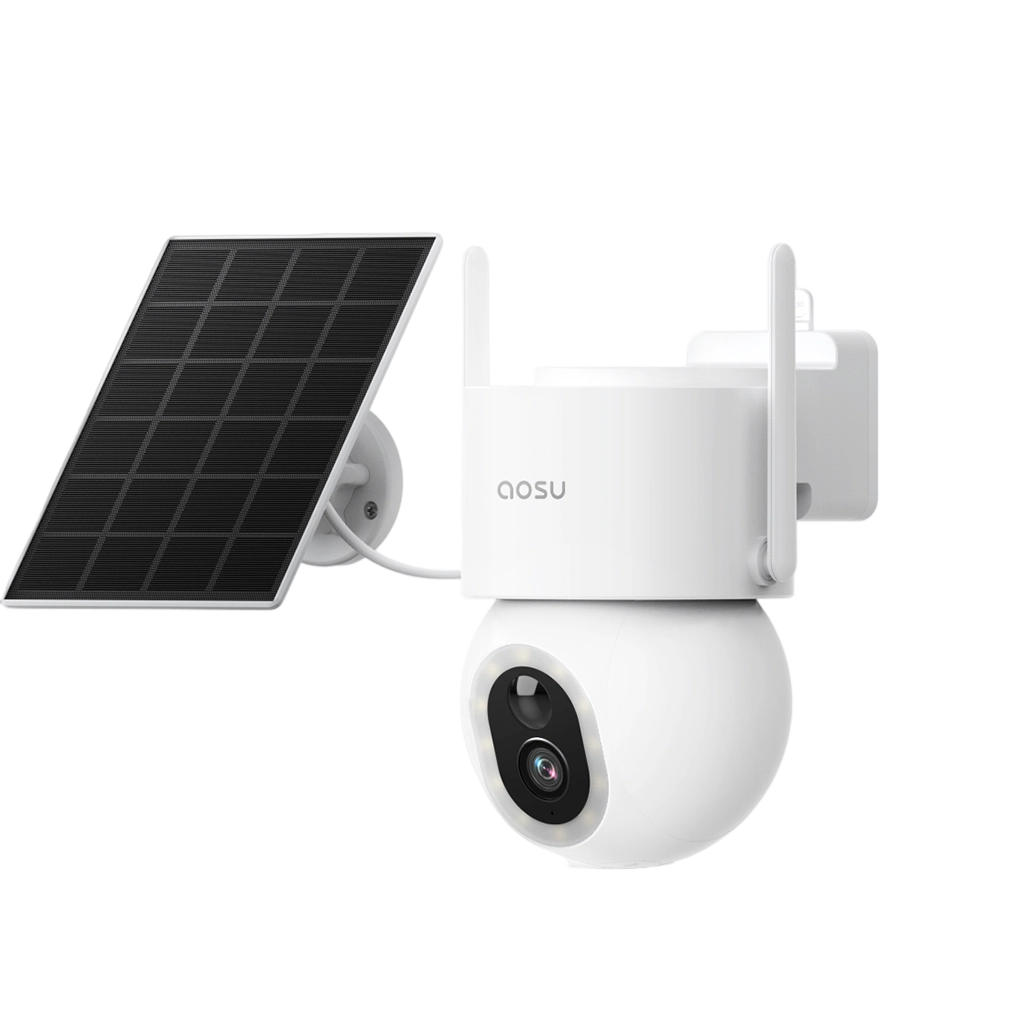
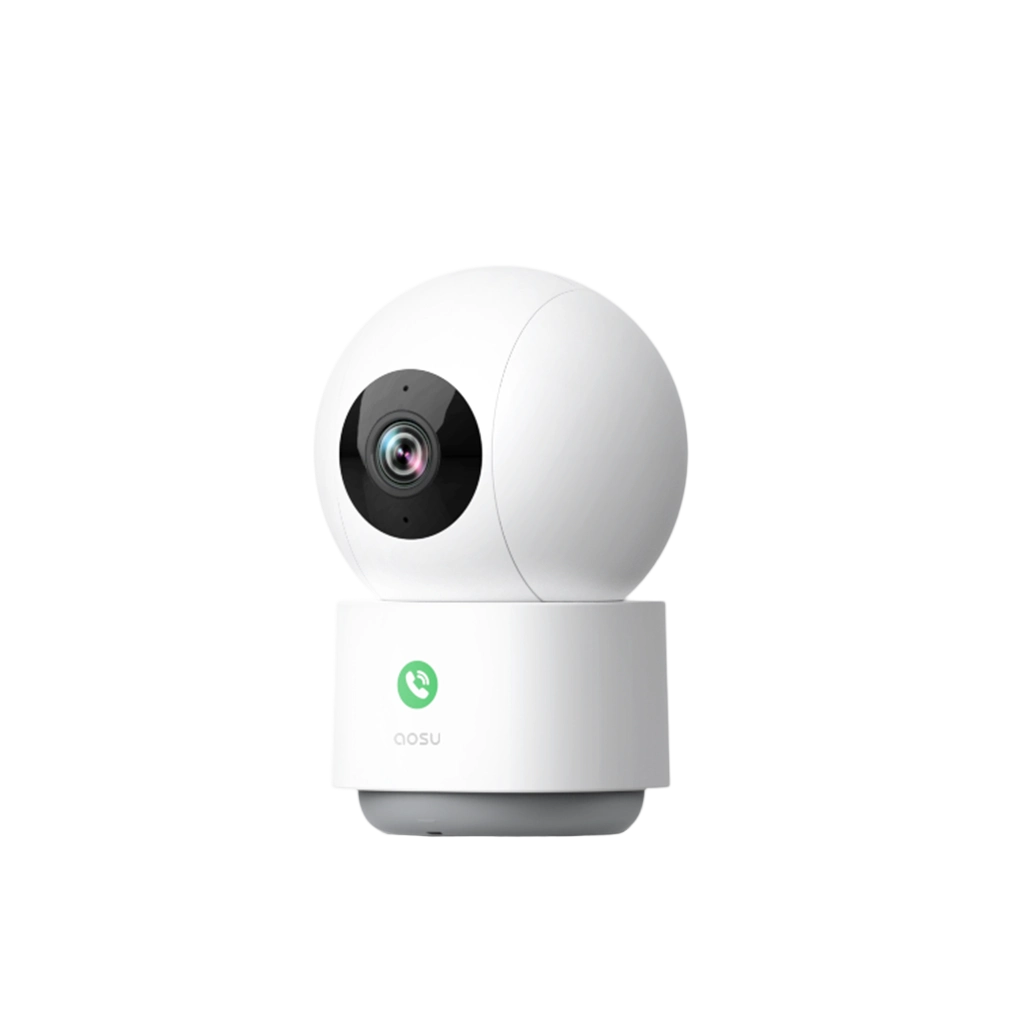





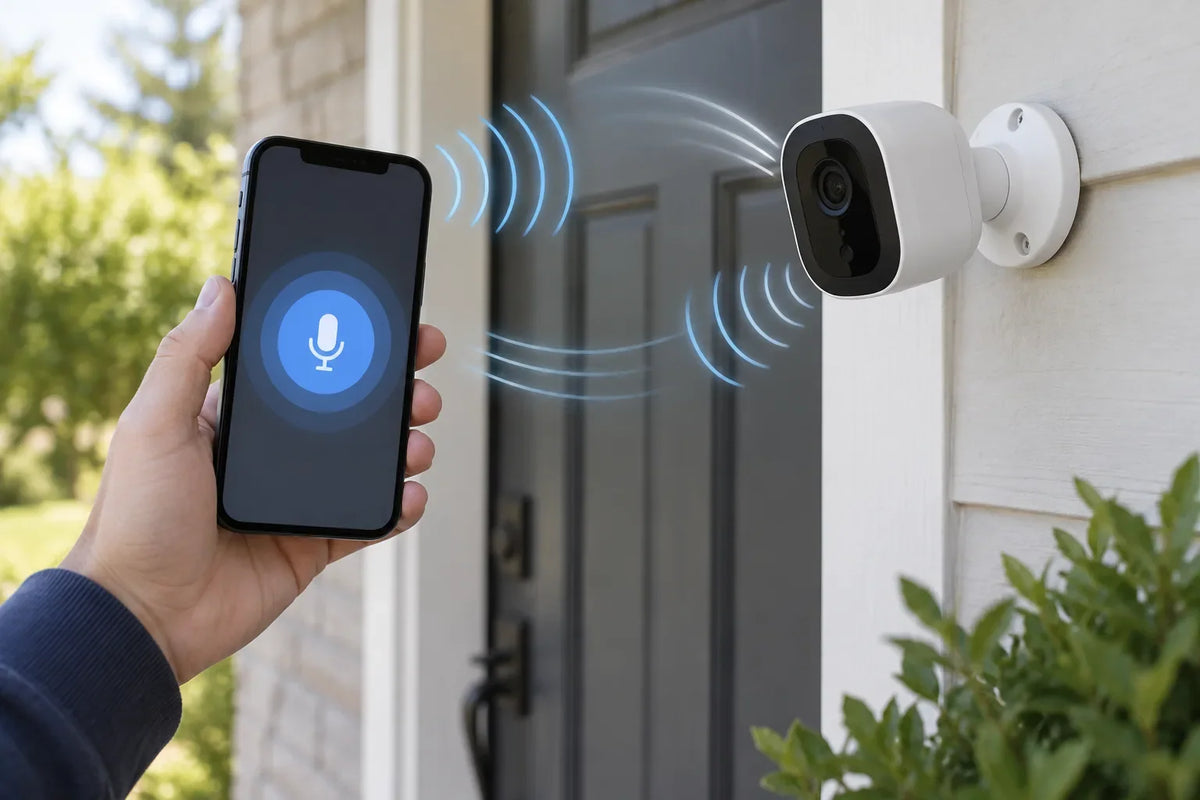
Two-way audio in a security camera app often echoes when a phone is close enough to the camera for their microphones to pick up each other’s speakers. Audio may cut out when the network connection, Bluetooth audio route, or app session is interrupted. If the other person cannot hear you at all, check the phone’s microphone permission and the in-app talk control. Identify whether you have an echo, delay, or dropout first, then test one cause at a time.
Is the Problem an Echo, a Delay, or Audio That Drops Out?
Use a single short call to classify the issue before changing settings. Ask the person near the camera to say, “Testing one, two, three,” while you listen in the app. Then say the same phrase back.
- Echo: You hear your own or the other person's voice repeated. This often happens when two nearby devices play the same conversation through speakers.
- Delay: Both people can hear each other, but the reply comes noticeably late. This is a timing or connection problem, not necessarily a microphone failure.
- Dropout: Sound disappears, becomes choppy, or the talk session ends. This can be caused by a weak connection, a changed audio route, app interruption, or a device issue.
Record what happens with the camera and phone in the same locations you normally use. That one observation keeps troubleshooting focused and gives support a useful starting point if you need help later.

Remove Feedback Between Nearby Phones and Speakers
Echo usually comes from audio feedback between nearby devices. Use one phone at a time and keep it away from the camera while testing.
Run this isolation test:
- Move the phone at least one room away from the camera, or use headphones.
- Close the live view on every other nearby phone or tablet.
- Lower the phone's speaker volume, then place one short call.
- If the echo is gone, keep only one audio device active near the camera at a time.
Do not try to solve an echo by repeatedly raising volume. More volume can make feedback worse. If echo remains even when the phone is far from the camera and no other device is connected, continue to the microphone and speaker tests below.
Could Phone Permissions or the Audio Route Be Interrupting the Call?
Yes. If you can hear the visitor but they cannot hear you, check the phone microphone, audio route, and talk control in that order.
- Check microphone permission. Make sure the security camera app can access your phone microphone. iPhone users can review microphone and Bluetooth access in Privacy & Security, while Android users can check the app’s microphone permission in Settings. Follow Apple’s microphone permission steps or Google’s Android app-permission steps for your device.
- Confirm the audio route. Bluetooth earbuds, a car system, a smartwatch, or a previously paired speaker may take over the call audio. Disconnect Bluetooth accessories, restart the app, and make one test call using the phone’s built-in speaker and microphone.
- Check the talk control. If the phone shows that the microphone is active but the visitor still cannot hear you, make sure the in-app talk button is pressed or enabled. Some security camera and app setups use push-to-talk instead of an always-open microphone.
Network Conditions That Affect a Two-Way Conversation
Two-way talk needs a stable path in both directions. A live view that eventually loads is not proof that a real-time conversation will stay smooth. The camera's Wi-Fi link, the phone's Wi-Fi or cellular connection, and local network congestion can each affect the call.
Change only one condition at a time:

Test the Camera Microphone and Speaker Separately
Test the camera microphone and speaker one at a time. This helps identify whether the issue is in the camera itself or on the phone side.
Test the Camera Microphone
Open live view and listen to normal sound near the camera without using two-way talk. If you cannot hear nearby sound, the camera microphone may need further checking.
Test the Camera Speaker
Use two-way talk while another person stands near the camera. Ask whether they can hear your voice at a normal phone volume. If they cannot, the problem may be with the camera speaker or the phone’s outgoing audio.
Inspect the Device Carefully
Check that the visible microphone and speaker openings are unobstructed. For cleaning instructions or concerns about protective film and debris, follow the product guidance before retesting.
Know When the Audio Problem Needs Product Support
Contact support if the issue continues after you test one phone, one camera, and one connection at a time.
Have these details ready:
- Camera model, app version, phone model, and OS version
- Whether the problem is an echo, delay, or dropout
- When it occurred and which tests you have already completed
Support is also appropriate if the camera speaker stays silent, the microphone has no sound in live or recorded tests, the app crashes during talk, or the issue began after an update. Avoid repeated resets until you have recorded the symptom and reviewed the manufacturer’s support instructions.
Help Every Two-Way Camera Conversation Sound Clearer
Clear two-way talk starts with one phone, the correct audio route, and a stable connection. After an app update, Bluetooth change, router adjustment, or camera cleaning, place a short test call through your security camera app to confirm that both people can hear each other.
If the issue continues, note whether it is an echo, delay, or dropout and whether it changes between Wi-Fi and cellular. Use those details when you repeat the checks or contact product support.
FAQs About Two-Way Audio in Security Camera Apps
Does Two-Way Audio Work While the Security Camera Is Updating?
Do not rely on two-way audio while a camera or its app is updating. The live session may be unavailable or interrupted until the update finishes and the device reconnects. Wait for the update to complete, then test a fresh call.
Can Closing the Security Camera App End an Active Two-Way Conversation?
Yes. Closing the app, force-stopping it, losing the live-view session, or allowing the phone to switch focus can end the conversation. Keep the app open until the call has finished, then reopen the live view for a new test if needed.
Why Can Live Audio Sound Clear While Recorded Audio Sounds Different?
Live talk and recorded clips can use different processing, settings, and playback paths. Check whether recording audio is enabled for the camera model, then listen to the same clip on another phone or speaker before concluding that the camera microphone is faulty.
Can Two Shared Users Try to Use Two-Way Audio at the Same Time?
They may create conflicting audio sessions or feedback, depending on the app and device behavior. For troubleshooting, have only one shared user open live view and start talk at a time. Consult the model's sharing documentation for its exact simultaneous-use rules.
Can a Protective Film or Debris Over the Speaker Affect Camera Audio Volume?
Yes. A film, dust, paint, or debris over a speaker opening can muffle sound, while material over a microphone opening can weaken what the camera captures. Remove only clearly visible protective film and clean as the product instructions permit; do not insert objects into the openings.