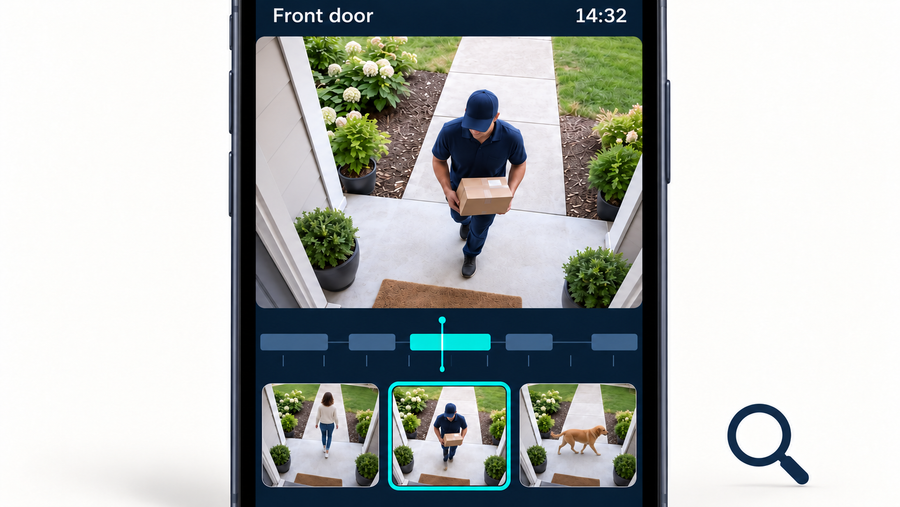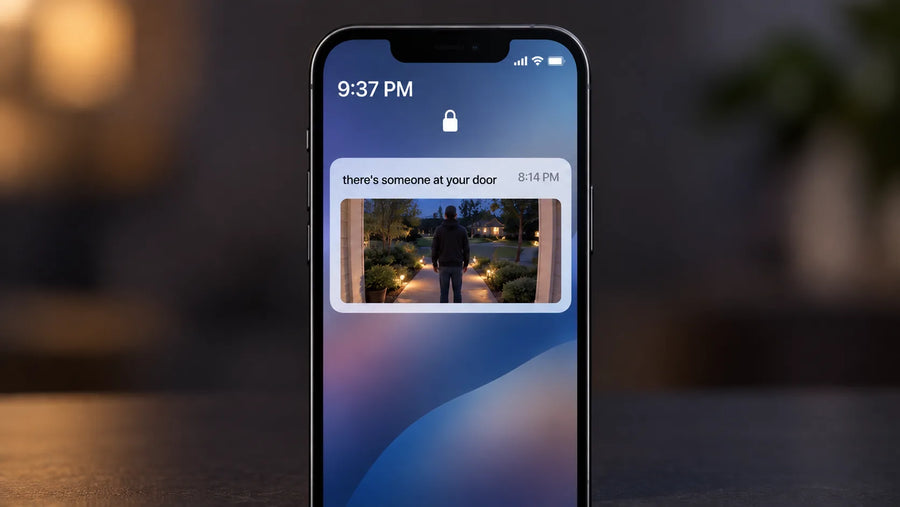






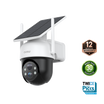
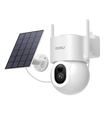
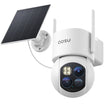
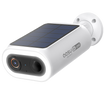



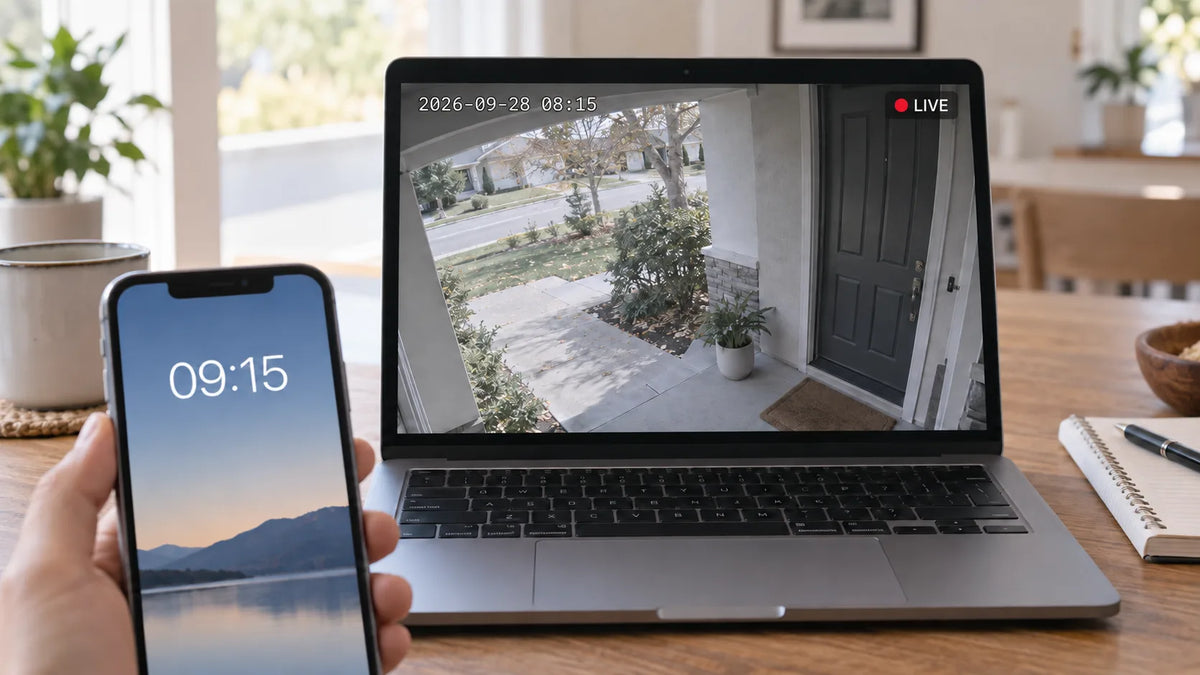
If a security camera recording shows the wrong date or time, start by checking where the mismatch appears. Compare the event time in the app, any timestamp shown in the video, and the downloaded file's date. Save the original clip before changing settings, then make a new test recording to check the result.
Which Time Is Wrong on the Security Camera Footage?
Several time fields can appear around one recording, and they do not always mean the same thing. Compare them before treating the camera clock as the source of the error.
| Time Field | Where It Appears | What It Records | What a Mismatch Usually Means |
|---|---|---|---|
| Event time | App event list | The system's record of the event | Start with the camera or system time setting |
| Visible timestamp | Inside the video image | The time shown in the video | Check the camera time zone or clock if it differs from the event time |
| File date | Computer or phone file browser | When a file was created, copied, downloaded, or modified | It may reflect export activity rather than capture time |
| Player time | Video-player interface | A field the player displays or converts | It may use a local-time conversion or a different metadata field |
If the event list is correct but the file date differs, begin with export or file handling rather than camera settings. If every camera shows the same offset, correct the home or system time settings before making any device-level changes.

Save the Original Clip Before You Change Any Time Settings
Preserve the original so you can prove what changed and when. This is especially important if the footage may later be needed to reconstruct an event timeline.
- Download or save the original clip without trimming, renaming, or editing it.
- Record the camera name, app event time, visible video time, phone time, location, and the observed offset.
- Store a second working copy if you need to rename or annotate a file for personal organization.
- Keep screenshots of the event list and player display with the original record.
An edited copy can help you organize footage, but it should be labeled as edited. The original and its notes let you compare the old timestamp with the first new clip after a correction.
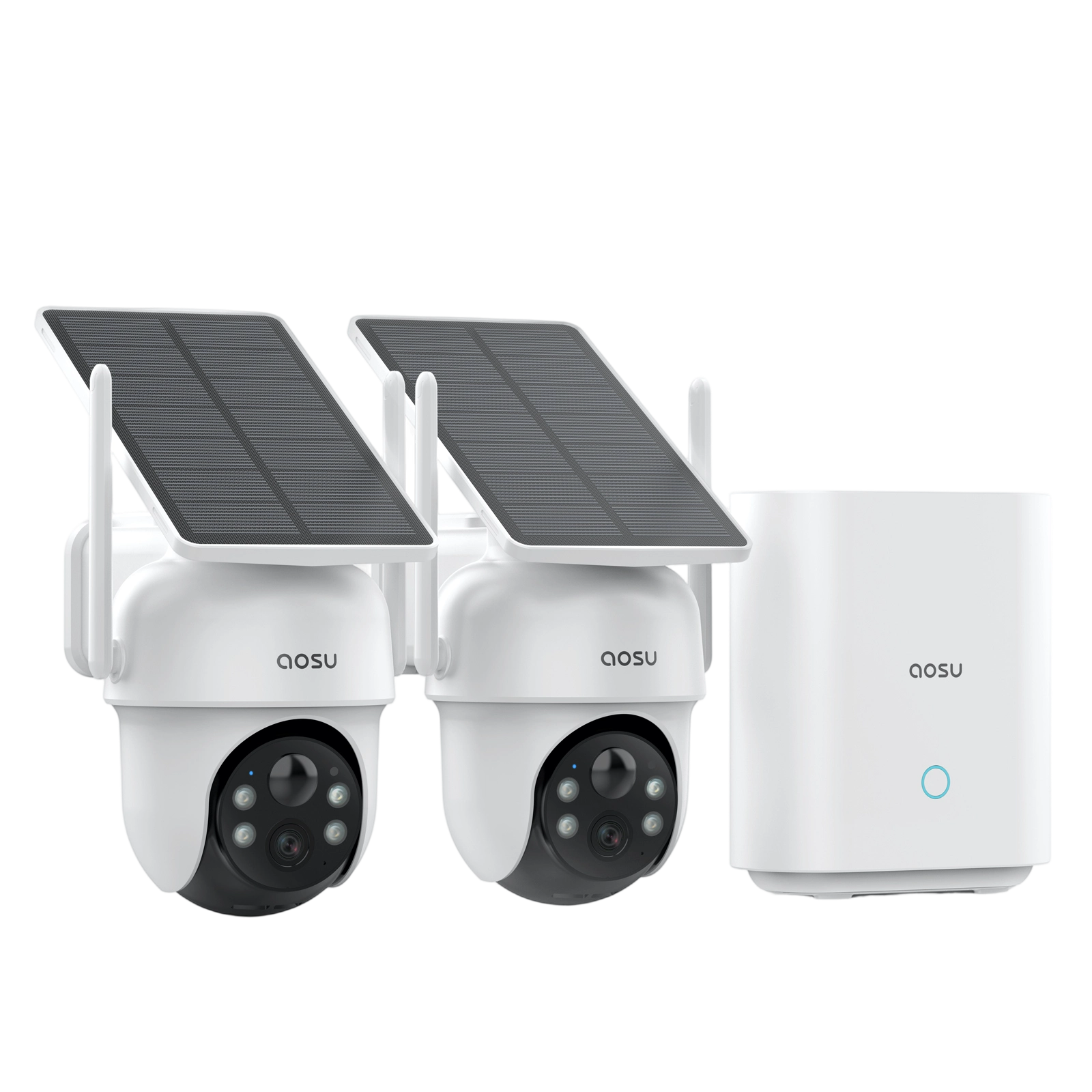
Related reading: What Is aosuBase? covers local storage and event review for compatible aosu cameras.
Does the Error Match a Time Zone or Daylight Saving Time Change?
The size and timing of an error can point to a time-zone or daylight-saving problem. Look for a consistent offset before you adjust individual settings.
A One-Hour Offset
An error that begins around a daylight-saving change and stays exactly one hour apart can indicate that a local setting did not change as expected. Check the selected time zone and automatic time setting first.
A Multi-Hour or Date Offset
An error of several hours can indicate a different time zone, especially when events near midnight appear on the wrong date. NIST's UTC explanation confirms that UTC does not change for daylight saving time, while local U.S. offsets do.
The offset is a clue, not proof of the cause. Confirm the selected time zone before changing a camera, because a systemwide setting may correct every affected event at once.
Fix a Systemwide Clock Error Before Adjusting Individual Cameras
If multiple cameras are wrong in the same way, begin at the shared level. Correcting a systemwide time or time-zone setting first avoids creating a different mismatch on each camera.

- Check the phone's automatic date, time, and time-zone settings.
- In the security camera app, review the home, account, or device settings that control location, time zone, or automatic time, using the labels available in the current app version.
- Save the corrected setting and allow the camera and app to reconnect normally.
- Record one new event before touching any individual camera setting.
Android explains how to set automatic time and time zone, and Apple provides automatic date and time guidance. A new recording is the proof that a shared correction worked; an old clip will not reliably demonstrate the new setting.
Correct One Camera That Still Shows a Different Time
One remaining mismatch calls for a device-level check only after the shared clock is correct. Keep the investigation narrow so the local cause does not get confused with a past systemwide error.
Confirm the Camera's Current Context
Verify that the camera belongs to the intended home or location in the app and has a stable connection. Then let it complete a normal sync after the shared clock correction before judging the next event.
Collect Useful Evidence Before Support
If one camera remains wrong, record the device name, app version, phone model, real event time, app event time, visible timestamp, and a saved original clip. This evidence is more useful than a report based only on a downloaded file date.
Do not change a single camera just because a computer shows a new download date. The app event record and the visible timestamp in a new clip are the better checks for whether that camera is still wrong.
Record a New Test Clip and Verify the Correct Timestamp
A controlled test turns a setting change into a verifiable result. Use a clear reference time and compare the same event across the app, video, and downloaded file.
- Note the correct local time from a phone or another trusted clock.
- Start a simple walk-through in the camera's normal detection area.
- Open the event in the security camera app and record its event time.
- Review the visible time inside the footage, if the clip displays one.
- Download the clip and separately note the computer's file dates and the player's display.
The event record and visible video time should align with the real test time within the normal precision of the test. Treat a different computer download date as a file-management clue unless the event record is also wrong.
Keep Future Security Camera Footage Easy to Place on a Real Timeline
Accurate timestamps make security footage easier to place on a real timeline. Keep automatic time settings on, save the original file, and note the event time and local time zone for any clip that matters. After travel or a daylight-saving change, record a short test clip today and check its event time before you need it. That simple check helps you spot a clock mismatch early and keep future footage easier to interpret.
FAQs About Correcting Security Camera Time Errors
Q1. Can a Video Player Display a Different Time From the Original Camera File?
Yes. A player may display a file property, a media timestamp, or a local-time conversion, while the camera app shows its event record. Compare the player with the event list and any visible timestamp in the video before deciding which time needs correction.
Q2. What Does UTC Mean on Security Camera Footage?
UTC means Coordinated Universal Time, a global reference time. It is not adjusted for U.S. daylight saving time. A camera or player using UTC can therefore appear several hours different from local time unless it applies the correct local time-zone offset.
Q3. Can Downloading a Video Create a New File Date on a Computer?
Yes. A computer can record when a file was downloaded, copied, or modified, and that can differ from when the camera captured the event. Keep the original app event time alongside the downloaded copy instead of relying on the file-system date alone.
Q4. Is a Time Zone Included in Security Camera Video Metadata?
Sometimes, but not always in a form that every app or player displays. The fields available depend on the camera, app, export method, and player. Check the event record and visible footage timestamp rather than assuming a file date includes a readable local time zone.
Q5. Why Might a Security Camera Clip Have a Filename With No Date?
The filename may use an internal ID, sequence, or export rule instead of a human-readable date. That doesn't mean the footage lost its time record. Check the event list, visible timestamp, and file details before renaming a working copy for clearer organization.