


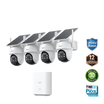
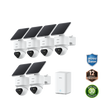
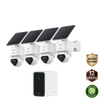
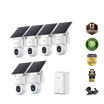

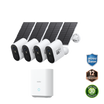
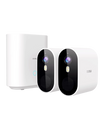
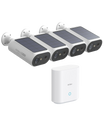
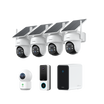


A light socket security camera uses a compatible lamp socket for power. It may reduce the need for a new power cable, but it is not a universal replacement for an ordinary bulb.
Check the exact product’s socket type, input voltage, fixture clearance, power controls and outdoor requirements before buying. Recording, person alerts, storage and smart-home functions also vary by model and plan.

Outdoor-lighting scene only. This image does not identify a light socket camera or demonstrate product compatibility.
What Counts as a Light Socket Camera?
Distinguish an integrated bulb camera from a socket adapter powering a separate camera. They have different installation requirements.
As one documented example, Wyze Bulb Cam specifications list an E26 socket and 120V AC power. Its fixture compatibility guidance excludes fully enclosed fixtures. Verify equivalent information for whichever model you select.
Check Compatibility Before Comparing Features
| Check | What to verify |
|---|---|
| Socket | Exact base type specified by the manufacturer; do not assume similar-looking bases are interchangeable |
| Electrical input | Required voltage, frequency and fixture suitability |
| Power controls | Whether a dimmer, timer, motion sensor or wall switch interrupts the required supply |
| Physical fit | Product dimensions, weight, orientation and clearance inside the fixture |
| Camera view | Whether the shade, glass or fixture edge blocks the lens or moving parts |
| Outdoor use | Rating, temperature limits and permitted installation conditions for the complete setup |
| Connectivity | Supported Wi-Fi bands and signal at the fixture |
| Recording | Event or continuous recording, storage location, capacity and subscription requirements |
| Detection | Ordinary motion detection versus specifically documented person filtering |
| Integration | Exact platform and supported action, rather than a general “smart-home compatible” label |
Stop if the electrical requirements or fixture condition are unclear. Have a qualified electrician assess wiring or fixture changes. Do not modify the camera, bypass controls or add an unapproved adapter to make it fit.
Potential Problems with Light Socket Security Cameras
Check these limitations against the selected model and the actual fixture before buying.
Limited Coverage Area
The existing socket may not be in a useful camera position. Fixture edges, shades, walls and the viewing angle can hide a priority route. Verify the required view and detail in saved footage; a movable lens cannot recover a view blocked by a wall or fixture.
Power Dependence
A socket-powered camera normally loses its power source when the socket is switched off. Some models allow lighting to be switched off while the camera remains powered, but confirm that function for the selected model. Follow the manufacturer’s required power arrangement rather than bypassing switches or controls.
Connectivity Issues
Check the supported Wi-Fi band and signal at the fixture. Walls, interference and distance from the router can affect connectivity. Test live viewing, alerts and saved recordings separately; a network interruption does not establish the same recording behavior across models.
Limited Storage Options
Confirm whether the selected model uses local storage, cloud storage or both. Check included capacity, retention, subscription requirements, overwrite behavior and exports. Preserve important recordings separately before deleting files or changing storage settings.
Compatibility with Smart Devices
Smart-home support is model-specific. Confirm the named platform, region, required account or hub, and the action you need. Support for live viewing does not establish support for every automation or lighting control.

Illustrative outdoor gathering, not a light socket camera product image or a recording-performance test.
Bonus Tips: How to Optimize Your Light Bulb Security Camera
Complete compatibility checks first, then test the camera’s actual view, recordings and supported settings.
Step 1: Choose the Best Installation Spot and Ensure a Stable Power Supply
Use a compatible fixture with a clear camera view and the power arrangement specified by the manufacturer. Disconnect power before fitting or removing the device, following its instructions.
Turning off an integrated light through an app is different from cutting power at the wall switch. Confirm whether the camera remains powered when its light is off.
Do not add a separate smart bulb or a socket splitter unless the complete arrangement is expressly supported. A dimmer is not a universal solution: the Wyze Bulb Cam troubleshooting guide warns that physical dimming can cause functionality problems.
Step 2: Strengthen Wi-Fi Connectivity and Update Firmware Regularly
A strong Wi-Fi connection is important for supported live streaming and remote alerts. If the signal is weak, check the supported Wi-Fi band, router placement and network coverage. Keep the camera’s firmware and mobile app updated using the manufacturer’s supported process.
Step 3: Optimize Motion Detection and Manage Storage Efficiently
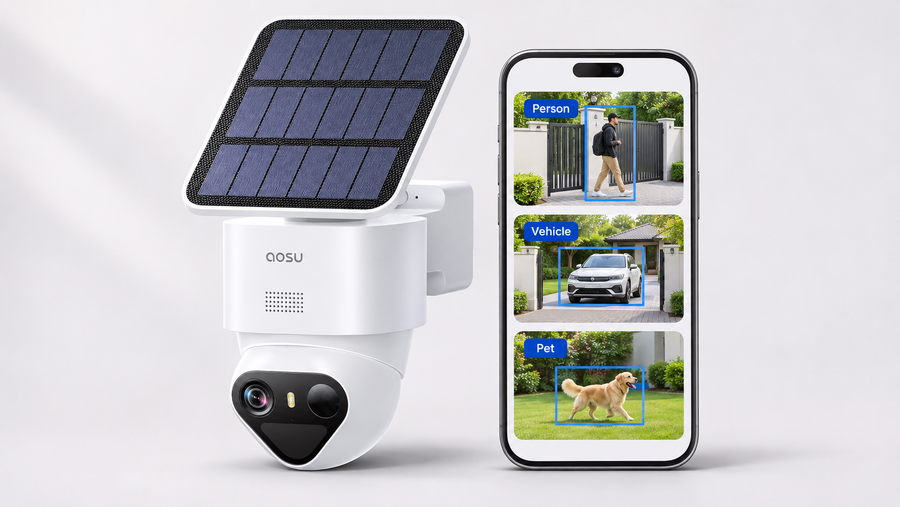
Check which detection filters the exact model provides and whether they require a subscription. Ordinary motion detection does not establish person-only notifications.
Trigger a test event, review the saved clip and export it. Confirm overwrite behavior before enabling loop recording or deleting files. Preserve important recordings separately.
Step 4: Secure Your Camera and Integrate with Smart Home Devices
Use a unique password, keep software updated and enable additional account protection where supported. Verify the manufacturer’s description of encryption rather than assuming it is end-to-end encryption.
Add a smart-home connection only when the exact camera and required action are documented. Check account permissions and test the integration after setup.
Conclusion: Is a Light Socket Security Camera Right for You?
Choose a light socket camera only after confirming the exact socket, supply, fixture space, camera view and recording requirements. Convenience depends on compatibility—not simply whether the device resembles a bulb.
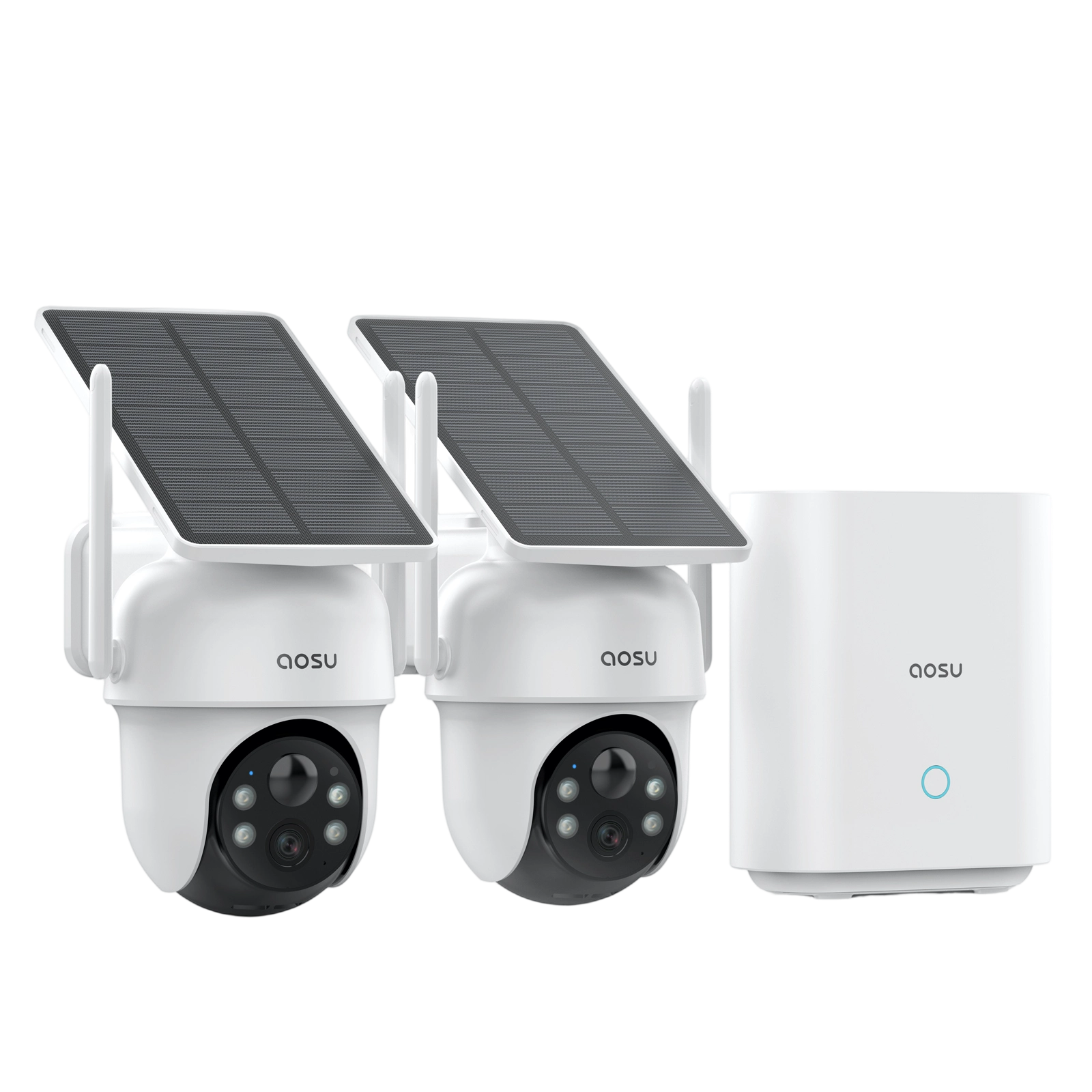
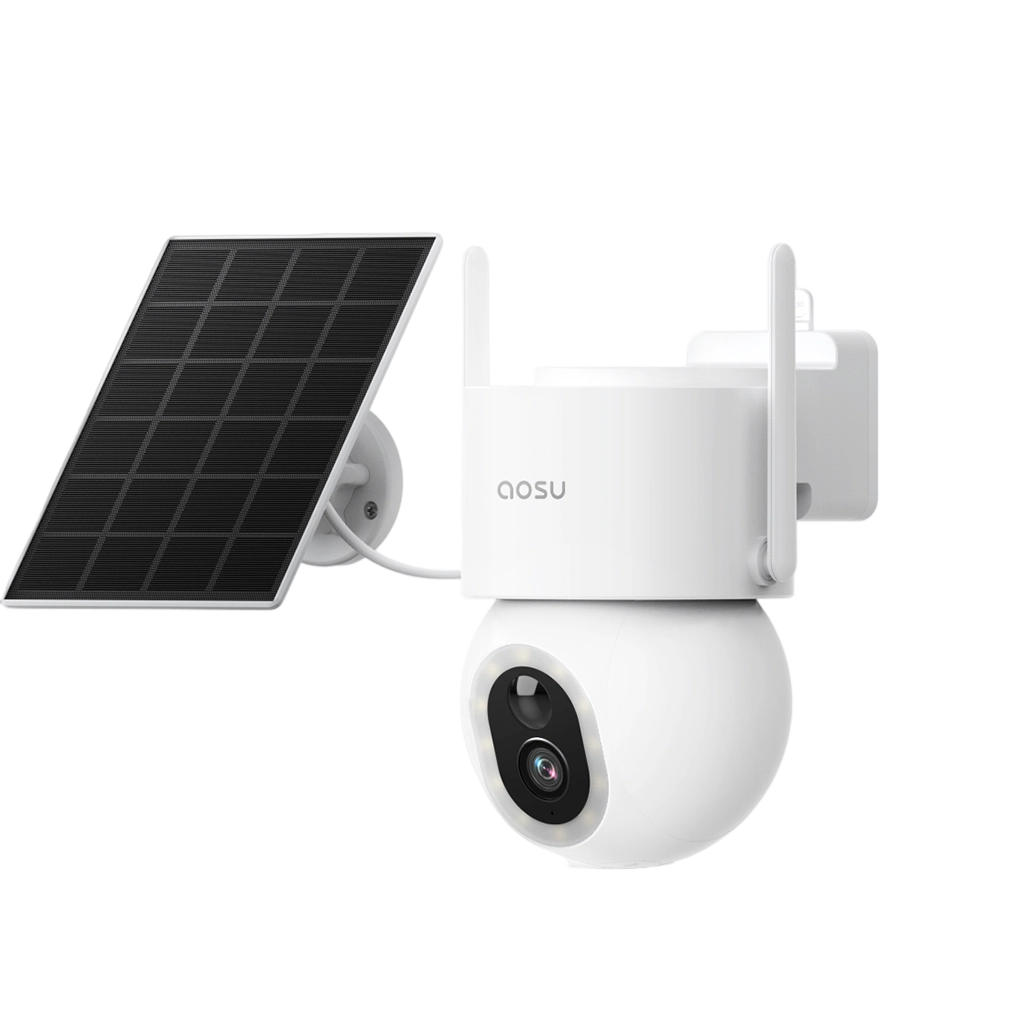
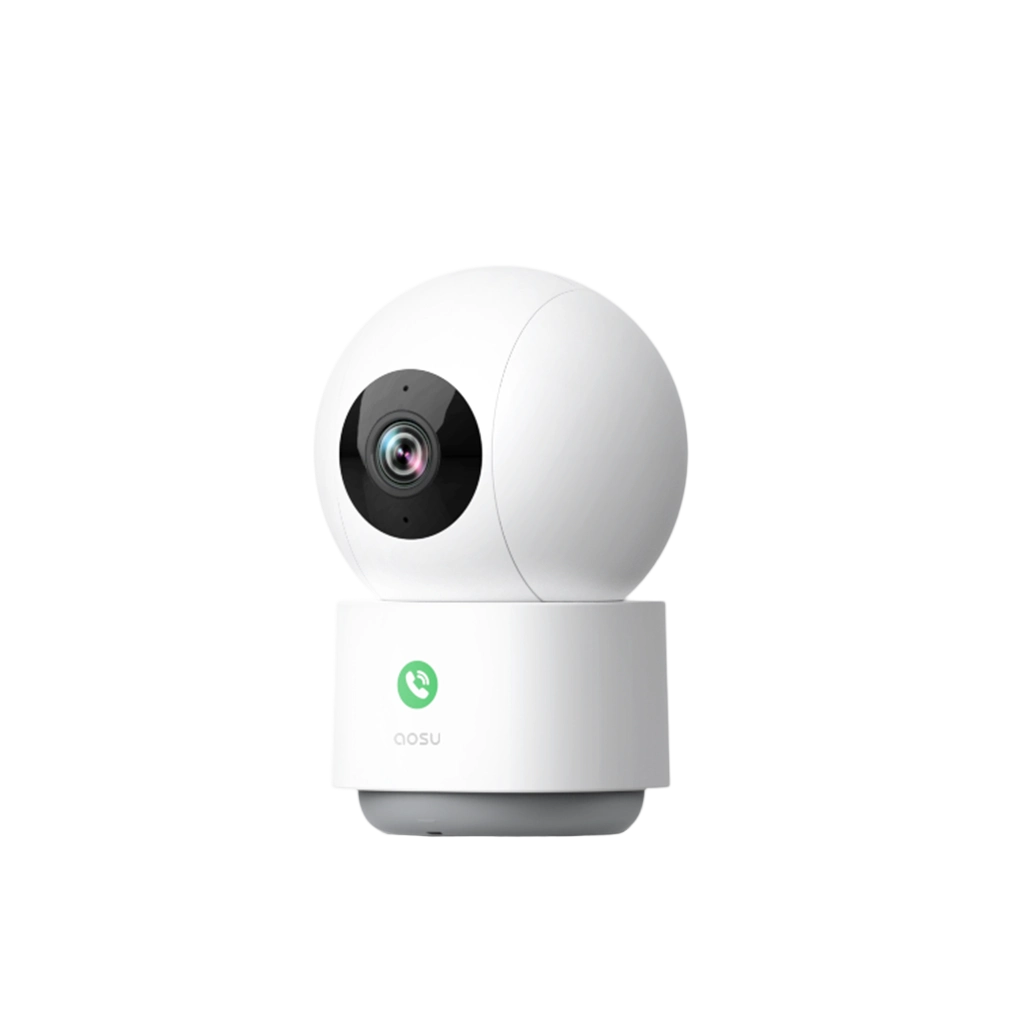
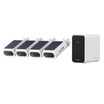
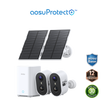
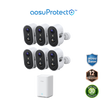
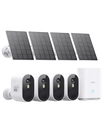
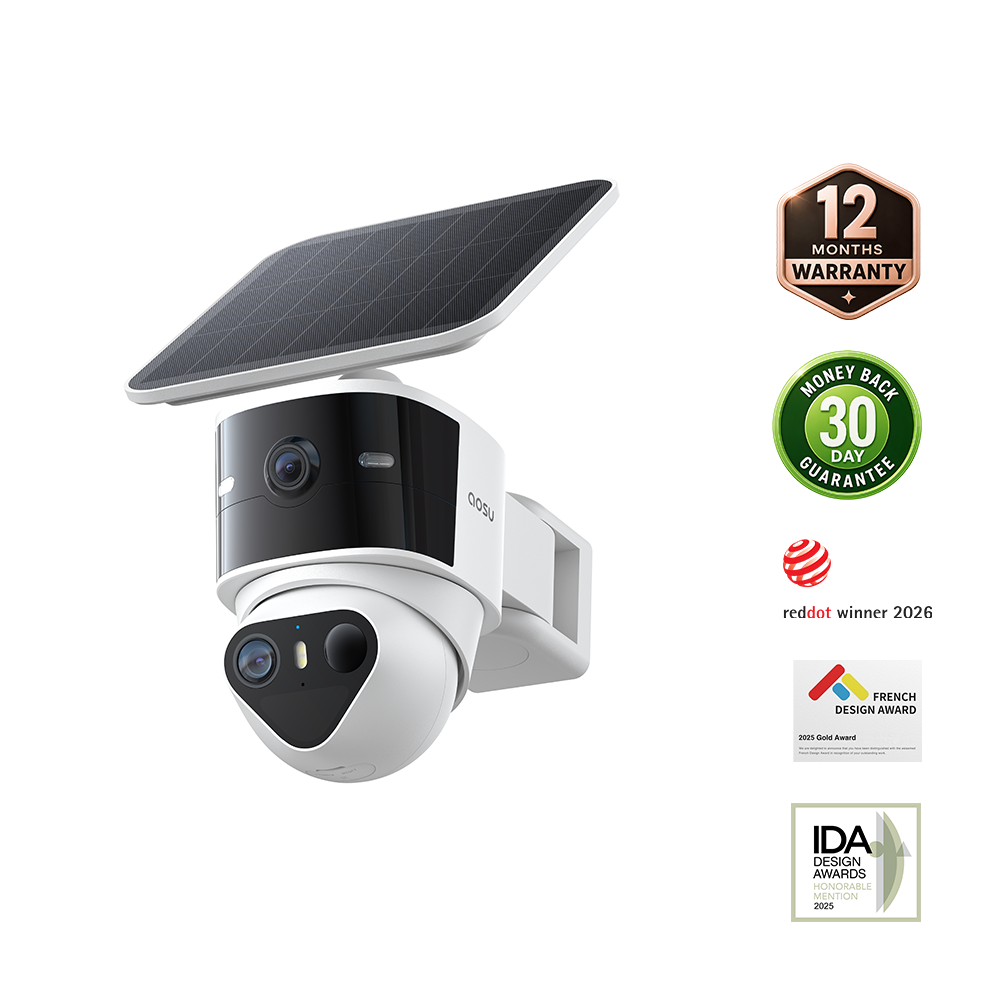
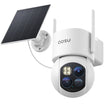
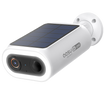
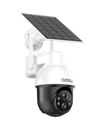
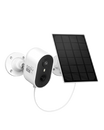
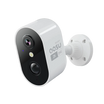
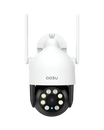
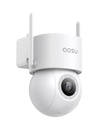
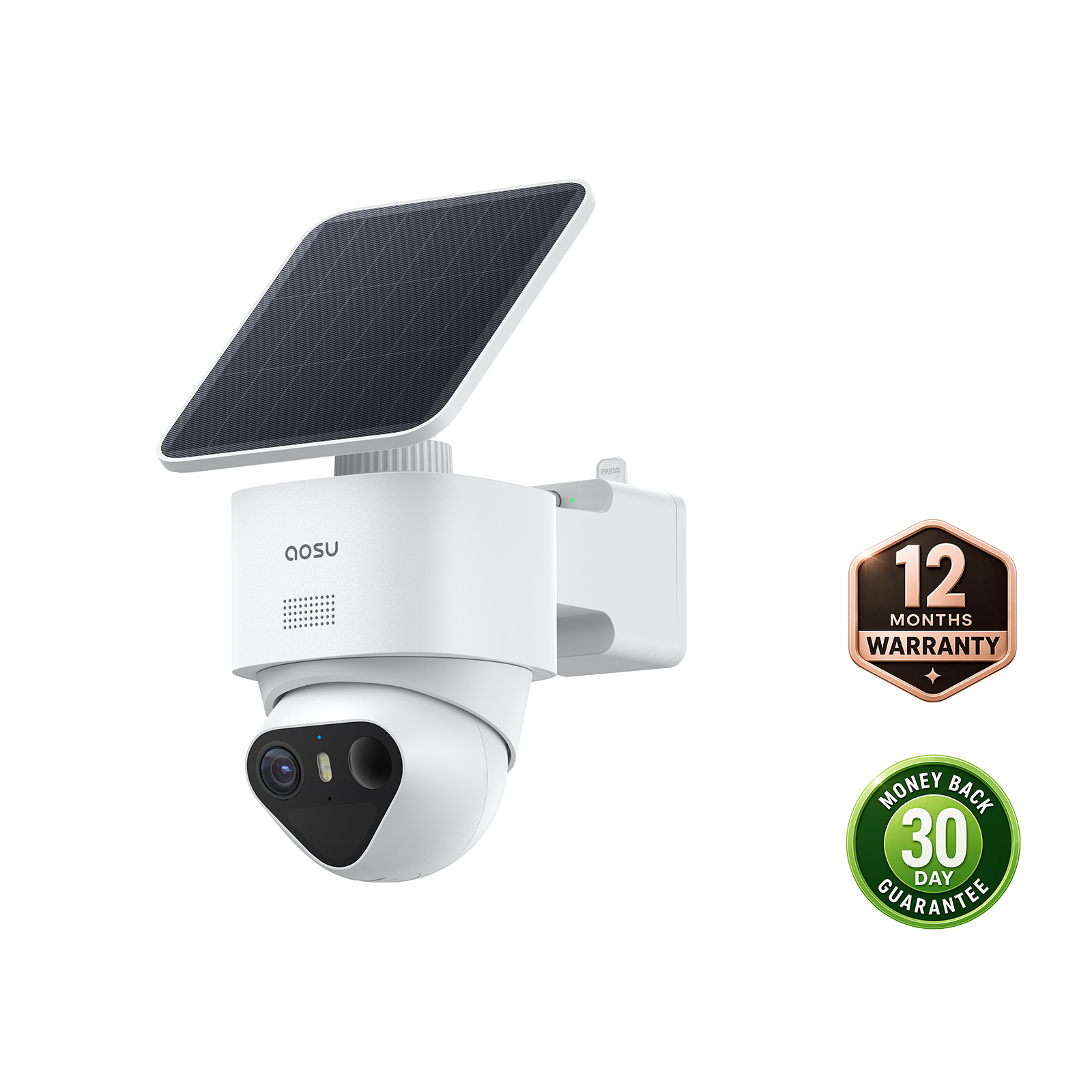
If the fixture cannot provide a suitable view or power arrangement, compare a separately mounted camera instead. The aosu IndoorCam P1 Pro is an indoor camera option, not a screw-in bulb camera. For exterior locations, explore aosu outdoor cameras for the front entrance or backyard and follow the selected model’s installation requirements.
FAQs About Light Socket Security Cameras
Will a light socket camera fit any bulb socket?
No. Match the specified socket type and electrical input, then check fixture dimensions, orientation and restrictions.
Will the camera work when the wall switch is off?
A socket-powered camera normally loses its power source when the socket is switched off. Check whether the model can turn off its lighting while keeping the camera powered.
Can I use a dimmer switch?
Only when the camera manufacturer explicitly supports it. Physical dimming and in-app brightness control are different.
Can I install one inside an enclosed shade?
Check the exact model’s instructions. For example, Wyze’s fixture guidance excludes fully enclosed fixtures.
Does motion detection mean person-only alerts?
No. Person filtering is a separate feature. Confirm its availability and any subscription requirement.
Does night vision mean continuous recording?
No. Night imaging, recording mode and retention are separate specifications.
Does a light socket camera use end-to-end encryption?
Do not assume so. Check the manufacturer’s security documentation for the exact service, including live viewing, stored video and sharing.
Which aosu light socket camera should I buy?
This guide has not verified an aosu screw-in light socket camera model. The aosu alternatives linked here use separate installation arrangements.