



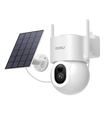
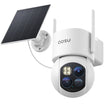
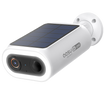
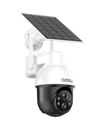
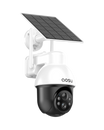
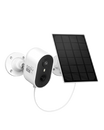
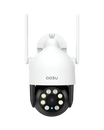




If your security camera battery is draining faster than expected, the problem is not always the battery itself. Battery-powered cameras use the most power when they wake up, detect motion, record clips, send alerts, stream live video, or run night features.
So the best way to improve battery life is generally to reduce unnecessary activity without making the camera less useful. This guide walks through the settings that make the biggest difference.
What Drains a Security Camera Battery Fast?
A battery security camera is designed to stay in a low-power state until something causes it to wake up. Every wake-up uses some power, and every recording, notification, live view session, or night-vision event uses more.
The biggest battery drain usually comes from a camera reacting to things you do not actually need to record, such as cars passing on the street, tree branches moving in the wind, bugs near the lens at night, or people walking far outside the area you care about.
Before changing everything at once, think of battery life as a balance between coverage and selectivity. You want the camera alert enough to catch meaningful activity, but not so sensitive that it records all day.

Start With Motion Detection Settings
Lower Motion Sensitivity One Step at a Time
If sensitivity is set too high, the camera may react to tiny movements that do not matter. Lower it gradually, then test whether the camera still catches people approaching the area you care about.
Check What Detection Zones Actually Control
A zone may limit notifications, recordings or another response, depending on the model. It does not necessarily prevent the sensor from waking the camera. Check the exact model’s documentation before treating a zone as a battery-saving control.
Separate Smart Notifications From Recording
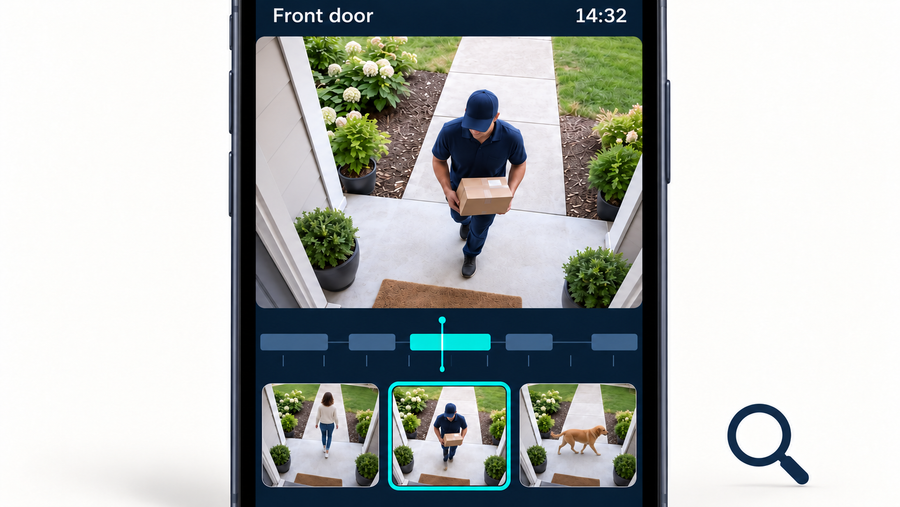
Person, vehicle or animal filters can make alerts more relevant. Fewer phone notifications do not prove that the camera woke less often or recorded less video.
Review saved events as well as notifications. If alerts fall but recordings remain similar, the change has not demonstrated a reduction in recording workload.
Reduce Unwanted Activity at the Source
Where practical, adjust the camera’s view to reduce irrelevant traffic while retaining the approach routes you need. Follow mounting guidance and test the result.
In the aosu app, available controls vary by camera, hub, firmware and app version. For an unclear setting, ask aosu support whether it changes detection, recording, lighting or notifications.

Shorten Recordings and Reduce Extra Alerts
Shorter recordings may reduce recording time, but a clip that stops early can lose the sequence you need to understand an event. Keep enough context to show the approach, activity and departure where those matter.
Change recording length and retrigger or cooldown settings separately. A longer cooldown may leave a gap before the next event can be captured. After each change, test a normal approach and a second event occurring soon afterward, then review the saved clips.
Treat notification frequency separately. Reducing phone alerts may improve usability without reducing camera activity. Confirm what the setting controls rather than assuming that fewer alerts mean longer battery life.
Be Careful With Night Vision, Spotlights, and Live View
| Features to use carefully | Smarter adjustments |
|---|---|
|
|
After changing a night setting, review saved footage of a moving person at the distance you need. Check that reduced lighting or shorter clips have not removed useful detail or the end of the event. Restore the setting if the result no longer meets your recording needs.
Night features are useful, but they can increase battery use because the camera may need infrared LEDs, a spotlight, or more processing to keep the image clear.
You do not need to disable night vision if you rely on it. Instead, look for small adjustments that reduce unnecessary night activity, especially around porch lights, landscape lights, reflective surfaces, and insects near the lens.
A Practical Battery-Saving Setup to Try First
The suggestions below apply only where the exact model supports the setting. As explained above, an available zone or notification filter does not necessarily reduce PIR sensor wake-ups.
| For a front door | For a driveway | For a quiet side yard |
|---|---|---|
|
|
|
Establish a baseline before making changes. Record battery readings at the same time over several representative days, then change one setting and observe another comparable period.
Keep camera position and other settings unchanged where practical. Note sunlight, temperature, solar charging, manual charging, event activity and live-view use. A battery-percentage change alone does not isolate the effect of a setting.
Camera / hub: ______
Firmware / app version: ______
Setting being tested: ______
| Observation | Baseline | After one change |
|---|---|---|
| Dates and duration | ||
| Setting value | ||
| Same-time battery readings | ||
| Recorded events and clip length | ||
| Phone notifications | ||
| Live-view and two-way-talk use | ||
| Temperature and solar input | ||
| Manual charging or interruptions | ||
| Approach test captured | ||
| Closely spaced events captured |
Keep the change only if important activity remains recorded and the observed result is useful. Repeat under different conditions before estimating longer-term battery life. Saved event counts do not reveal every sensor wake-up.
Common Battery Life Mistakes to Avoid
| Avoid | Do instead |
|---|---|
|
|
The most common mistake is trying to save battery by turning off too much. That can make the camera last longer, but it can also make it miss the moments you bought it to capture.
A better approach is to remove low-value activity first. Keep the settings that protect the important area, and reduce the settings that create noise.
When Settings Are Not Enough
Sometimes battery drain is not just a settings issue. If the camera is in a very busy location, constantly waking up at night, or mounted somewhere hard to access, you may need to look beyond app settings.
For a broader look at battery life factors like camera placement, Wi-Fi signal, weather, solar support, and charging habits, see the full battery life guide: How Long do Security Camera Batteries Last?
To Wrap Up: Optimizing Security Camera Battery Life
Improve battery life by reducing activity you do not need while retaining useful recordings. Separate detection, recording, lighting and notification controls, because they do not necessarily affect power use in the same way. Compare one change at a time using battery trends and saved-event tests.
If the camera still drains too fast after those changes, dig deeper into other battery life factors such as placement, Wi-Fi signal, weather, solar support, and charging habits.
FAQs About Security Camera Battery Life
What setting saves the most battery on a security camera?
There is no single best setting for every model or location. Start with unnecessary recording, lighting and live-view activity. Check whether detection zones or smart filters affect recording or only notifications. Test one change at a time and verify that important events remain captured.
Will lowering motion sensitivity make my camera miss events?
It can if you lower it too much. The safest approach is to reduce sensitivity one step at a time, test normal activity in the area, and check event history before making another change.
Does live view drain a security camera battery?
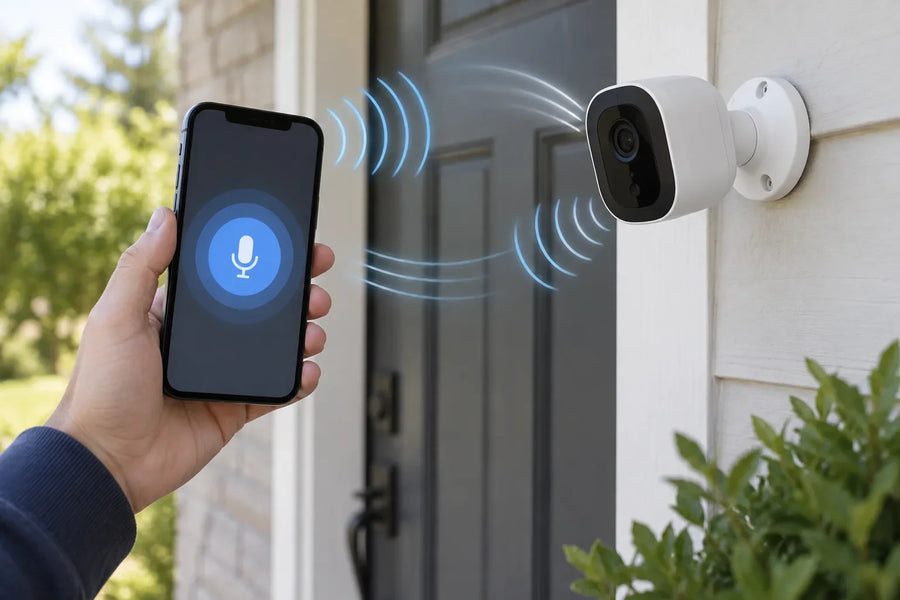
Yes. Live view usually uses more battery than the camera sitting idle because the camera is awake, streaming video, and maintaining a connection while you watch.
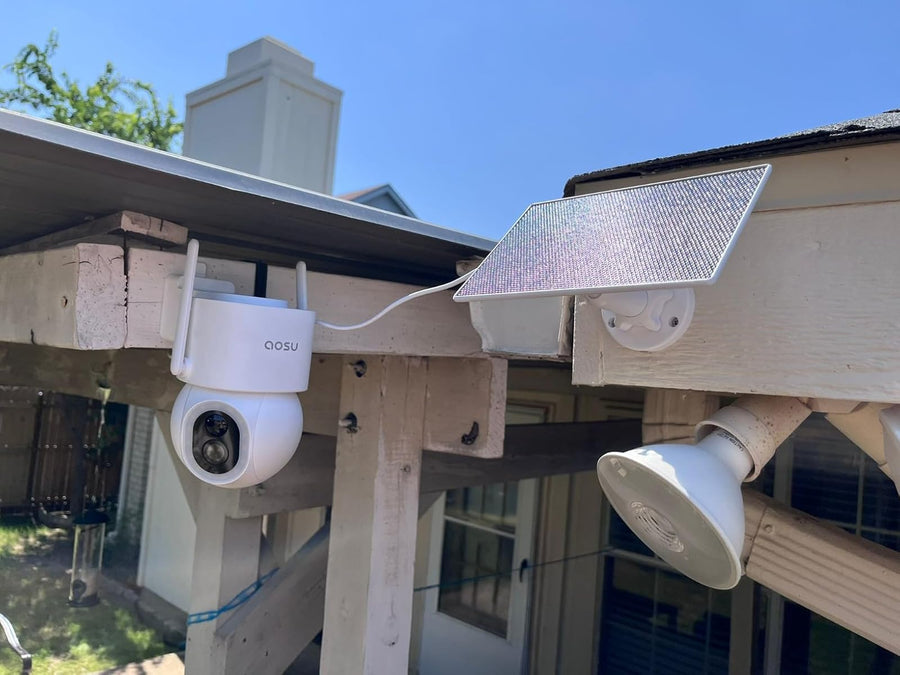
Should I use a solar panel if my battery camera drains quickly?
A solar panel can help if your solar-powered camera is outdoors and the panel gets enough direct sunlight. If the camera is constantly triggered by motion, optimize the camera settings first so the panel is not trying to offset avoidable battery drain.