









Find the saved event, download the clip and play it outside the camera app before you share it. Check the time, sound and full sequence of what happened. Back up the downloaded file and make a separate copy for trimming or sharing.
A saved event download preserves the recorded sequence. A screenshot captures one frame, while a live-view screen recording captures the video and interface displayed on your phone.
Find the right saved event
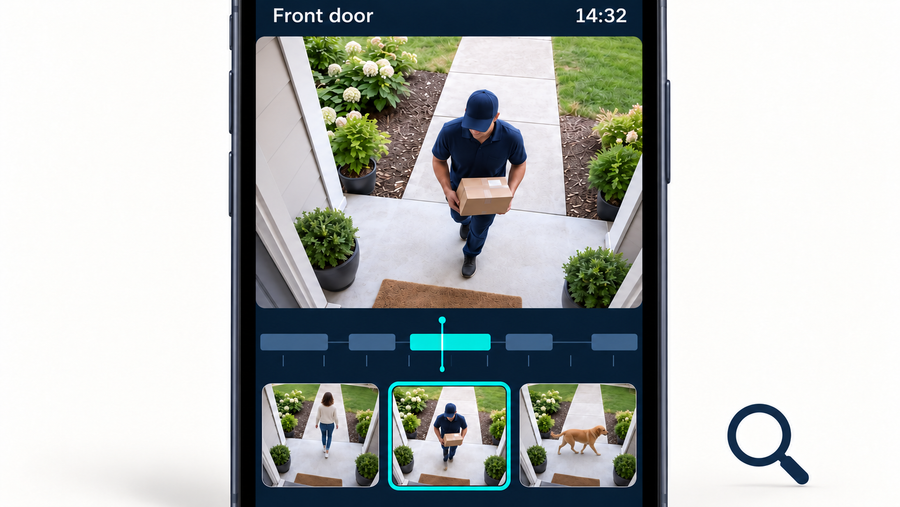
Start with the camera, date and approximate time. Then open the recorded-events timeline or event list and look for the person, vehicle, package or other activity you need. If several clips sit close together, play each one before downloading to confirm which ones show the event.
Save enough context to make the clip understandable. For a delivery, include the arrival, the package being placed and the person leaving. For a car at a gate, include the approach and departure. Download adjacent clips when the event crosses a recording boundary.
Download important footage before the recording expires or local loop recording replaces it. The retention guide below explains how long recordings stay available on different systems.
Related links:
· How long your system keeps recordings
Download the clip and locate the file
Open the saved event and use the camera app's download or save control. If the phone asks for photo, video or storage access, grant the permission needed to save the file. Wait for the app to confirm that the download has finished before closing it.
Then leave the camera app and find the file in Photos, Gallery or the phone's file manager. Open it there to confirm that the video is saved on your phone and plays independently of the camera app.
| Version | Best use | What can be missing or changed | Playback check | Cost or storage |
|---|---|---|---|---|
| Screenshot | A single visible detail or quick reference | Motion, sound and the sequence before and after the frame | Open the image outside the camera app | Small file; minimal storage |
| Live-view screen recording | Keeping a record of a live view or playback shown on the phone | Visible phone controls or interruptions; quality and sound depend on the screen recording | Play the recording from the phone gallery with sound on | Uses phone storage; length increases file size |
| Saved event download | Preserving the camera's recorded event | Contains the footage included in that saved event | Play the downloaded file outside the camera app | Uses phone storage; no separate cost to keep the local file |
| Phone photo album | Finding and reviewing the downloaded file | It is a location on the same phone, not an independent backup | Open it from Photos, Gallery or Files | Uses the phone's available storage |
| Independent backup copy | Keeping the clip if the phone is lost, damaged or cleared | An incomplete transfer can leave missing or unreadable video | Open the copy from the second location | Requires storage on a computer, external drive or cloud service |

Open the saved event’s three-dot menu, then tap Download.
Downloading several events from a longer period
A reader in r/googlehome asked: “I'm sure I'm missing something very obvious here, but how can I simply export Google doorbell video footage?” They wanted to export events recorded over two hours.
Related links:
· Read the original Reddit question
In Google Home, open the camera's video history, select a recorded event, open Controls and tap Save clip. Repeat for the events you need from the two-hour period, then keep the downloads together in time order. Each file contains a saved event; periods with no recorded activity are not included in those event downloads.
Related links:
· Google Home: save and download event clips
Saved events and screen recordings
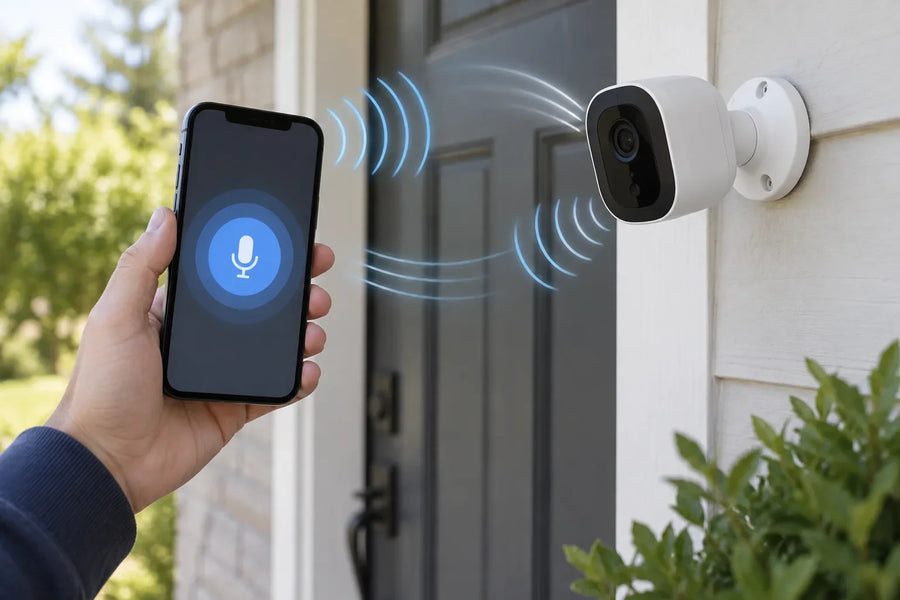
A saved event contains footage already recorded by the camera. A screen recording captures playback on your phone, including any visible controls or interruptions. Download the saved event directly to avoid adding the phone interface to your clip. For live view, start screen recording while the activity is happening.
Related links:
· How live view and saved clips differ
Verify playback, sound and timestamps
Play the downloaded file from beginning to end outside the camera app. Confirm that it opens without a blank screen or error and includes the full event. Turn up the playback volume and listen for audio if sound was recorded.
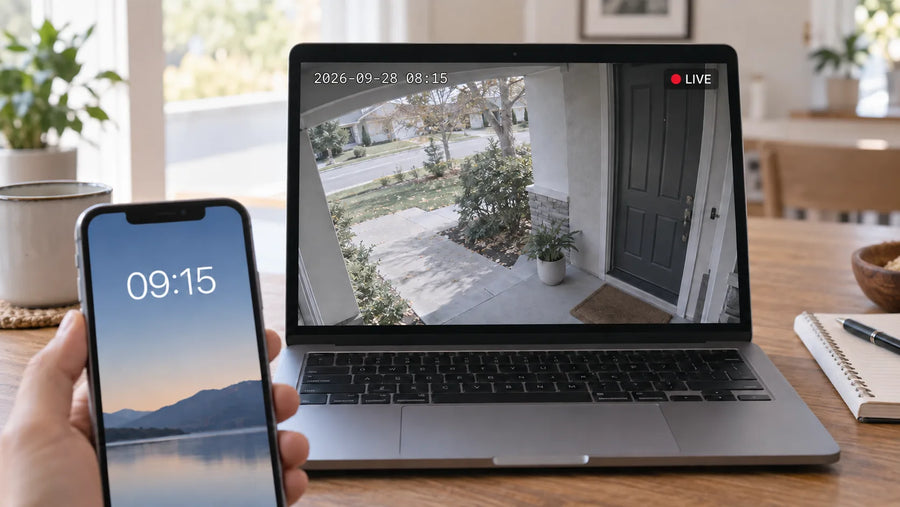
Compare the time shown in the footage with the real event time. A phone can assign a new file-created or downloaded time, so the file date is not always the same as the camera's displayed event time. If the camera clock was wrong, write down the difference and keep that note with the clip.
Check the file size as well. If the file is empty, playback stops early or part of the event is missing, download it again while the saved event is still available. File size alone doesn't establish whether a clip is complete; compare its duration and content with the saved event.
· The clip opens outside the camera app.
· The beginning and end include enough context.
· Video and expected audio play through the full clip.
· The displayed event time is understood and any clock error is noted.
· The file size is greater than zero and the duration matches what you saved.

Open the downloaded clip in Photos and play it to check the saved video.
Keep an original and make a sharing copy
Keep the first working download unchanged. Trimming, adding text, blurring faces or converting a video can remove context or metadata and re-encode the footage. Those changes can make it harder to verify the edited clip as original camera footage. An untouched download gives you a reference for showing what the camera recorded.
Copy the file to a computer, external drive or cloud account, then open that second copy to confirm the backup works. This keeps the footage available if your phone is lost, damaged or cleared. Use an original-quality backup setting when your cloud photo service offers one; storage-saving modes can reduce video resolution or compress the file.
Keep the original filename if it carries useful time or camera information. Save a note with the camera location, actual event time and a short description. Give edited copies clear names, such as driveway-2026-10-21-2140-sharing-copy.mp4, so you can tell each version apart.

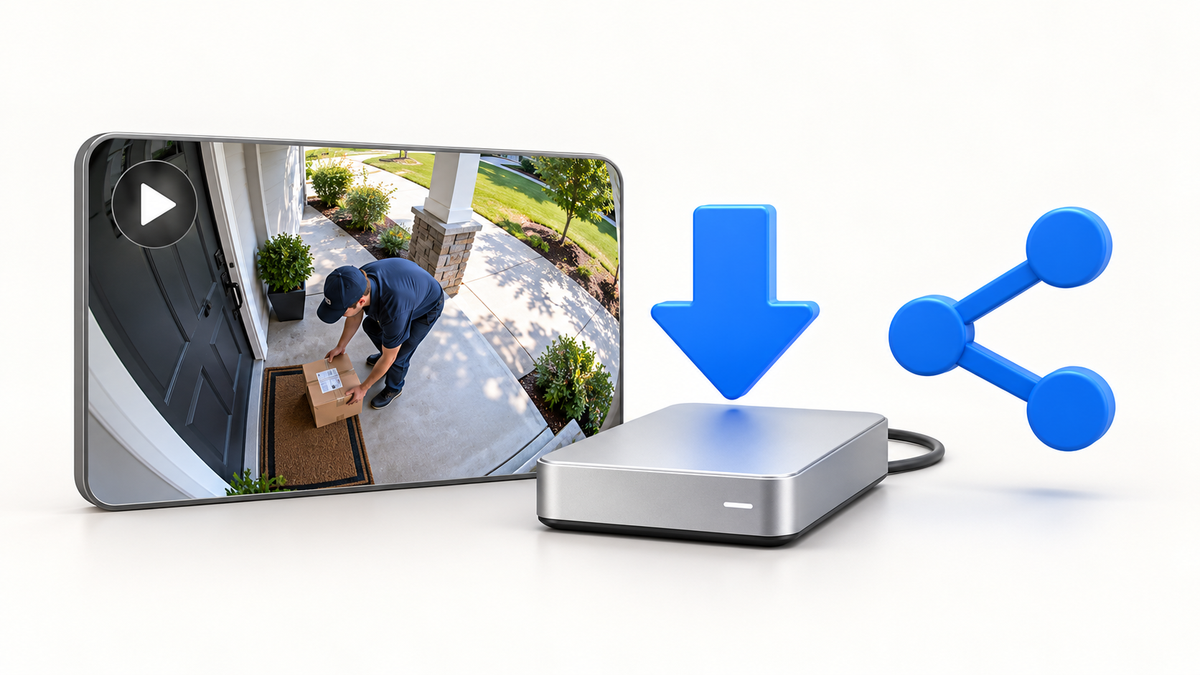
Illustrative example: keep the original download, save a backup on another drive and edit a separate sharing copy.
Related links:
· How security cameras store footage
Download a saved event in the aosu app
In the aosu app, open Events, choose the saved event you need and tap the download symbol shown with that event. After the download finishes, open the video in your phone's local photo album. Grant photo or storage access when prompted to save the recording.
Play the video from the album, check that it includes the full event and listen for recorded sound. You can then copy the downloaded file to your backup location or send it through your phone's sharing options.
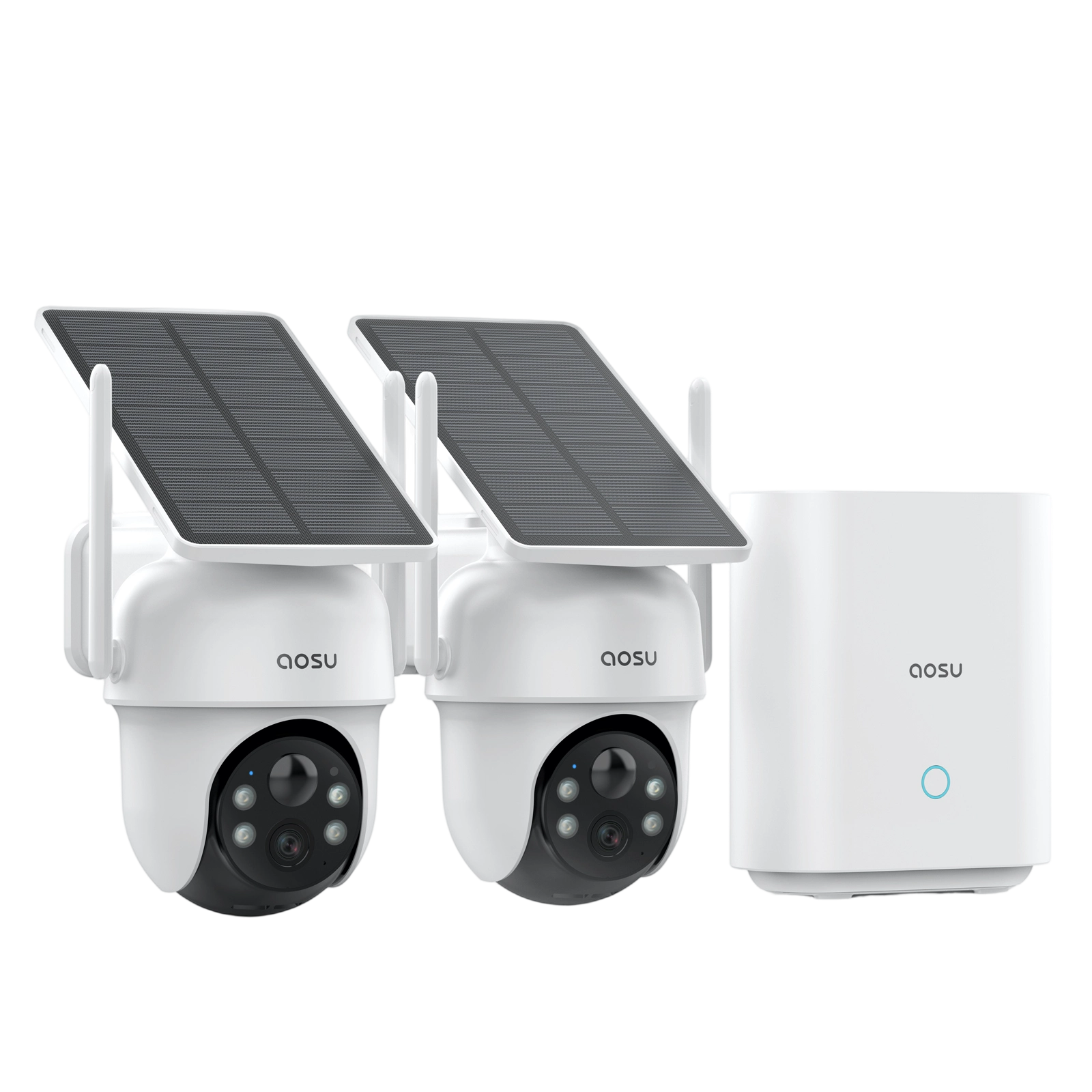
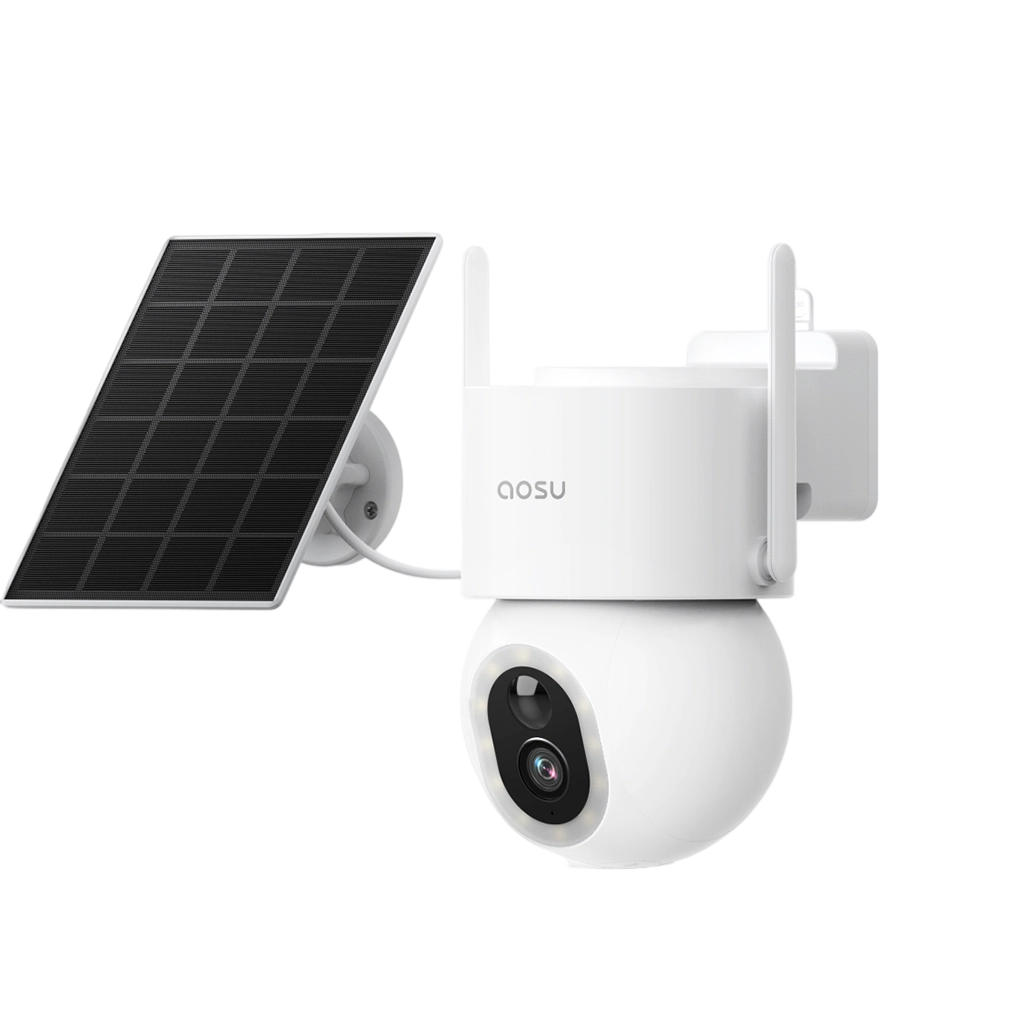
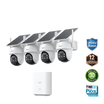
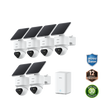
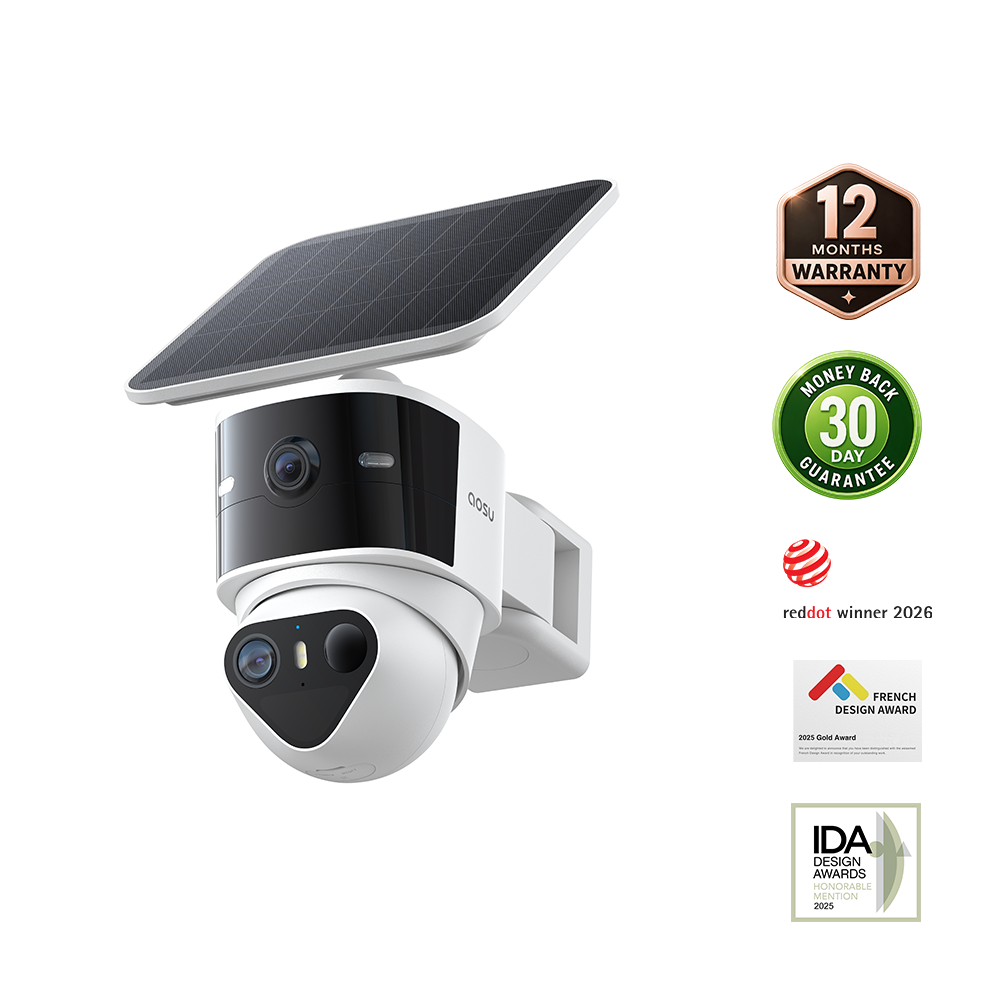
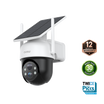
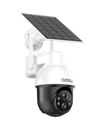
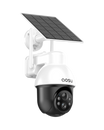
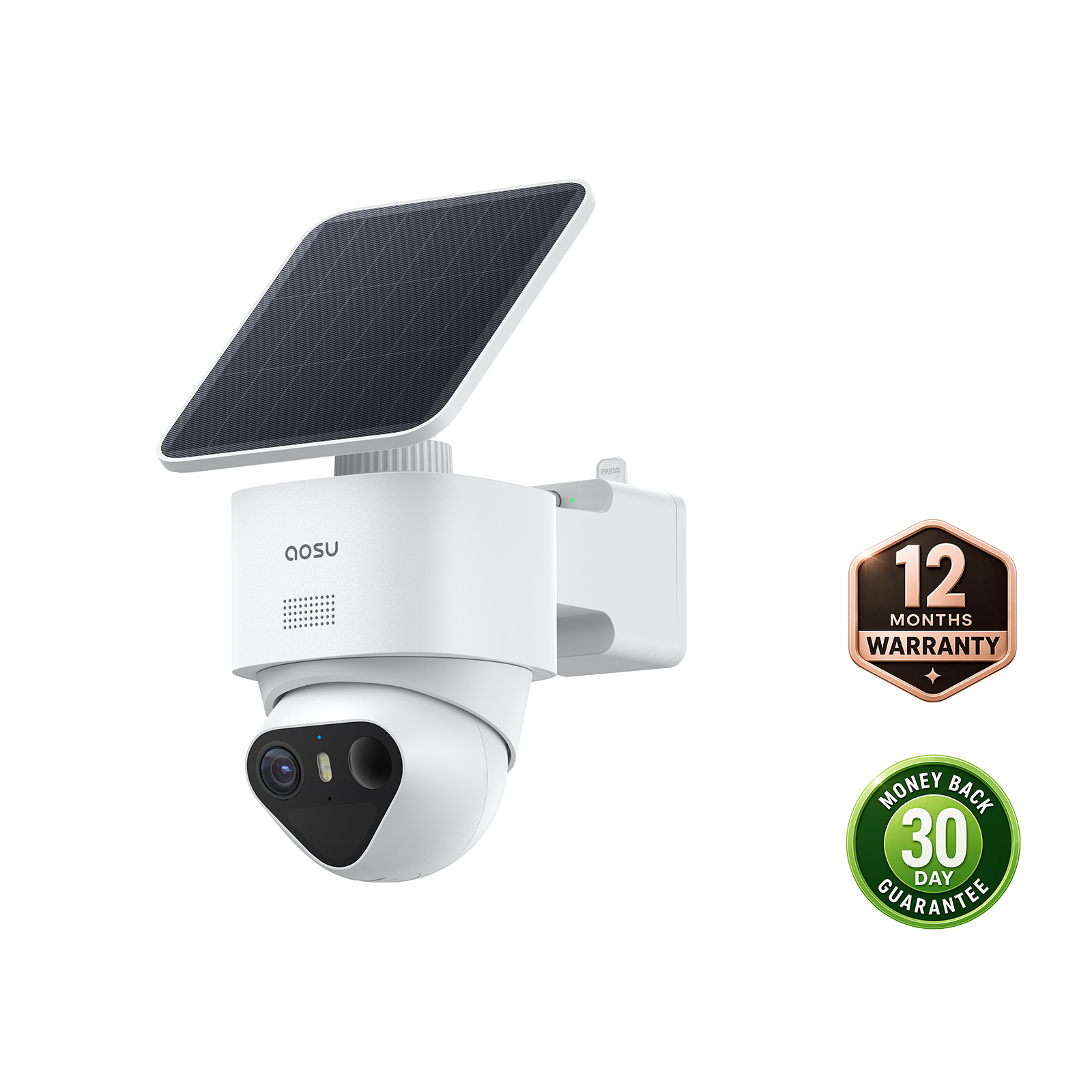
With SolarCam T2 Pro and aosuBase, recordings are stored locally, with support for a microSD card up to 1TB (sold separately). Download the events you want to keep so you also have a copy on your phone.
Related links:
· Download a saved event in the aosu app
· Review T2 Pro recording and storage options
Share and troubleshoot the downloaded file
Include the date, actual time, camera location and any known clock difference in your message. Keep enough of the event to show the sequence, and ask the recipient to download and play the file to confirm it arrived intact.
Some messaging and photo services compress video, and some apps reject formats they don't support. If the shared version looks softer, download the received file and compare its resolution, detail and duration with your backup. A file attachment or a service that preserves the uploaded file can help retain quality. If playback fails, use a trusted phone or computer tool to export a compatible sharing copy.
Large clips can exceed an app's attachment limit. Share a shorter copy that still includes the necessary context, or split a long sequence into clearly numbered parts. When the footage shows faces, license plates, an address or a neighbor's property, send it only to the people who need it and redact a sharing copy before posting it publicly.
For another area of the home, compare recording and storage options across the aosu solar camera range.
Related links:
· Compare aosu solar security cameras
To Wrap Up
Download the saved event, play the file outside the camera app and confirm its time, sound, duration and context. Save a backup, make any edits on a copy, and test the exact file your recipient receives.
FAQs
Where does a downloaded security camera clip go on my phone?
In the aosu app, downloaded recordings are saved to your phone's local photo album. Grant the required photo or storage access when prompted, then open the video in Photos or Gallery to confirm it plays. For other camera apps, check the download destination shown by the app and your phone's file manager.
Why does a shared security camera video look different from the original?
Messaging and photo services can compress video or reduce its resolution. Download the received file and compare it with your backup. To preserve detail, choose a transfer service that retains the uploaded file, then confirm the recipient can play the downloaded copy.
Should I keep the original security camera footage download?
Yes. Editing can remove context or metadata and make a clip harder to verify as original camera footage. Keep the first working download unchanged, back it up and make trimmed, converted or redacted versions from separate copies.