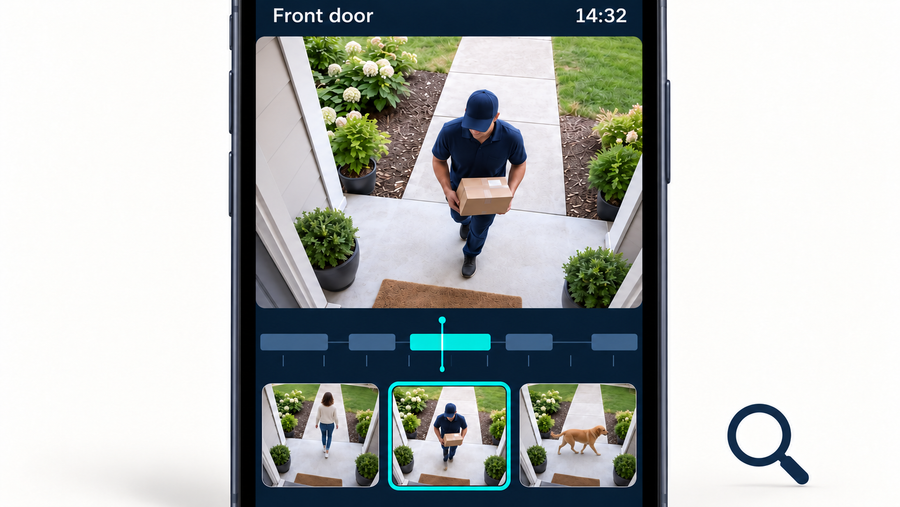



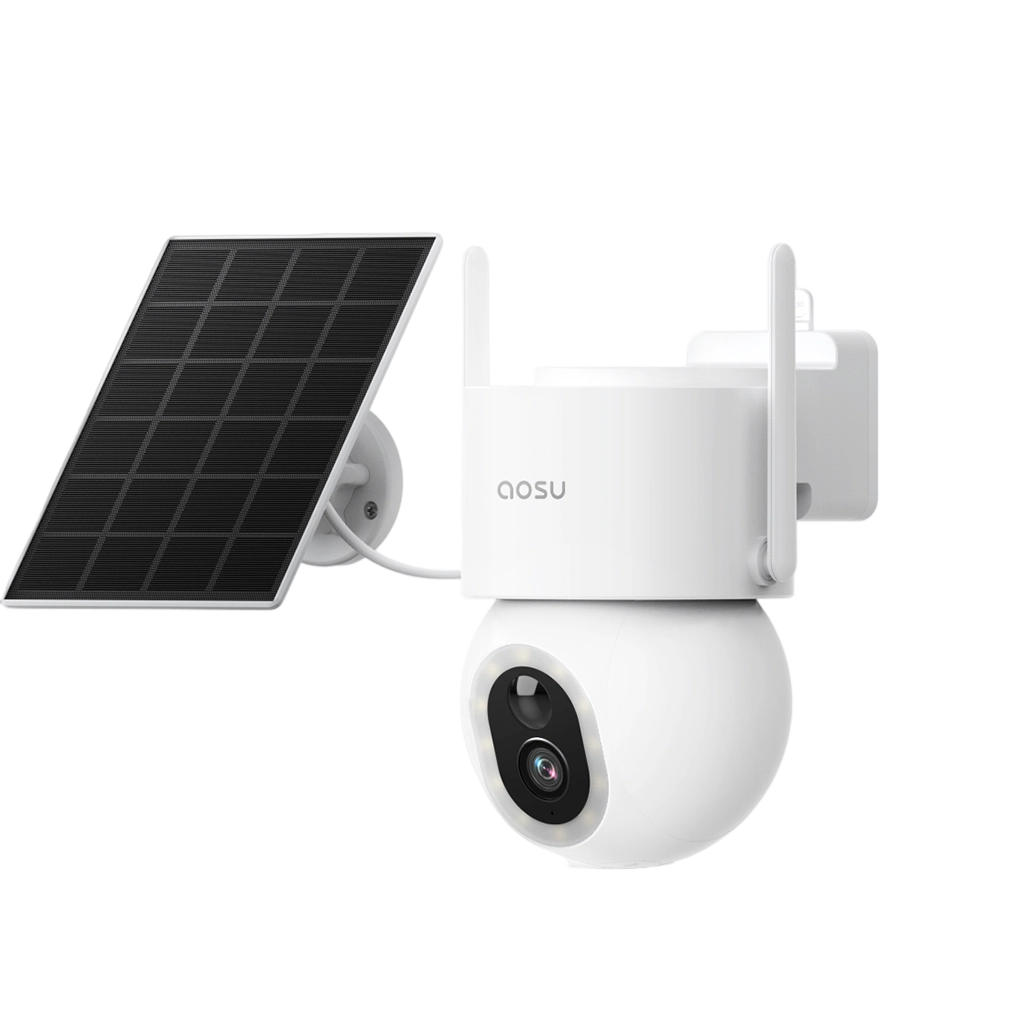
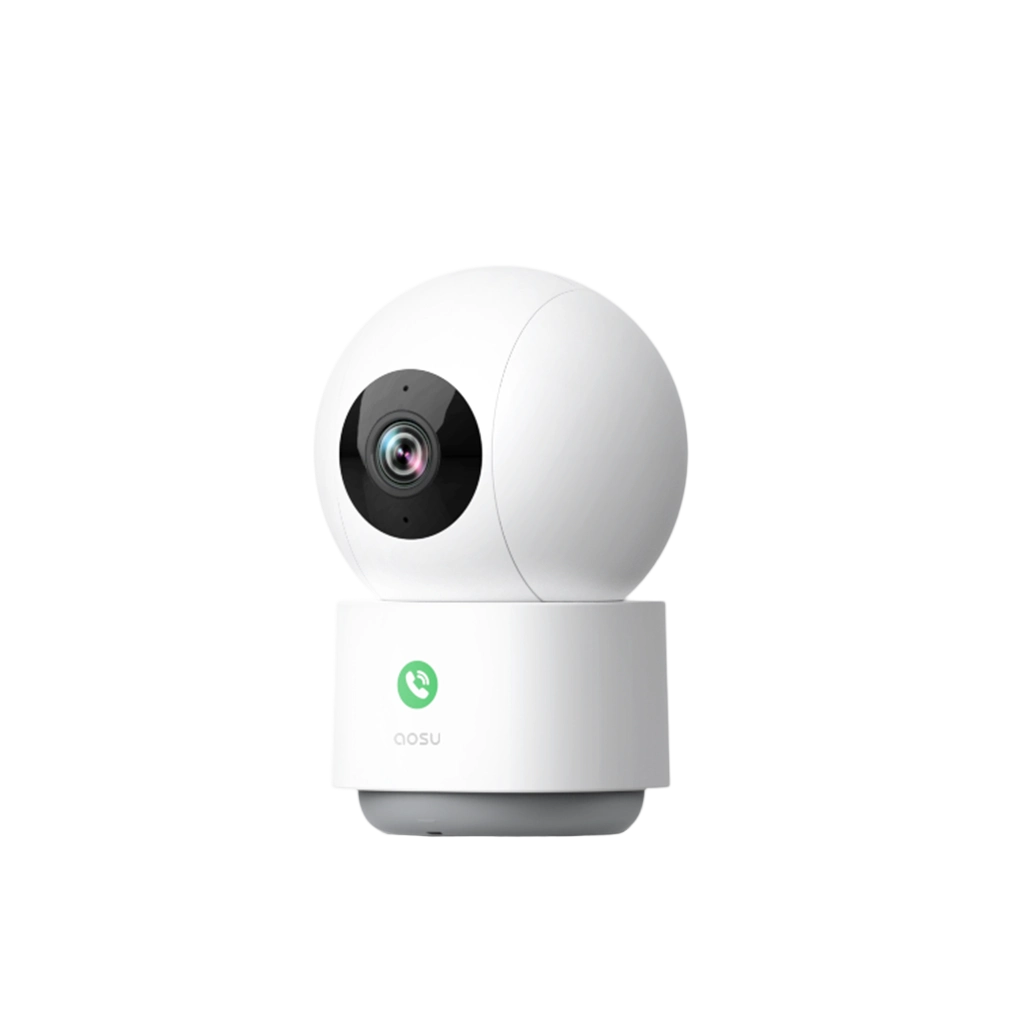

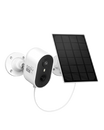
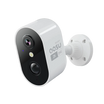
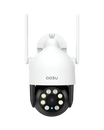
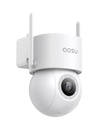


First check what your doorbell actually sees. Then adjust its angle, use a privacy mask if your model supports one, review audio recording, and remove people who no longer need shared access. Motion zones control event triggers, while privacy masks obscure selected parts of the picture.
After every change, test both live view and a saved event. Menus and controls can differ by doorbell model, firmware and app version, so confirm the result on the device you own.
Check the Actual View Before Changing Settings
Open live view while someone walks from the public approach to the usual standing position at your door. Look for neighboring doors or windows, a shared hallway, a private yard, a house number, parked cars and any part of the street that adds no useful security context.
Correct the physical view first. A small angle change can keep the visitor and package area in frame while moving a neighbor's doorway toward the edge or out of view. If the doorbell needs a wedge or a different mounting point, test that position temporarily before drilling or using permanent adhesive.
Open your doorbell's settings and look for privacy zones or privacy masks, motion or activity zones, audio streaming and recording, shared users, clip download and account security. Available controls vary by model, firmware and app version. Use the manual for your doorbell to find the relevant menus and confirm which settings it supports.
Related links:
· Test your video doorbell's field of view
Set Motion Zones and Privacy Masks
A motion zone selects where movement can trigger an event or alert. Draw it around the doorstep and the path a visitor takes to reach your door. Excluding a busy pavement or shared path can reduce recordings and notifications from people passing the house. The surrounding scene remains visible in the camera's picture.
A privacy mask obscures a selected part of the picture on doorbells that support it. Use one to cover a neighbor's window, doorway or private yard while keeping your own entrance visible. Check the masked area in both live view and a new recording, including the edges around it.
For example, if a neighboring window sits beside your doorstep in the picture, place the mask over the window and keep the visitor's standing position clear. Set the motion zone around your own entrance. Test the boundary with someone walking toward your door and along the shared path.
| Control | Best for | Main limit | What changes in new recordings | Earlier saved clips | Cost or effort |
|---|---|---|---|---|---|
| Adjust the mounting angle | Keeping unnecessary areas out of the frame before video is captured | A larger change can also remove part of the approach or package area | The whole frame changes | No change | May require a wedge, remount or new adhesive |
| Privacy mask | Blocking a fixed window, doorway or strip of neighboring property | Availability and behavior depend on the exact model, firmware and app | The selected area is obscured when the feature is supported | Earlier clips retain their original view; review or delete them separately | Software setting; verify availability before buying |
| Motion or activity zone | Reducing alerts and event triggers outside the useful area | Areas outside the zone remain visible in the picture | Trigger behavior changes; the captured view stays the same | No change | Software setting |
| Turn off audio recording | Avoiding unnecessary sound capture | Live audio, saved audio and two-way talk may use separate controls | Sound is omitted where the supported setting applies | No change to sound already saved | Software setting; test live view and playback |

Illustration: the blue outline marks the motion zone; orange-hatched masks cover the neighboring doorways.
Keep Neighbors Comfortable With the View
In a Reddit discussion about a shared path close to a front door, u/fluxxis explained: “I don't want my neighbors (with whom we have a good relationship) to worry that they are being watched or filmed unnecessarily.”
Related links:
· Read u/fluxxis's original question about neighbors' privacy
For a shared path close to your door, start by angling the camera toward your entrance. If neighboring doors or windows remain in view, use a privacy mask where the doorbell supports one. A motion zone around your doorstep can reduce triggers from people using the path.
Talk with your neighbors about what the doorbell captures. Showing them the live view and the areas you have masked gives them a clear picture of the setup. Check the result after dark as well, when lights inside neighboring homes can make windows more visible.
Review Live and Recorded Audio Separately
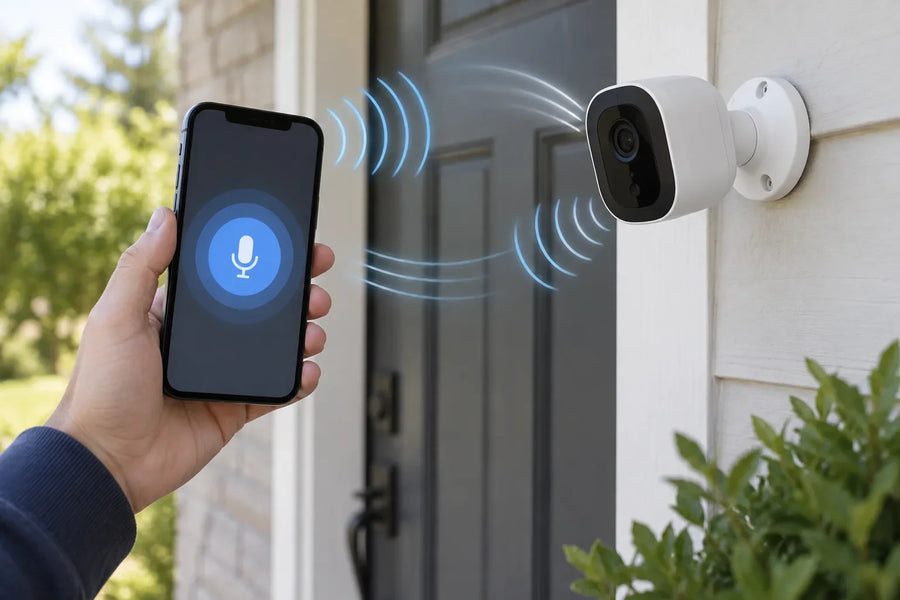
A microphone icon in live view can mute sound on your phone without changing what the doorbell saves. Two-way talk can also remain available when ordinary event clips do not include audio. Treat live listening, recorded audio and the speaker used for two-way talk as separate behaviors until you have tested them.
Open the doorbell's audio or privacy settings and look for a control named Audio streaming and recording, Record audio, Microphone or similar. If the app provides one switch for live and recorded sound, turning it off may affect both. If it provides separate controls, set each one intentionally.
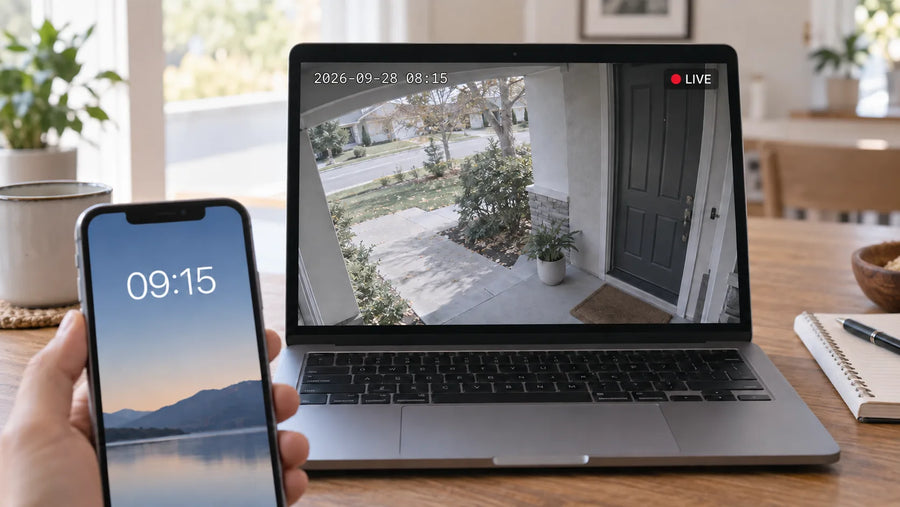
Run two tests. First, open live view while another person speaks at the door and confirm whether you can hear them. Second, create a normal event, wait for it to finish and play the saved clip from the beginning. Listen to playback to confirm whether the doorbell recorded sound.
Audio recording introduces its own privacy and legal concerns. Read the article below to learn more about recording sound, two-way talk and the privacy of people near the camera. If you do not need saved audio, turning it off reduces the personal information captured in each clip.
Related links:
· Understand audio recording and two-way talk
Review Shared Users and Clip Access
Device sharing gives another person continuing access through the app. Sending a downloaded clip shares a copy of one event. Choose device sharing for household members who need regular access, and send an individual clip when someone only needs footage of a delivery or another specific event.
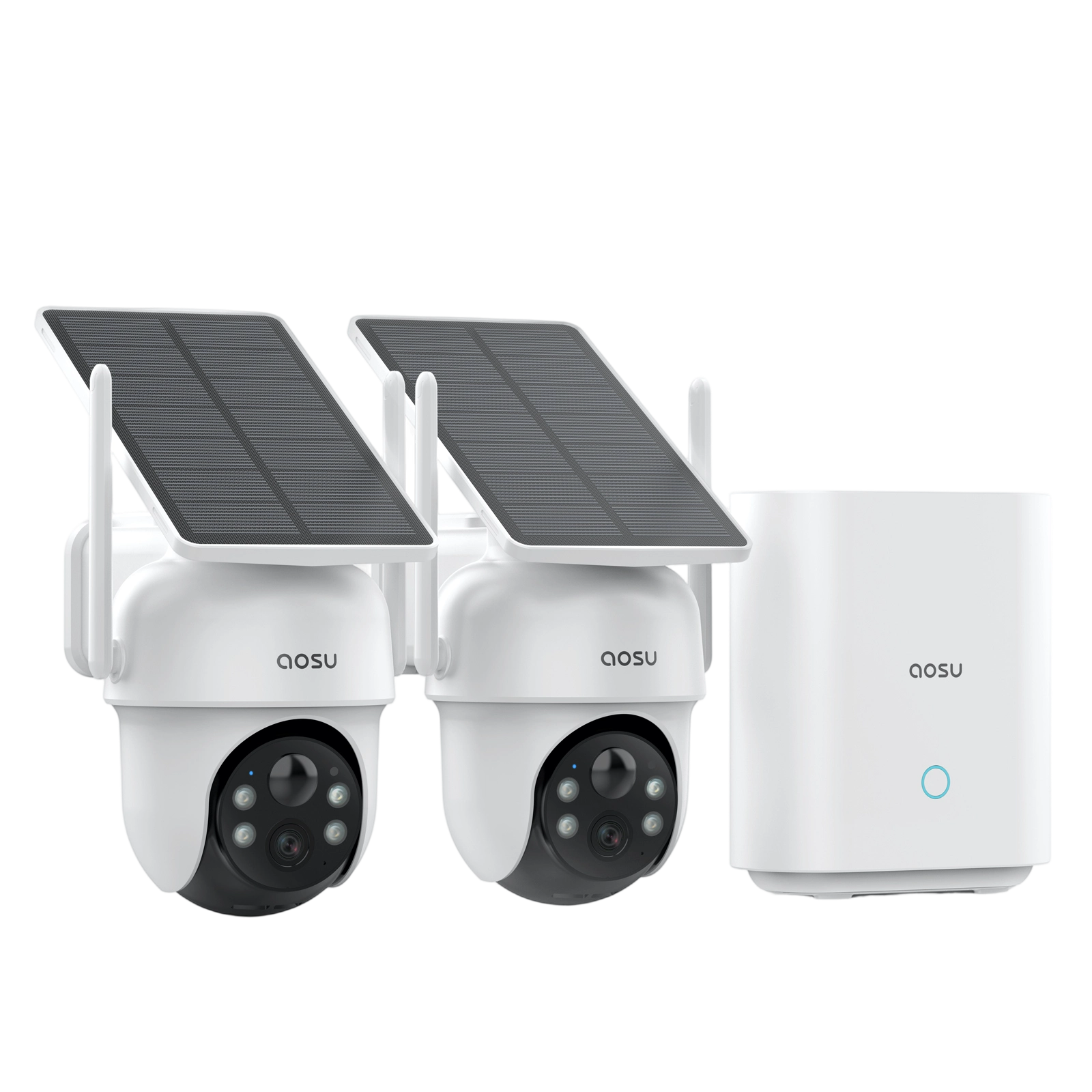
In the aosu app, use Share device or Share users to invite each person with their own account. Shared users can view live video and recordings and receive calls and notifications. Available permissions and sharing limits vary by product and app version; review the access shown on the invitation screen before sending it. Keep the owner password private.
Open Account, Share device and the management view for existing shares. Remove old housemates, former tenants, contractors, caregivers or relatives who no longer need access. If you cannot identify an account, remove it and send a fresh invitation only after confirming who needs it.
When you share one event outside the app, download the necessary clip and check it before sending. The file can contain voices, faces, vehicle plates, house numbers and a view of neighboring property. Trim or redact details that are not needed. Downloaded copies remain with recipients after the original recording is deleted from your app.
Related links:
· Protect camera account access
Test and Document Your Privacy Settings
Finish with one controlled walk-through during the day and another after dark. Use a household member who knows the test is happening. Move through both the area the doorbell should keep and the area you want excluded, then compare live view, alerts, a saved event and a downloaded copy.
Save a short record of the doorbell model or SKU, firmware version, app version and test date. Include a screenshot only after hiding account names, addresses, faces, vehicle plates and other personal details. This record makes later app or firmware changes easier to spot.
For location-specific rules on filming shared spaces and neighboring homes, read the apartment camera privacy guide linked below.
1. Check the boundary: Walk along the edge between the useful door area and the space you want to exclude. Confirm that the visitor and package area remain visible.
2. Compare live view and playback: Check the coverage of your privacy mask in live view and a saved event. Walk through the motion zone and along its boundary to test which movements trigger an event.
3. Listen to the saved event: Play the finished clip with the playback volume turned up and check whether it includes sound.
4. Check a shared account: Verify what an invited household member can view or do, then remove the test share if continuing access is unnecessary.
5. Review the exported clip: Download one sample and check the video, audio and identifying details before sending any clip outside the household.
Related links:
· Read apartment camera privacy considerations
Keep the Doorway Useful Without Recording More Than You Need
Review your doorbell’s view, privacy masks, motion zones, audio and shared access. Keep the entrance and package area visible, limit unnecessary recording around neighboring homes, and check who can watch or download your footage.
Repeat the five-part test after moving the doorbell, updating its firmware, reinstalling the app or changing who lives in the home. Keep your test record with the settings screenshots so the household can review the setup again when needed.
FAQs
Are motion zones the same as privacy masks?
No. A motion zone changes where activity can trigger an event or alert. A privacy mask obscures part of the image on models that support it. Test live view and a saved event because menu names and behavior vary by model.
Can I turn off recorded audio on a video doorbell?
You can when your doorbell and app provide an audio-recording control. Look in the audio or privacy settings, turn recording off, then create an event and play the finished clip to confirm the result. Some models use one switch for both live and recorded sound.
How should I test my video doorbell privacy settings?
Walk through the included and excluded areas, compare live view with a saved event, listen to playback, check a shared account and inspect one downloaded clip. Record the model, firmware, app version and test date.