


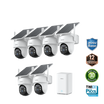

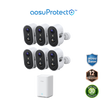
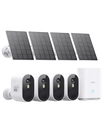
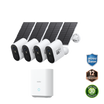
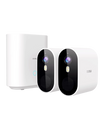



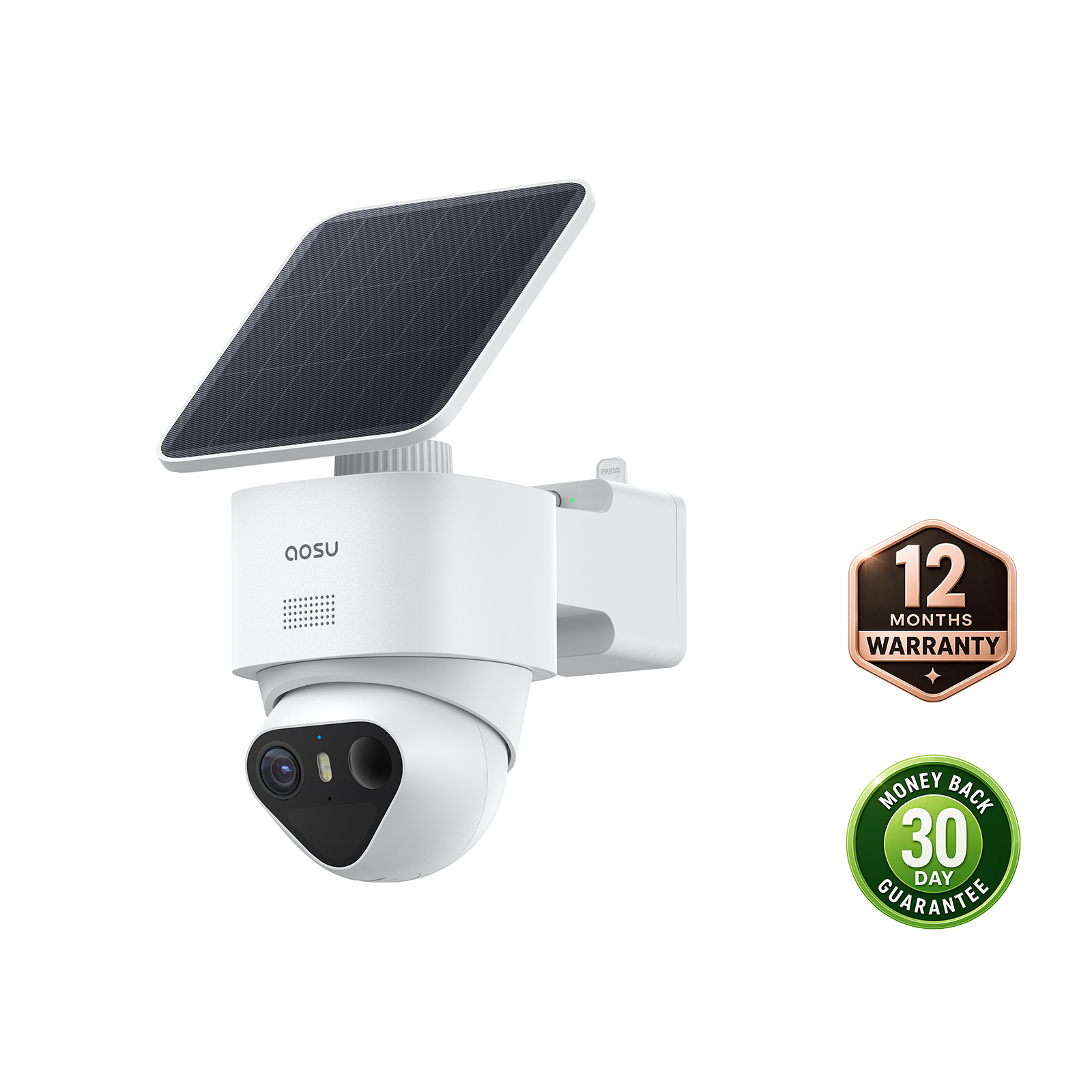






Security cameras can store footage in several different places, each with its own implications for your security system.
Storage type can affect monthly cost, playback, privacy, internet-outage behavior, how long clips are saved, and what happens if a camera is stolen or damaged.
This guide explains the main security camera storage options in plain English: SD card storage, built-in camera storage, home hubs, NVRs or DVRs, and cloud storage.
The Short Answer: Security Cameras Store Footage Locally, in the Cloud, or Both
Most security cameras save footage in one of two broad ways: locally on hardware you own, or online through cloud storage.
Local storage can mean a microSD card inside the camera, built-in camera memory, a home hub or base station, or a wired recorder such as an NVR or DVR. Cloud storage usually means clips are uploaded to the brand's online servers.
Some cameras use only one storage method. Others let you combine local storage for everyday recording with optional cloud storage for backup or extra features. Compare actual retention rather than assuming cloud storage keeps a longer history.

The Main Security Camera Storage Options
microSD card |
Built-in camera storage |
Home hub or base station |
NVR or DVR |
Cloud storage |
|
Footage is saved on a small removable card inside the camera Simple for one-camera setups Usually no monthly storage fee Card can fill up, fail, or be lost with the camera |
Footage is saved on storage built into the camera No separate SD card to buy or insert Capacity is fixed by the camera model Footage may be lost if the camera is stolen or damaged |
Footage is saved on an indoor hub connected to the camera system Useful for multi-camera homes Less prone to physical tampering than on-camera storage Usually works only with compatible cameras Recording requires the camera-to-hub connection to remain available |
Footage is saved on a wired recorder with a hard drive Common for wired or PoE camera systems Good for longer recording history Usually works without internet or Wi-Fi Usually more involved to install and manage |
Footage is uploaded online through the internet Can protect successfully uploaded clips if local hardware is stolen Often easier for remote access Usually tied to a subscription or optional paid plan |
These options are not automatically better or worse than one another. The right choice depends on how many cameras you have, whether you want to avoid monthly fees, how much video history you need, and how much setup complexity you are comfortable with.
SD Card Storage: Simple and Local
Good fit when: |
Watch out for: |
|
You have one or two cameras You want local recording without a monthly storage fee You mostly need motion clips instead of all-day recording You are comfortable checking storage occasionally |
Limited storage capacity Old footage being overwritten Card quality and wear over time Footage being lost if the camera is taken |
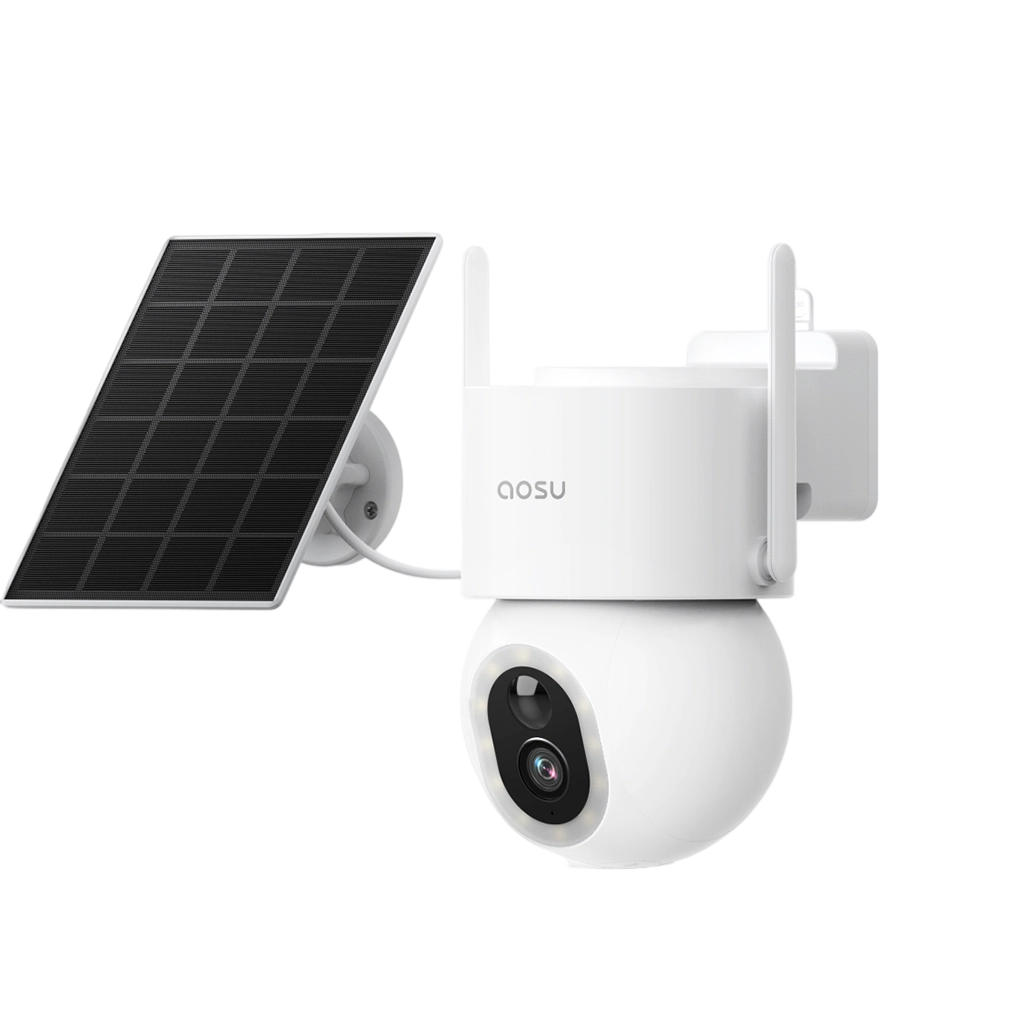
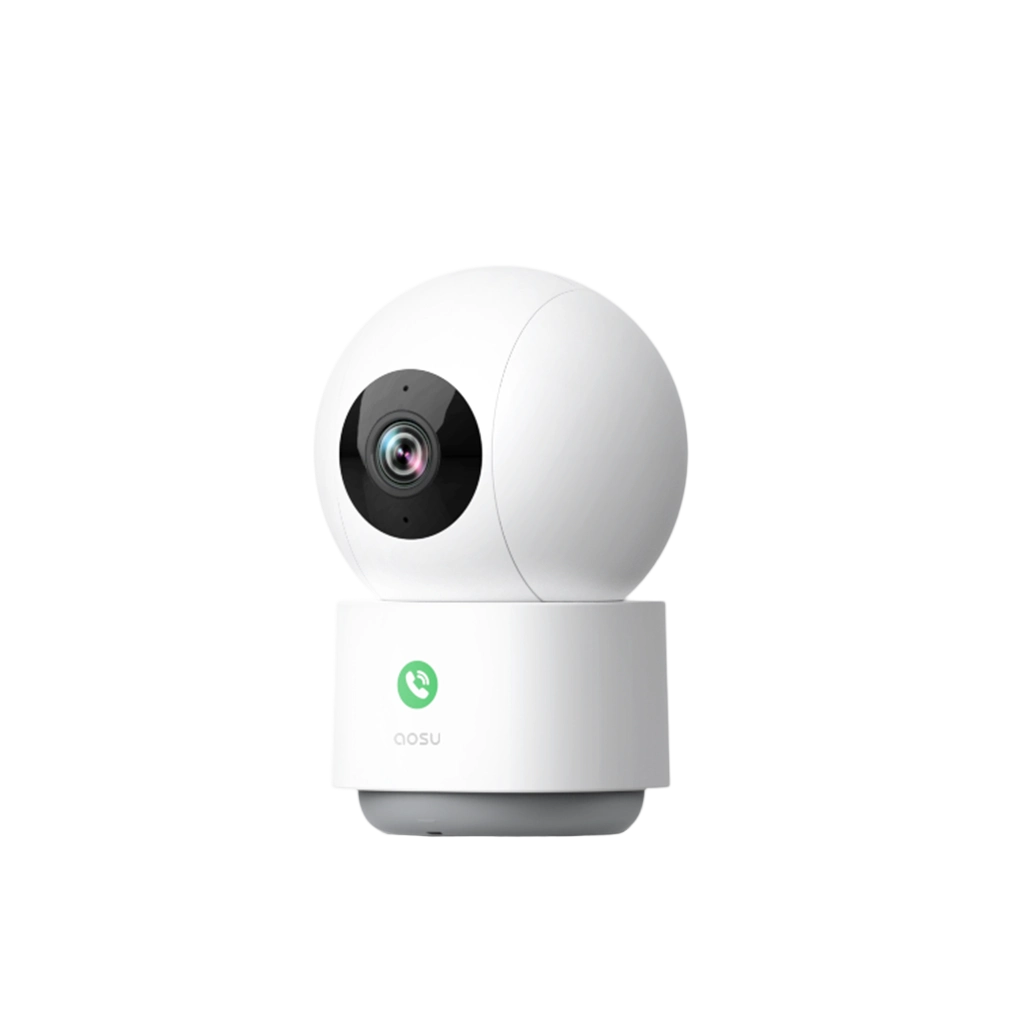
With SD card storage, the camera saves clips directly to a microSD card installed inside the camera. This is one of the simplest ways to store footage without paying for cloud storage.
It works well for many single-camera setups, especially when the camera records motion events instead of continuous video. You can usually open the app, review saved clips, and download important footage before it gets overwritten.
Try an export before you need it
For the interface described in aosu’s official event-recording guide, open Events, select a saved event and use its download icon. Controls may vary with the app and model.
After downloading, play the local file and confirm that it contains the required sequence and any expected audio. Keep that file before trimming or sharing another copy.
Follow the footage download, backup and sharing guide for further checks.
The tradeoff is that the footage is physically close to the camera. If the camera is stolen, damaged, or removed with the card still inside, the local footage may go with it.

Built-In Camera Storage: Local Storage Without a Separate Card
Some cameras include built-in storage instead of relying on a removable microSD card. The idea is similar: footage is saved locally on the camera, and you can review recordings through the app.
The benefit is convenience. You do not have to pick a card size, insert a card, or worry about buying a low-quality card. The limitation is that the storage amount is fixed, so you need to understand how much recording history the camera can realistically hold.
Built-in storage can be a good option if you want a cleaner setup and do not need long continuous recording history.
Home Hub or Base Station Storage: Local Footage Kept Indoors
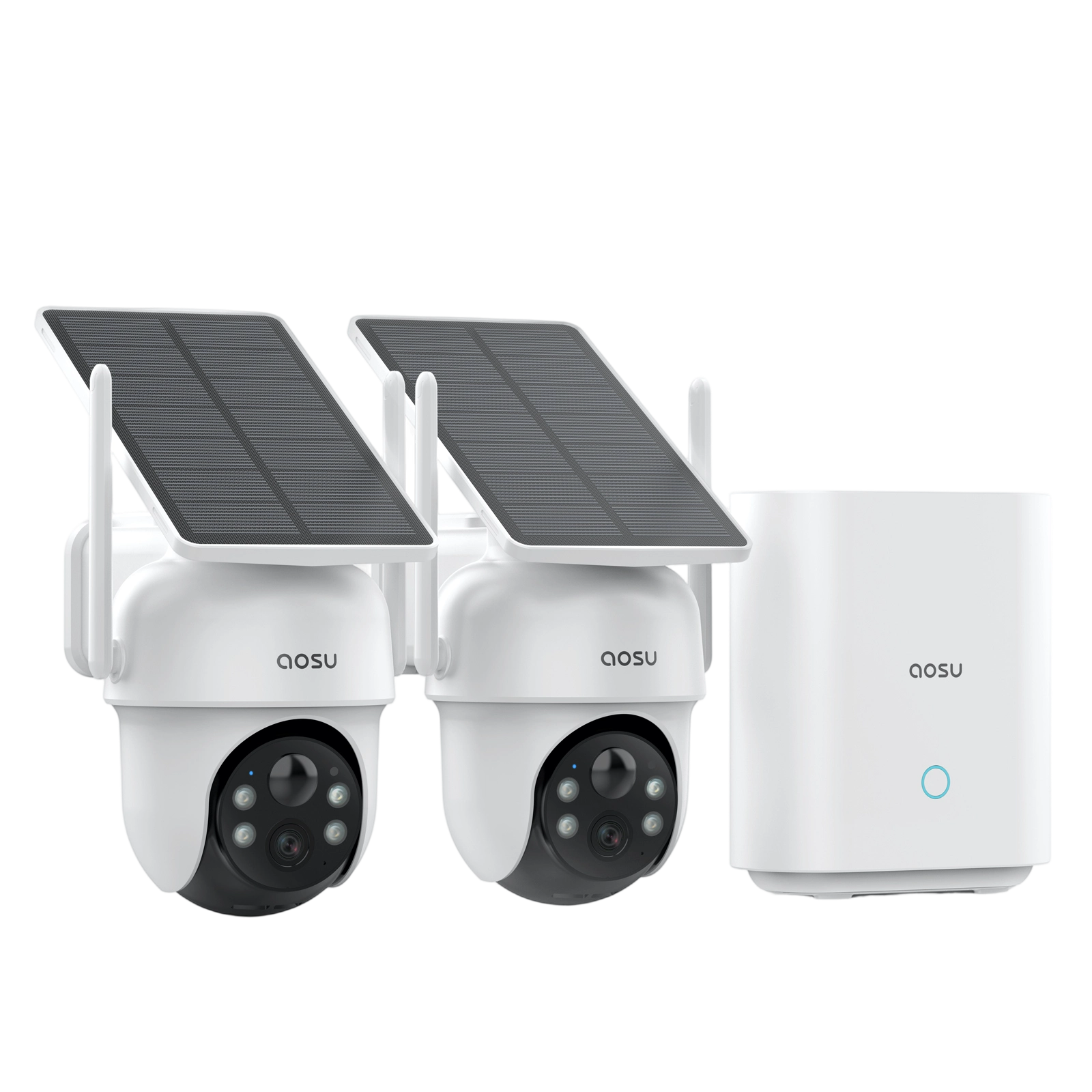
A home hub or base station stores footage on an indoor device instead of relying only on the camera itself. This can be useful because the storage stays inside your home even if an outdoor camera is damaged or removed.
This type of setup is often a strong fit for multi-camera homes. The hub may manage recordings from several cameras, make playback easier, and keep local storage in one protected place.
The main thing to check is compatibility. Hubs and base stations usually work within a specific camera system, so you cannot assume every camera will connect to every hub.

NVR or DVR Storage: Best for Wired or Larger Camera Systems
An NVR or DVR is a dedicated recorder, usually with a hard drive inside. These systems are common for wired camera setups, especially when you want several cameras recording for longer periods.
An NVR is commonly used with IP or PoE cameras. A DVR is commonly used with analog camera systems. For most homeowners, the practical takeaway is simple: these recorders are built for more serious, multi-camera recording setups.
The benefit is recording capacity and control. The tradeoff is installation complexity. A wired recorder means more planning, more cables, and a more involved setup than a single wireless camera.
Cloud Storage: Convenient, but Usually Subscription-Based
Cloud storage saves video online instead of only on hardware at your home. This can make clips easier to access remotely and can protect important footage if the camera or local storage device is stolen, provided the clips were successfully uploaded.
The tradeoff is cost and dependency. Cloud storage requires an internet connection and is often tied to a monthly or yearly plan. Some brands may include limited cloud features for free, but longer video history or advanced features usually require a paid plan.
Cloud storage is not automatically bad, and local storage is not automatically better. The key is knowing whether you need off-site backup, how much video history you want, and whether you are comfortable paying for those conveniences.
What Happens When Security Camera Storage Gets Full?
Most security camera storage systems use overwrite or loop recording. Once storage is full, the oldest clips are deleted automatically so newer clips can be saved.
That is convenient because the camera can keep recording without you manually clearing space. But it also means important footage can disappear if you do not save it in time.
How quickly storage fills depends on several factors, many of which are adjustable in your camera's settings. Here are some key points to know:
Motion recording uses less storage
The camera records clips only when activity is detected, which is often enough for typical homes.
24/7 recording uses storage much faster
Continuous recording can be useful, but it usually fits wired systems and larger storage better than battery cameras.
Bitrate and recorded time determine the estimate
Resolution alone does not determine storage use. Average recording bitrate and the total time saved are more useful starting points.
Busy areas create more clips
A camera pointed at cars, sidewalks, or other busy areas may record more often and overwrite older footage sooner.
Illustrative storage calculation
Daily storage in decimal GB ≈ average bitrate in Mbps × recorded seconds per day ÷ 8,000.
| Example | Assumptions | Estimated storage per day |
|---|---|---|
| One camera, continuous video | 2 Mbps × 86,400 seconds | 21.6 GB |
| One camera, event clips | 2 Mbps × 100 clips × 30 seconds | 0.75 GB |
| Four cameras, continuous video | Four streams averaging 2 Mbps each | 86.4 GB |
With 128 GB allocated to recordings, these examples represent about 5.9 days, 171 days and 1.5 days respectively, before overhead and other limits. These are arithmetic examples, not camera performance claims.
Actual retention can be shorter because of usable capacity, audio, metadata, variable bitrate, protected files or a fixed retention policy. See how to estimate security-camera card capacity.
Check that new recordings are actually being saved
- Create a short test event using the supported recording mode.
- Find it in playback and check the timestamp and duration.
- Play the complete clip, then download it.
- Confirm that a later test event also appears.
- Check storage status and any error messages if new recordings are missing.
A full card may be operating normally when loop recording is enabled. Missing new clips, unreadable playback or storage errors need further investigation.
Preserve accessible important footage before formatting, resetting or replacing storage. Follow the model’s instructions; those actions can erase recordings.
Does Security Camera Storage Work Without Wi-Fi?
Sometimes, but it depends on the camera and storage setup. Recording, live view, notifications, and remote playback are different functions.
A camera with local storage may be able to keep recording when the internet goes out, as long as it still has power and can write to its local storage. But remote viewing and phone alerts usually need an internet connection.
Separate an internet outage from a lost camera-to-storage connection:
- On-camera storage: Recording may continue if the model supports offline operation, remains powered and can write to its storage.
- Hub or recorder storage: The camera must still reach the storage device through the required local connection. An internet outage and a broken wireless link are different failures.
- Cloud storage: New uploads need the required internet connection. Later upload of missed footage is available only when specifically supported.
Check these conditions for the exact camera and configuration. Read the base station versus on-camera card comparison for the difference between storage location and the path footage must travel.
How to Choose the Right Storage Setup
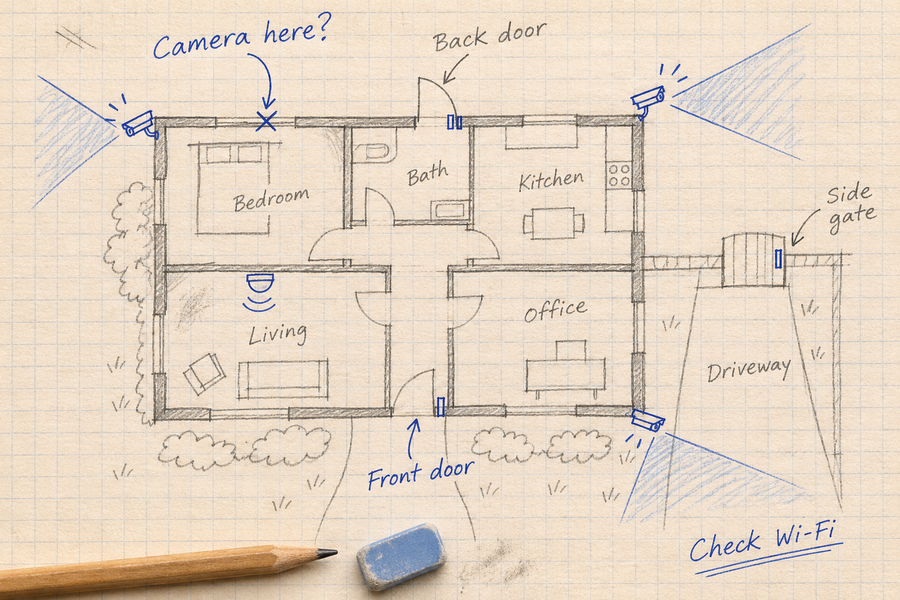
The best storage setup is the one that matches how you actually plan to use the camera. A front-door camera that records a few clips per day does not need the same setup as a wired multi-camera system watching a driveway, backyard, and side gate.
Before choosing a camera, answer these practical questions.
Do you want to avoid monthly fees?
Look for local storage options such as microSD card storage, built-in storage, a home hub, or an NVR. Some systems, including many aosu camera setups, are designed around local storage and no required monthly storage fee, but always check the specific model.
How many cameras will you use?
One camera may be fine with SD card or built-in storage. Several cameras may be easier to manage with a hub, base station, or wired recorder.
How important is footage if the camera is stolen?
If theft protection is a major concern, camera-only storage has a weakness. A hub, NVR, or cloud backup can reduce that risk for footage that successfully reaches it.
Do you need long recording history?
Choose a retention target first, then calculate local capacity and compare available cloud plans. Cloud storage is not automatically a longer archive.
Check whether the stated history covers event clips or continuous video, how many cameras it includes and when files expire. Review aosu’s current cloud-service options for the applicable model and region.
Do you care most about convenience or control?
Cloud storage is often convenient. Local storage gives you more direct control and can reduce recurring costs.
To Wrap Up
Security cameras store footage in different ways: SD cards, built-in storage, home hubs, NVRs or DVRs, cloud storage, or a combination of these options.
If you want the simplest answer, think about three questions: where is the video saved, how long is it kept, and what happens if the camera, internet, or storage device fails?
Once you understand that, it becomes much easier to choose a camera system that fits your home instead of getting surprised later by missing footage, storage limits, or monthly fees.
Next, compare on-camera cards and base stations, or estimate your needs with the camera storage-capacity guide.
FAQs About Security Camera Storage
Where do security cameras store footage?
Security cameras can store footage on a microSD card, built-in camera storage, a home hub or base station, an NVR or DVR recorder, cloud storage, or a combination of local and cloud storage.
Do security cameras save footage without Wi-Fi?
Some cameras with on-camera storage can keep recording offline if the model supports it, remains powered and can write to storage. A hub or recorder still needs its required camera-to-storage connection. Remote viewing, app alerts and cloud uploads have separate internet dependencies.
Is SD card storage better than cloud storage?
Neither is universally better. On-camera storage can avoid a cloud-storage fee but may be lost with the camera. Cloud storage can preserve successfully uploaded clips off-site, subject to the plan’s retention and access rules.
Compare the actual retention period, export options, recurring costs and outage behavior. A hybrid setup provides additional protection only for footage that reaches the second storage destination.
What happens when security camera storage is full?
Most systems use loop recording, which means the oldest footage is overwritten by newer footage when storage fills up. Important clips should be downloaded or saved before they are overwritten.
Can a security camera use local storage and cloud storage at the same time?
Some cameras support both local storage and optional cloud storage. This can be useful if you want local recording for everyday use and cloud backup for important clips or extra features. Additional protection applies only to footage successfully saved to the second destination.