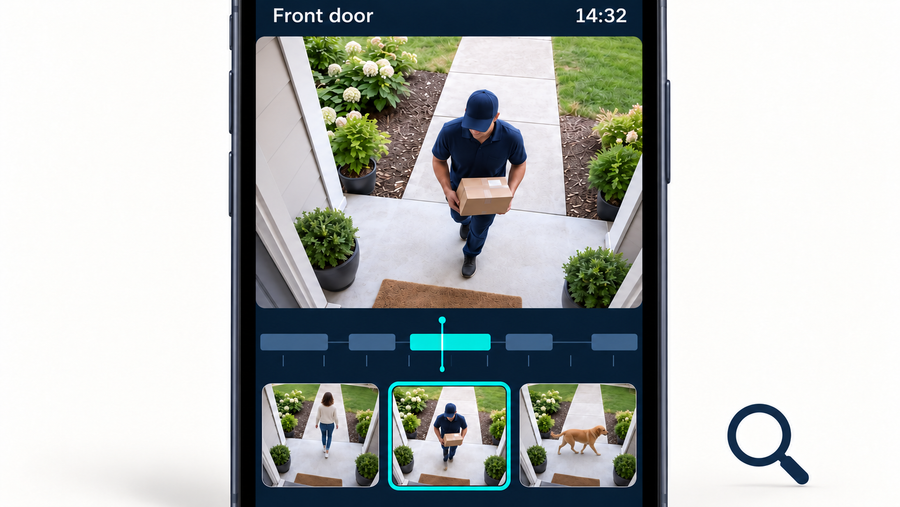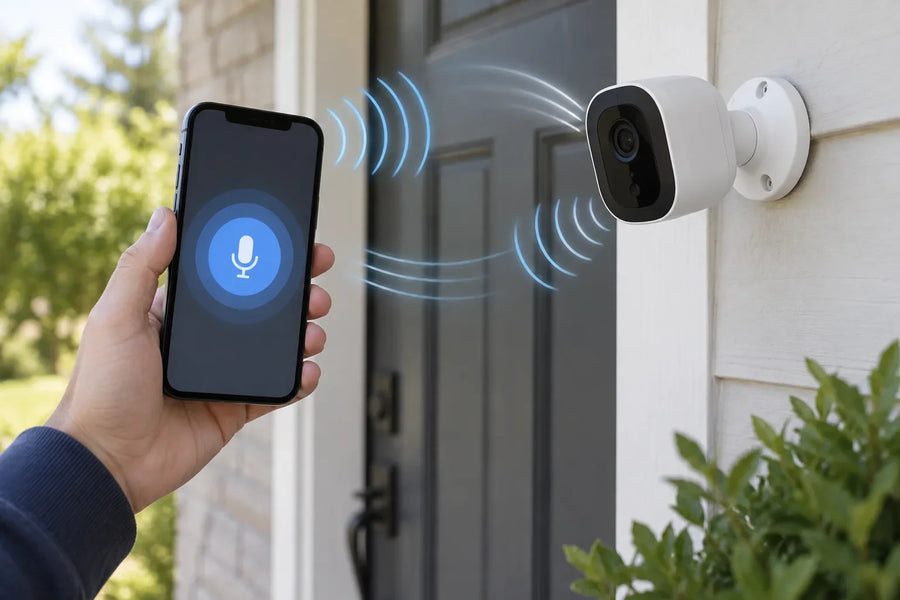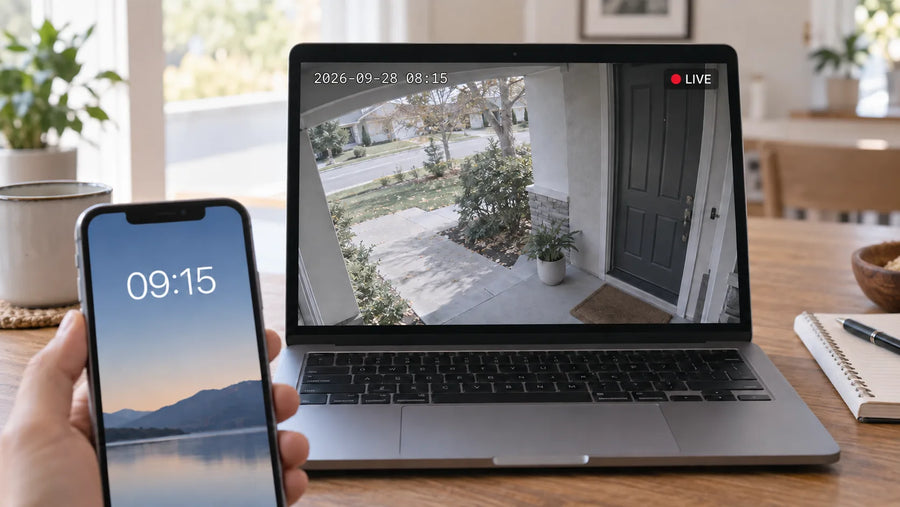



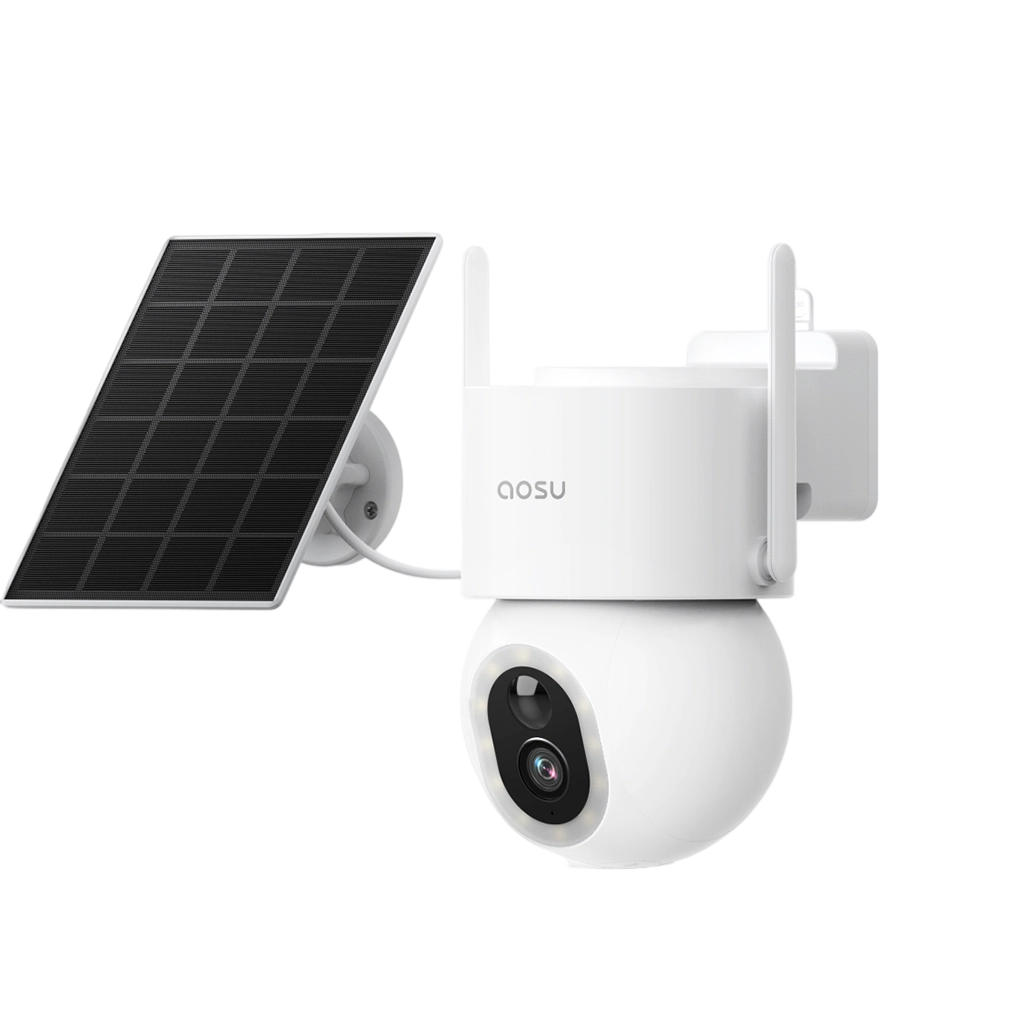
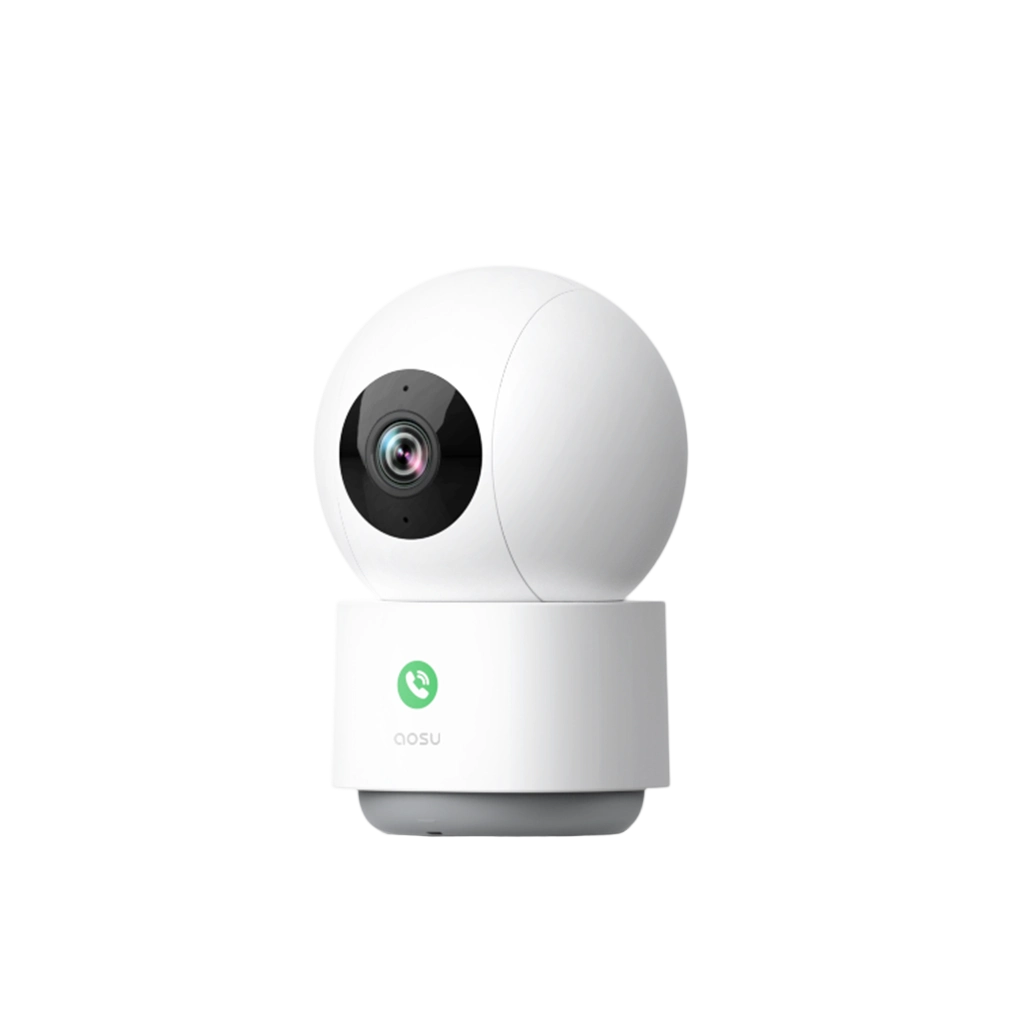



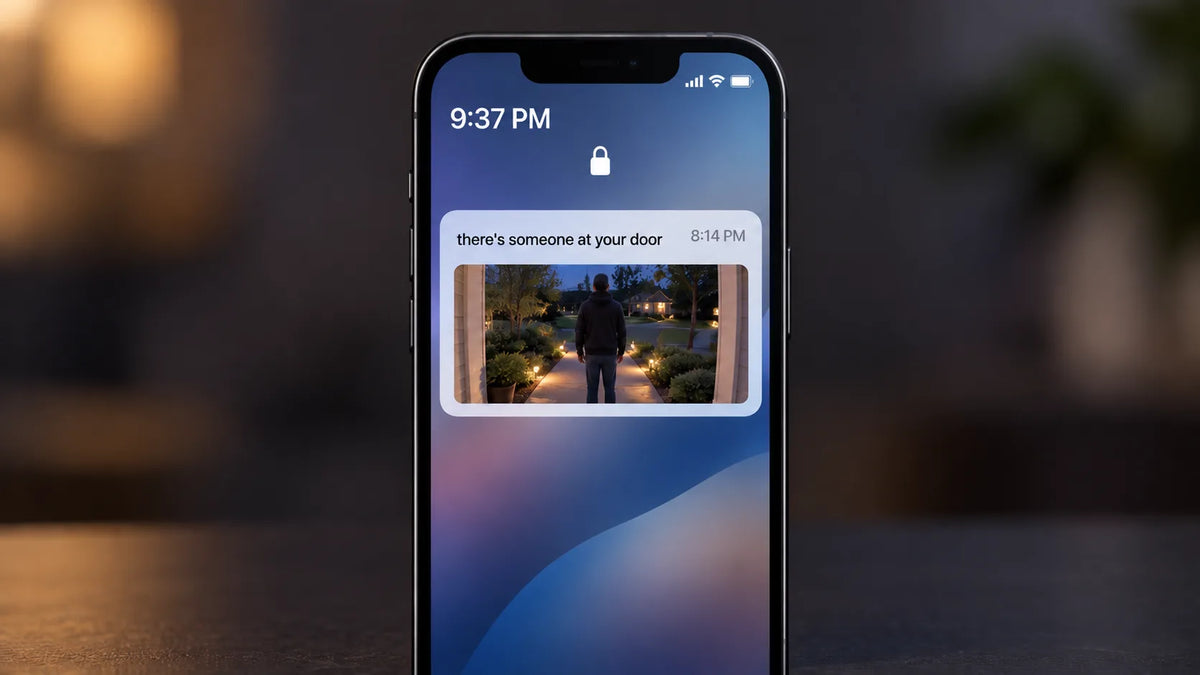
A delay can start when the camera detects motion, when the event reaches the app, or when the phone displays its alert. Compare when the activity happened, when the event appeared in the app, and when the phone alert arrived before changing settings.
Find Where the Alert Delay Begins
Detection happens before the camera creates an event. The event then reaches the app, and the phone displays a notification. Checking each point shows where the delay begins.
Signs of Delayed Detection
Delayed detection means the event itself begins after the activity has already started. The event list may show a late timestamp, and the clip can miss the first seconds of a person entering the activity area. Check motion sensitivity, activity zones, camera placement, and lighting because these affect whether and when an event is created. Confirm that the camera's clock is correct before judging the timestamp.
Signs of Delayed Push Delivery
Delayed push delivery means the event and clip are already present in the app, but the phone alert arrives afterward. In that case, focus on notification permissions, Focus or Do Not Disturb, app-level schedules, battery controls, data controls, and the phone's active network.
Do not use phone-alert timing alone to judge camera performance. Check when the clip becomes available in the app, too. If the event appears promptly but the phone alert is late, focus on notification delivery.
Compare the Video Timestamp With the Time Your Phone Received the Alert
Use the same event to compare the camera record with the phone record. The table separates the observations so a late video event is not confused with a late banner.
| What to Record | What It Tells You | Likely Next Area to Check |
|---|---|---|
| Actual time someone enters the scene | Your real-world reference | Use the same clock for every test |
| Event timestamp in the app | When the camera recorded the event | Detection settings, placement, or camera clock if it is late |
| Time the clip appears in the event list | Whether the event is available promptly | Camera connection if it trails the event significantly |
| Time the phone banner arrives | When the device presents the push | Phone notification and network settings if it is late |
Run this comparison for one event type at a time, such as person detection. Mixing event types can produce a false comparison because the security camera and app may apply different rules to each type.

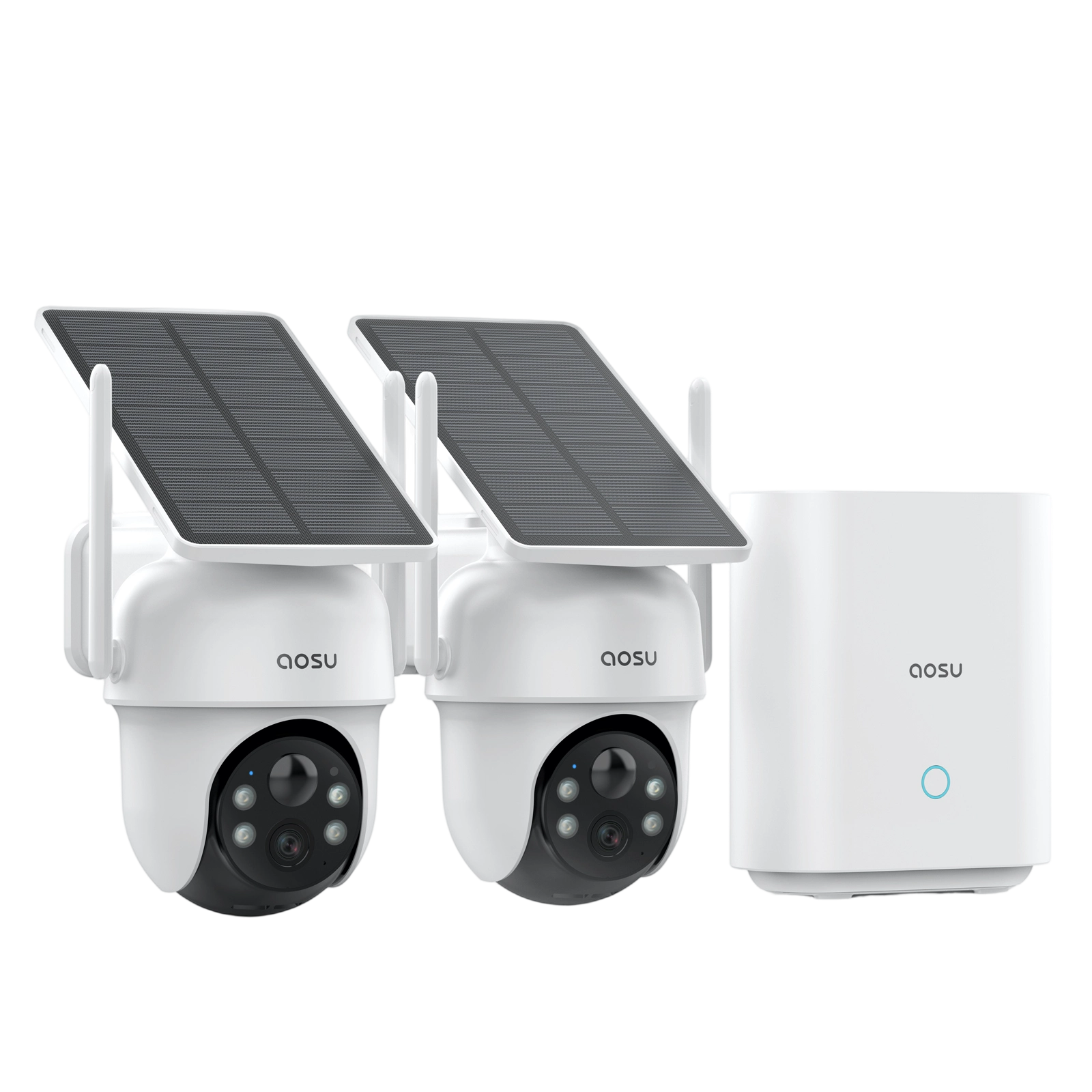
The timestamp comparison gives you evidence before you troubleshoot. It also creates a clear record if you later need support with a wireless security camera system with remote viewing.
Phone Notification Settings Can Delay Alerts
An event can record normally while phone controls silence, group, summarize, or delay the alert presentation. Review the camera app first, then the system-level notification controls on the phone.

- In your camera app, confirm that notifications are enabled for the device and event type you are testing.
- If the app offers a notification schedule, quiet hours, or Snooze setting, make sure it is not suppressing the alert during your test. These controls can affect alert delivery while the camera continues to record events.
- On the phone, allow notifications for the camera app and review Focus, Do Not Disturb, and scheduled notification summaries.
- On iPhone, review Low Power Mode and Low Data Mode. Apple says Low Power Mode turns off Background App Refresh, while Low Data Mode restricts background network use.
These controls affect the phone's behavior after an event exists; they do not explain an event that the camera never created. Restore only the setting relevant to the test, then measure the timing again before changing another control.
Mobile Data and Background App Limits Affect Delivery Speed
Check this only after the event appears on time in the app. A late phone alert can result from an unstable connection or a phone setting that limits the camera app in the background.
- Test once on a stable Wi-Fi connection and once on cellular data. If the delay occurs on only one connection, focus on that network rather than the camera.
- On Android, make sure Data Saver or battery controls are not restricting the camera app. Google's background-data guidance explains that background data lets apps provide notifications when they are not open.
Change one setting or connection at a time, then repeat the same event test to see whether the alert arrives sooner.
Why Household Members May Receive the Same Alert at Different Times
When two household members receive the same event at different times, use that difference as a comparison test. The aim is to determine whether the event was late for everyone or only the alert on one phone was late.
- Ask both people to note the same event's timestamp in their camera apps.
- Have each person record when the phone alert appears for that event.
- If the event timestamp is current for both accounts but only one alert is late, troubleshoot that phone using the notification and background checks above.
Different arrival times do not, by themselves, show that the camera detected motion late. They help you avoid changing camera settings when the delay is limited to a single recipient's phone.
Test Notification Timing After Each Change
Use the same simple walk-through each time, such as having one person cross the camera's usual front-door or driveway activity area. A repeatable home test makes it easier to see whether a setting changed the alert timing.
- Keep the phone with you and open a clock that shows seconds.
- Ask someone to enter the activity area at an agreed time, such as when the clock reaches the next full minute.
- Note the time the phone alert appears, then open the camera app and note the event timestamp.
- Repeat the same walk-through twice more without changing anything.
- Change one phone setting, such as removing the app from a notification summary, and run the same three walk-throughs again.
If the event timestamp is late in every walk-through, check detection and the camera clock. If the clip appears late in the app, check the camera connection. If the event appears promptly but the phone alert becomes faster after a setting change, the delay was in notification delivery.
Help Your Security Camera Alerts Reach You When They Are Needed
The useful goal is not simply to make alerts louder. It is to make sure the camera records the event at the right time and that the intended phone receives the push promptly under normal conditions.
Run one short walk-through today. Compare when the activity happens, when the event appears in the app, and when the phone alert arrives. A late event points to detection or clock settings; a late arrival in the app points to the camera connection; a late phone alert points to notification settings or the phone's network.
FAQs About Security Camera Alert Delays
Q1. Can a Low Power Mode Delay Security Camera Notifications?
It can contribute to delayed app refresh or related content because it reduces background activity. It does not prove that every push alert will be delayed. Turn it off briefly for a controlled test, compare event and arrival times, then choose the battery setting that fits your needs.
Q2. Do Paired Smartwatches Receive Camera Alerts at the Same Time as Phones?
Not always. A watch may mirror, mute, route to Notification Center, or display an alert differently based on its settings and whether the paired phone is in use. Compare the phone's banner time with the watch display instead of assuming they match.
Q3. Can a Work Profile or Device Management Setting Block Security Alerts?
Yes, particularly if the app is installed in a managed work profile or the phone is company-owned. Android Enterprise says organizations can manage app permissions and settings. Check with your IT administrator before changing a policy-controlled setting.
Q4. Why Do Alert Previews Sometimes Arrive Without a Thumbnail?
The alert text and image preview do not always arrive or render together. A weak network, data-saving setting, background restriction, or notification privacy control can show a text banner while image data is still unavailable. Open the event in the app to check whether the clip is already present.
Q5. Can Changing a Phone's Time Setting Affect Notification Records?
Yes. A wrong phone clock can make a normal arrival appear inconsistent with the camera event time. Enable automatic date, time, and time zone settings where possible, then repeat the timing test after the device clock is correct.