








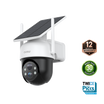
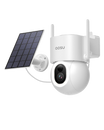
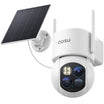

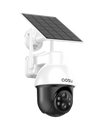







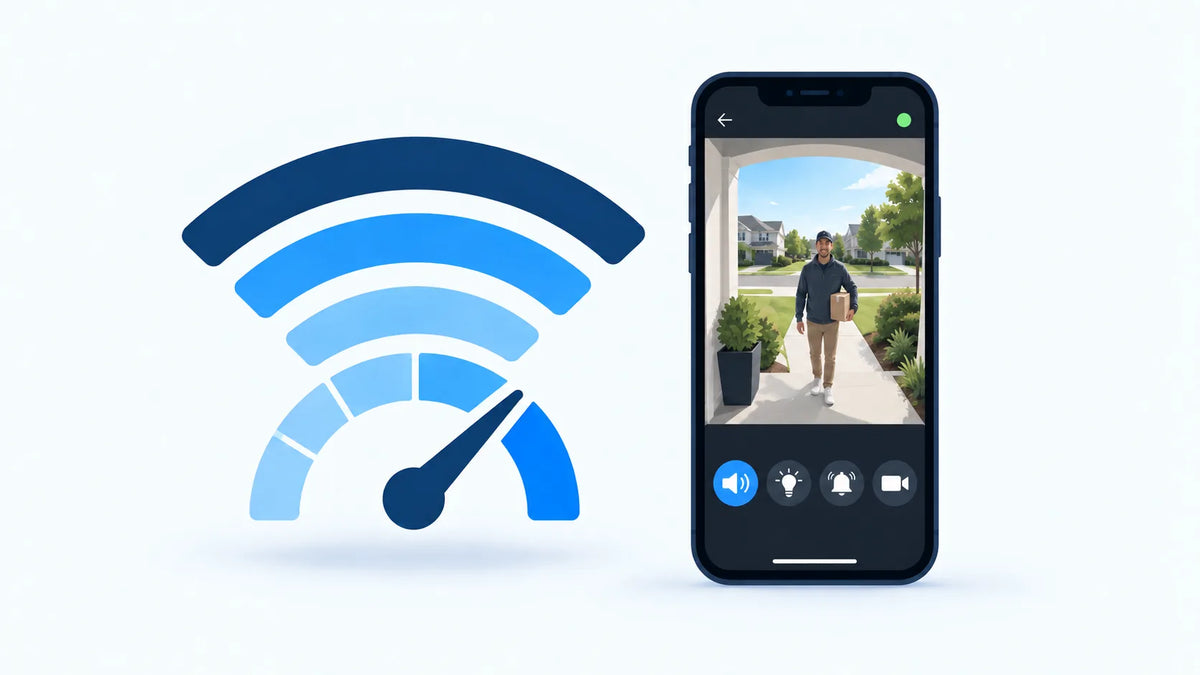
Use the cameras’ actual stream bitrates, add the streams that may run together, then leave room for the rest of the home.
For remote viewing, size your connection from the video bitrate the cameras actually send—not from resolution alone. Add the bitrates of every camera that may transmit at the same time, then plan for 50% to 100% extra usable upload capacity.
For example, two cameras streaming at 3 Mbps each use about 6 Mbps together. A practical target is 9 to 12 Mbps of upload capacity that remains available while the household is using the internet normally.
Why Does Remote Viewing Depend on Upload Speed?
When you view a camera away from home, video must leave the home network before it can reach your phone. That outbound video uses the home's internet upload capacity. Your phone also needs a stable connection, but increasing its download speed cannot fix an overloaded home upload.
The same upload connection may also carry motion clips, cloud backups, video calls, file syncing, and other household traffic. The useful number is therefore the upload capacity still available when the home is busy, not only the highest result from one speed test.
Three Connections Affect Remote Viewing
Remote viewing depends on the camera’s local Wi-Fi connection, the home’s internet upload, and the phone’s download connection (cellular or Wi-Fi). A weak link at any of these points can cause lag.
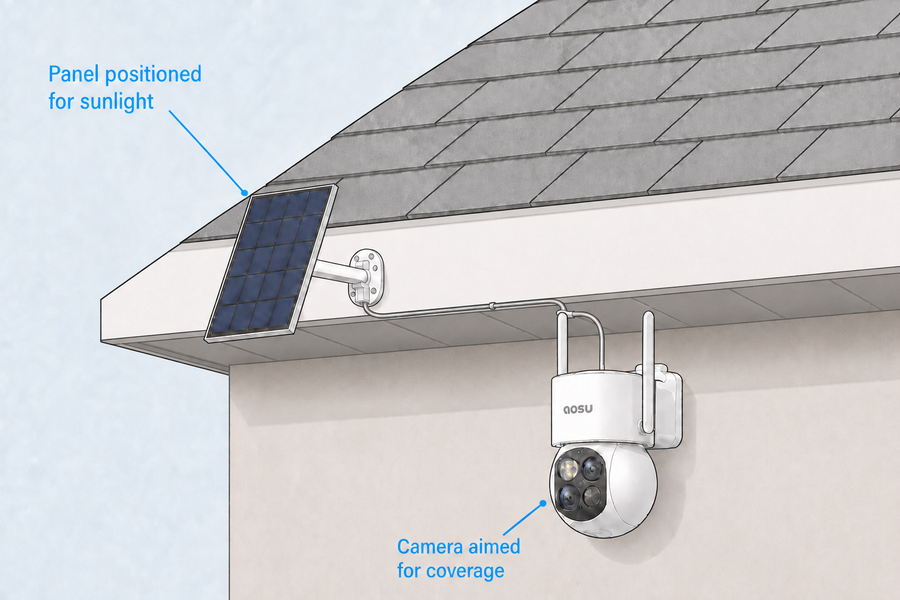
A camera beside a thick exterior wall can have weak Wi-Fi even when the internet plan is fast. A camera with a strong local signal can still stall remotely when the home's upload is busy.
Test each connection separately so you do not upgrade the wrong part of the system.
| What you see | Likely bottleneck | First test |
|---|---|---|
| Live view struggles both at home and away | Camera-to-router Wi-Fi or the camera itself | Test beside the router, then at the installed camera location |
| Live view is good at home but poor away | Home upload, the remote connection, or the route between them | Run an upload test at home during the problem period and compare another remote connection |
| One outdoor camera struggles while others work | Signal or interference at that camera location | Compare signal and live view at the camera, not only near the router |
| All cameras slow down when the household is busy | Shared upload capacity | Retest while video calls, backups, or other uploads are active |

Camera Wi-Fi, home upload, and the phone's download connection can each affect remote live view.
How to Calculate the Upload Speed Your Cameras Need
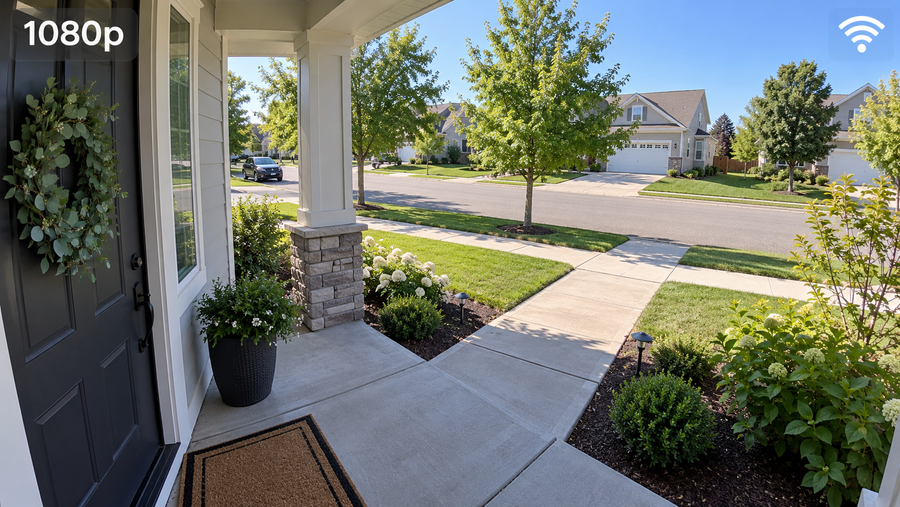
Use the stream bitrate shown in the camera, app, recorder, or product documentation when it is available. A resolution label such as 1080p, 2K, or 4K is not enough because compression, frame rate, image quality, lighting, and scene movement all change the data rate.
1. Find the active stream bitrate
Use the bitrate for the quality level you expect to view remotely. If the app offers HD and a lower-data mode, calculate for the mode you actually plan to use.
2. Count simultaneous streams
Add only the cameras likely to transmit together. One person opening one live view is different from a multi-camera grid, two viewers, or several cloud uploads starting at once.
3. Add practical headroom
Multiply the combined bitrate by 1.5 to 2. This leaves 50% to 100% room for bitrate changes, protocol overhead, cloud events, and ordinary household traffic.
4. Compare with the lower repeatable result
Use upload tests taken during busy periods. A single best-case result beside the router does not show what remains available at the time you usually check the cameras.
Upload-Speed Examples for One or More Cameras
These examples show the calculation. They are not bitrate specifications for every camera.
Available upload means capacity left for the cameras while the rest of the home is using the connection.
| Likely simultaneous use | Combined camera bitrate | Practical available-upload target |
|---|---|---|
| One live view at 2 Mbps | 2 Mbps | 3 to 4 Mbps |
| Two live views at 3 Mbps each | 6 Mbps | 9 to 12 Mbps |
| Four-camera grid at 4 Mbps each | 16 Mbps | 24 to 32 Mbps |
| One 4 Mbps live view plus a 3 Mbps cloud upload | 7 Mbps | About 11 to 14 Mbps |
Why Resolution Alone Does Not Predict Bandwidth
Resolution affects how many pixels a frame can contain, but it does not set one fixed upload requirement. Two cameras at the same resolution can send different amounts of data.
Video settings
- Higher frame rate can send more frames each second
- Higher image-quality or bitrate settings use more data
- A lower-data substream can reduce remote-viewing demand
Scene conditions
- Moving people, traffic, rain, leaves, and headlights create more image changes
- A still side yard is easier to compress than a busy driveway
- Low-light noise can make compression work harder
System behavior
- Several viewers can create several outgoing streams
- Cloud clips can overlap with live viewing
- Event-only local recording usually sends less continuously than a camera uploading around the clock
Test Remote Viewing Under Normal Household Load
Test the exact setup instead of relying on the internet plan's advertised upload speed.
Run several upload tests at the times you normally use remote viewing. Then leave the home Wi-Fi, open the live view on mobile data or another network, and have someone walk through the scene. Check the saved clip as well as the live preview.
Repeat the test with the cameras and household devices that may run together. If performance becomes unreliable only when a particular camera joins, inspect that camera's Wi-Fi path and stream setting before changing the entire internet plan.
Record during the test
- Available upload speed during busy periods
- Which cameras are streaming
- Selected live-view quality
- Delay before video starts
- Drops, quality changes, or disconnects
Change one thing at a time
- Camera position or Wi-Fi coverage
- Live-view quality or frame rate
- Number of simultaneous views
- Cloud upload timing or backup traffic
- Internet upload tier, only after local issues are ruled out
Common Upload-Speed Planning Mistakes
Do not use your home internet plan’s download speed to size the cameras; remote video uses home upload. Do not multiply a generic Mbps figure by every installed camera when only one or two normally stream at once.
Avoid treating a mesh system as an internet-speed upgrade. Mesh Wi-Fi can improve the local path to a camera, but it cannot create more upload capacity than the internet connection provides.
Finally, do not test only beside the router. A remote-viewing problem can begin at the camera's wall, yard, garage, or gate before the video ever reaches the internet.
To Wrap Up
Start with the actual bitrate of each stream that may run at the same time. Add those rates, keep 50% to 100% available headroom, and confirm the result during normal household use.
This method gives you a more reliable security camera upload-speed target than choosing a number from resolution alone. It also shows whether the next improvement belongs at the camera, on the home Wi-Fi network, or with the internet plan.
FAQs
Is 10 Mbps upload speed enough for security cameras?
It can support one or two moderate-bitrate remote streams when the connection is stable and other uploads are light. Add the bitrates of the streams that may run together and keep 50% to 100% headroom. If that total approaches or exceeds 10 Mbps, the connection has little room for cloud clips or household traffic.
Does a 4K security camera always use more upload bandwidth?
Not always. A 4K camera can use more data, but the actual bitrate also depends on compression, frame rate, quality settings, scene movement, lighting, and whether the app uses a lower-resolution stream for remote viewing.
Do motion alerts use as much data as live view?
The notification itself uses very little data. A motion video uploaded to the cloud can create a short burst of traffic, while live view uses bandwidth for as long as the stream remains open.
Why does live view work at home but lag remotely?
Remote viewing adds the home's upload connection and the remote phone's network to the path. Some systems can also use a different stream or route away from home. Test home upload during the slowdown and compare the camera's local Wi-Fi signal separately.
Can mesh Wi-Fi improve remote camera viewing?
Yes, when weak camera-to-router Wi-Fi is the problem. Mesh Wi-Fi does not increase the upload capacity supplied by your internet provider, so test both links before buying new equipment.