


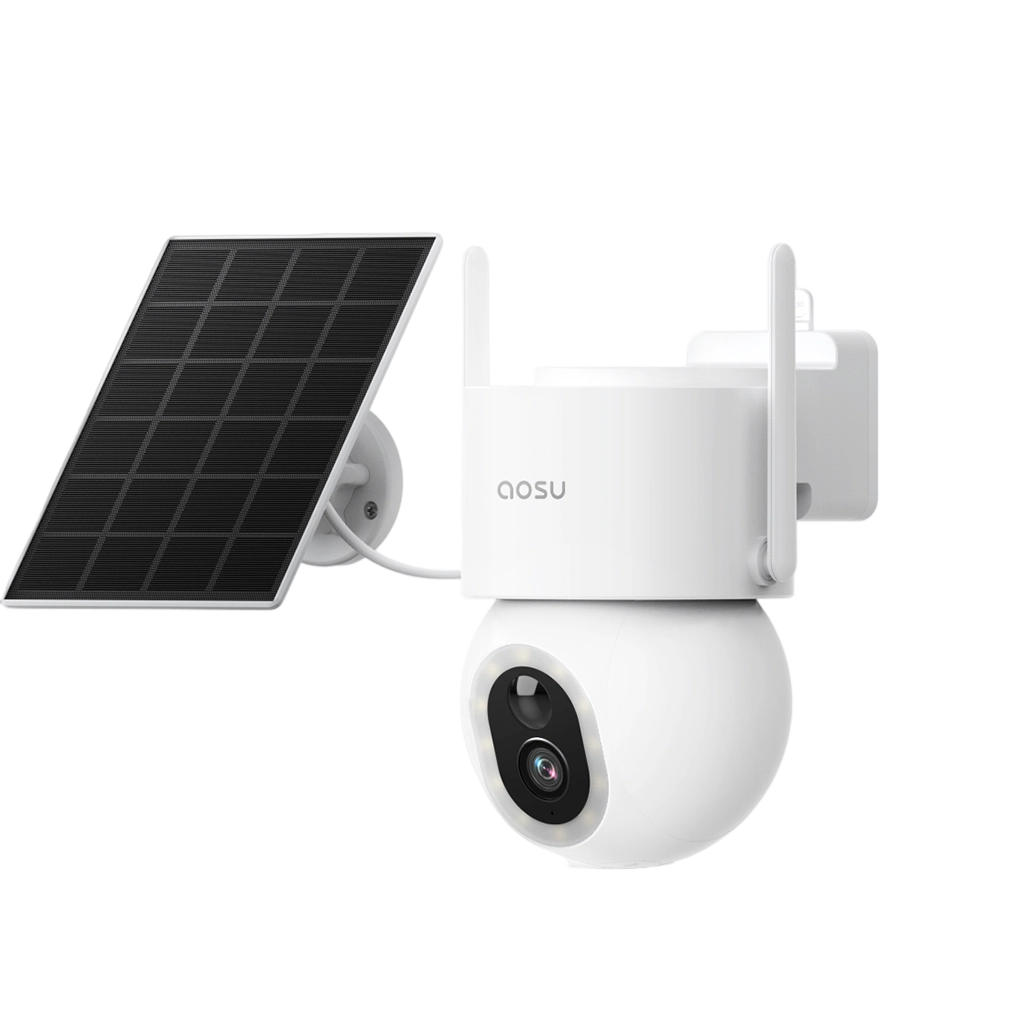

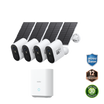
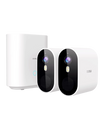
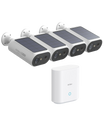
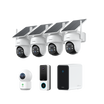
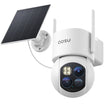
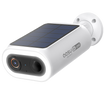
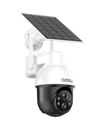
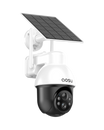
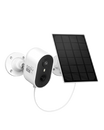
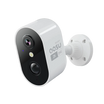
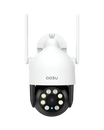
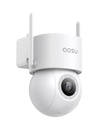

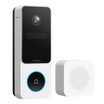
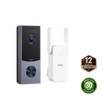


A missing entry in your router’s device list does not necessarily mean the camera has no IP address. First identify how it connects: directly to the router, through a base station, or through a recorder.
Identify Which Connection Is Missing
Check these separately:
- Device connection: Has the camera completed its documented pairing process?
- Address assignment: Which router, base or recorder manages its network connection?
- Local access: Are your phone or computer and the camera on networks that are allowed to communicate?
A hub-based camera may not appear as a separate client on the home router. A manually addressed device may also be absent from a DHCP lease list. Check the correct device list and network before changing settings.
Record the camera, hub and router models, current app status and any error message. Work only on a network you own or are authorized to administer.
Check the Connection Before Changing Addresses
1. Confirm Power and Pairing Status
Use the exact model’s indicator and app instructions. A light alone does not establish that pairing or network access has completed.
2. Identify the Network Path
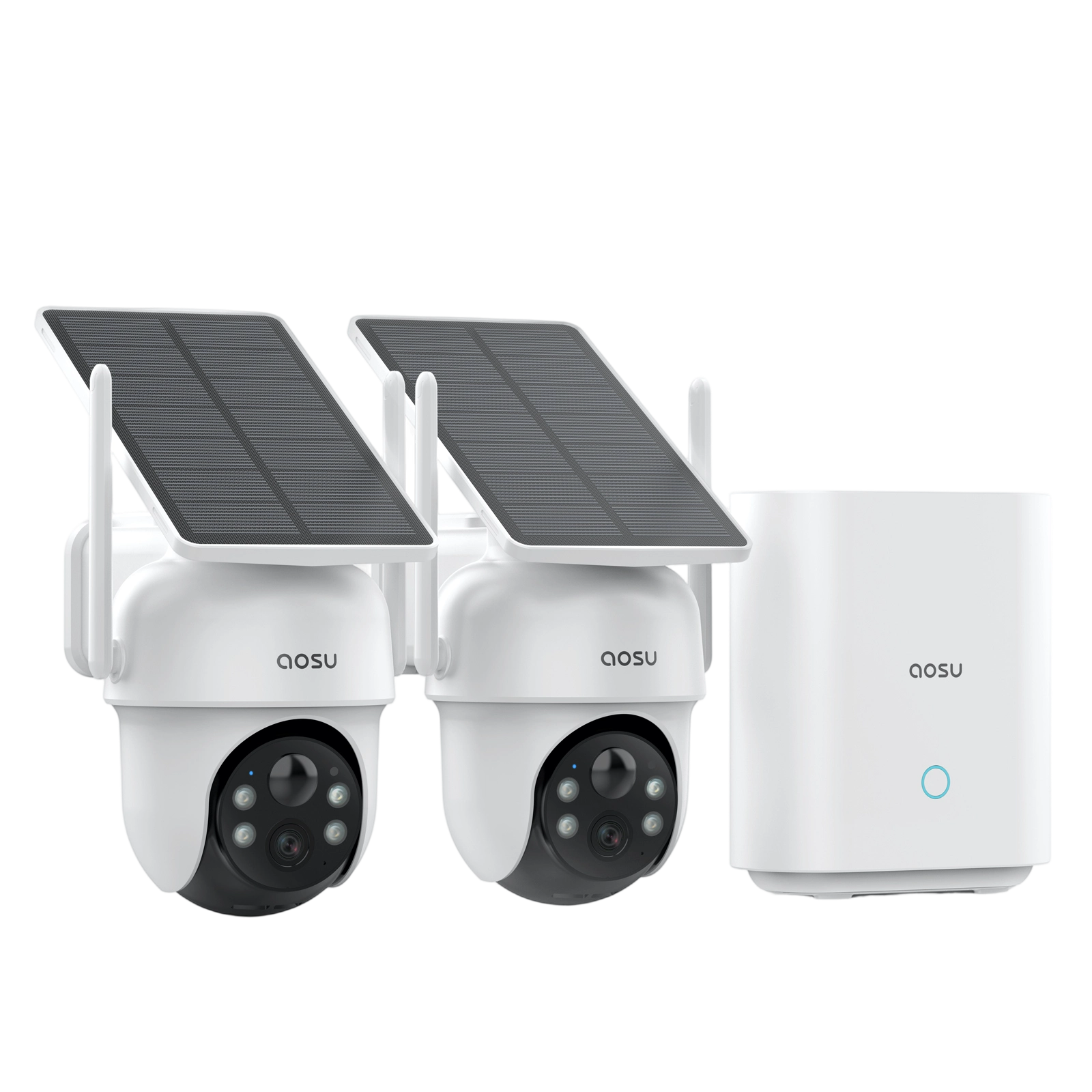
Determine whether the camera connects directly to Wi-Fi, through a hub or through an NVR. Check the equipment that manages that connection. Use Ethernet only where the camera supports it.
3. Check the Correct Router List
Review connected clients and DHCP leases. Match documented identifiers where available; an unfamiliar device name alone is not enough.
4. Check Pairing Requirements
Confirm the supported Wi-Fi band, credentials and setup procedure. Do not assume every model supports both 2.4 GHz and 5 GHz.
5. Check Network Separation
Guest isolation, VLANs, multiple routers and access policies may affect local discovery. The same Wi-Fi name does not guarantee reachability. Ask the administrator before changing a managed network.
6. Use Documented Discovery Tools
Use the manufacturer’s compatible utility or an authorized scan of the correct subnet. An absent scan result does not prove that the camera is disconnected.
Review ways to check your camera’s local IP address.
7. Review DHCP and Access Rules
Check address availability and explicit device-blocking rules. Keep firewall protection enabled. Correct a specific rule only when the cause and required change are understood.
8. Restart or Update Only as Documented
An approved restart may help after basic checks. Do not interrupt an active firmware update. Use the manufacturer’s recovery guidance if an update appears stalled.
9. Reset Only as a Last Resort
Save configuration details and preserve accessible recordings first. Follow the exact model’s reset procedure and understand the account, pairing and recording consequences before proceeding.
Check Network Requirements Before Replacing the Camera
A missing router entry is not, by itself, a reason to buy another camera. Complete the connection and addressing checks first.
If replacement is appropriate, compare the exact model’s supported Wi-Fi bands, hub requirements and setup process. Buyers needing browser access, a static address or third-party recording should request explicit compatibility confirmation.
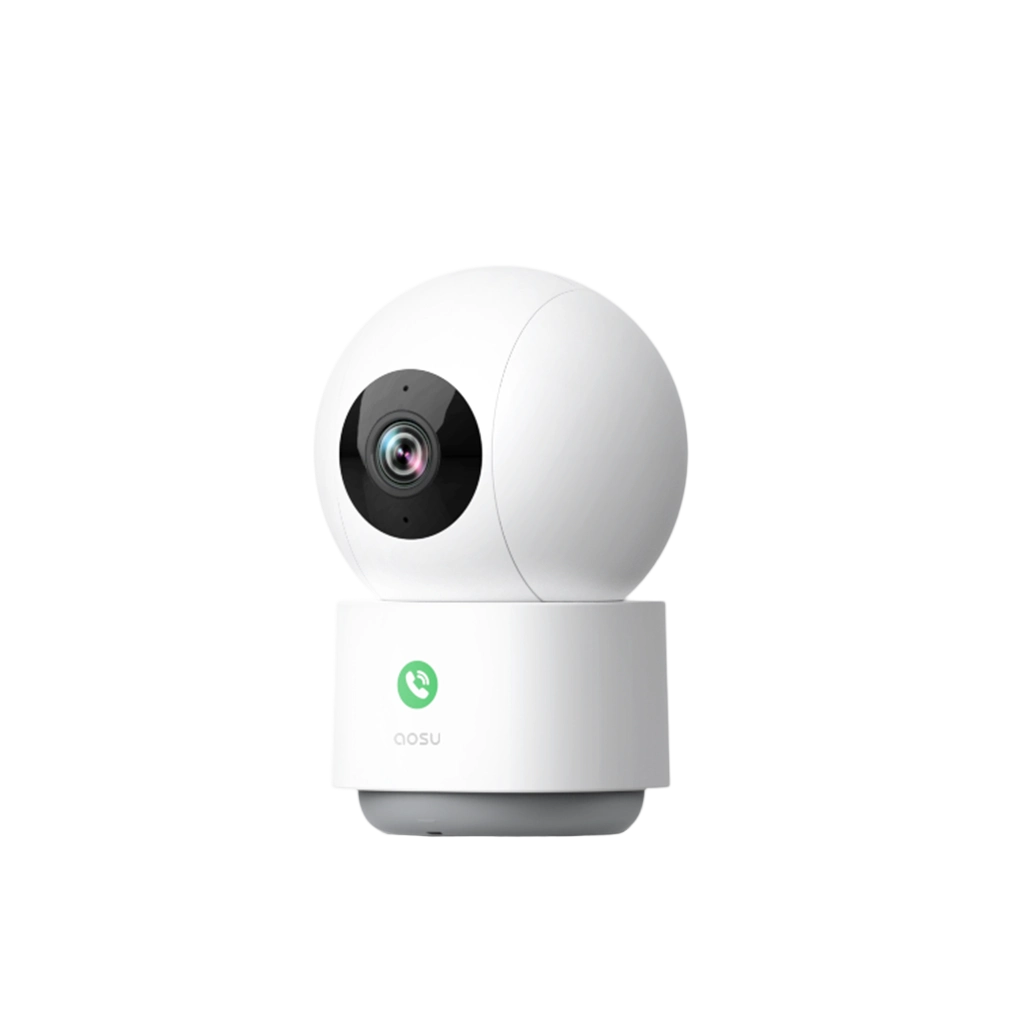
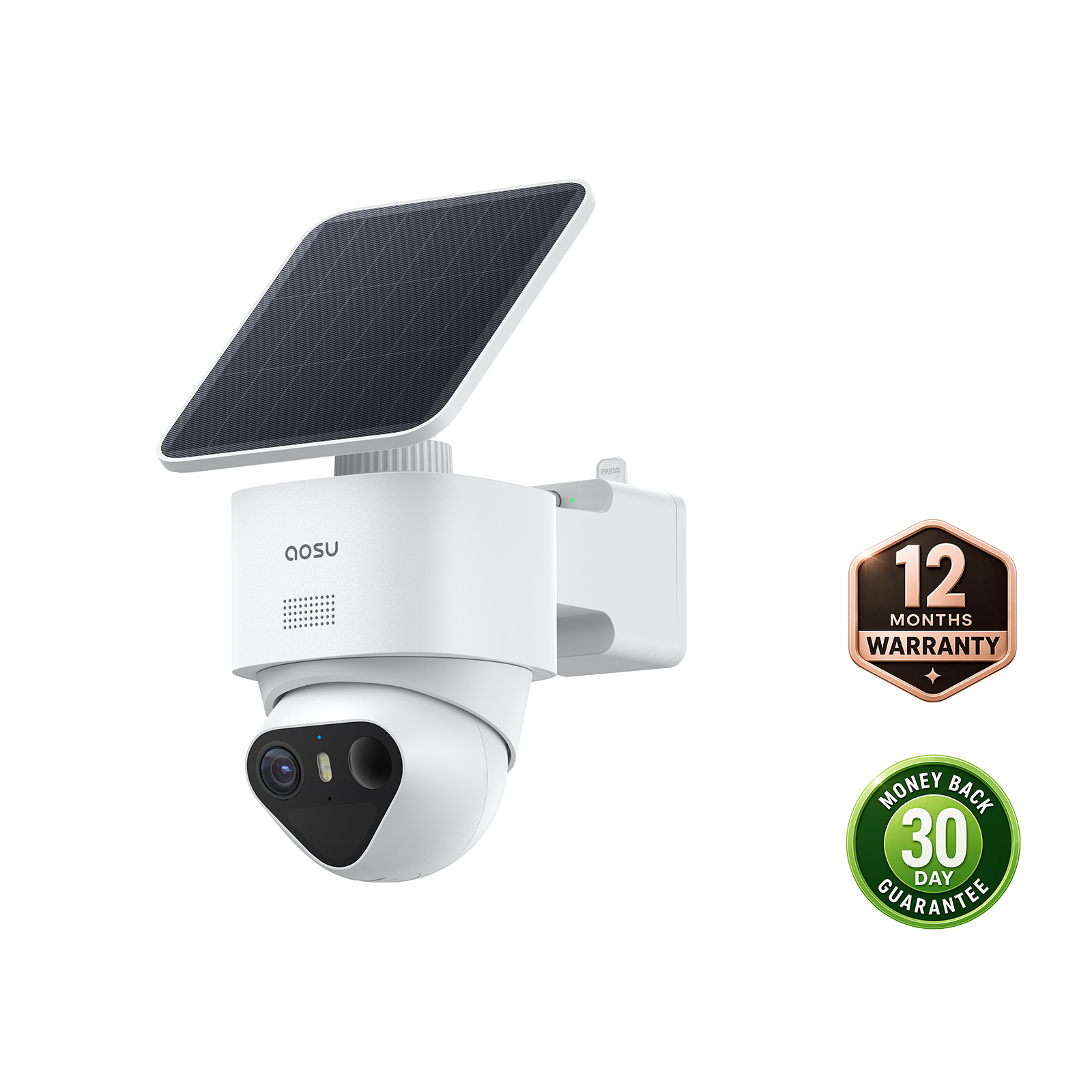
The aosu IndoorCam P1 Pro is one indoor option to review. Its published features do not establish that it supports device-side static-IP configuration or eliminates network problems.
Use the product cards to review current options, and confirm any required integration with aosu support before purchasing.
aosu Video Doorbell Pro

Review aosu Video Doorbell Pro
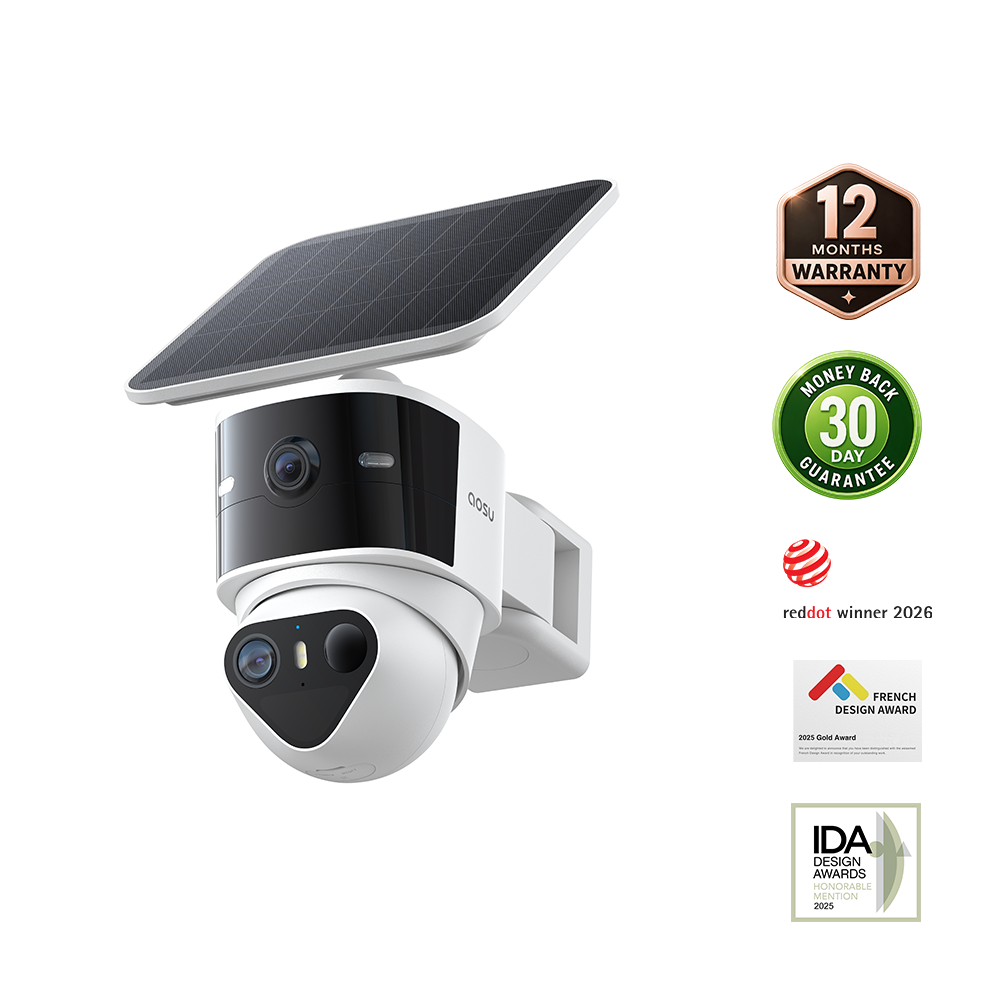
aosu SolarCam D1 Max

aosu IndoorCam P1 Pro

Conclusion: Getting Your Camera Back Online
Work from connection type to address assignment and local reachability. A missing router entry does not establish the cause. Preserve the observations, use model-specific instructions and seek support before resetting or replacing equipment.
FAQs About Camera IP Address and Network Setup
Why Can’t I Still Find the Camera?
Confirm power, pairing and the correct router, hub or recorder first. Then check DHCP and network isolation. A missing entry alone cannot distinguish a setup problem from hardware failure.
How Can a Scanner Help Find My Camera’s IP Address?
A scanner can help discover reachable devices on an authorized network, but results depend on the subnet, device behavior and filtering. It cannot identify every camera or prove that no hidden camera exists.
Is DHCP Reservation the Same as a Static IP?
No. A DHCP reservation tells the router to assign a particular address to a device that still uses DHCP. A static address is configured on the device itself, where supported.
TP-Link’s explanation of DHCP reservation describes the distinction. Use the instructions for your own router and camera. Neither method fixes an unpaired camera, weak connection or failed hardware by itself. Do not choose an address without checking the network configuration.
Should I Enable UPnP or Port Forwarding to Find the Camera?
No. Do not enable them merely to make a camera appear in a router list.
Local discovery, DHCP and access between local devices are separate from exposing a service through the internet-facing router. A local NVR or NAS connection does not by itself require public port forwarding.
Confirm that the camera supports the intended integration. For remote access, follow the manufacturer’s documented method and review the NCSC guidance on smart-camera security. An open port is not a guarantee of secure access.
Is Your Firewall Blocking the IP Camera Connection?
Keep the firewall enabled. Check documented access requirements and specific blocking rules with the network administrator rather than disabling protection broadly.
What Should You Do If Your IP Camera Firmware Update Freezes?
Do not immediately disconnect power or restart the router while an update may still be running. Check the manufacturer’s expected process, indicators and recovery instructions for the exact model.
If the status remains unclear, contact aosu support with the model, firmware, update start time and screenshots. Restart or reset only when the documented recovery process or support directs you to do so.