





You can remotely view the camera on a compatible Echo Show through the Alexa app. Depending on the Echo Show model and software version, you may need to enable Home Monitoring or enable the device camera before Live View becomes available.
Echo Show Live View is designed for temporary check-ins. It should not be described as a full security-camera system because Amazon’s current Home Monitoring documentation does not provide native event-video recording, playback or conventional camera-alert storage.
This guide separates four features that are easy to confuse:
- Live View: Remotely viewing the Echo Show camera
- Home Monitoring: The setting used by certain Echo Show models to enable remote viewing
- Drop In: An Alexa communication feature
- Occupancy Routines: Automations triggered when a compatible Echo detects that someone is nearby
Menu names and available functions can vary by model, app version and region.
Amazon policy and help pages checked: November 2, 2026.
Official Amazon references:
- Home Monitoring
- About Camera Settings on Echo Devices with a Camera
- Alexa and Alexa Device FAQs
- Echo Show Support
Can You Use an Echo Show as a Remote Camera?
Yes. A compatible Echo Show can provide a live camera feed that you view remotely through the Alexa app.
The required setup depends on the device:
- On Echo Show models that use Home Monitoring, enable Home Monitoring in the device’s camera settings.
- On certain newer Echo devices, Live View may be available when the device camera is enabled.
- A physical camera shutter must be open.
- The camera and microphones must not be disabled by the hardware privacy control.
- The Echo Show must be online and linked to the Amazon account used in the Alexa app.
Amazon’s current documentation supports remote Live View. It does not describe Echo Show Home Monitoring as a native event-recording or playback system.
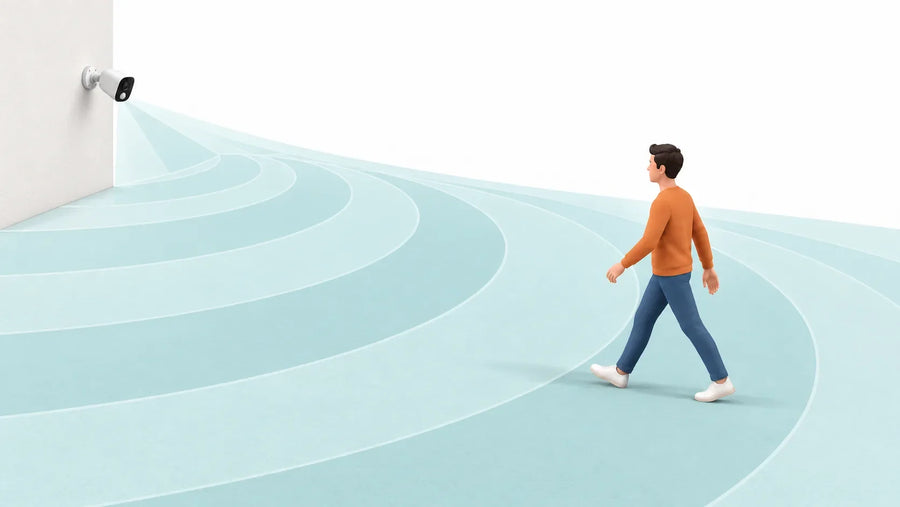
Compatible Echo Show devices may also support occupancy routines that trigger when a person is nearby. That is an automation feature, not recorded motion footage or a standard security-camera event alert.
How to View Your Echo Show Camera Remotely
Step 1: Identify Your Echo Show Model
Before changing settings, confirm the model and generation in the Alexa app or the device information screen. Amazon provides separate instructions for some newer Echo Show models, and menu names can change with software updates.
Step 2: Check the Camera Privacy Controls
On the Echo Show:
1. Make sure the physical camera shutter is open, if the model has one.
2. Make sure the microphones and camera have not been disabled with the hardware privacy button.
3. Confirm that the device is connected to Wi-Fi.
4. Install any available device software update.
Turning the camera off disables Live View and other camera-dependent features.
Step 3: Enable Home Monitoring When Your Model Requires It
On Echo Show models that use Home Monitoring:
1. Open Settings on the Echo Show.
2. Open Camera or Camera Settings.
3. Select Home Monitoring.
4. Follow the on-screen confirmation steps.
The exact labels may differ by model and software version. If Home Monitoring does not appear, check Amazon’s support page for the exact Echo Show generation rather than assuming the device is unsupported.
Certain newer Echo devices use an enabled-camera setting instead of the same Home Monitoring menu.
Step 4: Open Live View in the Alexa App
1. Install or update the Amazon Alexa app.
2. Sign in to the Amazon account linked to the Echo Show.
3. Open Devices.
4. Select the Echo Show.
5. Select Live View when that option is available.
Some Alexa app versions may also group compatible devices under Cameras. Follow the device page shown in your current app.
Step 5: Use the Available Live Controls
Depending on the model and app version, Live View may provide:
- Live video
- Zoom by pinching the screen
- Two-way communication
- Camera rotation for Echo Show 10 (3rd Generation)
- An access chime on the Echo Show
- A short video-delay option that blurs the beginning of the feed
Do not describe the session as unlimited. Amazon’s current help page does not promise that a Live View session will continue indefinitely. Session behavior can change with the model, connection, app version or service configuration.
The Echo Show displays a visual indicator while camera images or video are streaming to the cloud.
Common Reasons Echo Show Fails to Show in Alexa App
If your phone isn’t connecting to your Echo Show’s camera, don’t worry—most problems are easy to fix. Here’s a checklist to help you get things working again:
- Check if Home Monitoring is turned on: Go to your Echo Show’s Settings > Camera and make sure Home Monitoring is enabled. If it’s off, your phone won’t be able to access the live view.
- Make sure your Echo Show is online: Your Echo Show needs a stable Wi-Fi connection. If it’s not connected, it won’t appear in the Alexa app. You can swipe down on the Echo Show and tap Settings > Network to check the connection.
- Use the same Amazon account: Your Alexa app and Echo Show must be logged into the same Amazon account. If they’re not, the app won’t recognize the device.
- Update the Alexa app: An outdated app can cause connection issues. Go to your app store and check for any available updates.
- Grant necessary permissions: On your phone, make sure the Alexa app has access to the camera, microphone, and local network. These are essential for viewing and using two-way audio.
- Try restarting your Echo Show and your phone: Sometimes a quick restart on both devices can solve hidden glitches and reset the connection.
If you’ve gone through this list and it still doesn’t work, you can also try removing the Echo Show from the Alexa app and adding it again. That usually clears up any syncing issues.
Limits of Using an Echo Show for Home Monitoring
Echo Show Live View is useful for temporary check-ins, but it is not equivalent to a dedicated recording camera.
No Native Event-Video Playback
Amazon’s current Home Monitoring documentation describes live viewing but does not provide a native timeline of recorded camera events that you can review later.
If something happens while you are not watching, Home Monitoring should not be assumed to have saved a video clip.
Occupancy Detection Is Not Recorded Motion Surveillance
Compatible Echo Show devices can use on-device computer vision to detect that a person is nearby and trigger an Alexa Routine.
This does not mean that Home Monitoring:
- Records a motion event
- Creates a video clip
- Provides a security-camera event timeline
- Identifies an intruder
- Sends a recorded-event notification
Describe this as occupancy or presence detection, not as security-camera motion recording.
No Dedicated Night-Vision Claim
Echo Show cameras are not documented by Amazon as infrared night-vision security cameras. Image quality depends on available light and the specific model.
No Local Camera-Recording Storage
Home Monitoring does not provide a documented microSD-card slot or local camera-recording archive for Echo Show Live View.
Privacy and Access Depend on the Amazon Account
Live View can be available to household members or connected devices linked to the Amazon account. Review account access, household membership, Drop In permissions and device privacy settings.
The Echo Show provides visible indicators while camera images or video are streaming to the cloud. Compatible devices can also be configured to play an access chime or delay the first few seconds of video.
Use Echo Show for a quick live check. Use a separately verified camera system when you require recorded events, retention, night vision or security-specific alerts.
How to Monitor Your Home More Efficiently?
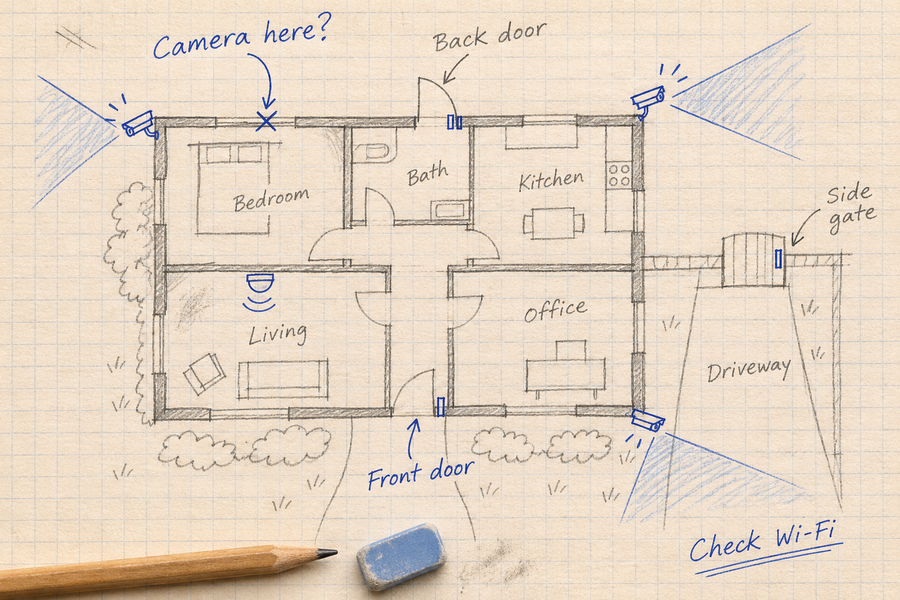
If you're looking for more advanced and reliable home monitoring, a dedicated smart security camera provides a much more powerful solution than the Echo Show. These cameras are purpose-built for continuous, around-the-clock surveillance and offer specialized features that enhance both home protection and user privacy.

End-to-End Encryption
A smart security camera ensures your video data stays private by encrypting footage during transmission and storage. This means even if someone intercepts your data, it would remain inaccessible without the encryption keys, offering robust protection against unauthorized access.
Two-Factor Authentication (2FA)
To further safeguard your camera system, two-factor authentication adds an extra verification step when logging in—for example, sending a one-time code to your smartphone. This ensures that only authorized users can view your camera feeds, reducing the risk of intrusion.
Smart Motion Detection and Instant Alerts
These cameras use intelligent algorithms to detect movement and differentiate between regular activity and potential threats. When something unusual occurs, you’ll receive immediate alerts on your phone, helping you stay informed the moment it happens.
Remote Access and Control
With a smart security camera, you can monitor your home from anywhere in the world. Using a mobile app, you can view live feeds, adjust camera angles, tweak sensitivity settings, and control other functions—all remotely and at your convenience.
Cloud Storage with Secure Backup
Footage from your cameras can automatically upload to secure cloud storage, ensuring your recordings are safe even if the camera is stolen or damaged. This gives you reliable access to past events and peace of mind that your footage is preserved.
Local Storage Options
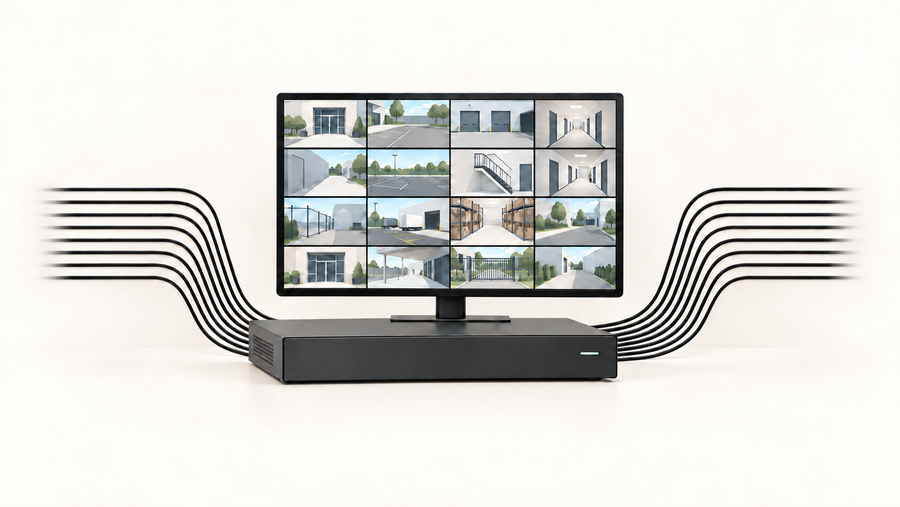
In addition to cloud services, many smart cameras support local storage options such as SD cards or dedicated network video recorders (NVRs). This lets you maintain control over your data without relying entirely on external servers.
Night Vision and High-Resolution Video
Smart security cameras are equipped to deliver clear, detailed video even in low-light or complete darkness. With features like infrared night vision and high-definition resolution, they provide effective protection 24/7, ensuring no moment goes unnoticed.
Smart Home Integration
These cameras seamlessly connect with popular voice assistants and smart home ecosystems, allowing you to incorporate them into automated routines and control them hands-free. For example, you can set routines that automatically arm your cameras when you leave home.
Customizable Activity Zones
To reduce unnecessary alerts, smart cameras let you define specific areas—such as entryways or driveways—for motion monitoring. This means you’ll only be notified about activity in zones that matter most, minimizing false alarms.
Tamper Alerts
Many modern security cameras can detect tampering, such as attempts to move, cover, or disable the camera. If this occurs, you’ll receive an immediate notification so you can respond quickly to protect your property.
Echo Show Live View vs. a Dedicated Security Camera
Echo Show Live View is useful when you want to open the Alexa app and check a room in real time. Compatible models can also support occupancy routines that react when a person is nearby.
Its limits are equally important: Amazon’s current Home Monitoring documentation does not describe a native event-video archive, recording timeline, local camera storage or dedicated infrared night vision.
If you need saved evidence, event playback, night monitoring or security-specific alerts, compare dedicated cameras by exact model and verified feature. Do not assume that every security camera includes cloud storage, local storage, 2FA, end-to-end encryption or the same detection features.
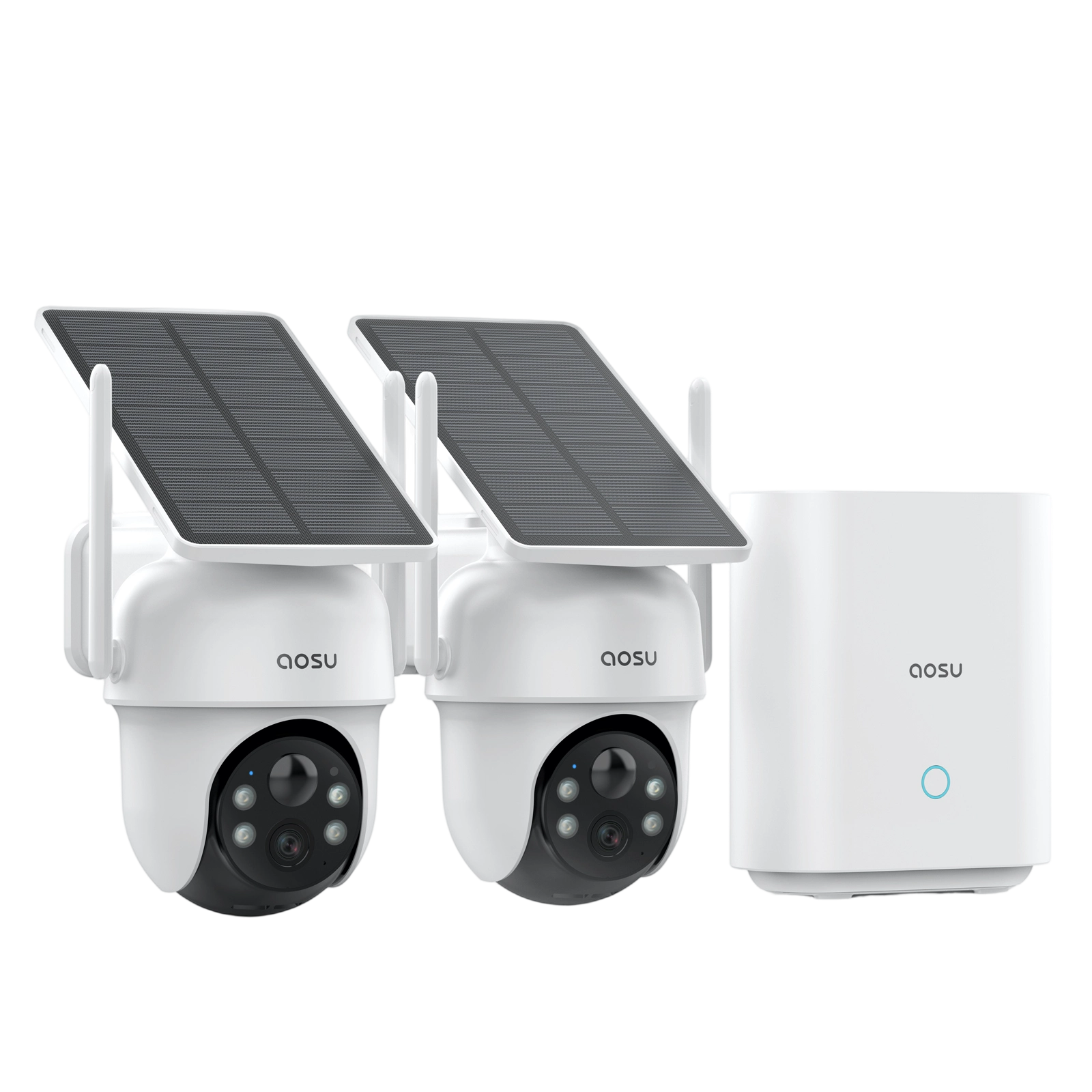
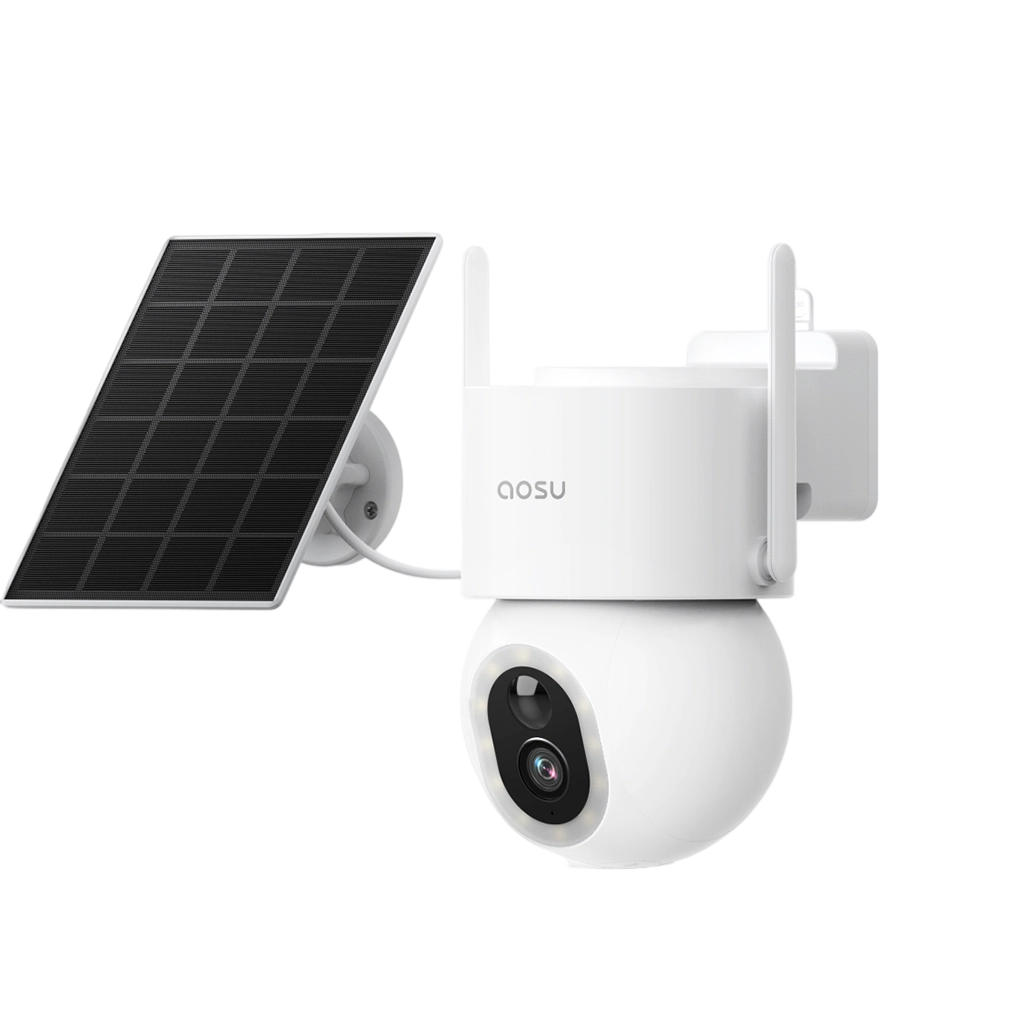
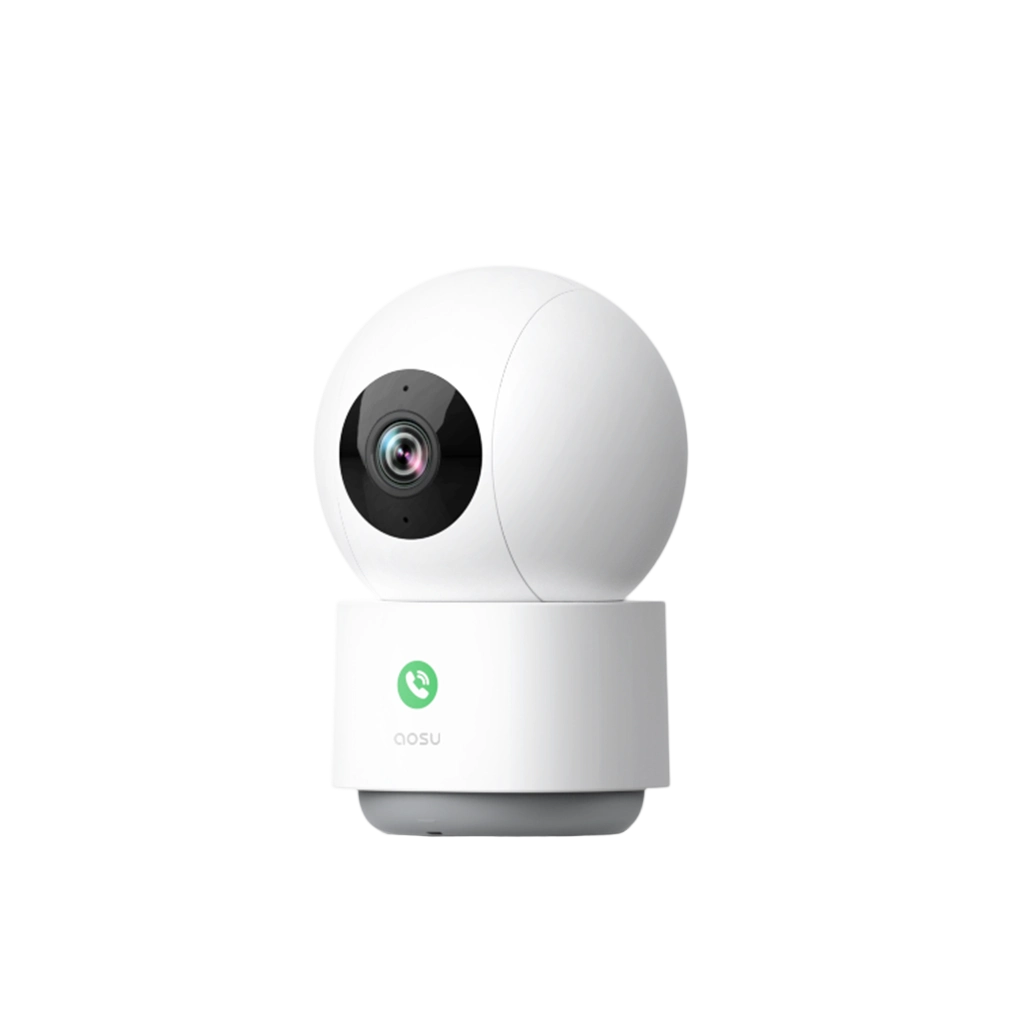
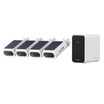
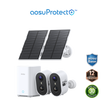
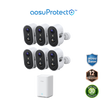
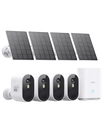
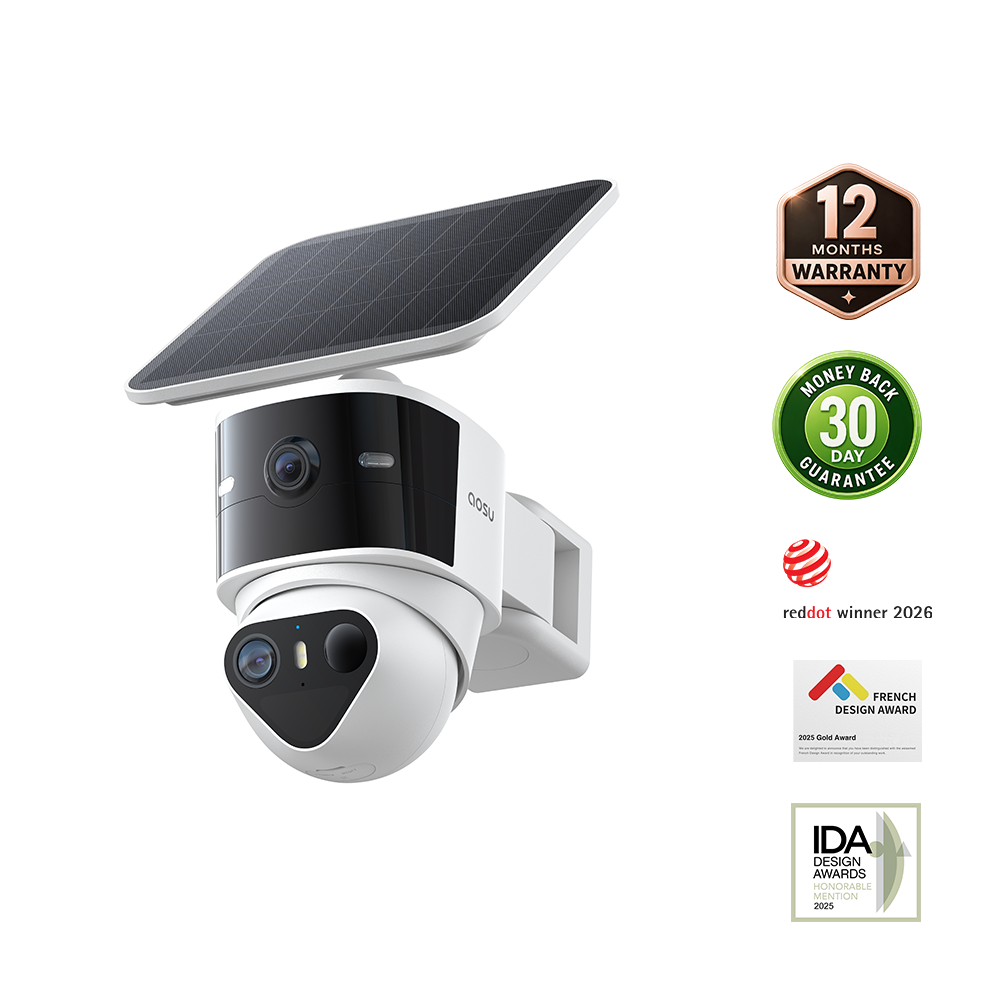
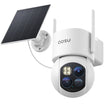
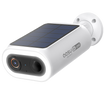
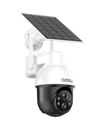
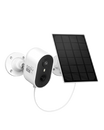
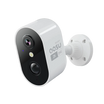
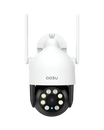
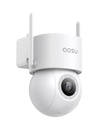
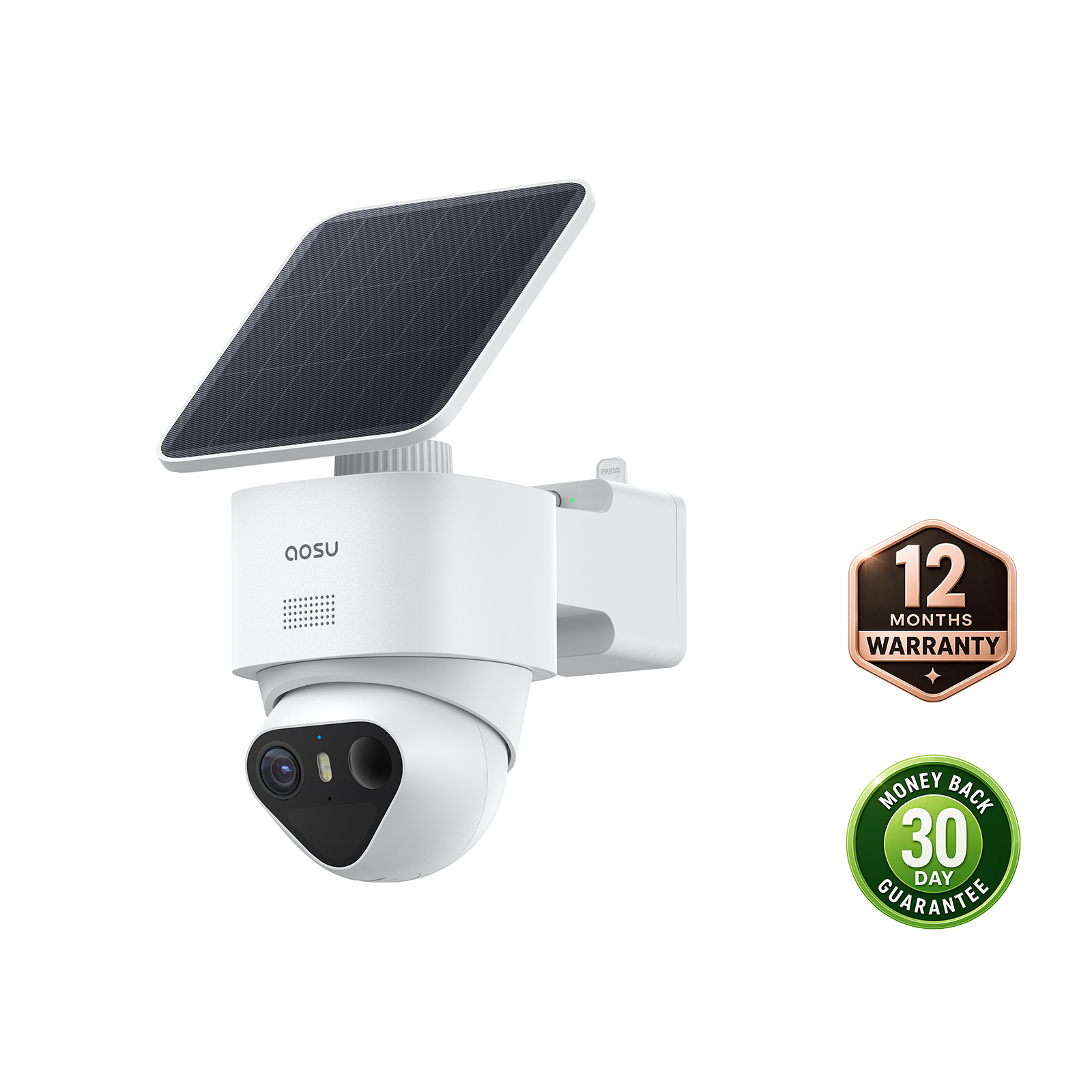
For basic live check-ins, Echo Show may be enough. For recorded security monitoring, choose a system only after confirming its power, recording, storage, retention, alert and account-security requirements. Or you can just aosu security camera use as a try.