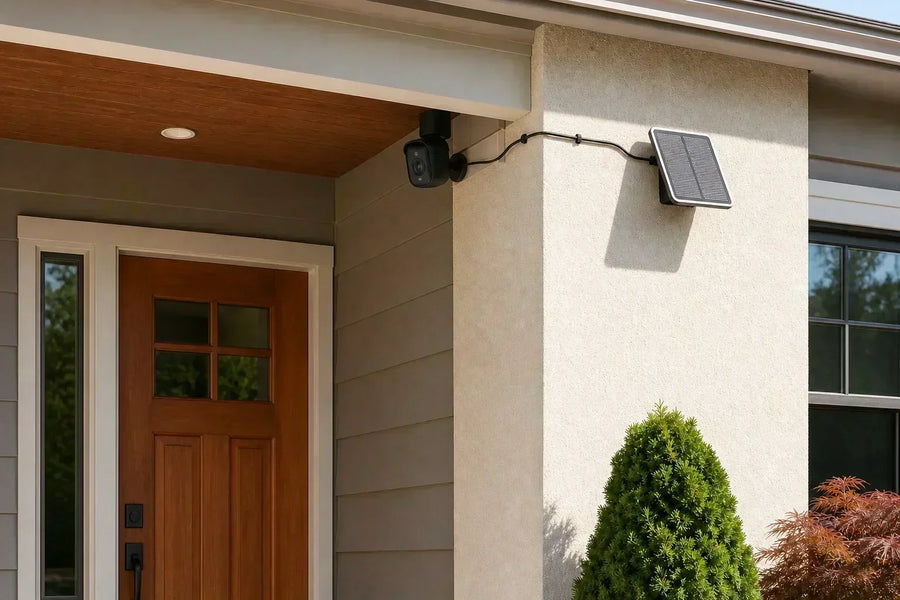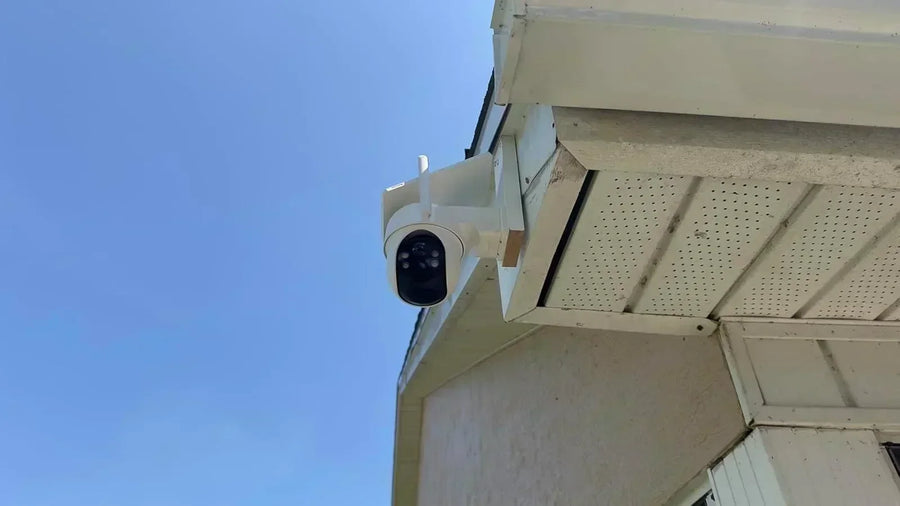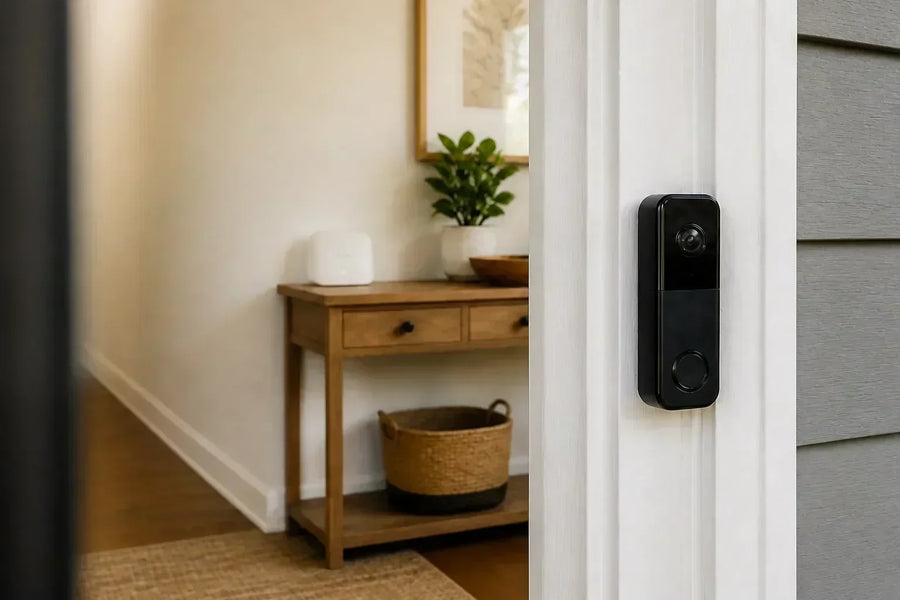



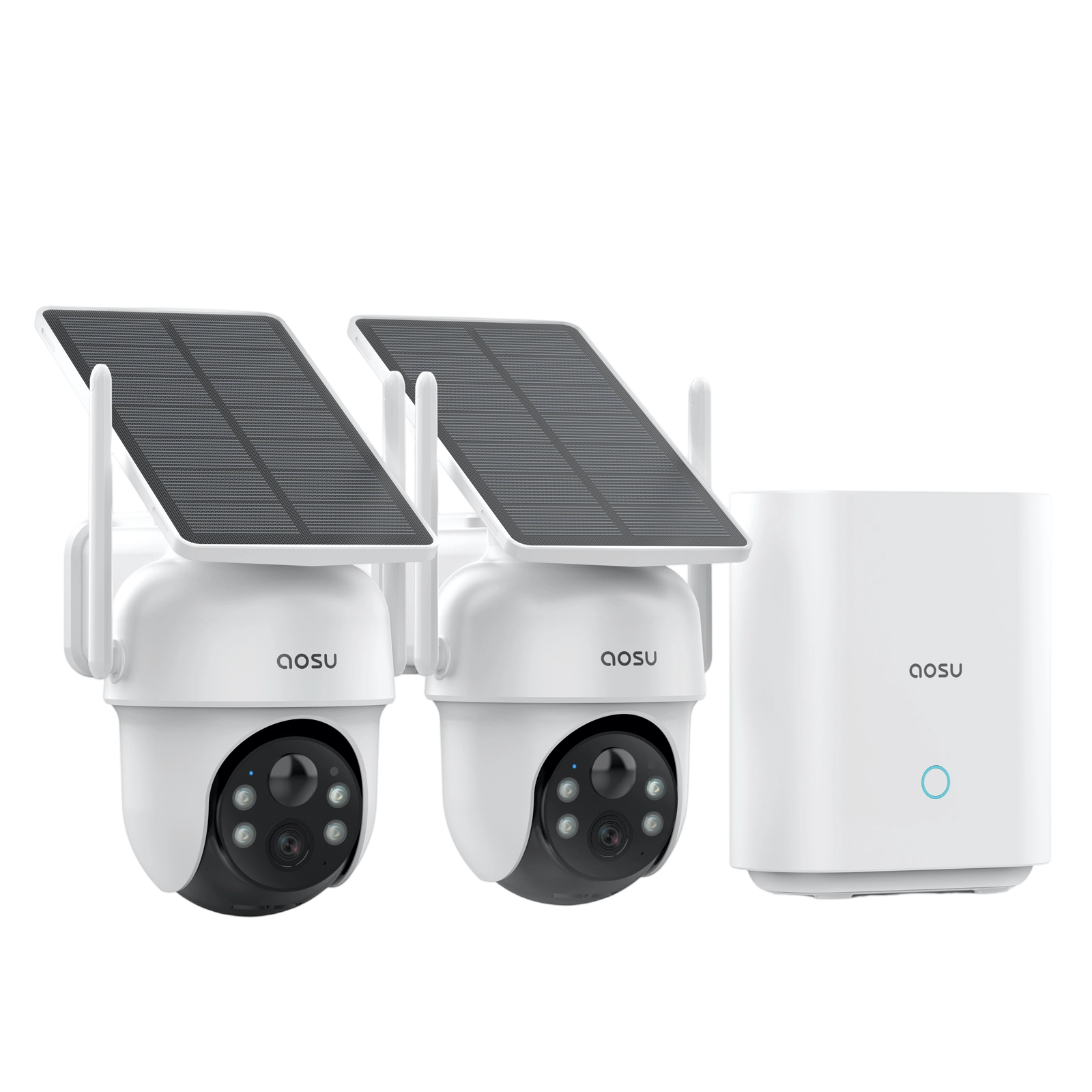
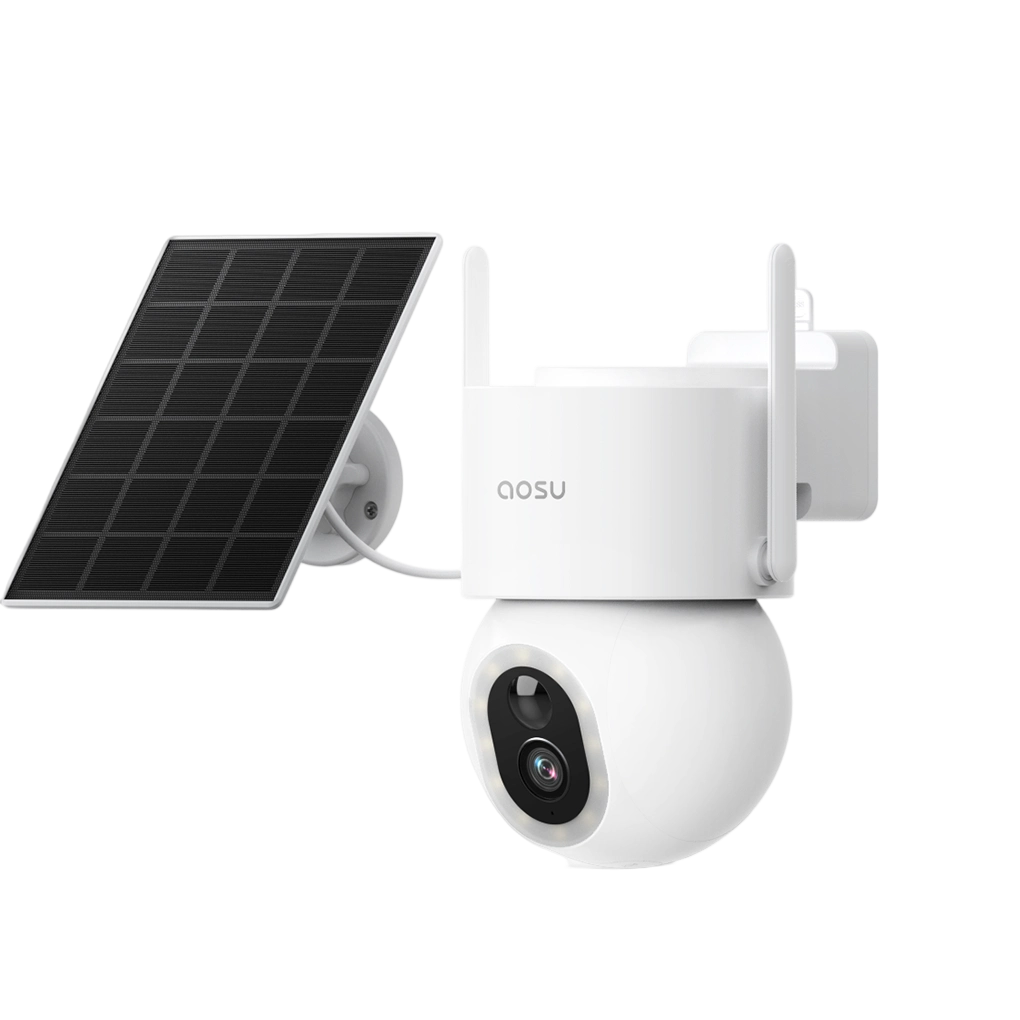
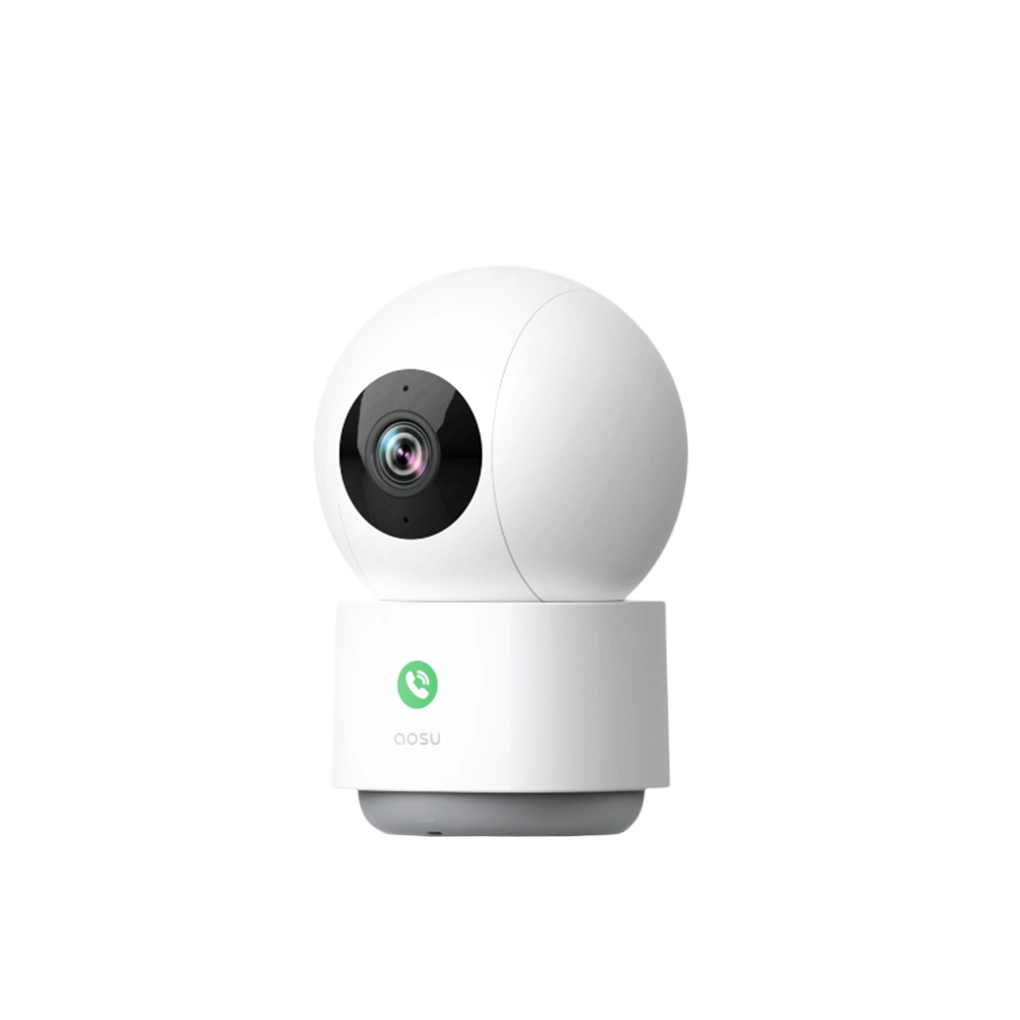
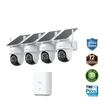








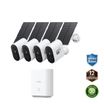
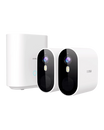
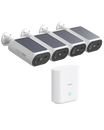
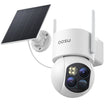

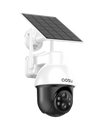
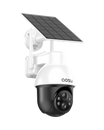


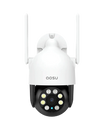





Local storage is the better starting point if your privacy priority is keeping your recording history at home. It lets you retain footage on a camera, memory card or recorder you control. Cloud storage keeps recordings on a provider's servers, so you also need to know who can access those recordings and who holds the encryption keys.
To compare local and cloud storage for security camera privacy, focus on who can view footage, how files are protected and how you control each copy. A camera recording to a card can still use an online account or remote-viewing service. An encrypted cloud archive can keep video content private from the provider when the provider has no way to decrypt it.
Local vs. Cloud Storage: The Privacy Differences That Matter
Local storage saves recordings on hardware at your home. Cloud storage uploads recordings to remote servers. A hybrid setup uses both. Compare the privacy controls available with each option.
| Privacy question | Local storage | Cloud storage |
|---|---|---|
| Where is the recording history? | On your camera, memory card, home hub or recorder. | On the provider's servers; there may also be a local copy. |
| Can the provider view the video? | Check remote-viewing, upload and processing features separately from local recording. | Check whether the provider can decrypt the recordings and when access is permitted. |
| What protects a stolen storage device? | Encryption of the recorded files, with protected keys. | The provider's storage protection; your downloaded copies need protection too. |
| Who can watch through the app? | Anyone with the access your system grants, including shared users. | Anyone with the access your account grants, including shared users. |
| Who controls retention? | You choose within the recorder’s available settings and capacity. | You choose within the service’s retention and deletion options. |
Related links:
· Storage basics: how security cameras store footage
· Source: ICO guidance on cloud encryption and access
When Local Storage Gives You More Privacy
Local storage keeps your video history on a memory card, camera or recorder at home. With cloud recording turned off, you can keep that history on your own hardware instead of uploading it to a cloud archive. This gives you control over where recordings of your family, visitors and daily routines are stored.
Remote viewing still sends video over the internet. For example, when you watch your garden camera from work, the video travels from your home to your phone even if the recording is saved on a card at home. Some systems also use online services for account sign-in, notification previews and device information. The privacy of those online connections needs separate consideration from the privacy of footage stored at home, including how video and other data are protected as they travel over the internet.
A fully local setup needs both recording and playback that work within your home network without relying on an online service. A camera with local storage does not necessarily support that: it can save recordings at home while still relying on the internet for app access.
The files on your hardware need protection too. File encryption prevents someone from reading the recordings without the key, including if they remove the memory card or drive. An app password controls access through the app; it does not necessarily encrypt the saved files. When comparing local-storage options, it’s worth looking into file encryption and how easily someone could reach the recorder.
Related links:
What Encryption Protects—and Who Holds the Keys
An encryption key allows encrypted data to be turned back into readable video. When comparing cameras, look for an explanation of how recordings are protected and who can decrypt them. The word “encrypted” alone leaves that second question unanswered.
Encryption in transit protects video while it travels
This protects data moving between devices and services, such as a camera uploading a clip or an app receiving video. It helps prevent someone intercepting the connection from reading the content. It does not determine what the receiving service can do with the video after it arrives.
Related links:
· Source: Internet Society explanation of encryption
Encryption at rest protects stored recordings
This protects files on a memory card, drive or server. For a cloud archive, the important follow-up is who manages the keys. As the ICO explains, server-side encryption does not prevent a provider from accessing data when that provider manages the keys.
Related links:
· Source: ICO explanation of cloud encryption keys
End-to-end encryption limits who can decrypt the content
With end-to-end encryption, only the sending and receiving endpoints hold the keys needed to read the content. Applied to a camera system, that means the camera and authorized viewing devices can decrypt the video, while the service carrying or storing it cannot.
Check exactly which features the claim covers: live view, recorded clips, cloud backups and shared access. Also check the recovery process if you lose a phone or key. Those details determine whether the system meets your privacy needs and whether you can regain access to older footage.
When Cloud Storage Fits a Privacy-Conscious Home
Cloud storage is useful when you want an off-site copy of events at the front door or driveway. A clip that has finished uploading remains separate from the camera and recorder at home. For privacy, decide whether you are comfortable with the service's access rules before enabling that copy.
Read the product's privacy and security documentation for three answers: can the provider decrypt video, under what circumstances can staff or service providers access it, and is footage used for purposes beyond delivering the features you chose? Look for a separate explanation of account and device data. Keeping video content encrypted does not answer every question about those other records.
If keeping video unreadable to the provider is your priority, choose a system with documented end-to-end encryption for the recording features you intend to use. If the provider can decrypt footage, evaluate its stated access controls and uses of that footage. These are different privacy arrangements, even when both services advertise encrypted storage.
Keep Track of Retention, Downloads and Shared Clips
A longer history holds more of your household's daily activity. Choose a retention period that gives you time to notice an incident and save the relevant footage. Keep clips you need for an active incident separately, and clear routine recordings when you no longer need them.
On local storage, check whether old footage is overwritten and whether you can delete selected recordings. In a cloud plan, check the recording-history window and what happens to stored clips when you cancel. Read the deletion policy for any separate backup-retention period; a clip disappearing from the app is not evidence that every service copy has been erased.
Downloads and shared files need their own cleanup. If you save a driveway clip to your phone, that file can remain after the camera's history expires. If your photo library backs up videos, the downloaded clip may also enter that backup. A file sent to another person becomes a copy you no longer control.
For a specific event, share the relevant clip with the person who needs it. Avoid giving someone ongoing access to the whole camera history just to show a single incident. Before selling or replacing a camera or recorder, follow its instructions for deleting recordings, removing account access and resetting the device. NIST's consumer IoT baseline includes the ability to delete stored personal data or make it inaccessible.

Check access and retention for each copy of a recording, including downloads and shared files.
Protect the Accounts and Devices That Can Open Your Video
Your viewing account and phone are part of the privacy decision with either storage type. Use a unique password, enable two-factor authentication when available, and keep the app, camera and router updated. Protect your phone with a screen lock.
Give each household member only the access they need where the system supports separate users and permissions. Remove access when someone no longer needs it. If a friend checks the driveway while you're away, that permission should end when you return. The FTC recommends comparing cameras' sharing permissions before buying.
Turn off remote access if you don't use it, as the UK's National Cyber Security Centre recommends. If you do need remote viewing, choose a system with documented protection for that connection and keep control of the accounts allowed to use it.
Related links:
· Source: NCSC guidance on smart-device settings
Five Questions to Ask Before Choosing a Storage Setup
Use these questions with the exact model and plan you're considering. Clear answers are more useful than a general privacy slogan.
1. Where will each copy of my video go?: Identify the local recorder, any automatic cloud upload, and what happens when you download or share a clip.
2. Who can decrypt stored and live video?: Ask about the provider as well as household users. Confirm which features have end-to-end encryption if that is a requirement for you.
3. Can I use the camera without cloud recording?: Check local playback, remote viewing and notifications individually. Choose the connected features you actually want.
4. Can I remove access and delete footage?: Look for useful sharing controls, a clear retention policy, and instructions for erasing storage before the device changes hands.
5. How long will security updates be available?: Check the stated support period and update process so you can plan for the camera’s supported lifetime.
Your Storage Options With aosu
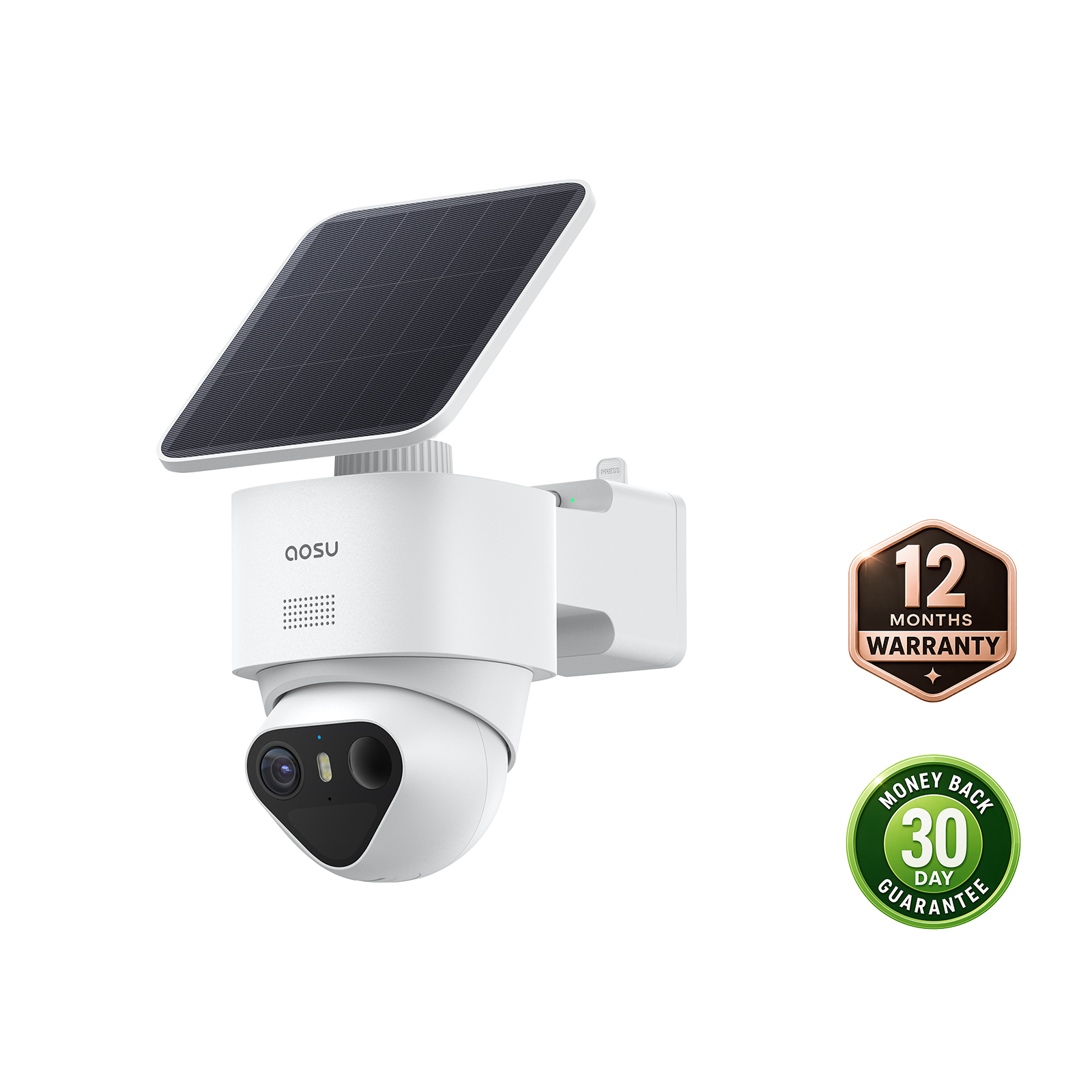
Our cameras offer different local-storage options depending on the model and kit. Our storage guide explains how on-camera storage, home hubs and cloud recording work, so you can choose where to keep your footage.
Our aosu cloud plan is optional, with trial and subscription options. You can delete cloud recordings through your account. Our Privacy Notice explains how we handle video, account, device and app information, along with the privacy choices available to you.
Related links:
· Our guide to security camera storage
To Wrap Up
Choose local storage when keeping your recording history at home is the priority. Choose cloud storage when you want an off-site archive and its encryption, access and retention terms meet your needs. Use both only when you want both copies and are prepared to manage them.
For either setup, know who can open the video and how to remove access. That gives you a practical basis for choosing more private security camera storage.
FAQs
Does local storage mean my camera works without the internet?
Local storage keeps recordings on hardware at home. Whether recording, playback, setup and other features work without the internet depends on the camera system. Confirm those functions for the exact model if you want operation without an online service.
Can a cloud provider watch encrypted security camera footage?
A provider may be able to decrypt footage if it controls the keys. End-to-end encryption keeps the covered video content readable only by the authorized endpoints. Check which recording and viewing features are covered and who can recover the keys.
Is a security camera without a subscription more private?
The absence of a monthly fee tells you the price arrangement. To assess privacy, check where recordings go, who can access them and what information the connected app or service collects.
Is using local storage and cloud backup more private?
Using both creates an additional archive to protect. It can help preserve uploaded footage if the local hardware is lost, but you still need to manage cloud access and retention alongside your local recordings.