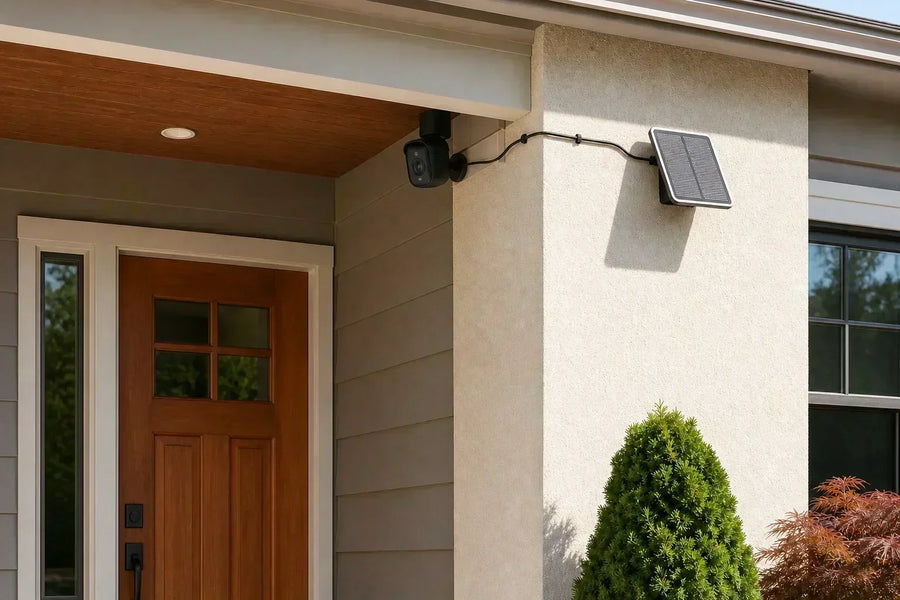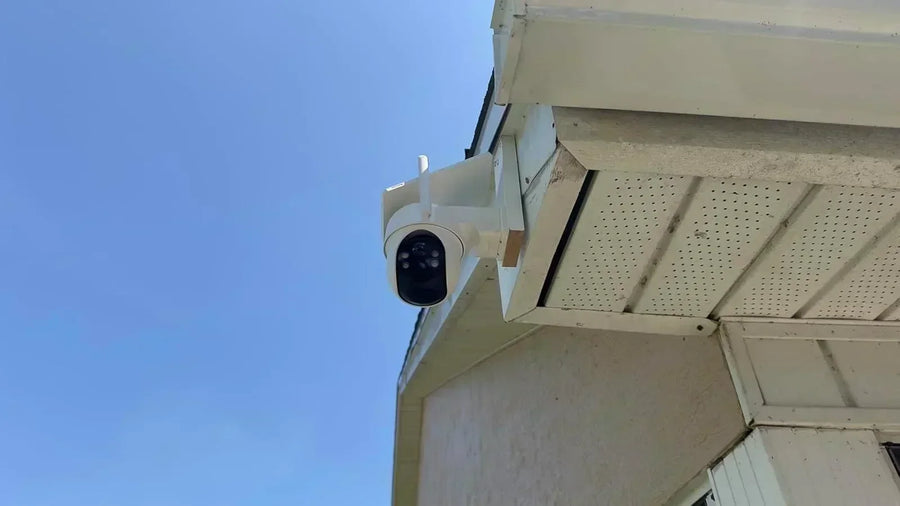



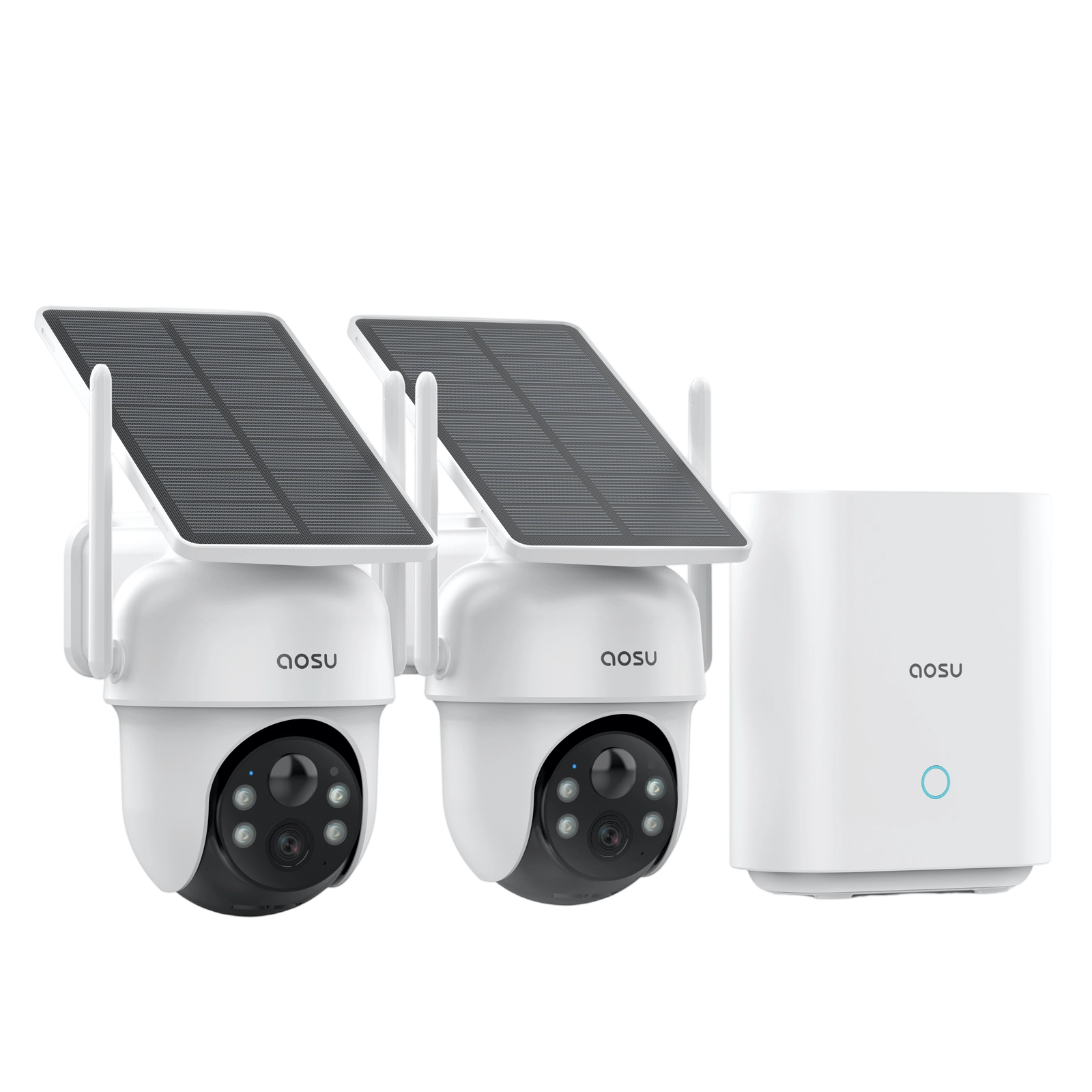
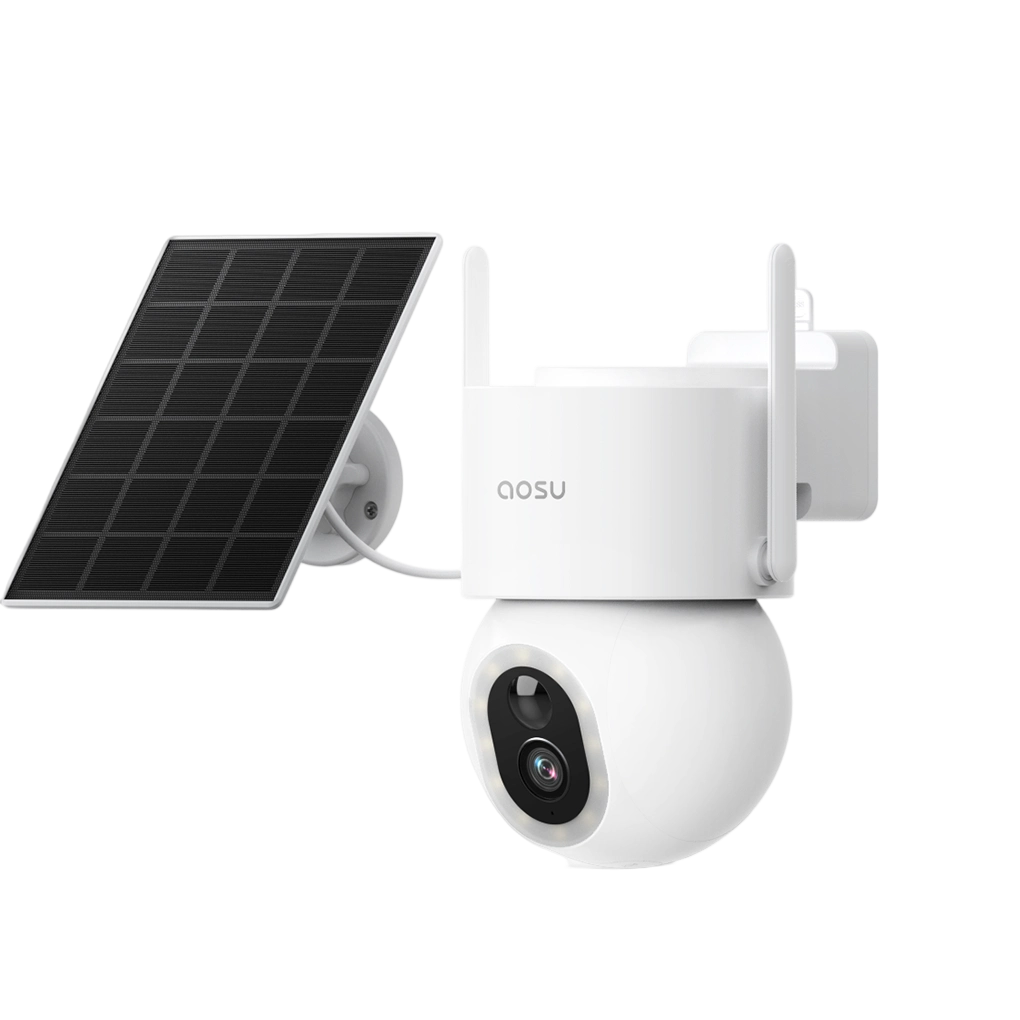






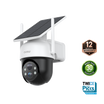
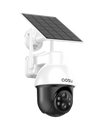
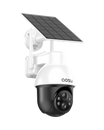

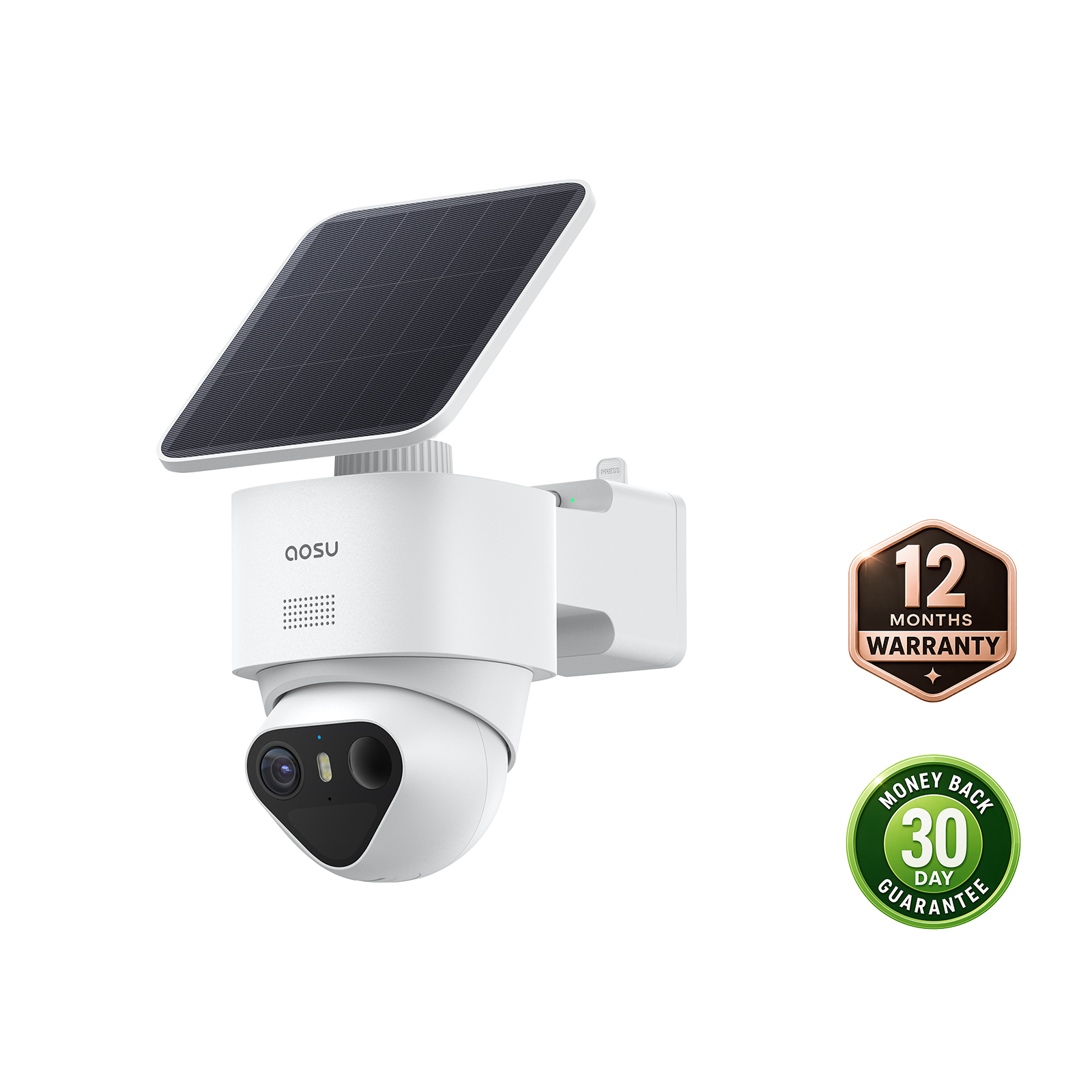



SolarCam T2 has three night-vision options: Black and White Night Vision, Color Night Vision and Natural Lights. Choose Black and White for infrared viewing without a white spotlight. Choose Color Night Vision for white light and color when activity is detected. Use Natural Lights when you want the camera to rely on the light already in the scene.
That choice depends on where your T2 is looking. A dark driveway where clothing or car color matters has different needs from a side path beside a bedroom window or a porch with its own lighting. Start with the detail you want to see, then consider how much light the camera needs to add.
The Three SolarCam T2 Night-Vision Options
The Night Vision screen in the aosu app lists these three settings. Each changes how the camera uses its supporting lights at night.
Black and White Night Vision
This setting uses infrared illumination and shows the image in black and white. The app describes it as suitable for low-light scenes, with infrared light on by default within this mode. The illumination is very subtle to your eyes: you mainly notice small, faint red lights when looking directly at the camera. It does not light up the yard like the white spotlight used for Color Night Vision.
Color Night Vision
When activity is detected, white light turns on and the image appears in color. When no activity is detected, the image returns to black and white. This setting gives you color during detected activity, with lighting that responds to the event.
Natural Lights
This setting uses no supporting lights from the camera. The app lists it as suitable for overexposed scenes. It relies on the light already reaching the area, such as light from a porch, garage or streetlight.
Choose SolarCam T2 Night Vision for the Area You Watch
Use these situations as a starting point. The same location can call for a different choice when the detail you need or the nearby lighting changes.
| Your situation | Start with | Why it fits |
|---|---|---|
| A dark driveway where you want to tell cars or clothing apart | Color Night Vision | White light and color appear when activity is detected, giving you color clues during the event. |
| A porch that needs added light for visitors or deliveries | Color Night Vision | The spotlight illuminates detected activity so you can see clothing and objects in color. |
| A side gate beside a bedroom window or shared path | Black and White Night Vision | Infrared gives you a black-and-white view without adding a white spotlight. |
| A dark backyard where you want to see people or animals crossing | Black and White Night Vision | Infrared lets the camera see in the dark without visibly lighting up the yard. |
| A lit porch or garage where extra camera light washes out nearby detail | Natural Lights | The camera adds no supporting light, letting you use the lighting already there. |
Use Color Night Vision for Color Clues During Activity
Suppose someone leaves a bag beside your garage, then walks back to a parked car. Color footage can help you distinguish the bag from another one left there earlier and describe the person’s clothing. Those details are useful when you review what happened or explain the event to someone else.
The same applies to a driveway with two similar vehicles. Body shape and position tell you part of the story; color gives you another way to tell them apart. Choose Color Night Vision when that added information matters and you’re comfortable with white light turning on when activity is detected.
Check where the light falls. A brightly lit garage door does not tell you how well the camera can see someone standing beside the car farther down the driveway. Judge the person or object you care about, especially at the far end of the area you watch.
Use Black and White Night Vision When You Want to Avoid White Light
Black and White Night Vision is a useful starting choice for a side gate, a path beside the house or a backyard facing nearby windows. It lets you review someone walking through the gate with infrared illumination, without the white light used by Color Night Vision.
The tradeoff is color information. A dark jacket can look surprisingly light in infrared because materials reflect infrared differently from visible light. Read the clip for the person’s movement, clothing shape and actions; don’t use its gray tones to decide what color they were wearing.
In a yard with no porch or garden lighting, infrared lets the camera see without visibly lighting up the area. Check the part of the yard you need to see: the camera’s view can include areas beyond the useful reach of its infrared light.
 SolarCam T2 in Black and White Night Vision. The two views show the same cat crossing the yard at the same timestamp.
Use Natural Lights When Existing Lighting Covers the Area
A porch light or garage light may already illuminate the place you want to watch. Try Natural Lights when that lighting gives you a usable view, especially if the camera’s added light makes nearby faces, walls or packages look washed out.
For example, a bright porch light above the door can illuminate a visitor and the delivery area below. Natural Lights lets the camera use that existing light without adding its own illumination. Check the visitor’s face and the package area to see whether the detail is clear.
Make the check with the house lights set as they’ll be overnight. If a porch light switches off at bedtime, Natural Lights will have less light to work with. For an area that becomes dark, use Black and White Night Vision for infrared illumination or Color Night Vision for white light during detected activity.
Make One After-Dark Check Before Settling on a Mode
Once you’ve chosen a starting mode, make a short recording of someone walking through the area you want to watch. Use the lighting that will normally be on at that time. If your porch light turns off later, repeat the check after it turns off.
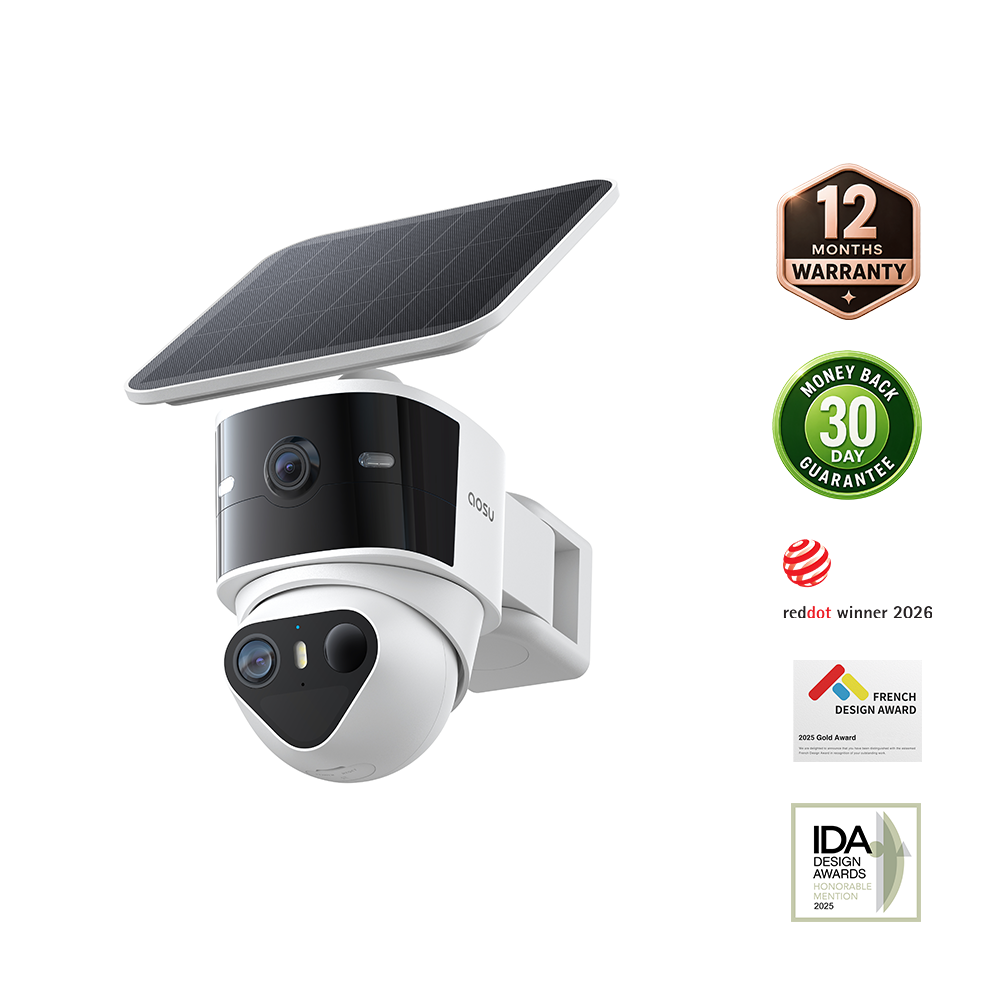
T2 also gives you separate wide and telephoto views. The wide view shows more of the area, while the telephoto view shows a closer view of a smaller part of it. At night, the person or object in that closer view still needs enough illumination to be visible.
A stationary driveway can look clear while a walking person looks blurred. Reviewing a moving person gives you a more useful check of the night view.
1. Look at the detail you need: Have someone walk from the gate to the door or beside the parked car. In the saved clip, check whether the clothing, carried object or action you wanted to see is clear. For T2’s telephoto view, check the smaller area it actually shows.
2. Compare the same scene: Compare the settings from the same camera position and the same lens, with the person taking the same walk. Keep the house lights unchanged. In Color Night Vision, include detected activity in the check so you can see the white-light color view.
3. Check the light around the camera: Check whether the white spotlight reaches a bedroom window. In the camera image, look for glare on a nearby wall or an overly bright foreground. Keep the camera clear of close walls and eaves, and remove dirt or spiderwebs that reflect infrared or white light back toward the lens. If existing lights already cover the area, compare Natural Lights.
Related links:
· For a broader comparison, see our guide to security camera night-vision modes.
Choose for the Detail You Need
For SolarCam T2, use Color Night Vision when you want color clues during detected activity, Black and White Night Vision when you want infrared coverage without white light, and Natural Lights when you want to rely on existing lighting. A short recording at your porch, driveway or gate will show whether that choice fits the area you actually watch.
FAQs
Does Color Night Vision keep SolarCam T2 in color all night?
No. In Color Night Vision, white light and a color image appear when activity is detected. The image returns to black and white when no activity is detected.
When should I use Natural Lights on SolarCam T2?
Use Natural Lights when you want the camera to add no supporting illumination. It is a useful option where existing lighting provides a usable view or added camera light is washing out nearby detail. Check the view with the lights that will be on overnight.
Can SolarCam T2 use infrared in a completely dark yard?
Yes. SolarCam T2’s infrared night vision uses infrared illumination to produce a black-and-white view without a porch light or white spotlight. Check that the person or object you want to see is within the area its infrared light illuminates.
Is SolarCam T2’s red warning light its color-night-vision spotlight?
No. The red warning light provides a visible warning. The white spotlight lights the scene for full-color night vision. The small, faint red lights you see when looking directly at the camera in infrared mode are separate from that warning light.