


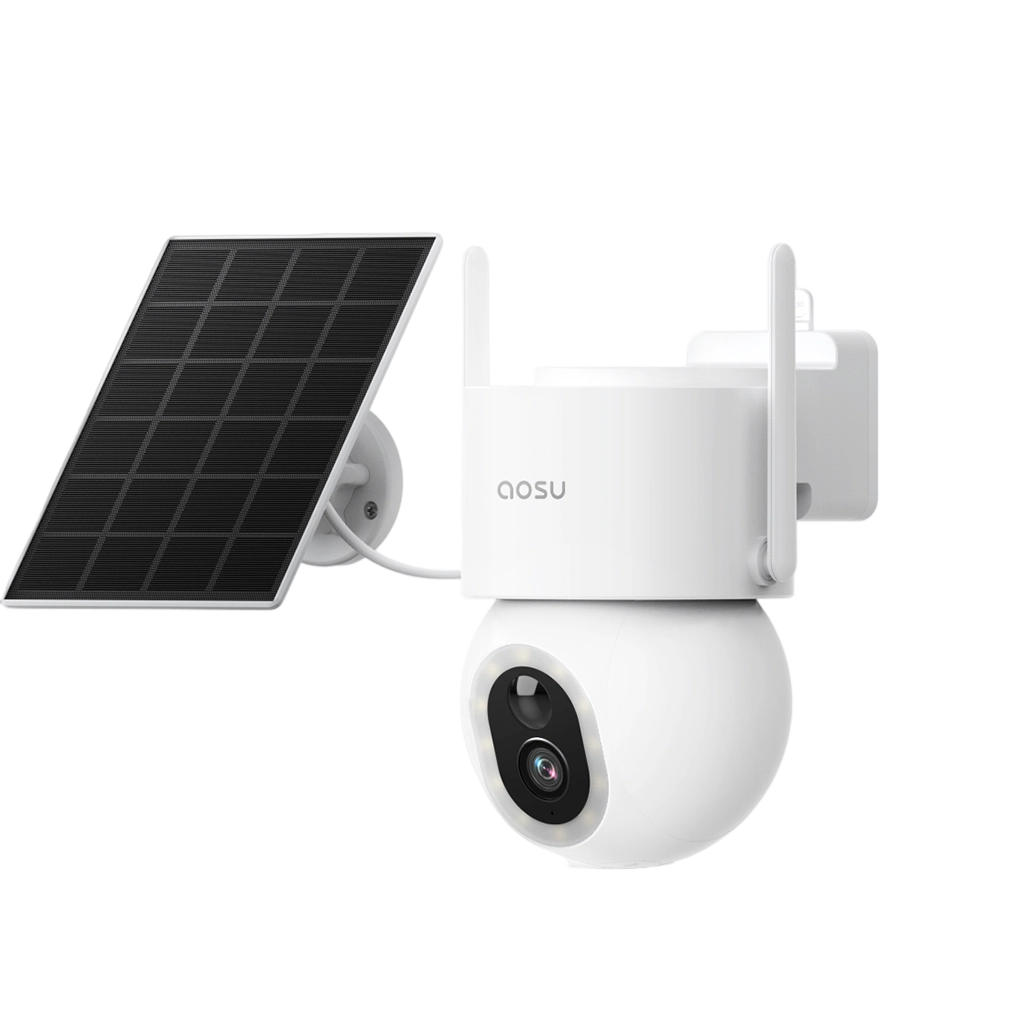
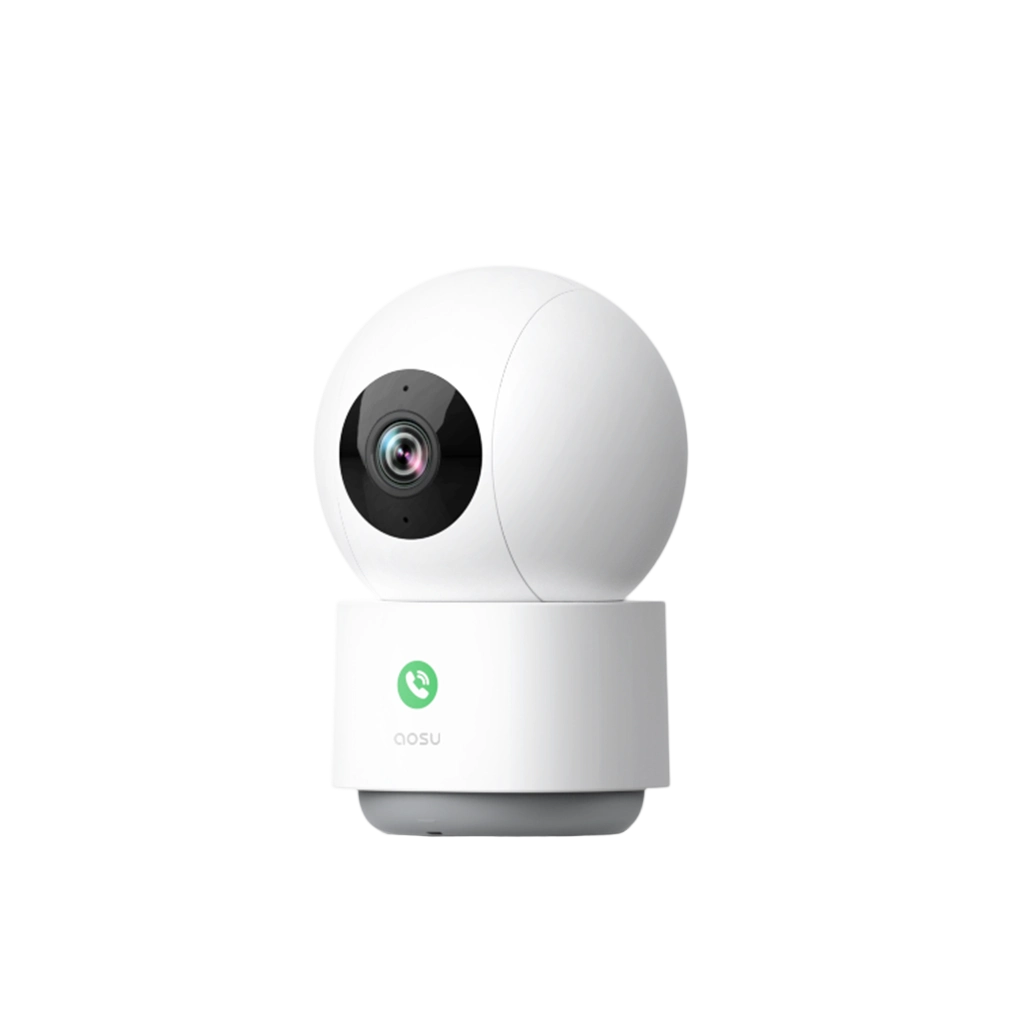
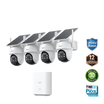
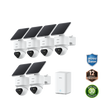
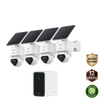
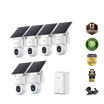
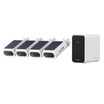

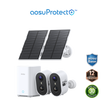
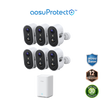
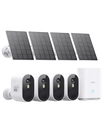
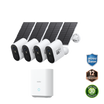
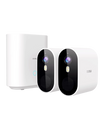
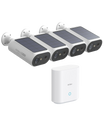
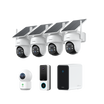
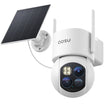
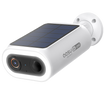
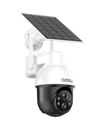
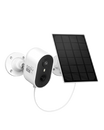
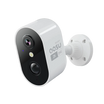
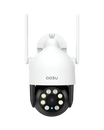
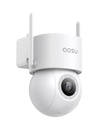

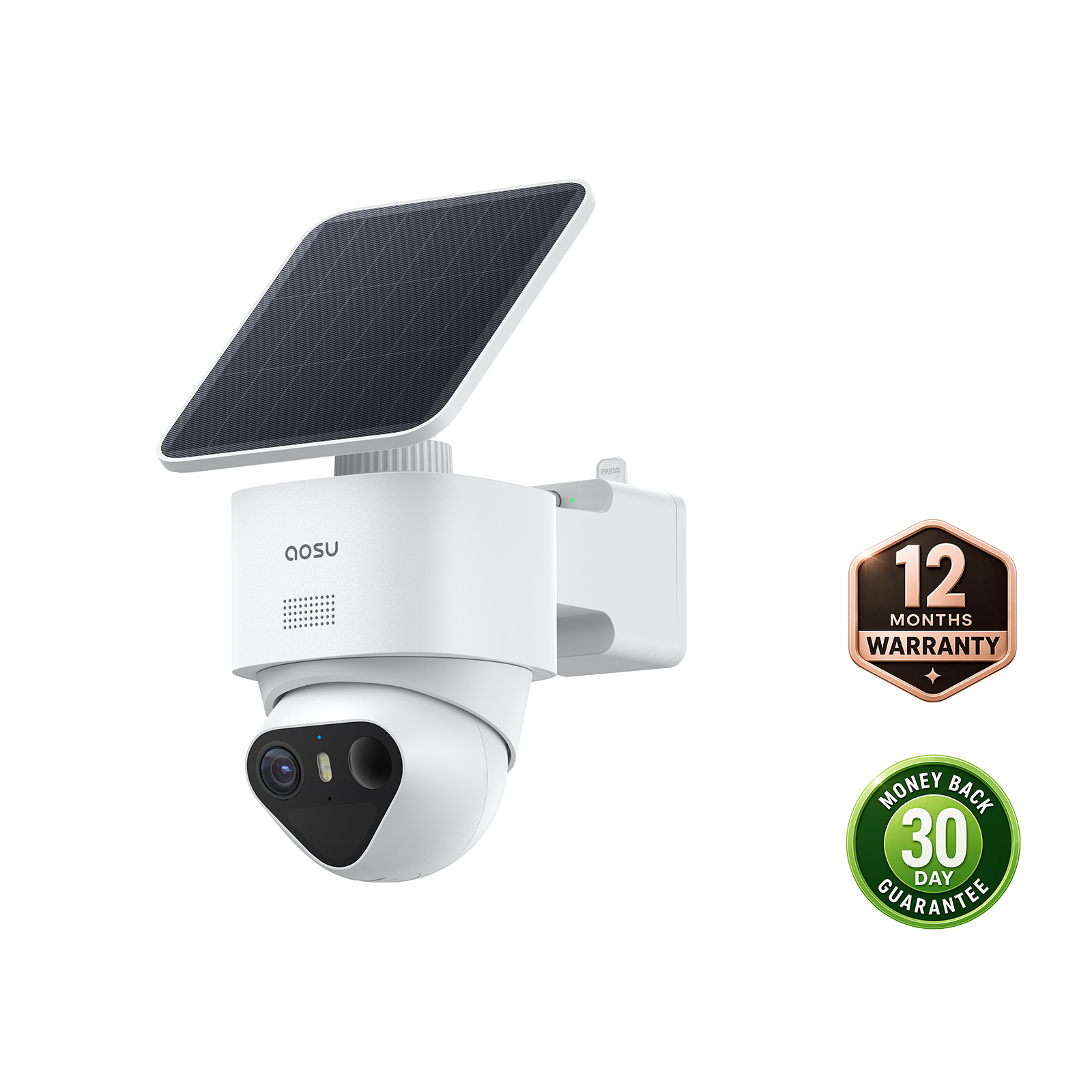

Remote video monitoring lets you check a compatible camera through its supported app or viewing software while away from the property. Available features depend on the camera, account, storage configuration and internet connection.
This guide focuses on choosing useful views and testing account access, notifications, saved footage and downloads away from your home Wi-Fi. Confirm supported viewing devices for the exact model rather than assuming that phone access also means computer-browser access.

Why is remote video monitoring important?
Self-monitoring means you or an authorized user reviews alerts and decides what to do. Professional monitoring is a separate service with defined responsibilities and response procedures. Camera ownership alone does not establish that someone is watching the feed or will dispatch help.
Remote access can help you check a visitor, review an entry event or export a saved clip. Alerts depend on detection, configuration and connectivity; they do not guarantee that every incident will be detected, reviewed or prevented. Agree who will review alerts and what action they can take.
How to choose the right equipment for better remote video monitoring
Choose equipment around the views and saved events you need. Confirm the supported viewing devices, power supply, network connection, storage and account controls for the exact camera or kit.
Understanding Different Types of Security Cameras
- Indoor cameras: Indoor cameras can provide selected views of shared areas such as entryways or hallways. Agree on their purpose and who can access them.
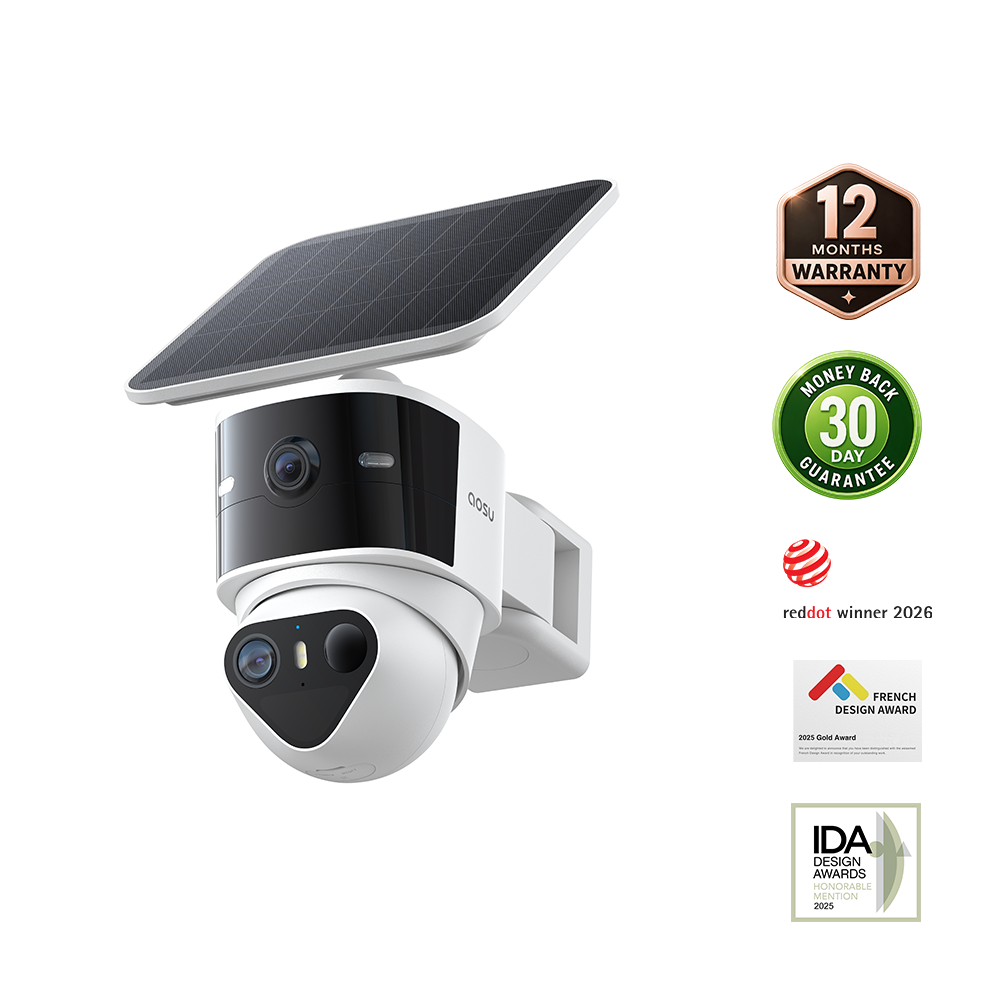
- Outdoor cameras: Outdoor cameras can cover a porch, driveway or yard. Check the exact model’s mounting, exposure, operating and charging requirements.
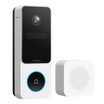
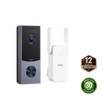
- Video doorbells: Video doorbells can help review visitors and deliveries at the entrance. Confirm the doorstep and approach actually appear in saved footage.
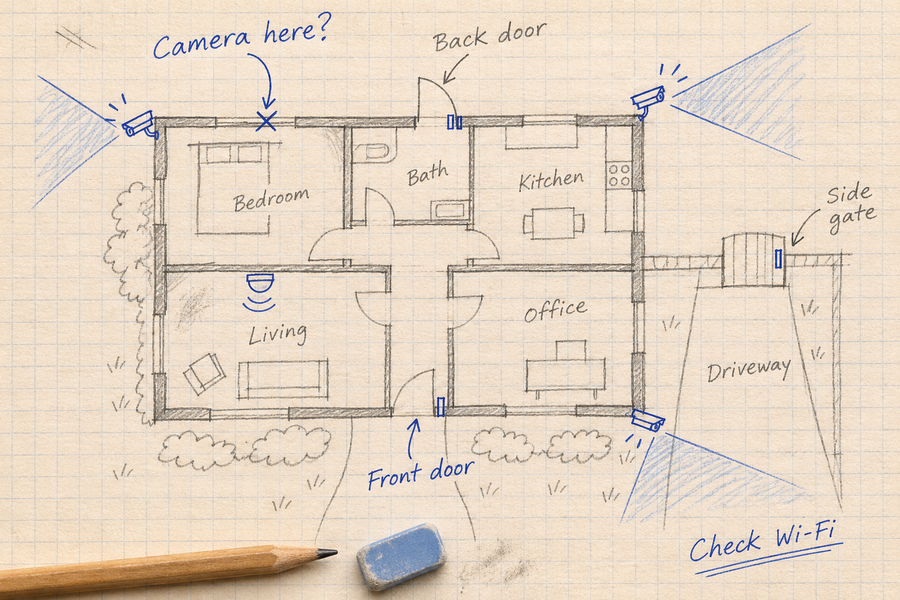
Several useful views may require separate cameras. A camera’s presence or rotation range does not establish complete property coverage.
Essential features of security cameras to look for
- Useful saved detail: Check original clips at the intended distance, including moving subjects after dark. Resolution alone does not guarantee identification.
- Night vision: Verify supported lighting modes and the detail they preserve. Night vision does not establish continuous recording.
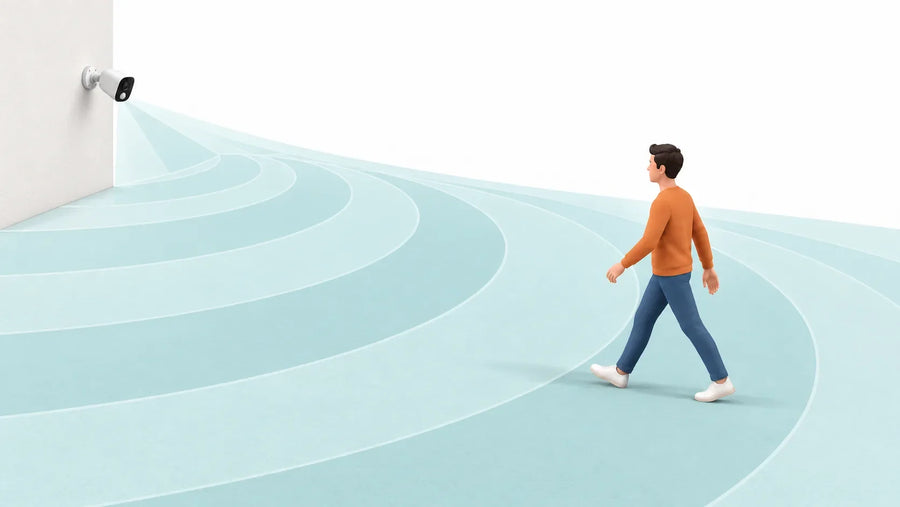
- Detection and alerts: Confirm supported event categories, recording triggers and notification settings separately.
- Outdoor suitability: Check the model’s environmental limits and installation instructions rather than treating weather resistance as permission for every climate.
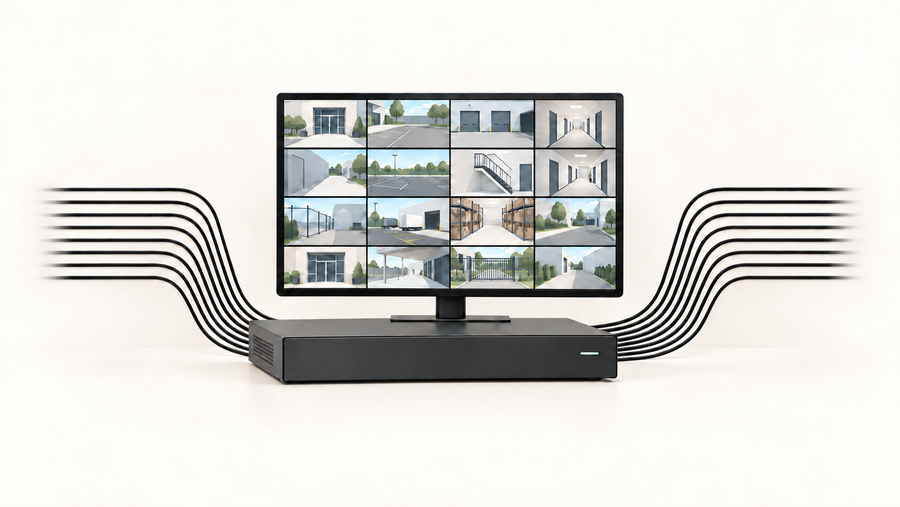
- Storage and access: Verify recording modes, retention, downloads, sharing permissions and any required subscription.

Uses of remote video monitoring for home and small business
For Home
- Reviewing entry activity: A suitable view can help you check arrivals and saved events. Cameras do not guarantee prevention or immediate intervention.
- Agreed household check-ins: Cameras can help you review activity in selected areas. They do not replace supervision, an agreed care plan or someone who can attend when help is needed.
- Checking visitors: Where supported and connected, a video doorbell can provide remote viewing and communication. Test the functions you intend to use.
Additional Checks for a Small Business
Define the purpose before installing cameras—for example, reviewing entry events or checking a delivery area. Specify who can view footage, how long recordings are retained and how access is removed when staff responsibilities change.
Before recording employees or audio, review the applicable workplace and privacy requirements. Provide the required notices and obtain consent where required. Do not assume that household camera guidance establishes a suitable employee-monitoring policy.
Confirm that the selected equipment, account permissions and service terms support the intended business use.

Illustration only: controls shown in an image do not establish that your camera supports door unlocking, lighting control or a particular integration. Verify those functions on the exact system.
How to Set Up and Check Remote Camera Access
Set Up and Test Remote Access
- Install the supported app from the manufacturer’s official download page. For aosu cameras, use the official aosu app download.
- Create your account with a unique password. Enable additional account protection where available, and secure the phone used to access the camera.
- Follow the instructions for your exact camera or hub. Confirm the supported network band, pairing method and storage configuration before installation.
- Check live view and create a test recording at the intended mounting position.
- Turn off your phone’s Wi-Fi and use cellular data to test remote live view, an event notification, playback and a clip download.
- If sharing is supported, invite another user through the official sharing controls. Check their permissions and how to revoke access instead of sharing the owner’s password.
Record the camera model, app version and firmware used for the test. Add model-specific menu screenshots only after checking them on that configuration.
Place the camera for the views you need
Identify important approaches and entrances, then test saved daytime and nighttime footage from the proposed location. Follow the exact model’s mounting instructions rather than applying one installation height to all cameras or doorbells. Check obstructions, backlighting and privacy boundaries.
For physical installation and wiring considerations, use the home security camera installation guide. Cable routing, fixings and weather details depend on the installation and manufacturer instructions.
Check Upload Capacity and Connection Reliability
Remote viewing depends on the property’s upload connection, the camera’s local connection and the viewer’s download connection. Test the number of streams you expect to open together, using the video quality you intend to keep.
A separate SSID can help organize devices. Isolation requires appropriate router settings, and a different network name does not create extra internet bandwidth. Guest-network restrictions may also prevent communication with a local hub or recorder.
Check the manufacturer’s bandwidth requirements for the exact camera and recording mode. Test during ordinary household use, including other uploads, rather than relying only on an idle speed test.
Internet loss can interrupt remote viewing, cloud uploads and notifications. Local recording depends on the camera, storage and remaining connections: losing the internet is different from losing the camera-to-hub link. Backup power helps only the equipment it actually powers.
Check Solar Charging Separately From Remote Access
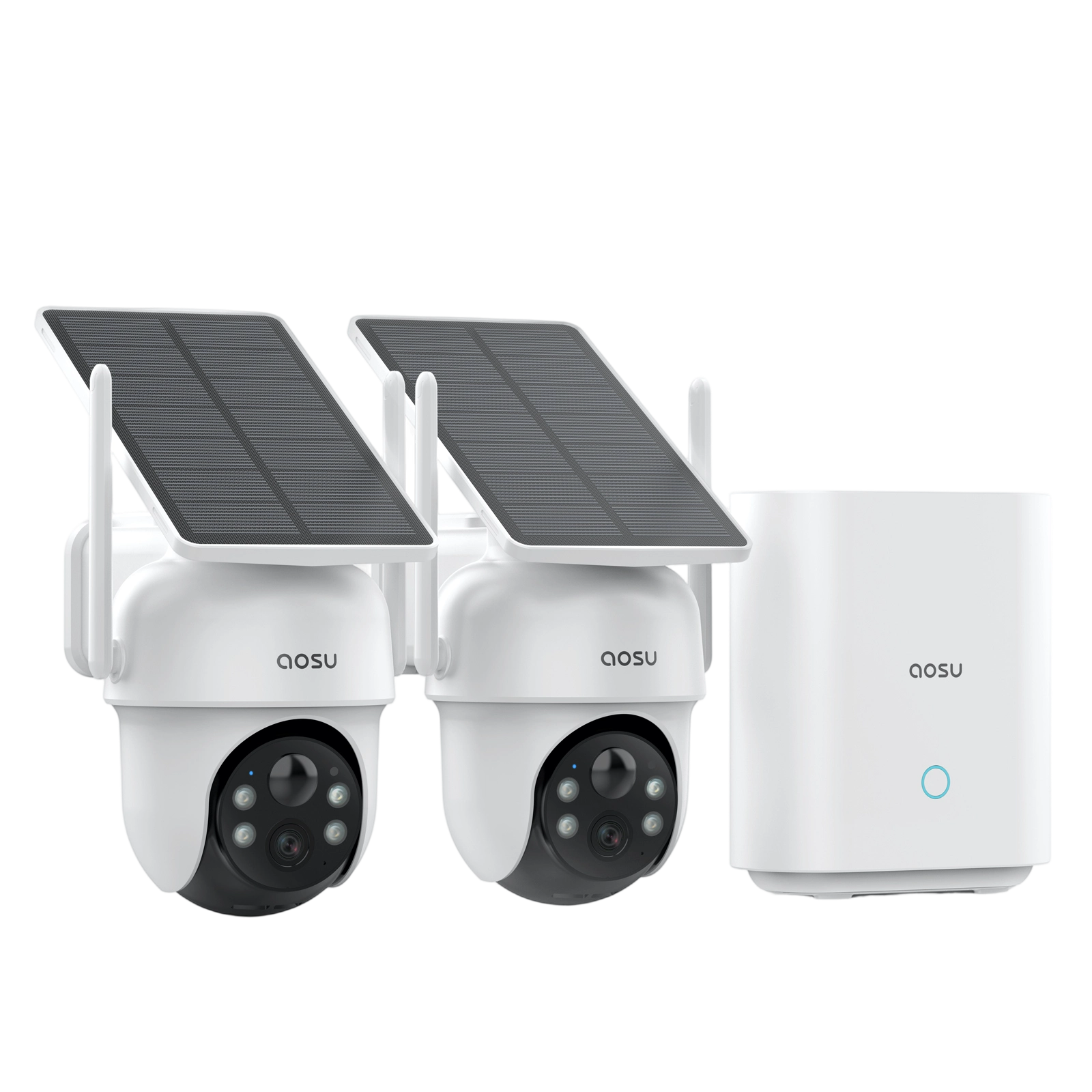
Solar recharge does not provide internet connectivity or add recording modes. Check the panel position against the model’s charging requirements, seasonal shade and actual camera use. See how to assess direct sunlight at the panel position and solar camera cleaning and maintenance.
A Model to Review After Planning Your Access Tests
Explore SolarCam D1 Classic. Check its current kit configuration, supported viewing devices, storage and recording options against the checks above. A purchase does not establish professional monitoring or emergency dispatch.
For other options, browse AI Security Cameras and verify detection categories and integrations on each exact model.
Conclusion: Verify Access and Agree Who Responds
A useful remote setup lets authorized users open the camera, receive relevant alerts, review saved events and export a clip when needed. Test each action away from your home Wi-Fi, confirm what happens during an outage, and agree who will respond to alerts.
FAQs About Remote Video Monitoring
What are the essentials of remote video monitoring for home and business?
A compatible camera, supported account and viewing software, suitable power and connectivity, and storage for the events you need. Test remote viewing, alerts, playback and export, then define who can access footage and who will respond.
How do wireless smart security cameras support remote access?
They can provide supported app access through their specified network or hub connection. Wireless does not mean network-independent or power-free. Verify pairing, connectivity and saved-event access at the intended location.
How can remote monitoring help a small business?
It can help authorized users review entry events or a delivery area. Confirm the intended use, access permissions, retention, equipment and service terms, and review applicable workplace and privacy requirements before recording staff or audio.
Which Features Should I Verify Before Buying?
Check supported viewing devices, recording modes, storage limits, subscription requirements, sharing permissions and outage behavior on the exact model. Verify AI detection categories and supported integrations separately. Night vision does not establish continuous recording, and an alert does not guarantee that every event will be detected or reviewed.
Does Remote Camera Access Include Professional Monitoring?
Do not assume so. Check whether your exact service includes human review, alarm verification or emergency dispatch, and read its coverage and response terms. Without a separately confirmed service, plan who will review camera alerts and what they should do if an incident occurs.