












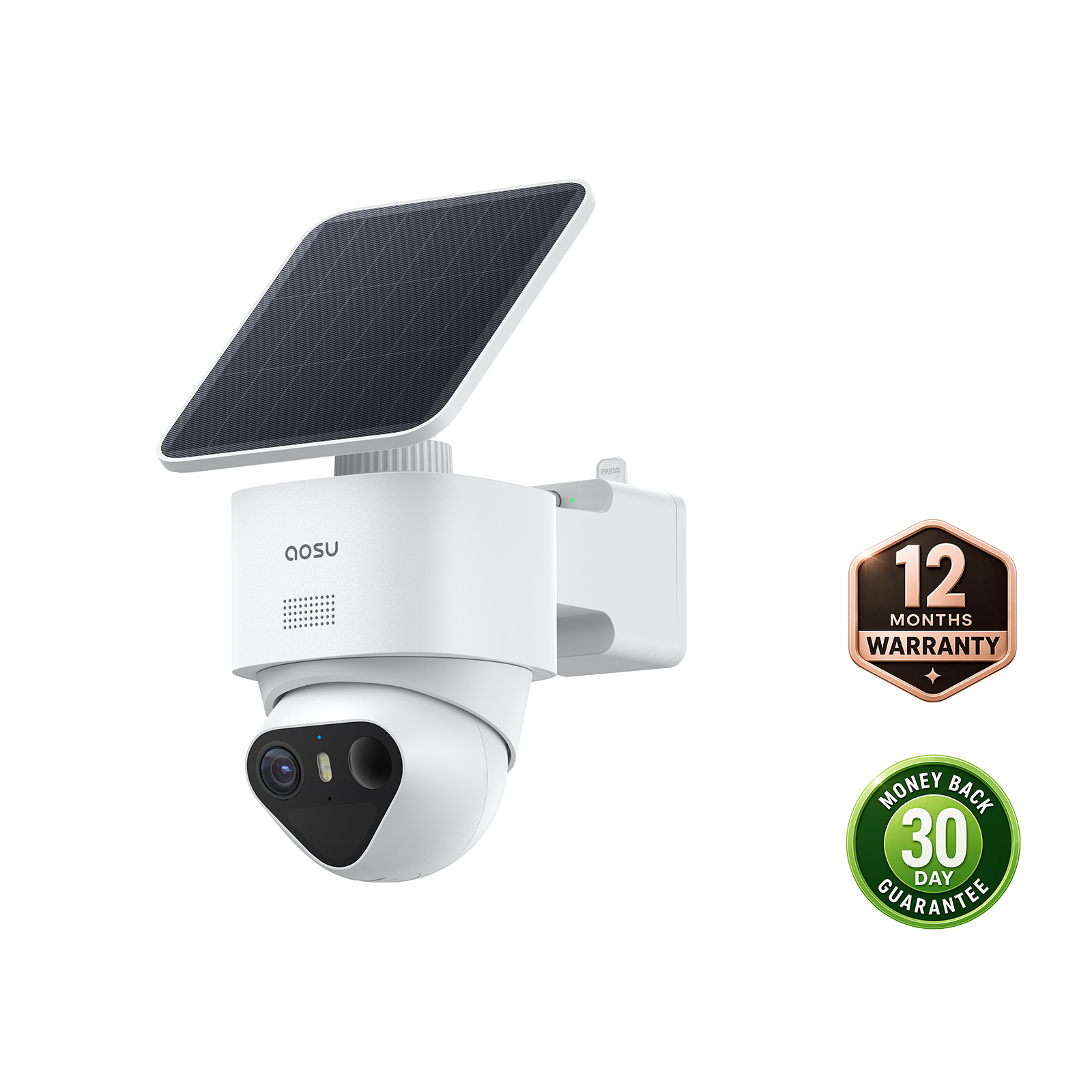






When a security camera SD card is full, a camera with loop recording enabled replaces the oldest recordings with new ones. Recording continues, but the oldest footage drops out of your playback history. If overwriting is disabled or the camera does not support it, the card stops accepting new recordings until space is available.
Check that the latest recordings play, and download any footage you need before new video replaces it.
Does a Full SD Card Keep Recording?
Loop recording keeps a rolling history of footage. Once the card fills, the camera makes room for the next recording by removing older video. It does not need to erase the whole card each time.
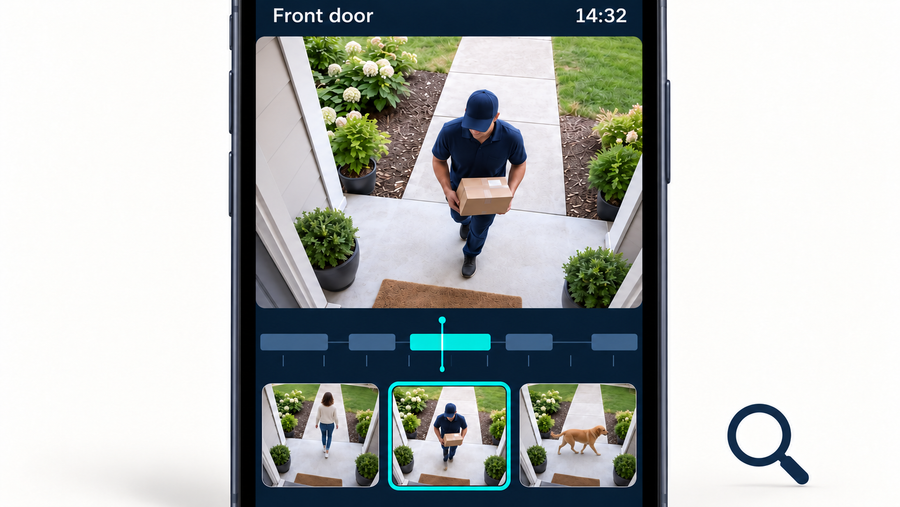
For example, a delivery clip from several days ago can disappear while today’s delivery is saved. The available history moves forward as new footage uses the same storage space.
An aosu community support answer about full storage describes replacing the oldest recordings to save new ones. However, the post does not identify a model or firmware version.
Treat it as general guidance, not a compatibility table for every aosu device. Confirm the behavior of the exact camera, doorbell, base or recorder that holds your footage, then verify that a new recording can be saved and replayed.
 When loop recording fills the card, the next clip replaces the oldest recording.
What Your Storage and Playback Screens Tell You
The storage percentage alone does not tell you whether recording is working. Compare the storage status with the newest saved clip. A card that stays nearly full while new clips appear is behaving differently from a card with no recent recordings.
A motion notification or a working live view does not prove that the event was saved to the SD card. Open the recorded video and play it back.
| What you see | What it means | What to do next |
|---|---|---|
| Card full; recent clips play; oldest clips disappear | Consistent with normal loop recording | Download important clips before the rolling history reaches them. |
| Card full; no new clips after it filled | Overwrite may be off, unsupported, or not working | Save needed footage, then inspect recording and overwrite settings. |
| Card not detected, repeated format prompts, or playback errors | The camera is reporting a storage problem | Preserve accessible clips; check card compatibility and contact support if errors persist. |
| Live view works; recorded event is missing | Live viewing works, but saved recording still needs verification | Check recording mode, schedule and card status; make a test recording. |
Save Important Footage Before It Is Overwritten
Download a clip as soon as you know you need it. If someone takes a package from your porch, save the event and any available footage immediately before and after it. Waiting until the weekend gives new recordings more time to replace the clip.
Use the camera app’s download or export feature, then open the saved file on your phone or computer. Keep a second copy somewhere separate from the camera’s card. An event thumbnail, favorite marker or bookmark is not a verified backup.
In an aosu support discussion about computer playback, support instructs the doorbell owner to download encrypted video through the aosu app before transferring it to a computer.
The thread does not identify the doorbell model, so it does not establish the file format or export process for every aosu camera or hub. Follow your model’s instructions and verify the exported file on the device where you intend to keep it. Do not assume that removing the card produces directly playable video.
If a needed recording is no longer accessible, avoid formatting the card or continuing to write new video to it while you seek support or recovery advice. A missing file and data already replaced by new recordings are different problems; recovery is not a substitute for downloading the clip while it is available.
Related links:
· aosu support: downloading card recordings for computer playback
What to Do if a Full Card Stops Saving Video
1. Preserve the clips you still need
Download and verify any important recordings before deleting footage, formatting the card or changing storage hardware. If footage is missing and you want recovery advice, pause here and contact support before making further changes.
2. Check recording and overwrite settings
Open the recording or storage controls for the device that actually holds the card. Look for a loop recording, overwrite or storage-full setting if your model offers one. Also confirm that recording is enabled and that the schedule or event mode covers the time you are testing.
With overwrite enabled, older footage is sacrificed to keep saving new video. With overwrite disabled, a full card cannot save more video. Choose the setting with that trade-off in mind.
3. Make a new test recording
Preserve important footage before this test. Do not deliberately fill the card or select a valuable recording to see whether it disappears. The immediate check is whether a new clip saves and plays under the current storage conditions.
For event recording, walk through the camera’s detection area during an enabled recording period. For continuous recording, wait for the next recording segment to finish. Open playback, find the new video and play it through.
If the test clip saves and plays while the card remains full, the camera is continuing to record. If it fails, note the error message and the last successfully saved recording.
4. Resolve a card error before relying on recording
A repeated format prompt, an unrecognized card or unreadable clips calls for a storage check. Confirm the card capacity and speed requirements in the exact camera or base-station manual. If you need to reseat or replace the card, follow the device’s safe removal procedure so recording has stopped before removal.
After backing up needed footage, format the card using the method specified by the camera manufacturer. Then make another test recording. If errors return, try a known-good compatible card or contact support with the model, card details and error message.
Do You Need to Format a Full SD Card?
You do not need to format a healthy card just because loop recording has filled it. Automatic overwriting already makes room for new footage. Formatting removes the existing recording history from normal access; it should not be your first response to a full-card reading.
Formatting can be part of initial setup or troubleshooting when the manufacturer calls for it. Save needed files first and follow the device’s formatting instructions. The SD Association explains that host devices can require formatting suited to their own storage system.
If the camera records correctly after formatting but later stops again, treat the recurring error as unresolved. Repeatedly clearing the card does not establish that future recordings are safe.
Keep Important Footage Longer on the Same SD Card
Here is a simplified example, not a product capacity claim. Suppose a card holds 24 hours of continuous video. If event recording saves 48 minutes per day at the same average data rate, the estimate is:
24 × 60 ÷ 48 = 30 days
Actual retention depends on usable capacity, bitrate, recording modes and event activity. Compare the oldest available recording with the newest to check your current history rather than treating this example as a guarantee for a 4K camera.
Good detection settings help you use that space for people approaching the porch or walking beside your car. Where your camera supports detection zones and event controls, exclude passing traffic and branches moving in the wind while keeping the doors, gate and driveway you want to monitor covered. Test the settings with someone walking through those areas. A busy driveway will still fill the card faster than a rarely used side gate.
A larger supported card gives recordings more room, but it still fills. Avoid lowering video quality solely to gain days of history if you lose the detail you need to see a visitor’s face or what happened beside a car.
For repeated video writing, choose a compatible high-endurance microSD card intended for surveillance use. Capacity, sustained write speed and endurance are separate requirements. Follow the camera’s specifications for all three.
Local storage and cloud storage have separate retention rules. A cloud service only provides another copy when your camera and plan actually upload the event. Download important clips from whichever storage contains them.
Related links:
· Cloud vs. local storage for security cameras
Will the Camera Warn You When the SD Card Is Full?
Storage warnings depend on the model and app. A camera using loop recording can continue saving video with a full card, so do not rely on a full-card notification to tell you when older footage is about to disappear.
Use the oldest available recording to see how far back your current history reaches. Recheck after changing recording settings or when more people and cars are passing the camera. Storage-error notifications, if available, are useful, but playing a recent saved clip is the direct check that recording worked.
To Wrap Up
When a security camera SD card is full, loop recording keeps new video coming by replacing older footage. Save important clips promptly and verify that recent recordings still play. A full card with working playback needs a different response from a card that has stopped saving video.
FAQs
Does a full SD card damage a security camera?
Reaching capacity is normal for a camera using loop recording. A full reading alone does not mean the camera or card is damaged. Repeated storage errors or missing new recordings need troubleshooting.
Does downloading a clip free space on the SD card?
Downloading creates a separate copy; it does not normally delete the camera’s recording. Use a separate delete control if supported, or let loop recording replace older footage after you have verified the download.
Can I recover video after it has been overwritten?
Do not count on recovering video whose data has been replaced by new recordings. If a needed clip is missing, stop further recording to that card and seek support before formatting. First look for an existing phone download or cloud copy.
How often should I delete security camera recordings?
A camera using loop recording does not need routine manual deletion just to make space. Download important clips before they age out, and verify that the camera is saving new video. Follow your model’s instructions if it does not overwrite automatically.