


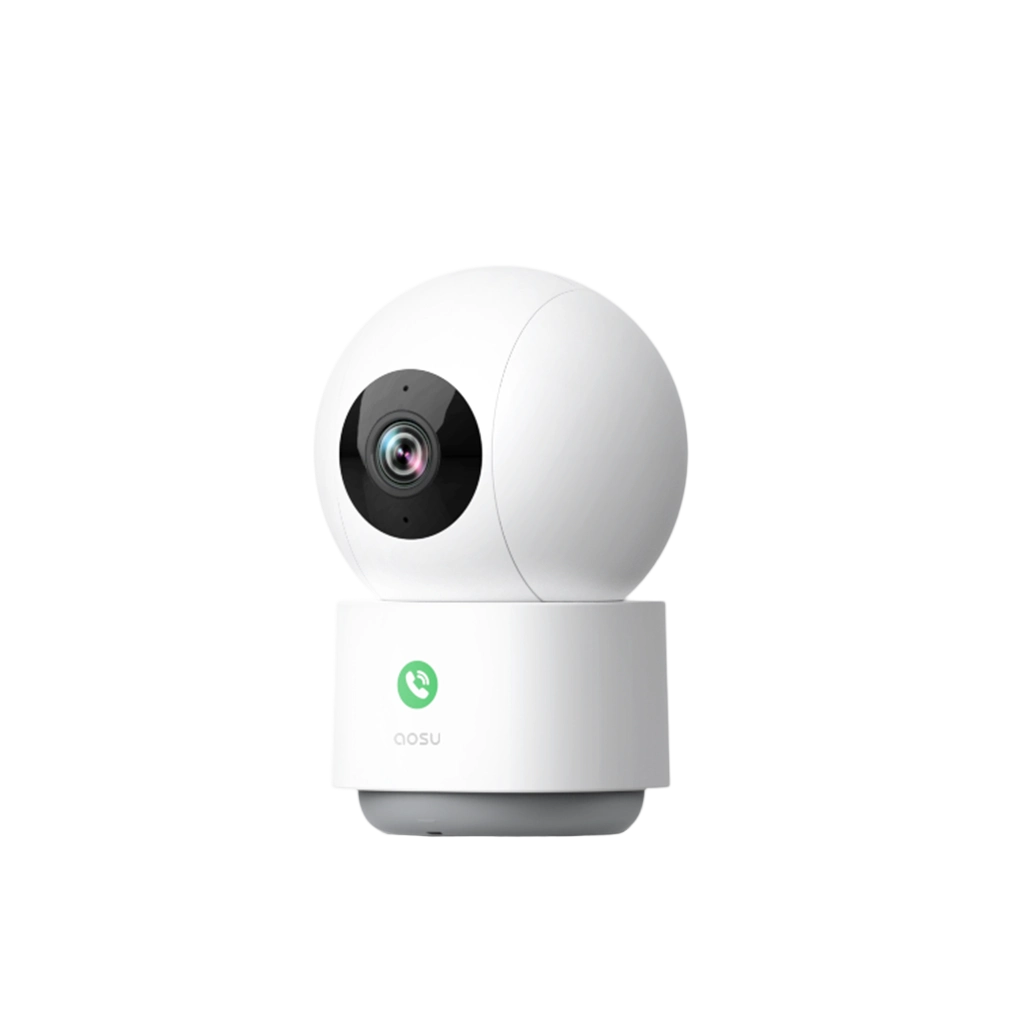

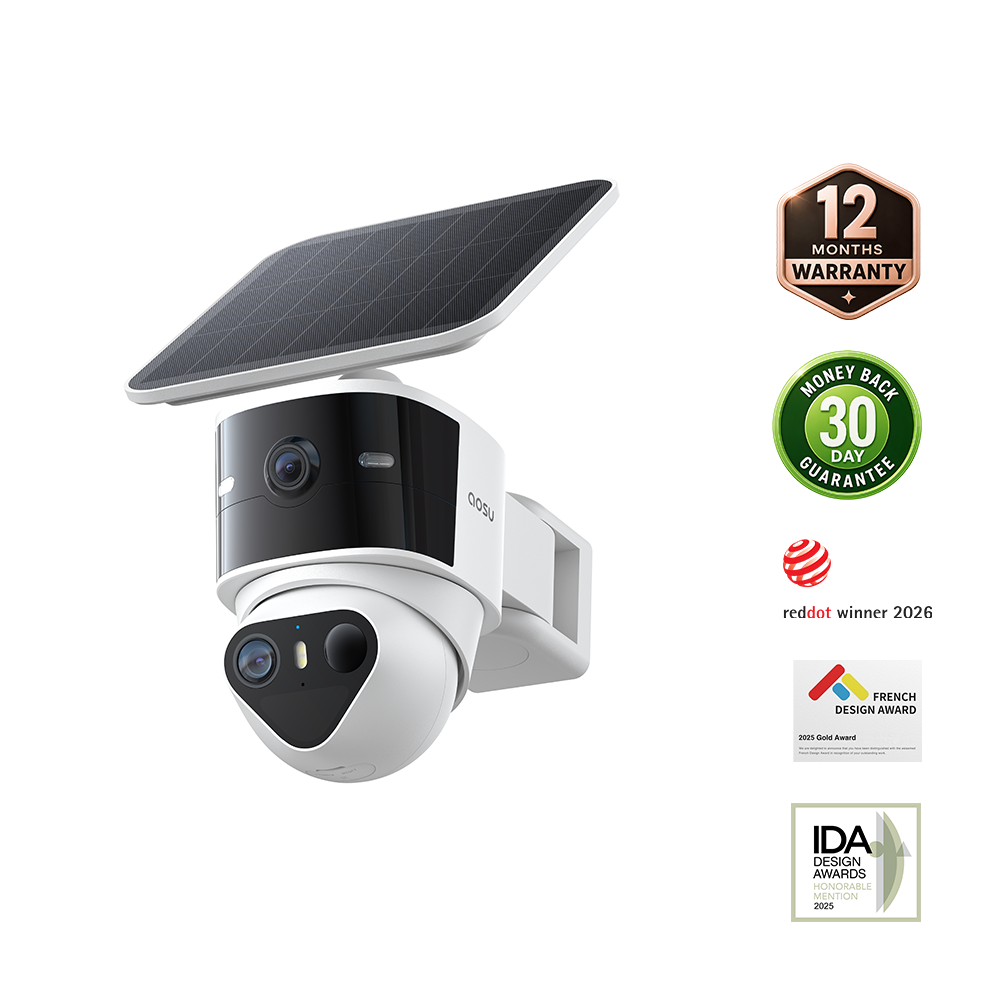

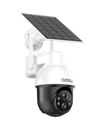
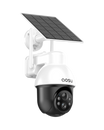
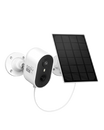
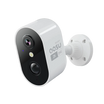



Think of a security camera as a notebook. Motion recording writes down detected activities. A 24/7 recording camera keeps writing throughout its recording schedule while operating. Always Ready Vision is a readiness feature, not a saved video archive. All Day Snapshots adds periodic still images between motion-event recordings.
These approaches sound similar in product descriptions, but they leave very different histories behind. This guide explains what a continuous recording security camera actually saves, where gaps can appear, and which approach fits the question you want your footage to answer.
Recording and Readiness: What You Can Play Back
Compare these approaches by the history they leave behind. Continuous video, event clips and snapshots describe saved material. A readiness feature describes how the camera prepares to record; it does not necessarily add anything you can replay.
Check the exact model, recording schedule, power requirements and storage destination before choosing a setup.
| Recording or readiness approach | What happens | What is saved | Best suited to | Main limitation |
|---|---|---|---|---|
| Motion-triggered event recording | The camera detects supported activity and starts an event clip | Individual video clips | Routine alerts and efficient recording | There may be no saved footage between events |
| 24/7 continuous recording | The camera records throughout the full schedule | Video throughout the recording schedule while the system is operating | Reconstructing activity before, during, and after an event | Higher power and storage demand |
| Always Ready Vision on SolarCam T2 | The official T2 overview presents a readiness feature intended to help event capture begin sooner | Event clips, not a playable readiness archive; confirm documented behavior for the exact model and firmware | Considering event readiness on SolarCam T2 | It does not create a playable 24/7 video history; no measured delay is presented here |
| All Day Snapshots on SolarCam T2 | The camera saves one still image every five minutes | A sequence of periodic still images | Reviewing broad changes across the day | It cannot show every second of movement |
 Illustrative comparison of saved history and event readiness. A readiness view is not a playable video archive. Confirm exact recording behavior for the selected model and settings.
What Is Motion-Triggered Event Recording?
Motion-triggered recording saves a clip after the camera detects activity it is configured to recognize. That might be general motion, a person, a vehicle, an animal, or another supported event, depending on the camera.
This approach can work well when your main goal is to see a visitor arrive, check a delivery, or review movement around a gate. Because the camera does not need to save ordinary quiet periods, event recording can reduce power and storage use compared with recording regular video all day.
The tradeoff is that the saved timeline may contain gaps. Some cameras preserve a short period before detection, while others begin after the trigger. Clip length, recording intervals, activity zones, sensitivity, and subject movement can all affect what appears in the final event history.
An alert and a recording are also different things. Muting a phone notification may not stop the camera from saving an event, and enabling more notifications does not necessarily create more complete footage. Check the recording settings separately from the alert settings.
Related links:
· Learn why continuous recording is difficult for battery cameras
What Is 24/7 Continuous Video Recording?
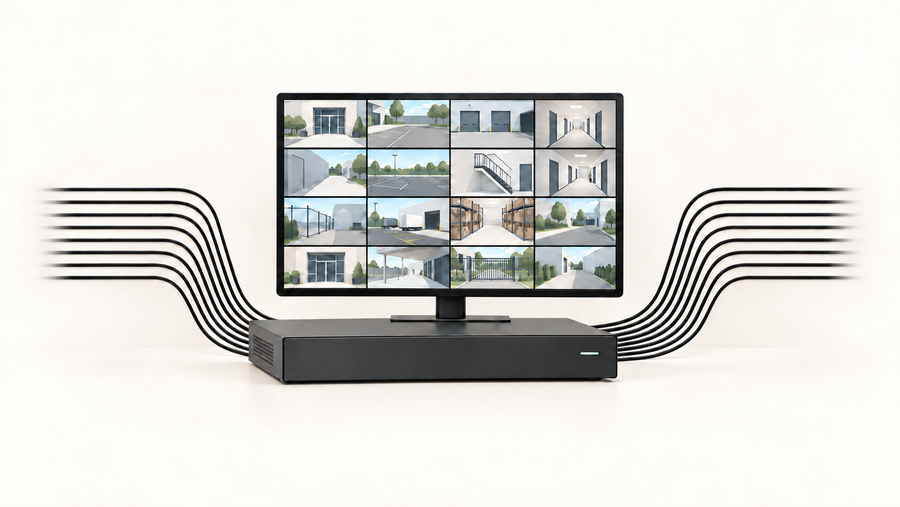
A continuous recording security camera saves video throughout its active recording schedule, including periods when no motion event is detected. When that schedule covers the full day and night, it is 24/7 continuous recording.
The advantage is context. Instead of jumping from one detected event to the next, you can review what happened between them: when an object first appeared, how long someone remained nearby, or whether an area really stayed quiet.
Continuous recording does not mean the footage is kept forever. Storage normally has a retention limit, and many systems remove or overwrite older video on a rolling basis. The available history depends on recording quality, bitrate, storage capacity, camera count, and the system's retention rules.
It also does not necessarily mean continuous cloud uploading. A compatible camera may record to a memory card, hub, DVR, or NVR, while another sends its history to the cloud. The recording mode and the storage destination are separate choices.
Because the camera must keep capturing, processing, and saving video, continuous recording generally requires more sustained power and storage than event clips. Many purpose-built 24/7 systems use plug-in, hardwired, or Power over Ethernet power, but you should verify the exact camera rather than assuming that every wired model records continuously.
Related links:
· Compare local and cloud security camera storage
What Is Always Ready Vision on SolarCam T2?
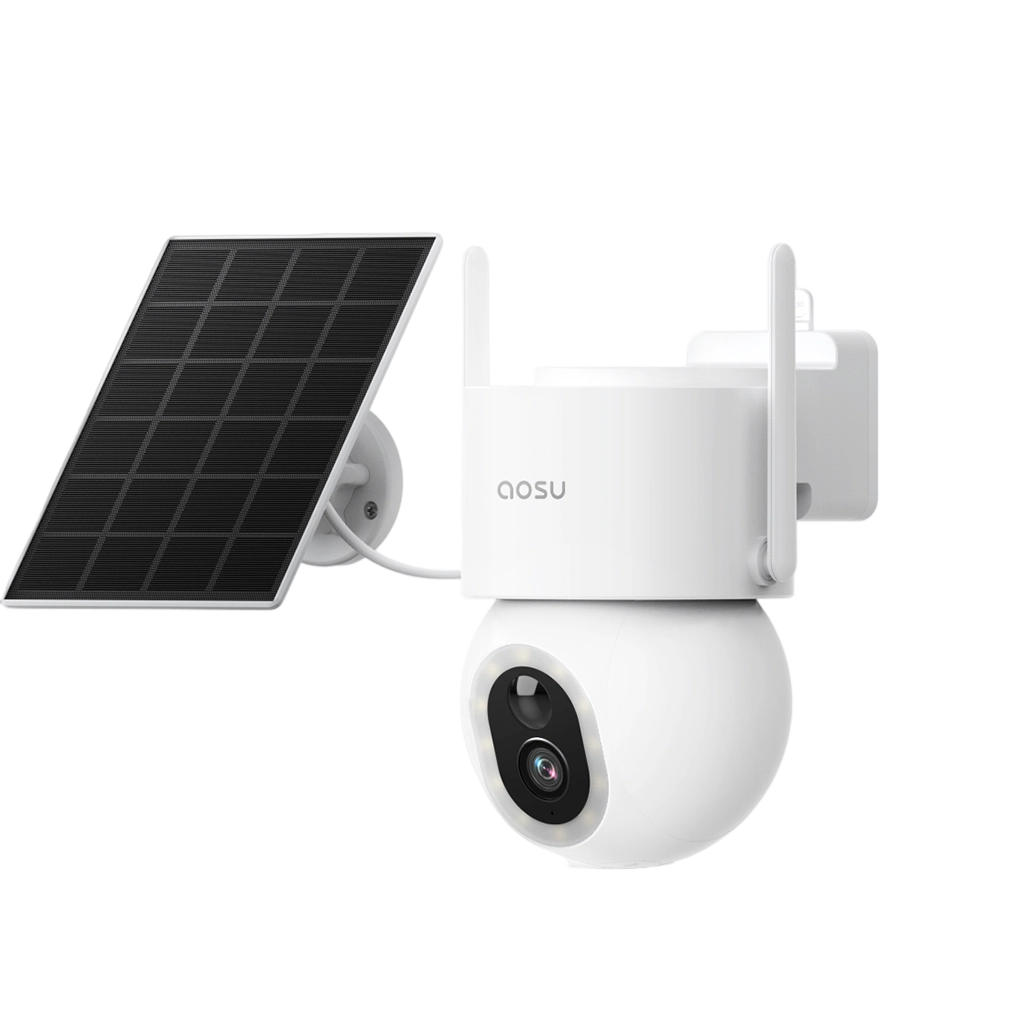
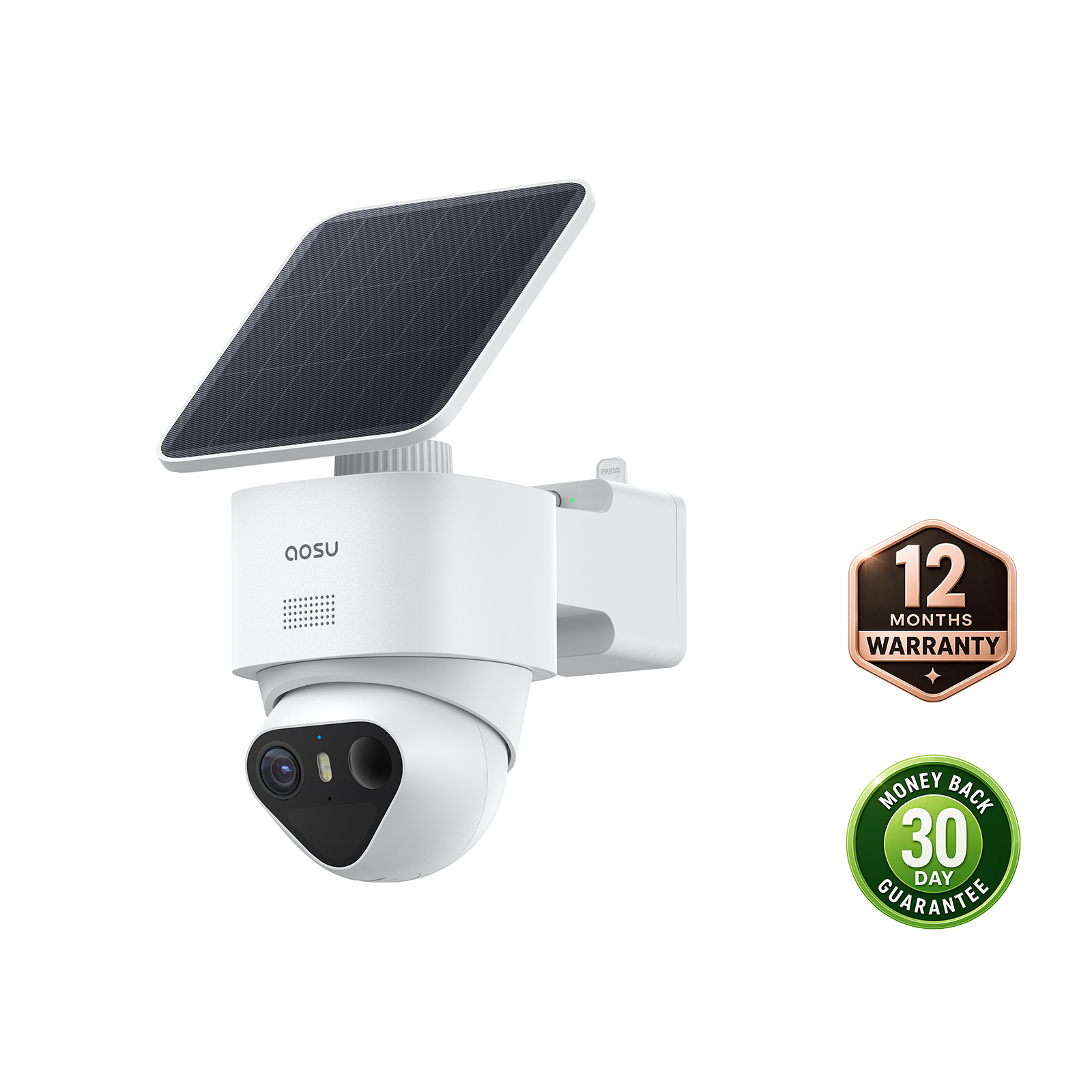
Always Ready Vision is aosu’s readiness feature for SolarCam T2. The official T2 overview presents it as a way to help the camera begin event capture sooner.
A readiness stream should not be confused with saved pre-event video. To establish what is available for playback, check the recording behavior documented for the exact model and firmware.
This article does not present a measured wake-up delay or a guarantee that the first moment of every activity will be recorded. Those claims require a repeatable test using the original saved clips.
Related links:
· See the broader SolarCam T2 feature overview
Where Do All Day Snapshots Fit?
SolarCam T2’s All Day Snapshots saves an image every five minutes, according to the official T2 feature overview.
This provides sampled views between event clips. It cannot establish everything that happened between images or replace continuous video.
For examples and day-review demonstrations, see how All Day Snapshots works.
Example All Day Snapshots sequence spanning night to day. Playback is accelerated 5×, and motion-event clips have been removed for clarity. Resolution has been lowered to improve page loading time.
Verify the Recording History Before Relying on It
Run a controlled walk-through at the entrance or area that matters. Compare what happened with what the camera actually saved.
- Record the camera model, firmware, app version, power setup and recording settings.
- Use a separate reference recording to establish when the subject entered the scene.
- Download the saved camera clip and identify its first visible moment.
- Repeat under daylight and nighttime conditions, including more than one approach direction.
- Check the timeline between events and confirm whether it contains video, snapshots or gaps.
Measure recording delay separately from notification delivery. A fast phone alert does not establish that the saved clip includes the beginning of the activity.
Which Recording Mode Fits What You Need?
Start with the question you expect to ask after something happens. The best mode is the one that leaves enough evidence to answer that question without creating power, storage, or installation demands you do not need.
| If you need to… | Start by looking for… | Why |
|---|---|---|
| Review ordinary visitors, deliveries, or motion alerts | Motion-triggered event recording | It saves detected activity without storing every quiet minute |
| Reconstruct every part of a timeline | True 24/7 continuous video | It preserves footage between detected events while the system is operating |
| Assess event readiness on SolarCam T2 | Always Ready Vision and a controlled recording test | The official overview presents earlier capture as its purpose; compare original saved clips rather than assuming a measured improvement |
| See when broad changes occurred across a day | All Day Snapshots | Periodic stills add context between recorded motion events |
| Cover a critical entrance and several lower-risk areas | A mixed system | You can use continuous recording where gaps matter most and event-based cameras elsewhere |
What to Check Before Buying a Continuous Recording Security Camera
Marketing terms are not always precise. Before relying on a camera for a complete timeline, check the following details for the exact model, power setup, storage method, and subscription tier you plan to use.
1. What is actually saved?: Confirm whether the history contains regular video, event clips, lower-frame-rate video, periodic still images, or only a live view.
2. When does it record?: Check whether continuous recording covers the whole day, follows a schedule, or changes modes when the battery falls or the camera loses power.
3. Where is footage stored?: Confirm the supported memory card, hub, recorder, or cloud plan and how long footage remains available before older files are removed or overwritten.
4. What happens during an interruption?: Power loss, a full storage device, weak Wi-Fi, an offline recorder, or an expired cloud plan may affect recording differently. Check the camera's fallback behavior.
5. Can you find important moments quickly?: Continuous history is most useful when the app or recorder provides usable event markers, filters, or timeline navigation.
Common Recording-Mode Misunderstandings
A live view is not automatically a recording. It only becomes video history if the camera saves it to a supported destination.
A camera described as always active may still save only events, low-frame-rate footage, or periodic images. Ask what is stored rather than relying on the phrase “always on.”
Adding a solar panel or memory card does not create a recording mode the camera does not support. Power and storage make recording possible, but the camera's hardware and software still determine which modes are available.
Finally, 24/7 recording does not guarantee a gap-free archive forever. Power interruptions, connection problems, storage limits, settings, and retention rules can still leave missing periods.
To Wrap Up
Choose around the history you need to review: detected activities, video between events or occasional views of gradual changes. Then verify that the selected camera, power setup and storage arrangement preserve that history.
If SolarCam T2 fits your event-recording needs, review the T2 specifications and current availability. Confirm the exact configuration and supported features before ordering.
FAQs
Is continuous recording the same as 24/7 recording?
Continuous recording means a camera saves video throughout its active recording schedule. It becomes 24/7 recording only when that schedule covers the full day and night. A camera can also record continuously during limited hours.
Does SolarCam T2 record continuous 24/7 video?
Do not treat its readiness feature or five-minute snapshots as conventional continuous video. Check the exact configuration’s documented recording modes and inspect the saved timeline to confirm whether it contains event clips, sampled images or video between events.
What is the difference between Always Ready Vision and All Day Snapshots?
Always Ready Vision is presented as an event-readiness feature, not saved pre-event video. All Day Snapshots saves an image every five minutes for sampled views across the day. Verify playback behavior for the exact model and firmware; no measured wake-up improvement is established here.
Does a continuous recording security camera need the internet?
Not always. A compatible camera may save continuous video to a memory card, hub, DVR, or NVR without continuously uploading it to the internet. Cloud storage, remote playback, and phone alerts normally require an internet connection, but exact offline behavior varies by system.