


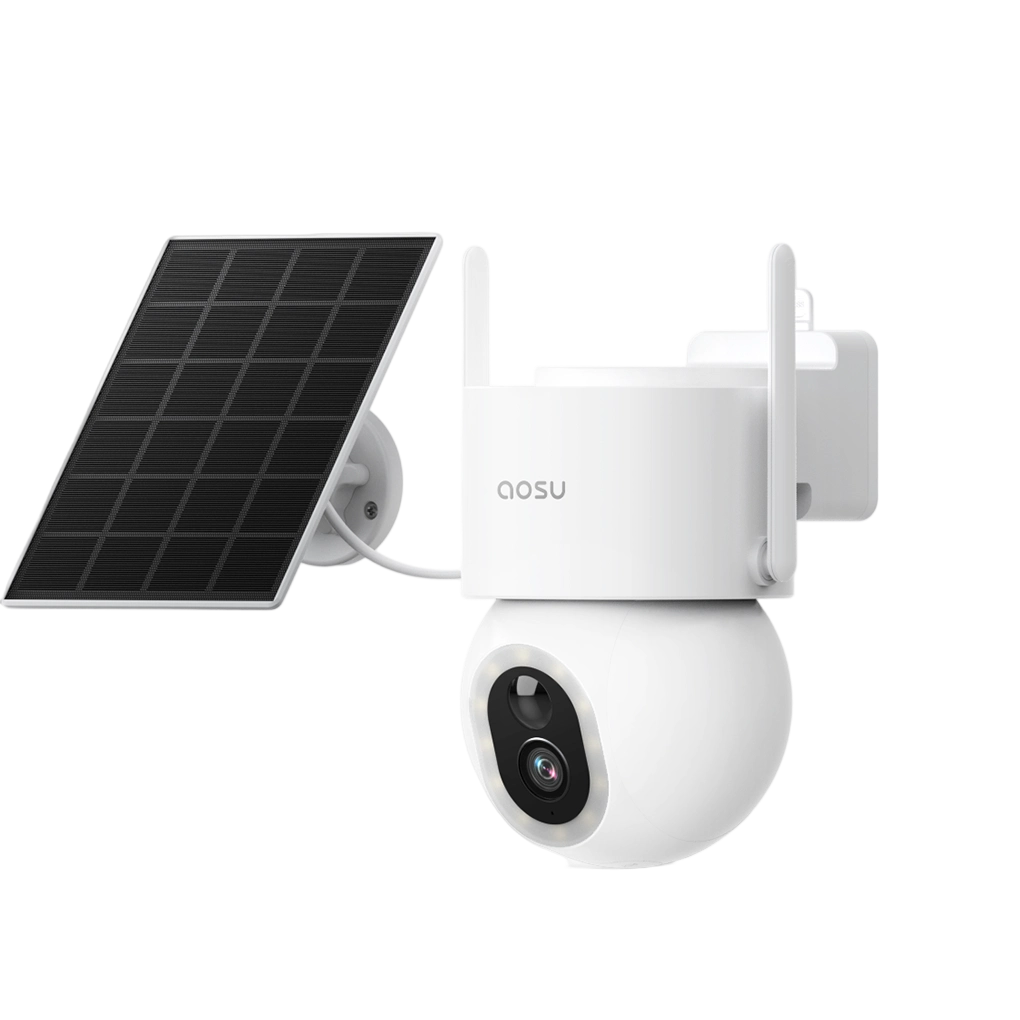
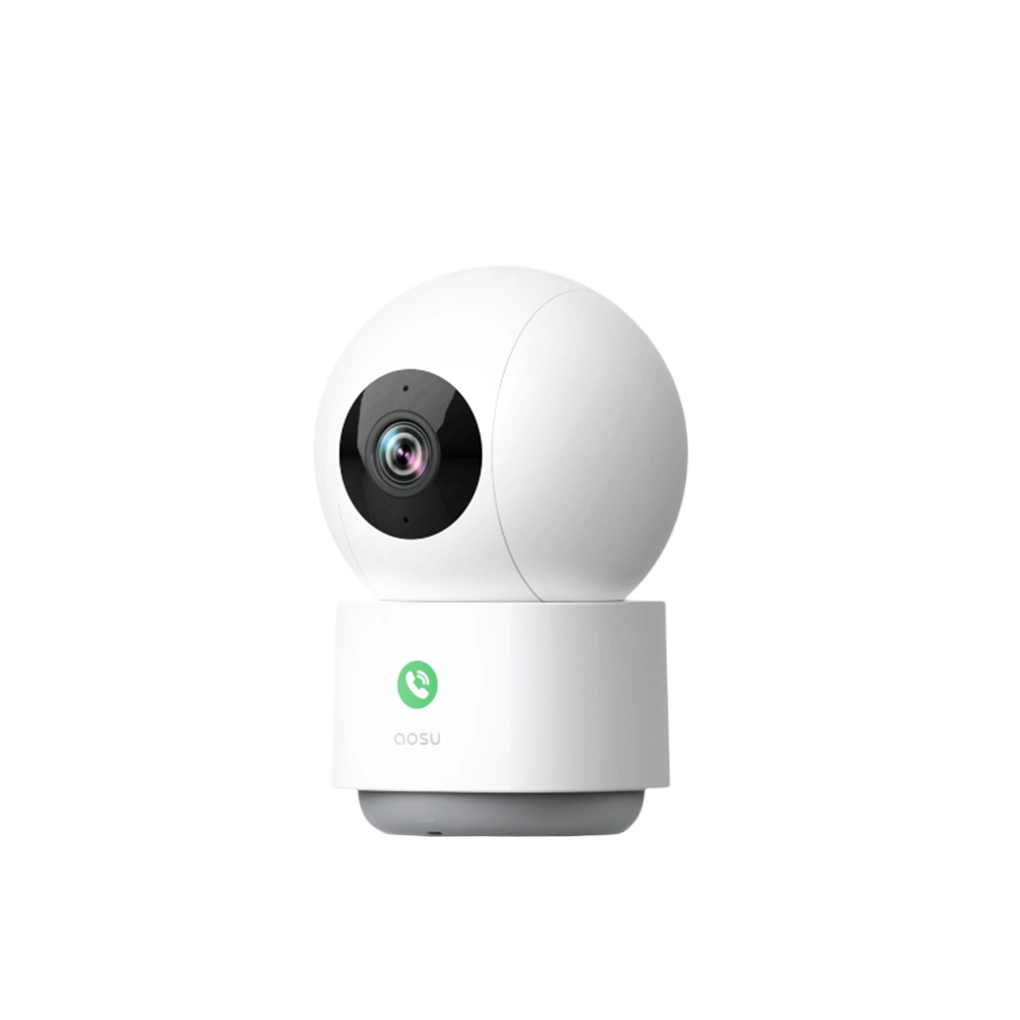

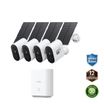
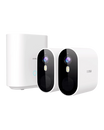
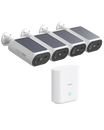
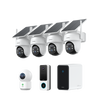
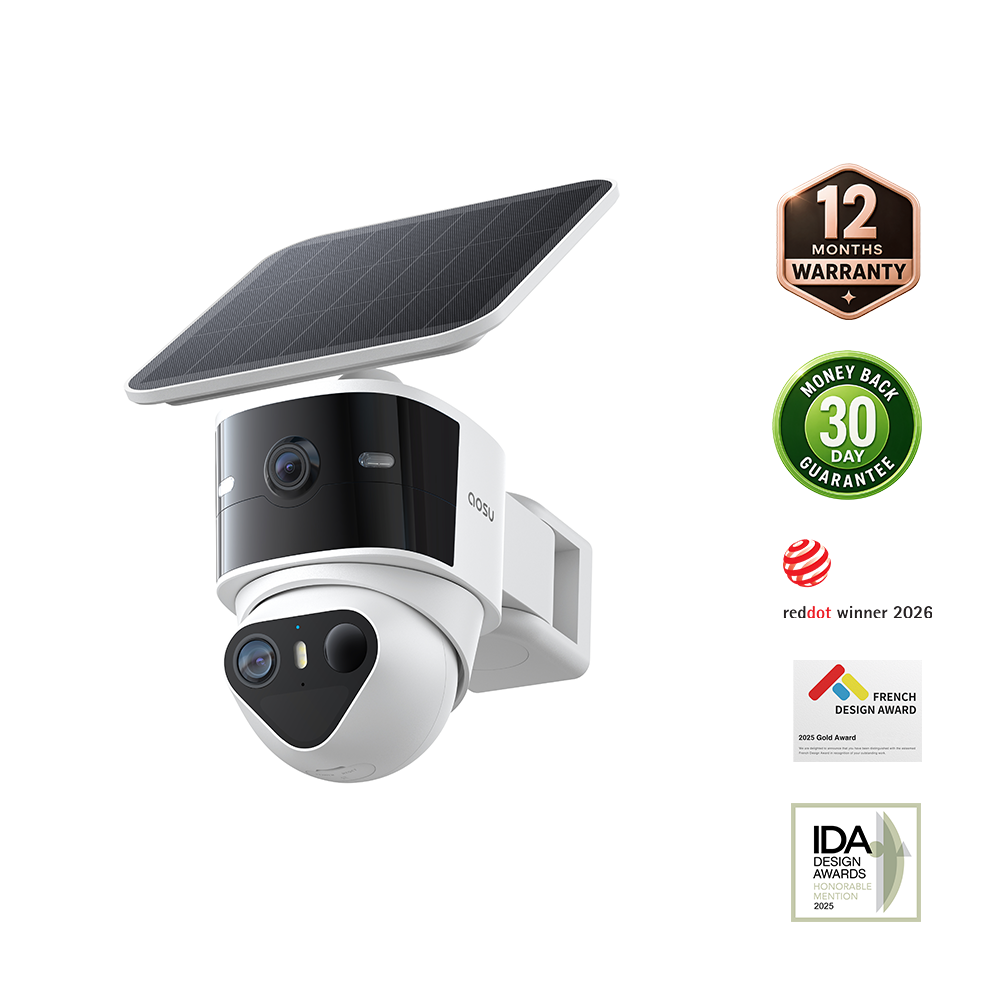



To tell if a security camera is on, open the app, hub, DVR, or NVR you are authorized to use and confirm that the live image is current. To confirm that it is recording, create a simple test event and play the new clip or timeline segment.
A status light, infrared glow, or moving lens can show that part of the camera is active, but none proves that usable footage is being saved. A camera can have power without a connection, show live video without recording, or continue recording locally while remote access is offline.
The checks below work for CCTV systems, app-based security cameras, video doorbells, home hubs, NVRs, DVRs, and cameras with a microSD card. Use them for equipment you own, manage, or have permission to inspect.
How to Tell If a Security Camera Is On: The Short Answer
Open live view and confirm that the image changes when someone moves through the frame. That shows the camera is powered and connected at that moment.
Next, walk through the normal detection area, wait for the event to finish, and open playback. Find the new footage under the correct camera and check its timestamp. A clip you can play is the clearest confirmation that recording works.
If live view works but no new recording appears, check the recording mode, schedule, detection settings, and storage status.

The strongest check is not a single light. Confirm power, connection, and a recent saved event.
Before You Start: Know What You Are Checking
"On" can refer to four separate states. Check each one so a working live view is not mistaken for a working recording system.
- The camera has electricity or battery charge
- Status lights, app device info, or power supply may confirm this
- A powered camera is not always online or recording
- The camera can talk to the app, hub, Wi-Fi router, NVR, or recorder
- Live view is usually the easiest confirmation
- A connected camera may still have recording turned off
- The system is saving footage, clips, or event history
- Playback timeline, SD card files, NVR footage, or cloud clips can confirm it
- Recording mode may be motion-based rather than continuous
- Motion detection, zones, schedules, and alerts are active
- A test walk-through can confirm whether the camera notices activity
- Low sensitivity or disabled zones can make a working camera miss events
6 Ways to Tell If a Security Camera Is On
Combine the checks. A light can indicate power, a current live view confirms connection, and a new playable clip confirms recording.
Check the status light
Many cameras use a small LED for power, connection, charging, pairing, or recording status. Check the manual for your model because colors and blink patterns are not universal, and some cameras let you turn the light off.
Open live view in the app or recorder
Load live video and confirm that the scene changes when someone moves through the frame. That shows the camera is powered and connected at that moment. If live view fails, check power, Wi-Fi, Ethernet, the hub, or the recorder connection.
Check recent playback or event history
Open the timeline, event list, microSD playback, home hub, NVR, DVR, or cloud library. Play a recent item and verify its camera name and timestamp.
Trigger a test motion event
Walk through the normal detection area, wait for the event to finish, and check for a new clip or timeline segment. This tests detection and recording together.
Check the network or hub status
For Wi-Fi cameras, check the device status in the app or router. For wired CCTV, check the NVR channel, PoE switch, Ethernet cable, or home hub connection.
Look for night vision or IR behavior in a dark area
Some cameras show faint infrared LEDs or switch to night mode in darkness. This indicates that part of the hardware is active, but it does not confirm that footage is being stored.

Why "On" Does Not Always Mean Recording
A camera can be powered and online without saving every moment. Many home security cameras record only when motion is detected. Some record on a schedule. Others record continuously to an NVR, home hub, microSD card, or cloud service.
Check the recording mode, schedule, detection settings, storage status, and any privacy or sleep mode. Live streaming and recording are separate functions: a current image shows that the camera is reachable, while playback shows that stored footage exists.
If you recently changed storage, a subscription, Wi-Fi, or a recording schedule, run the test event again afterward.
Related links:
• Learn how security cameras store footage
What to Check If the Camera Looks Off or Offline
If the camera does not show live view or recent recordings, start with the simplest causes before replacing anything.
An internet outage can block remote live view and cloud uploads while a supported camera continues recording to a microSD card, home hub, DVR, or NVR. Check the model documentation and the storage path you configured; locally recorded footage may become available again after the camera reconnects.
1. Power source: Check the outlet, power adapter, PoE cable, battery level, solar panel connection, or charging cable.
2. Internet or local network: Restart the router if other devices are also having issues. For wired systems, check the Ethernet cable, PoE switch, and NVR channel.
3. App, hub, or recorder status: Confirm whether the device appears online in the app, home hub, NVR, or camera management screen.
4. Storage problem: Check whether the SD card, home hub, NVR drive, or cloud storage is full, disconnected, corrupted, expired, or disabled.
5. Privacy, sleep, or schedule settings: Some cameras can be paused, put into privacy mode, muted by schedule, or set to record only during certain hours.
Special Notes for Battery and Solar Cameras
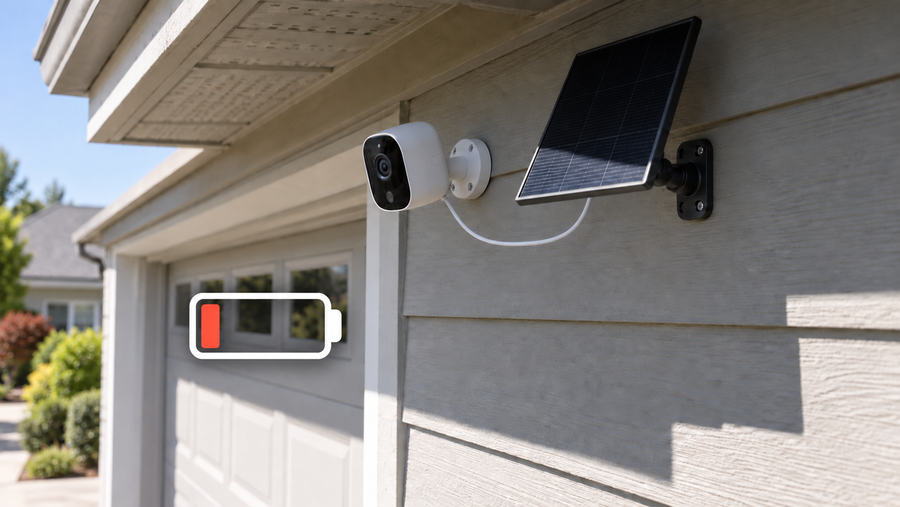
Battery cameras can behave differently from wired CCTV cameras. Many battery models remain in a low-power state until motion wakes them, so an idle camera can still be operating normally.
Check the battery level, solar charging status, motion sensitivity, activity zones, clip length, event interval, and schedule. Then walk through the detection area and confirm that a new event appears in playback.
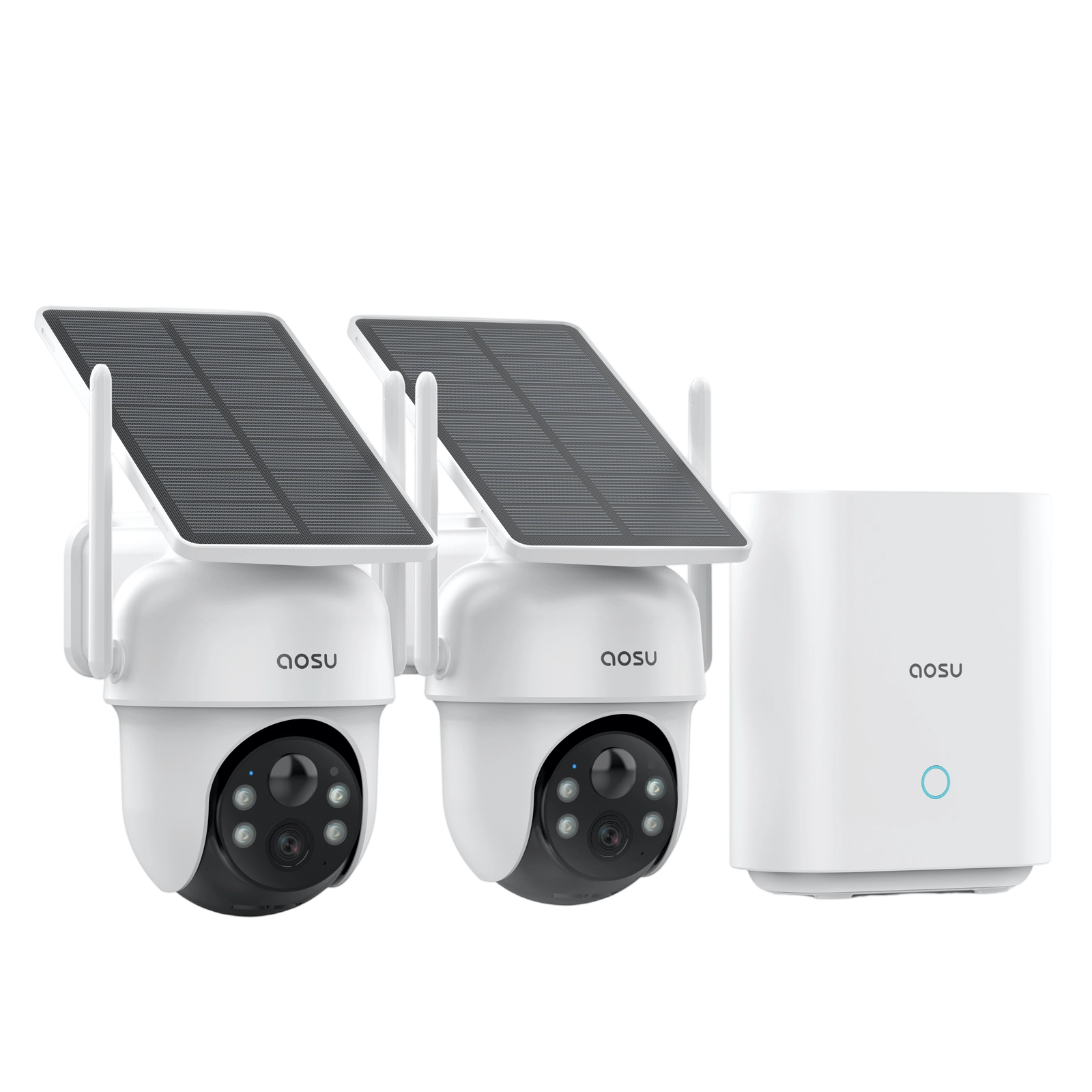
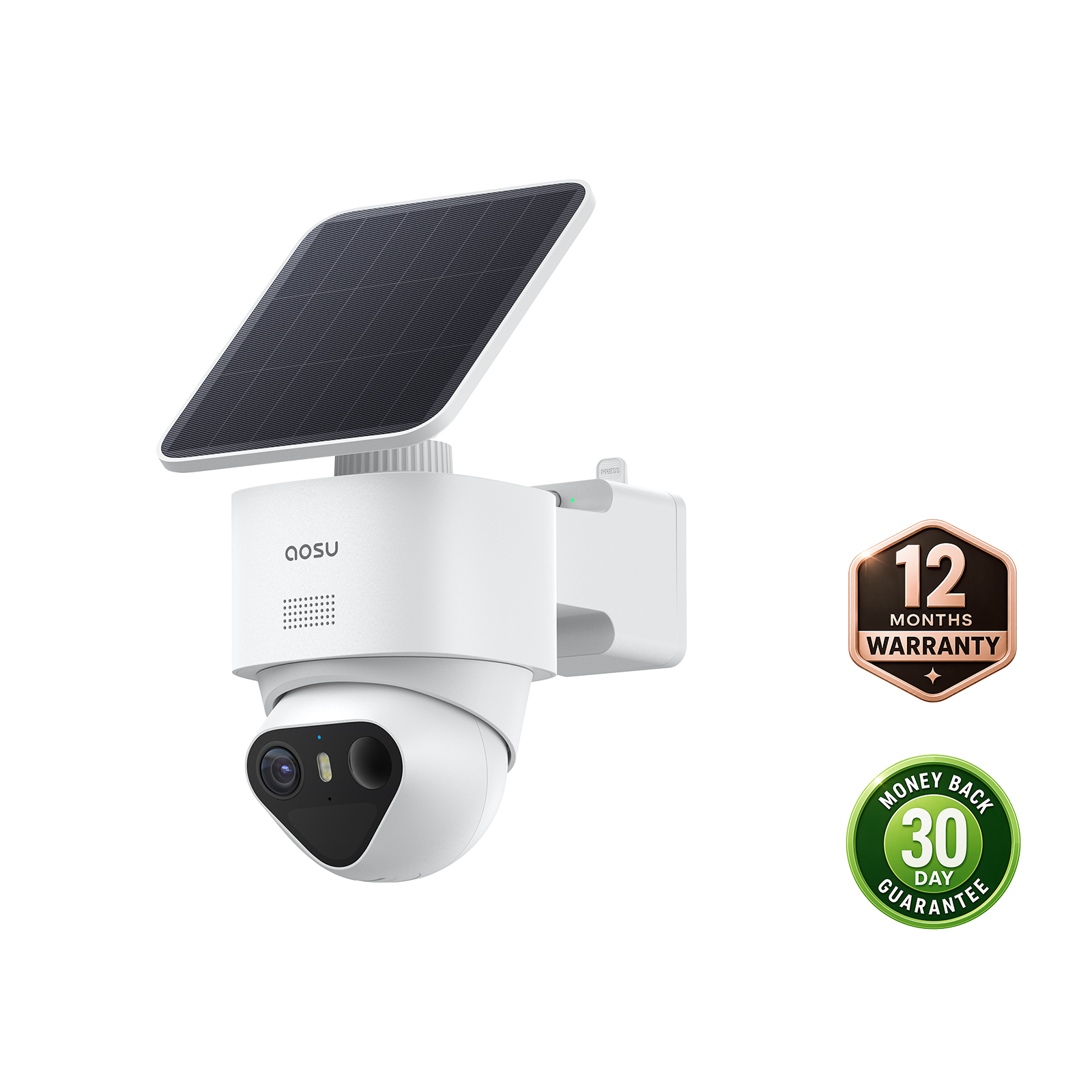
For aosu cameras, check live view, device status, battery level, and the Events history. Use the device page and model manual for the exact status-light and recording options.
Related links:
How to optimize security camera battery life
What If It Is Not Your Camera?
Visible lights, lens movement, or infrared emitters can show that some hardware is active, but they cannot tell you whether someone else's camera is saving footage. Do not touch, block, unplug, damage, or try to access a camera you do not own or manage.
For a workplace, store, apartment building, or managed property, ask the responsible manager about its camera policy. For a neighbor-camera concern, document the placement from your own property and focus on the privacy issue rather than trying to infer recording status from a light.
Related links:
• Read the guide to neighbor security camera privacy
Common Mistakes to Avoid
1. Trusting the status light alone: A light is only a clue. Confirm with live view, playback, or event history.
2. Assuming live view means footage is saved: Live view confirms connection, but recording can still be disabled or limited by storage, schedule, or plan settings.
3. Forgetting motion zones and schedules: A camera may miss activity if the motion zone excludes the area you are testing or if recording is scheduled for another time.
4. Ignoring storage warnings: A full, failed, unformatted, or missing storage device can stop recordings even when the camera itself works.
5. Testing only once: If the issue happens at night, during bad Wi-Fi periods, or after battery drain, test under those conditions too.
To Wrap Up
To tell if a security camera is on, confirm a current live view through the authorized app, hub, DVR, or NVR. To tell if it is recording, create a test event and play the new footage from the correct local or cloud storage source.
If the test fails, the point where it stops tells you what to check next: power, connection, detection settings, storage, or the recording schedule.
FAQs
How can you tell if a security camera is on?
Open the authorized app, DVR, NVR, or home hub and confirm that the selected camera shows a current, changing live image. A status light can support the check, but its meaning depends on the model and the light may be disabled.
Does a red light mean a security camera is recording?
Not by itself. A red light can indicate night vision, power, charging, recording, or an error depending on the camera. Check the model manual, then confirm recording by playing a recent saved clip.
Can a security camera be on without recording?
Yes. It can have power and show live video while recording is disabled, outside its schedule, blocked by a storage problem, or waiting for a motion event.
How can I test whether my security camera is recording?
Walk through the normal detection area, wait for the event to finish, and open playback. Confirm that the new footage has the correct camera name, timestamp, and view of your test.
Can a security camera record while it is offline?
Some cameras continue recording to a microSD card, home hub, DVR, or NVR during an internet outage. Cloud recording and remote live view usually require a connection. Check the model's offline-recording behavior and verify local playback after it reconnects.